
ONITOON CW932
ONITOON Ergonomic Vertical Mouse User Manual
Model: CW932
Introduction
Thank you for choosing the ONITOON Ergonomic Vertical Mouse. This advanced wireless optical mouse is designed to provide superior comfort and efficiency, reducing wrist strain during prolonged use. Featuring dual-mode connectivity, adjustable DPI, and multiple function buttons, it is an ideal companion for your PC, laptop, or MacBook. Please read this manual carefully to ensure proper use and optimal performance.
What's in the Box
- 1 x Ergonomic Vertical Mouse
- 1 x Type-C Charging Cable
- 1 x User Manual
Product Overview
Familiarize yourself with the components of your ONITOON Ergonomic Vertical Mouse:

Image: Detailed diagram showing the various buttons and features of the ONITOON Ergonomic Vertical Mouse.
- Switch Function Gear Sensing Knob: Used for window switching, web page zoom, and page scrolling.
- Page Back Button: Navigates back in web browsers or file explorers.
- Page Forward Button: Navigates forward in web browsers or file explorers.
- Mode Switch Button: Toggles between 2.4GHz and Bluetooth modes (BT1, BT2).
- DPI Switch Button: Adjusts the mouse sensitivity (DPI).
- Scroll Wheel: For vertical scrolling.
- Left Button: Standard left-click function.
- Right Button: Standard right-click function.
- USB-C Fast Recharging Port: For charging the mouse.
Setup
Initial Preparation
Before first use, please ensure you peel off the protective film from the non-slip base of the mouse. This allows the mouse to glide smoothly across surfaces.

Image: The underside of the mouse, highlighting the non-slip pads and the USB receiver storage slot. Remember to remove the protective film from the non-slip pads for optimal gliding.
Charging the Mouse
Connect the included Type-C cable to the USB-C port on the mouse and the other end to a USB power source (e.g., computer USB port, wall adapter). The mouse features a rechargeable battery. A full charge provides extended usage.
Operating Instructions
Connectivity Modes (Connect up to 3 Devices)
The ONITOON Ergonomic Vertical Mouse supports dual-mode connectivity: 2.4GHz wireless via USB receiver and Bluetooth 5.0 (BT1 and BT2). You can connect to up to three devices simultaneously and switch between them easily.

Image: Illustration demonstrating the mouse's ability to connect to three different devices (a desktop monitor, a Windows laptop, and a MacBook) using 2.4GHz and two Bluetooth channels.
2.4GHz Wireless Connection
- Locate the USB receiver stored in the bottom of the mouse.
- Plug the USB receiver into an available USB port on your computer.
- Turn on the mouse using the ON/OFF switch on the bottom.
- The mouse will automatically connect. The screen display on the mouse will show '2.4G'.
Bluetooth Connection (BT1 / BT2)
- Turn on the mouse using the ON/OFF switch.
- Press the Mode Switch Button (4) to cycle through connection modes until 'BT1' or 'BT2' is displayed on the screen.
- For first-time pairing, long press the Mode Switch Button for 3-5 seconds until the blue light flashes quickly, indicating pairing mode.
- On your device (PC, laptop, MacBook), go to Bluetooth settings and search for 'ONITOON Mouse' or 'CW932'.
- Select the mouse to pair. Once connected, the blue light will stop flashing, and the screen will show 'BT1' or 'BT2'.
- Repeat the process for the second Bluetooth channel (BT2) to connect to a third device.
Adjustable DPI Settings
The mouse features 4 adjustable DPI settings (800/1200/1600/2400) for precise optical tracking. Adjust the DPI level to suit your task and preference.

Image: Visual representation of the four adjustable DPI settings (800, 1200, 1600, 2400) available on the mouse, allowing users to customize tracking precision.
To adjust DPI, press the DPI Switch Button (5) located near the thumb rest. Each press will cycle through the available DPI settings, and the current DPI will be displayed on the mouse screen.
Multi-Function Knob
The unique gear sensing knob (1) provides enhanced functionality for improved office efficiency.
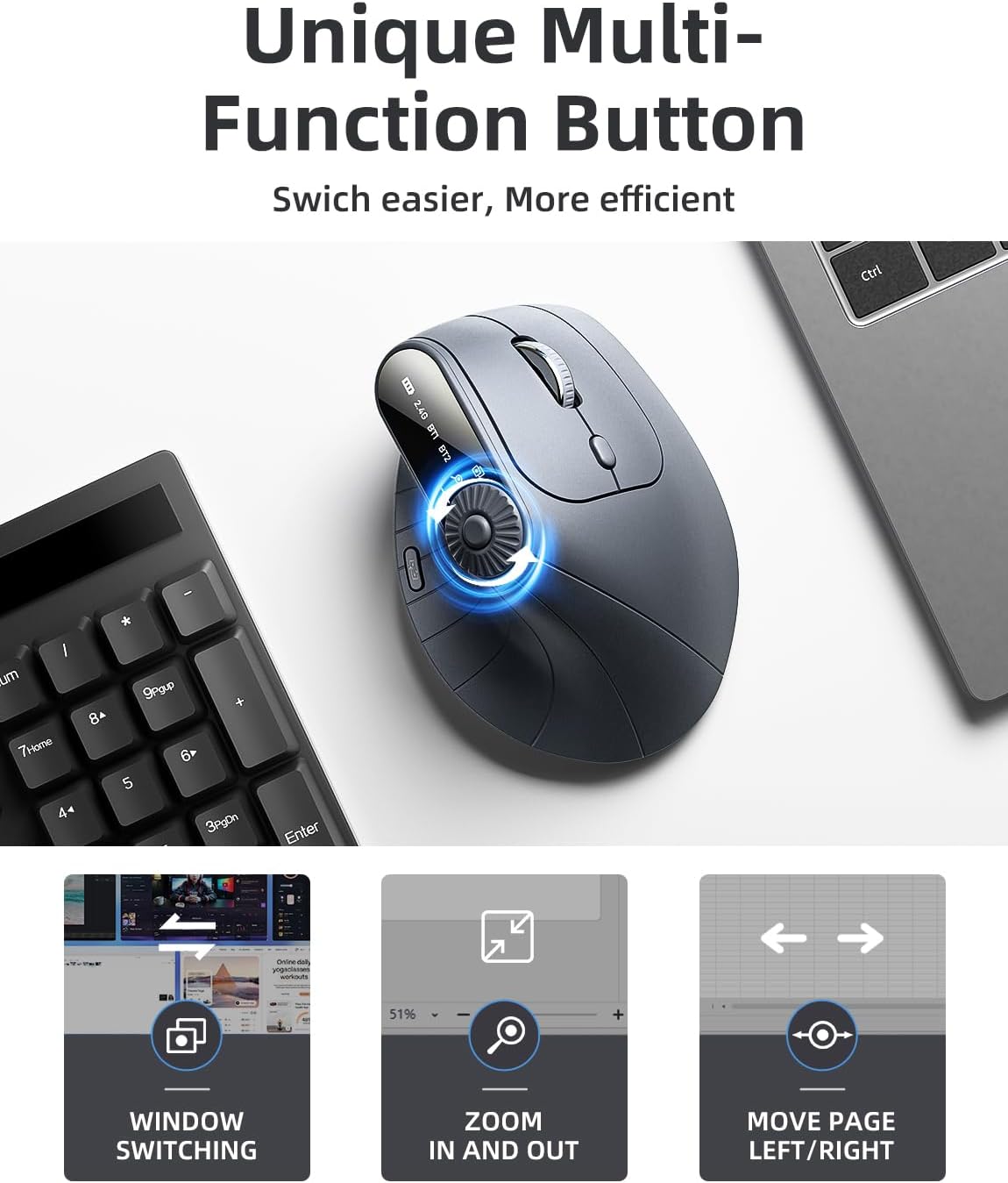
Image: Illustration detailing the functions of the multi-function knob, including window switching, zooming in and out, and horizontal page scrolling.
- Window Switching: Rotate the knob to quickly switch between open application windows.
- Web Page Zoom: Use the knob to zoom in and out of web pages or documents.
- Page Scrolling (Left/Right): Scroll horizontally on web pages or spreadsheets.
Intelligent Sleep Mode
To conserve power, the mouse will automatically enter sleep mode after 30 minutes of inactivity. To wake the mouse, simply move it or click any button.
Compatibility
The ONITOON Ergonomic Vertical Mouse offers wide compatibility with various operating systems and devices.

Image: Icons representing Windows, Mac, Linux, and Chrome operating systems, signifying the mouse's broad compatibility.
- Operating Systems: Windows, Mac OS, Linux, Chrome OS.
- Devices: Desktops, Laptops, PCs, MacBooks, and other compatible devices.
Maintenance
To ensure the longevity and optimal performance of your mouse, follow these simple maintenance guidelines:
- Cleaning: Use a soft, dry cloth to wipe the surface of the mouse. For stubborn dirt, slightly dampen the cloth with water or a mild, non-abrasive cleaner. Avoid using harsh chemicals or abrasive materials.
- Storage: When not in use for extended periods, store the mouse in a cool, dry place away from direct sunlight and extreme temperatures.
- Battery Care: Recharge the mouse regularly to maintain battery health. Avoid completely draining the battery frequently.
- USB Receiver: When transporting the mouse, store the 2.4GHz USB receiver in its designated slot on the bottom of the mouse to prevent loss.
Troubleshooting
If you encounter any issues with your ONITOON Ergonomic Vertical Mouse, please refer to the following common problems and solutions:
| Problem | Possible Cause | Solution |
|---|---|---|
| Mouse not responding | Low battery; Mouse is off; Incorrect connection mode; USB receiver not plugged in (2.4GHz); Bluetooth not paired. | Charge the mouse; Turn on the mouse; Switch to the correct connection mode (2.4G, BT1, BT2); Ensure USB receiver is securely plugged in; Re-pair Bluetooth connection. |
| Cursor movement is erratic or sluggish | Low battery; Dirty optical sensor; Mouse used on unsuitable surface; Bluetooth range issue. | Charge the mouse; Clean the optical sensor with a soft cloth; Use on a clean, non-reflective mouse pad; Ensure mouse is within effective Bluetooth range (approx. 3 feet for optimal performance). |
| Cannot switch between devices | Incorrect use of Mode Switch Button. | Press the Mode Switch Button (4) briefly to cycle through 2.4G, BT1, and BT2 modes. Ensure devices are properly paired to their respective channels. |
| Interference with other wireless devices (e.g., keyboard) | Wireless signal conflict. | Try moving the mouse or the interfering device further apart. If using 2.4GHz, try a different USB port for the receiver. If using Bluetooth, ensure no other strong wireless signals are nearby. |
| Mouse feels slippery or doesn't glide smoothly | Protective film still on non-slip base; Dirty mouse pad/surface. | Ensure the protective film has been completely removed from the non-slip pads on the bottom of the mouse. Clean your mouse pad or desk surface. |
Specifications
| Feature | Detail |
|---|---|
| Model Number | CW932 |
| Connectivity Technology | Bluetooth 5.0, 2.4GHz Wireless |
| DPI Settings | 800 / 1200 / 1600 / 2400 |
| Buttons | 8 Functional Buttons (including multi-function knob) |
| Movement Detection | Optical |
| Battery Type | 1 Lithium Ion battery (included, rechargeable) |
| Color | Black |
| Ergonomic Design | Vertical, 57° Angle Handshake Position |
Warranty and Support
ONITOON products are designed and manufactured to the highest quality standards. This product comes with a standard manufacturer's warranty. For detailed warranty information, technical support, or customer service inquiries, please refer to the contact information provided on the product packaging or visit the official ONITOON website.
Please retain your proof of purchase for warranty claims.
Ask a question about this manual
Ask about setup, troubleshooting, compatibility, parts, safety, or missing instructions. Manuals+ will review the question and use this page’s manual context to help answer it.