
ATOMSTACK A24 PRO Ultra
ATOMSTACK A24 Pro Ultra Laser Engraving Machine User Manual
Model: A24 PRO Ultra
Brand: ATOMSTACK
1. Introduction and Overview
The ATOMSTACK A24 Pro Ultra is a high-performance 24W optical laser engraving and cutting machine designed for precision work on a wide range of materials. Featuring a unibody frame and a B3 protective enclosure, it offers both powerful capabilities and enhanced safety.
This machine combines four 6W lasers to achieve a total output of 24W, enabling efficient cutting of materials such as 25mm wood and 30mm acrylic in a single pass. Its fine engraving capability, with an ultra-fine laser spot of 0.06 x 0.06 mm, allows for intricate designs on various surfaces including wood, metal, leather, and glass.
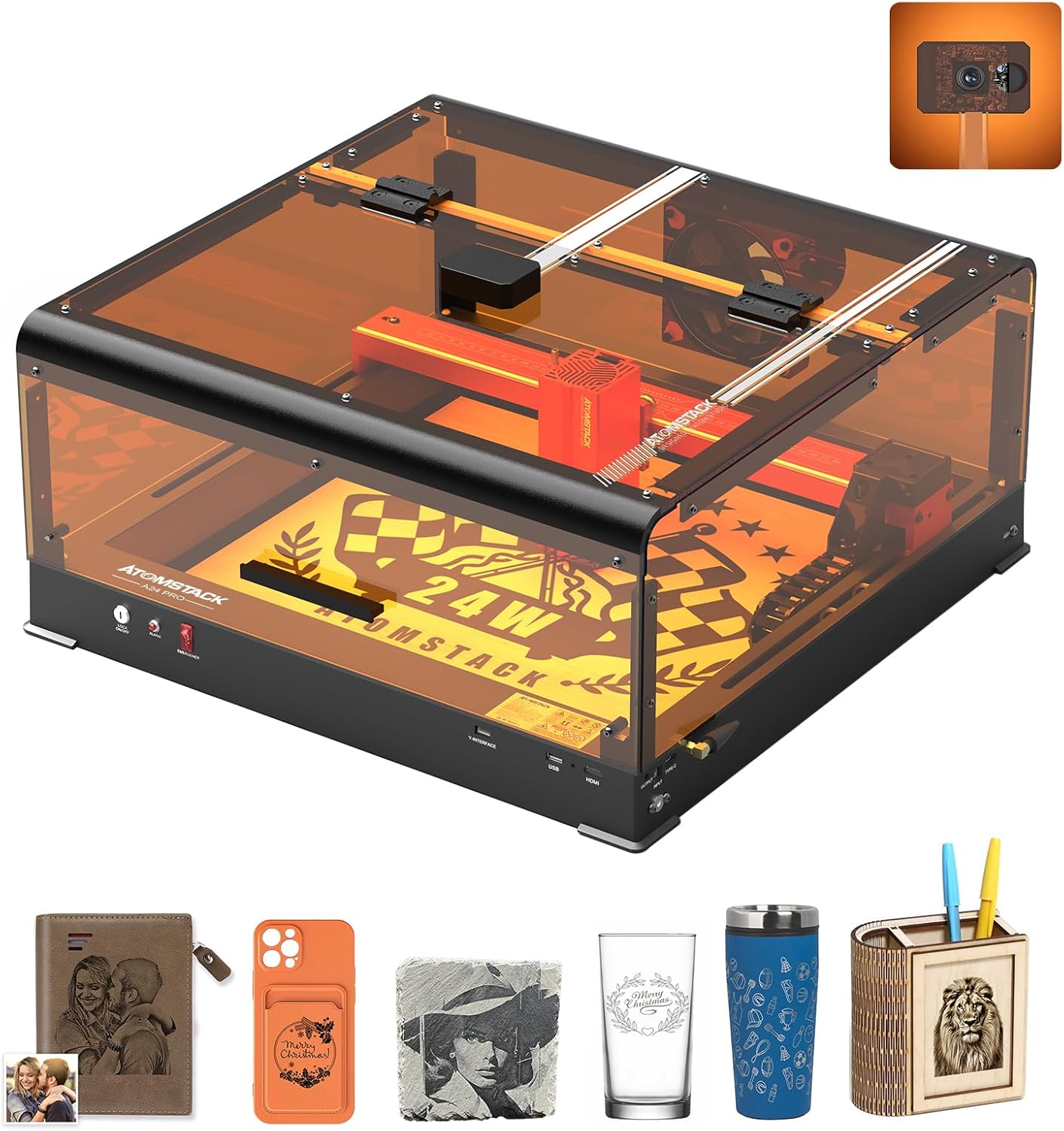
Image: The ATOMSTACK A24 Pro Ultra laser engraving machine, showcasing its compact design and integrated protective enclosure.
2. Safety Information
The ATOMSTACK A24 PRO ULTRA is a Class 1 diode laser engraving machine engineered with user safety as a priority. Adherence to safety guidelines is crucial for safe operation.
- Integrated Safety Features: Equipped with a safety interlock, position movement detection, limit switches, and 2-level protection.
- Tilt Detection: An integrated gyroscope triggers an alarm and stops operation if the machine tilts more than 15-20 degrees, preventing accidental laser exposure.
- Emergency Stop Button: A prominent emergency stop button allows for immediate shutdown in unexpected situations.
- B3 Protective Enclosure: The included B3 enclosure provides protection against intense laser light and effectively blocks smoke, creating a safer working environment. It also features interlocks that automatically shut off the laser if the cover is opened during operation.
- Eye Protection: Always wear appropriate laser safety glasses when operating the machine, even with the protective enclosure, to ensure maximum eye safety.
- Ventilation: Ensure adequate ventilation during operation. The B3 enclosure includes a powerful 75,000 RPM exhaust fan to remove smoke and fumes.

Image: Overview of the comprehensive safety features integrated into the ATOMSTACK A24 Pro Ultra.
3. Setup
Before operating your ATOMSTACK A24 Pro Ultra, ensure proper assembly and setup according to the included quick start guide. Key setup considerations include:
- Unpacking: Carefully unpack all components, including the laser engraver unit and the B3 protective enclosure.
- Placement: Place the machine on a stable, level, and fire-resistant surface in a well-ventilated area.
- Enclosure Assembly: Assemble the B3 protective enclosure around the laser unit. Ensure all connections are secure and the enclosure is properly sealed to contain laser light and smoke.
- Power Connection: Connect the power adapter to the machine and then to a suitable power outlet (100-240V AC, 50/60Hz).
- Software Installation: Install the recommended control software (AtomStack Studio, LaserGRBL, or LightBurn) on your computer (Windows/Linux/MacOS).
- Connection: Connect the machine to your computer via USB, WiFi, or use the mobile APP for control.

Image: The powerful 24W diode laser module, capable of precise and fast cuts.

Image: The enhanced cutting capabilities of the second-generation blue laser, showing increased thickness in a single pass.
4. Operating Instructions
The ATOMSTACK A24 Pro Ultra offers versatile engraving and cutting functionalities. Familiarize yourself with the control software and material settings for optimal results.
4.1. Preparing Your Project
- Design Creation: Create or import your design using compatible software. The machine supports JPG, JPEG, SVG, PNG, BMP, PDF, G-Code, and DXF file types.
- Material Placement: Place the material to be engraved or cut within the working area (365 x 305 mm). The B3 enclosure's integrated camera and cross-laser positioning function aid in precise material alignment.
- Focusing: The A24 Pro Ultra features a fixed-focus laser, eliminating the need for manual focusing.
4.2. Engraving and Cutting
- Software Settings: Adjust laser power, speed (up to 600 mm/s), and passes in your control software (AtomStack Studio, LaserGRBL, LightBurn) based on the material and desired outcome.
- Supported Materials:
- Engraving: Wood, bamboo, cardboard, plastic, leather, PCB, aluminum oxide, non-reflective galvanized and painted metal, 304 mirror stainless steel, glass, ceramic, cotton fabric, stone plate.
- Cutting: Cardboard, non-woven fabric, wood, plywood, acrylic (transparent requires painting black), thin plastic sheets, sponges, aluminum, stainless steel, and other thin metal sheets.
- Start Operation: Initiate the engraving or cutting process from the software. Monitor the process through the B3 enclosure's transparent cover.
- Resume Function: The machine supports resuming engraving, allowing you to continue work without starting over, saving time and material.

Image: The ATOMSTACK A24 Pro Ultra's resume function, enabling seamless continuation of projects.

Image: Highlighting the impressive engraving speed of 600mm/s for increased productivity.

Image: Examples of diverse creations possible with the ATOMSTACK A24 Pro Ultra on over 400 materials.
5. Maintenance
Regular maintenance ensures the longevity and optimal performance of your ATOMSTACK A24 Pro Ultra.
- Cleaning the Laser Lens: Periodically clean the laser lens with a soft, lint-free cloth and lens cleaning solution to maintain engraving precision.
- Rail and Belt Cleaning: Keep the X and Y axis linear guides and belts free from dust and debris to ensure smooth motion.
- Enclosure Maintenance: Clean the interior of the B3 protective enclosure regularly to remove accumulated smoke residue. Ensure the exhaust fan is clear of obstructions for efficient smoke extraction.
- Firmware Updates: Check the official ATOMSTACK website for any available firmware updates to ensure your machine has the latest features and improvements.

Image: The B3 protective cover, emphasizing its role in safe and worry-free engraving and cutting, including its 7500 RPM fan for ventilation.
6. Troubleshooting
This section provides general guidance for common issues. For detailed troubleshooting, refer to the official ATOMSTACK support resources.
| Problem | Possible Cause | Solution |
|---|---|---|
| Laser not firing or weak output | Dirty laser lens; incorrect power settings; loose cable connection. | Clean the laser lens; verify power settings in software; check all cable connections. |
| Engraving/Cutting not precise or skipping | Loose belts; dirty rails; incorrect speed settings; material not flat. | Check and tighten belts; clean rails; adjust speed settings; ensure material is flat and secured. |
| Machine not connecting to computer/app | Incorrect drivers; WiFi issues; USB cable fault. | Reinstall drivers; check WiFi connection; try a different USB cable or port. |
| Smoke not clearing effectively | Blocked exhaust fan; inadequate ventilation. | Clean the exhaust fan and its vents; ensure the working area is well-ventilated. |
7. Specifications
Detailed technical specifications for the ATOMSTACK A24 Pro Ultra laser engraver:
- Manufacturer: ATOMSTACK
- Model Number: A24 PRO Ultra
- Machine Power: 120 W
- Laser Module Output Power: 24 W
- Input: 100-240 V AC, 50/60 Hz
- Output: 24V 5A
- Laser Wavelength: 455 ± 5 nm
- Laser Spot: 0.06 x 0.08 mm
- Engraving Speed: 600 mm/s
- Working Area: 365 x 305 mm (Extendable up to 800 x 365 mm with R5 automatic feeder)
- Engraving Precision: 0.02 mm
- Focus Method: Fixed-focus laser, no focusing required
- Operating Systems: Windows/Linux/MacOS
- Control Software: AtomStack Studio, LaserGRBL, LightBurn
- Supported File Types: JPG, JPEG, SVG, PNG, BMP, PDF, G-Code, DXF
- Connection/Transmission: WiFi, USB, APP
- Certifications: CE, FCC, RoHS, FDA, PSE
- Components Included: 1 ATOMSTACK A24 Pro Laser Engraver

Image: Dimensions and connectivity options of the ATOMSTACK A24 Pro Ultra.
8. Support and Warranty
For technical support, warranty claims, or spare parts inquiries, please contact ATOMSTACK customer service directly. Refer to your purchase documentation for specific warranty terms and conditions.
Manufacturer: ATOMSTACK
ASIN: B0DDPLX573
Date First Available on Amazon.com.be: August 20, 2024
Related documentsA24 PRO Ultra


Ask a question about this manual
Ask about setup, troubleshooting, compatibility, parts, safety, or missing instructions. Manuals+ will review the question and use this page’s manual context to help answer it.