
SbocKeeb fe891e67-874c-4087-b842-ca0b6b1825b5
SbocKeeb 96% Wireless Keyboard with Numpad
Model: fe891e67-874c-4087-b842-ca0b6b1825b5
Instruction Manual
1. Introduction
This manual provides detailed instructions for the setup, operation, and maintenance of your SbocKeeb 96% Wireless Keyboard. This keyboard features a compact 98-key layout, triple-mode connectivity (Bluetooth 5.0, 2.4 GHz wireless, and USB wired), silent membrane keys, and customizable RGB backlighting. It is designed for versatile use across various operating systems and devices.
2. Product Overview
The SbocKeeb 96% Wireless Keyboard combines functionality with a space-saving design. Key features include:
- Triple-Mode Connectivity: Seamlessly switch between Bluetooth 5.0, 2.4 GHz wireless (via USB dongle), and USB wired connections.
- 98-Key Layout with Numpad: A compact design that retains essential keys, including a full numeric keypad.
- Silent Membrane Keys: Engineered for a quiet and comfortable typing experience.
- RGB Backlighting: Customizable lighting modes and brightness levels to suit your environment.
- Multimedia Control: Dedicated multimedia keys and a multi-functional knob for quick access to volume and backlight settings.
- Anti-Ghosting: 26-key anti-ghosting ensures accurate input during fast typing or gaming.
- Wide Compatibility: Supports Windows and Mac operating systems, as well as gaming consoles like Xbox and PS4.
- Ergonomic Design: Gasket mount and ergonomic profile for comfortable extended use.
- Power-Saving Features: Automatic backlight off and deep sleep modes to conserve battery.
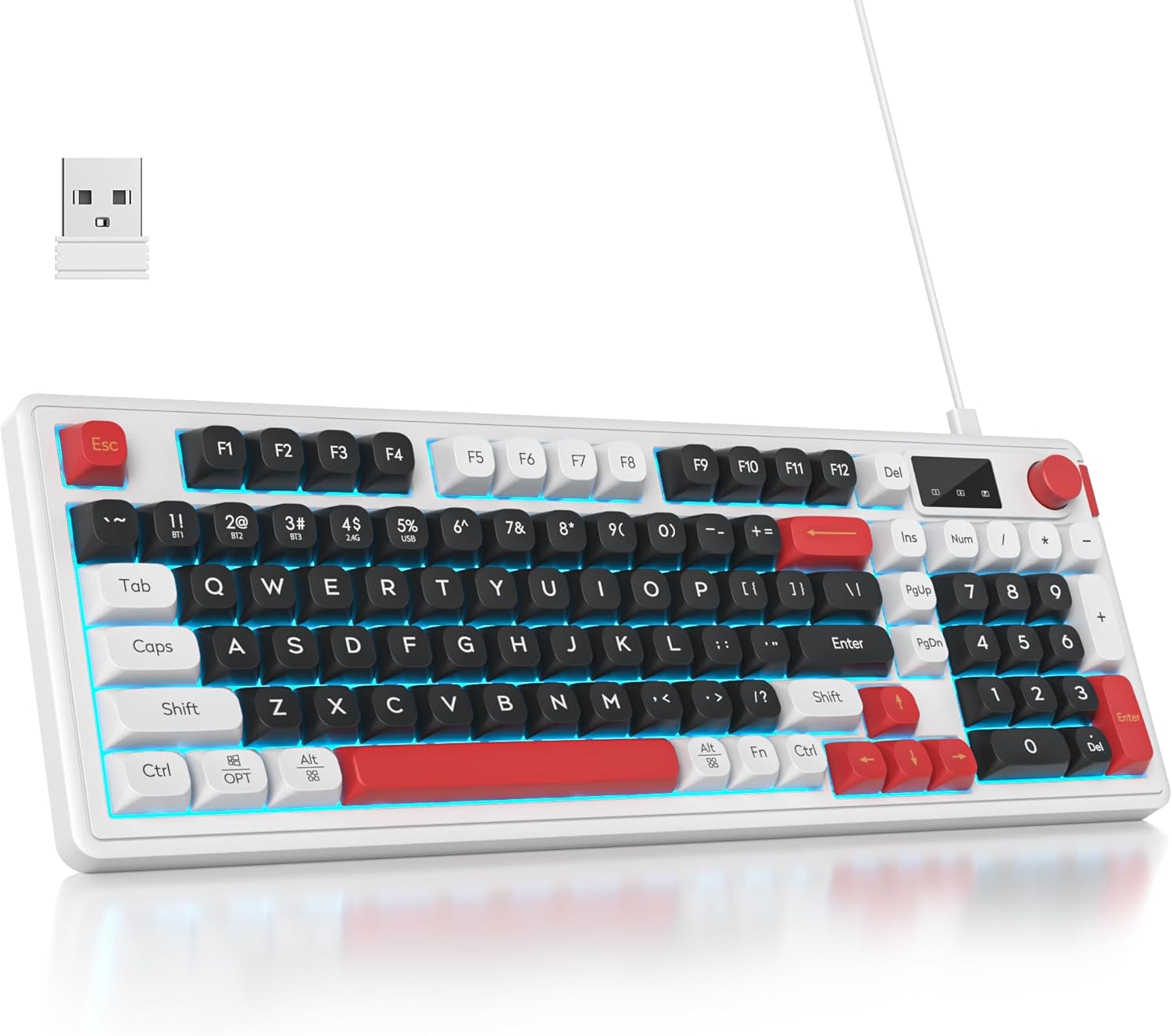
Figure 2.1: SbocKeeb 96% Wireless Keyboard with USB dongle. This image displays the keyboard's layout and included wireless receiver.
3. Setup Instructions
3.1 Charging the Keyboard
Before initial use, fully charge the keyboard using the provided USB cable. Connect the USB cable to the keyboard's USB port and to a power source (e.g., computer USB port, USB wall adapter). The charging indicator will show the charging status.
3.2 Connecting the Keyboard
The keyboard supports three connection modes: 2.4 GHz wireless, Bluetooth 5.0, and USB wired.
3.2.1 2.4 GHz Wireless Connection
- Locate the 2.4 GHz USB dongle (usually stored in a compartment on the keyboard or included separately).
- Plug the USB dongle into an available USB port on your computer or device.
- Turn on the keyboard. The keyboard should automatically connect to the dongle.
3.2.2 Bluetooth 5.0 Connection
The keyboard can pair with up to three Bluetooth devices.
- Turn on the keyboard.
- Press and hold the Fn key and one of the Bluetooth channel keys (BT1, BT2, or BT3) for 3-5 seconds until the indicator light flashes rapidly, indicating pairing mode.
- On your device (computer, tablet, phone), enable Bluetooth and search for new devices.
- Select "SbocKeeb Keyboard" (or similar name) from the list of available devices to complete the pairing process.
- Repeat for other Bluetooth channels if connecting to multiple devices.
3.2.3 USB Wired Connection
- Connect the provided USB cable to the keyboard's USB port.
- Connect the other end of the USB cable to an available USB port on your computer or device.
- The keyboard will automatically switch to wired mode.

Figure 3.1: Triple Mode Connection. The image shows the keyboard wirelessly connected to multiple devices, highlighting its versatility.
4. Operating Instructions
4.1 Switching Between Devices/Modes
- To switch between paired Bluetooth devices, press Fn + BT1/BT2/BT3.
- To switch to 2.4 GHz wireless mode, ensure the USB dongle is connected and select the 2.4G mode on the keyboard (specific key combination not provided, assume automatic detection or a dedicated switch if available, otherwise it's usually the default wireless mode).
- To switch to USB wired mode, connect the USB cable. The keyboard will prioritize the wired connection.
4.2 System Compatibility Switching
The keyboard supports both Windows and Mac operating systems.
- For Windows mode: Press Fn + W.
- For Mac mode: Press Fn + A.

Figure 4.1: System Switching and Backlight Controls. This image illustrates the key combinations for switching between Windows and Mac modes, and for controlling the keyboard's backlight.
4.3 Backlight Control
- To cycle through backlight modes: Press Fn + INS.
- To adjust backlight brightness: Press Fn + Up Arrow (increase) or Fn + Down Arrow (decrease).
- To adjust backlight speed: Press Fn + Left Arrow (decrease speed) or Fn + Right Arrow (increase speed).
- To turn off the backlight: Press Fn + Backspace.
4.4 Multifunctional Knob
The knob provides quick control over backlight and volume settings.
- Default Mode (Backlight Control): Rotate the knob to adjust backlight brightness. Press the knob to cycle through backlight modes.
- Volume Control Mode: Press and hold the knob for 5 seconds to switch to volume control. Rotate the knob to adjust volume. Press the knob to mute/unmute.
- To switch back to backlight control, press and hold the knob for another 5 seconds.
4.5 Multimedia Keys
The keyboard features 12 dedicated multimedia keys for quick access to common functions. These are typically accessed by pressing the Fn key in combination with the F1-F12 keys, or they may be dedicated keys depending on the specific layout. Refer to the keycap legends for specific functions like play/pause, volume control, track skipping, etc.
5. Maintenance
5.1 Cleaning
- Disconnect the keyboard from all power sources and devices before cleaning.
- Use a soft, lint-free cloth slightly dampened with water or a mild cleaning solution to wipe the surface of the keyboard.
- For cleaning between keycaps, use compressed air or a small brush.
- Avoid using harsh chemicals, abrasives, or solvents, as these can damage the keyboard's finish.
5.2 Storage
Store the keyboard in a cool, dry place away from direct sunlight and extreme temperatures. If storing for an extended period, ensure the battery is partially charged (around 50%) to prolong its lifespan.
5.3 Dust and Splash Resistance
The keyboard is designed with dust and splash resistance for daily use. However, it is not waterproof. Avoid submerging the keyboard in liquids or exposing it to heavy spills.
6. Troubleshooting
| Problem | Possible Solution |
|---|---|
| Keyboard not responding (wireless) |
|
| Keyboard not responding (wired) |
|
| Keys are unresponsive or input is incorrect |
|
| Backlight not working or stuck |
|
| Bluetooth disconnects frequently |
|
7. Specifications
| Feature | Detail |
|---|---|
| Brand | SbocKeeb |
| Model Number | fe891e67-874c-4087-b842-ca0b6b1825b5 |
| Connectivity | Bluetooth 5.0, 2.4 GHz Wireless, USB Wired |
| Key Type | Membrane (with mechanical feel) |
| Layout | 96% (98 keys) with Numpad, US QWERTY |
| Backlighting | RGB, Adjustable |
| Anti-Ghosting | 26-Key |
| Compatible Devices | Laptop, Game Console (PC, Mac, Xbox, PS4) |
| Battery Type | Lithium-ion (Rechargeable) |
| Battery Life | Up to 35 hours (without backlight, typical usage) |
| Special Features | Volume Roller, Multifunctional Knob, Dust and Splash Resistant, Ergonomic Design |
| Included Components | USB Cable, 2.4 GHz USB Dongle |
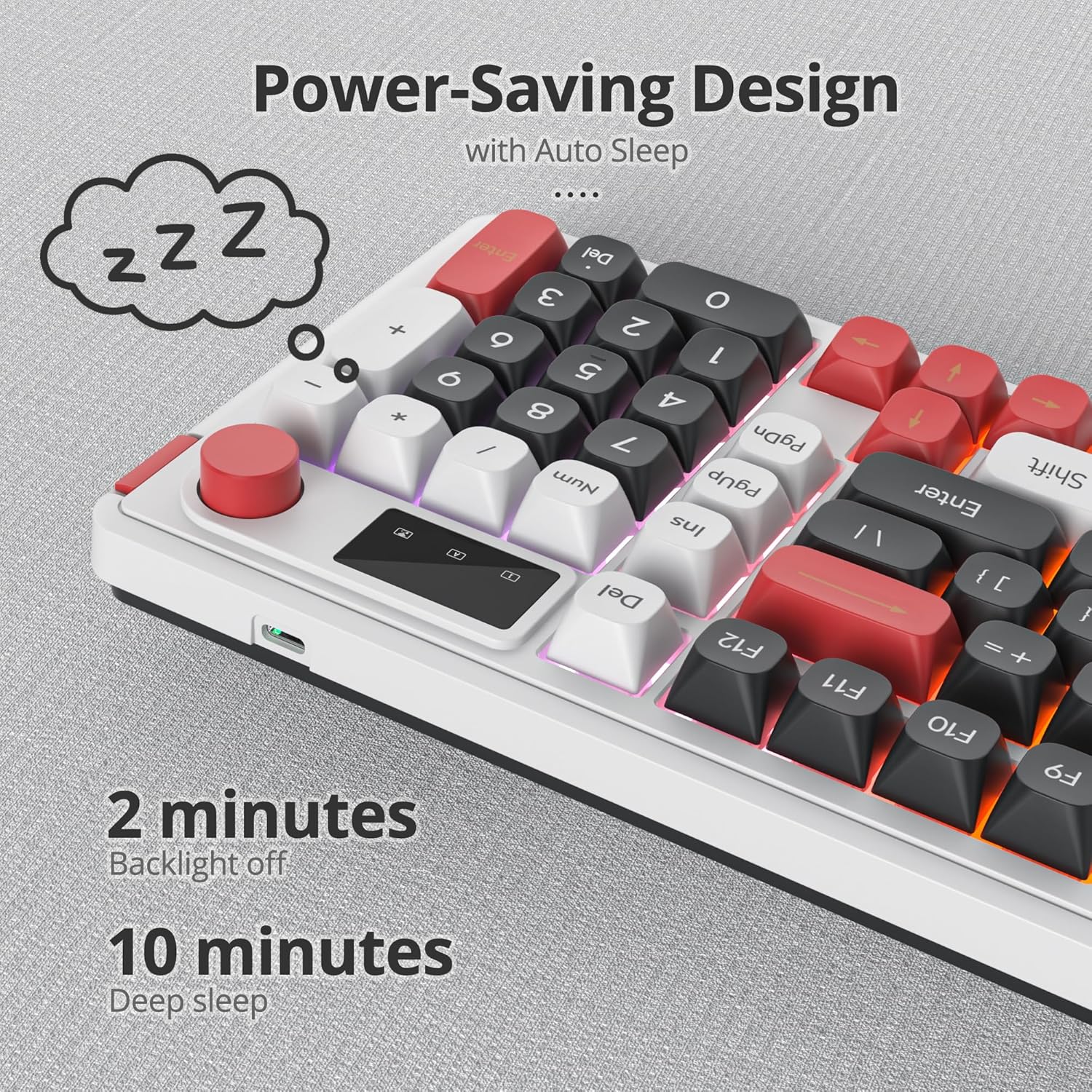
Figure 7.1: Power-Saving Design. This image highlights the keyboard's automatic power-saving modes.

Figure 7.2: Quiet Membrane Keyboard. The image shows the key structure, indicating a quiet and comfortable typing experience.

Figure 7.3: Streamlined Key Layout Design. This image illustrates the ergonomic profile and comfortable keycap design.
8. Warranty and Support
8.1 Warranty Information
Specific warranty details are not provided in this manual. Please refer to the product packaging or the retailer's website for information regarding warranty coverage and terms. Typically, electronic products come with a standard manufacturer's warranty against defects in materials and workmanship.
8.2 Customer Support
For technical assistance, troubleshooting, or further inquiries, please contact SbocKeeb customer support through the retailer's platform or the official brand website. When contacting support, please have your product model number (fe891e67-874c-4087-b842-ca0b6b1825b5) and purchase details ready.
Note: Software updates are not available for this product. Spare parts availability information is not provided.
Ask a question about this manual
Ask about setup, troubleshooting, compatibility, parts, safety, or missing instructions. Manuals+ will review the question and use this page’s manual context to help answer it.