
ArcticPro 24.5 inch 300Hz FHD IPS Gaming Monitor
ArcticPro 24.5 inch 300Hz FHD IPS Gaming Monitor User Manual
Model: 24.5 inch 300Hz FHD IPS Gaming Monitor
1. Introduction
Thank you for choosing the ArcticPro 24.5 inch 300Hz FHD IPS Gaming Monitor. This manual provides essential information for setting up, operating, and maintaining your monitor. Please read it thoroughly before use to ensure proper functionality and to maximize your viewing experience. Keep this manual for future reference.

Figure 1.1: ArcticPro 24.5 inch 300Hz FHD IPS Gaming Monitor
2. Package Contents
Please verify that all items listed below are present in your package:
- ArcticPro 24.5 inch 300Hz FHD IPS Gaming Monitor
- Monitor Stand (Base and Neck)
- Power Adapter and Power Cable
- DisplayPort (DP) Cable
- HDMI Cable
- User Manual (this document)
3. Setup Instructions
3.1. Monitor Assembly
- Carefully remove the monitor and stand components from the packaging.
- Attach the stand neck to the monitor panel. Ensure it clicks securely into place or is fastened with screws if provided.
- Connect the stand base to the stand neck, securing it with the thumb screw or other fasteners.
- Place the assembled monitor on a stable, flat surface.
3.2. Connecting to a Device
The monitor supports DisplayPort (DP) and HDMI connections.

Figure 3.1: Versatile Connectivity Ports
- Power Connection: Connect the power adapter to the monitor's power input, then plug the power cable into a wall outlet.
- Video Connection:
- For optimal performance (up to 300Hz), use the provided DisplayPort (DP) cable to connect the monitor to your computer's graphics card.
- Alternatively, use an HDMI cable to connect the monitor to your computer or other devices (up to 240Hz).
- Audio Output (Optional): If your device supports audio over DP/HDMI, you can connect headphones or external speakers to the monitor's audio output jack.
3.3. VESA Mounting
The monitor is compatible with 100x100mm VESA mounting standards. To mount the monitor, remove the stand and attach a compatible VESA mount (sold separately) using appropriate screws.
4. Operating Instructions
4.1. Power On/Off
- Press the power button, typically located on the back or bottom of the monitor, to turn it on or off.
- The power indicator light will illuminate when the monitor is on.
4.2. On-Screen Display (OSD) Menu
The OSD menu allows you to adjust various monitor settings. Access and navigate the OSD using the buttons located on the monitor (refer to the physical layout for exact button positions).
Common OSD Settings:
- Brightness/Contrast: Adjust the overall luminance and contrast of the display.
- Color Settings: Modify color temperature, gamma, and individual RGB levels.
- Input Source: Manually select between DP and HDMI inputs.
- Picture Mode: Choose from preset display modes (e.g., Standard, Game, Movie, Text).
- Adaptive Sync: Enable or disable Adaptive Sync for tear-free gaming.
- Response Time: Adjust the monitor's response time setting.
- Low Blue Light: Activate to reduce blue light emission for eye comfort.
4.3. Key Features
High Refresh Rate (300Hz)
Experience ultra-smooth visuals with a 300Hz refresh rate via DisplayPort, significantly reducing motion blur and ghosting for fast-paced gaming. HDMI connections support up to 240Hz.

Figure 4.1: Refresh Rate Comparison (300Hz vs 60Hz)
1ms MPRT Response Time
The 1ms Moving Picture Response Time (MPRT) minimizes motion blur and ghosting, ensuring crisp and clear images even during rapid on-screen action.

Figure 4.2: 1ms Response Time in Action
Adaptive Sync Technology
Adaptive Sync synchronizes the monitor's refresh rate with your graphics card's frame rate, eliminating screen tearing and stuttering for a fluid gaming experience.

Figure 4.3: Adaptive Sync Functionality
IPS Panel with Wide Color Gamut
The IPS (In-Plane Switching) panel provides wide 178° viewing angles and vibrant color reproduction, covering 120% sRGB and 85% NTSC for accurate and consistent visuals.

Figure 4.4: IPS Panel and Wide Color Gamut
Eye Care Technologies
Integrated Flicker-Free technology reduces screen flickering, and the Low Blue Light mode minimizes harmful blue light emissions, helping to prevent eye strain during extended use.

Figure 4.5: Flicker-Free Technology for Eye Comfort
Tilt Adjustment
The monitor stand allows for tilt adjustment from -5° to +15°, enabling you to find the most comfortable viewing angle.
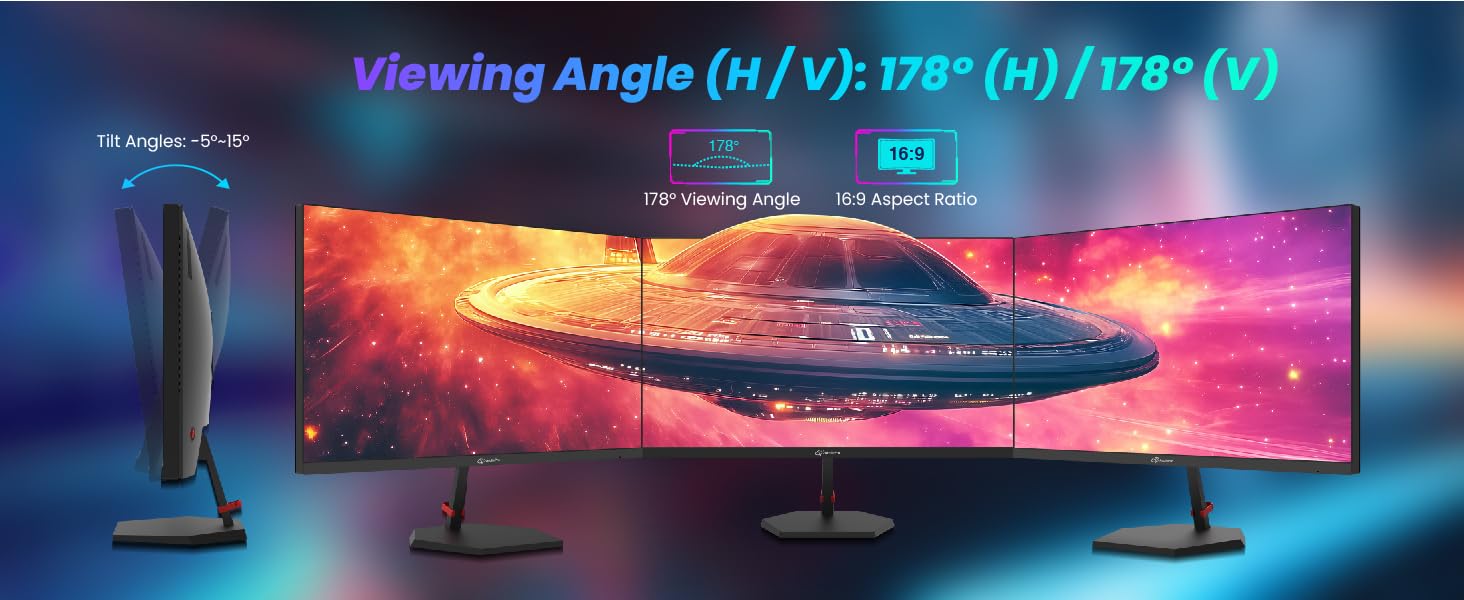
Figure 4.6: Monitor Tilt Adjustment Range
5. Maintenance
Proper maintenance ensures the longevity and optimal performance of your monitor.
- Cleaning the Screen: Gently wipe the screen with a soft, lint-free cloth. For stubborn marks, lightly dampen the cloth with water or a specialized screen cleaner. Avoid using harsh chemicals, alcohol, or abrasive materials.
- Cleaning the Casing: Use a soft, dry cloth to wipe the monitor casing.
- Power Off When Not in Use: Turn off the monitor when not in use to conserve energy and extend its lifespan.
- Avoid Direct Sunlight: Do not expose the monitor to direct sunlight or excessive heat.
6. Troubleshooting
If you encounter issues with your monitor, refer to the following common problems and solutions:
| Problem | Possible Cause | Solution |
|---|---|---|
| No Power | Power cable disconnected; Power outlet faulty; Monitor off. | Ensure power cable is securely connected. Test power outlet. Press monitor power button. |
| No Signal | Video cable disconnected; Incorrect input source selected; Computer not outputting signal. | Check video cable connections. Select correct input source via OSD. Restart computer. |
| Image Flickering | Cable issue; Graphics card driver issue; Refresh rate mismatch. | Replace video cable. Update graphics drivers. Ensure refresh rate is set correctly in OS. |
| Poor Image Quality | Resolution incorrect; OSD settings incorrect. | Set display resolution to 1920x1080. Adjust brightness, contrast, and color settings in OSD. |
| Adaptive Sync Not Working | Not enabled in OSD; Graphics card not compatible; Driver issue. | Enable Adaptive Sync in OSD. Ensure your graphics card supports Adaptive Sync and drivers are updated. |
7. Specifications
Technical specifications for the ArcticPro 24.5 inch 300Hz FHD IPS Gaming Monitor:
| Feature | Detail |
|---|---|
| Screen Size | 24.5 Inches (25 Inches Standing Display Size) |
| Resolution | 1920 x 1080 Pixels (FHD 1080p) |
| Refresh Rate | Up to 300Hz (DP 1.4), Up to 240Hz (HDMI 2.0) |
| Response Time | 1ms MPRT |
| Panel Type | IPS |
| Aspect Ratio | 16:9 |
| Color Gamut | 120% sRGB, 85% NTSC |
| Viewing Angles | 178° Horizontal / 178° Vertical |
| Connectivity | 2x DisplayPort 1.4, 2x HDMI 2.0 |
| VESA Compatibility | 100 x 100 mm |
| Tilt Angles | -5°±2° / 15°±2° |
| Product Dimensions | 2.68 x 21.96 x 12.89 inches |
| Item Weight | 11.18 pounds |
| Model Number | Yulian Technology model_number |
8. Warranty and Support
8.1. Warranty Information
ArcticPro monitors are covered by a limited warranty against defects in materials and workmanship. The specific terms and duration of your warranty may vary by region and retailer. Please retain your proof of purchase for warranty claims.
8.2. Customer Support
For technical assistance, troubleshooting beyond this manual, or warranty inquiries, please contact ArcticPro customer support. You can find contact information and additional resources on the official ArcticPro website or through your retailer.
Visit the ArcticPro Store for more information.
Related Documents - 24.5 inch 300Hz FHD IPS Gaming Monitor
 |
LG UltraGear 27G640A Gaming Monitor Owner's Manual This owner's manual provides comprehensive instructions for the LG UltraGear 27G640A gaming monitor, covering assembly, setup, connection, user settings, product specifications, troubleshooting, and warranty information. |
 |
LG 27G640A Gaming Monitor Quick Start Guide Quick start guide for the LG 27G640A gaming monitor, covering setup, connections, specifications, and arbitration notice. Includes multilingual content. |
 |
Philips Evnia 3000 27-inch Quad HD Gaming Monitor (27M2N3500UK) Explore the features of the Philips Evnia 3000 27-inch gaming monitor. Featuring a 300Hz refresh rate, 0.3ms Smart MBR, Quad HD resolution, and advanced gaming tools like Smart Sniper and Stark ShadowBoost. |
 |
Xitrix XPN-WFPG2735 Monitor Setup Guide and Warranty Information Comprehensive setup guide and warranty information for the Xitrix XPN-WFPG2735 monitor. Includes package contents, assembly steps, safety precautions, warranty terms, pixel policy, and contact details. |
 |
KTC H25Y7 LCD Monitor User Guide and Specifications User guide and technical specifications for the KTC H25Y7 LCD Monitor, detailing setup, features, safety precautions, troubleshooting, and warranty information. |
 |
LG UltraGear 27G640A Owner's Manual This comprehensive owner's manual guides users through the setup, operation, and maintenance of the LG UltraGear 27G640A LED Monitor. It covers assembly, connections, user settings, product specifications, and warranty information. |
Ask a question about this manual
Ask about setup, troubleshooting, compatibility, parts, safety, or missing instructions. Manuals+ will review the question and use this page’s manual context to help answer it.