
1. Introduction
This manual provides detailed instructions for the Wisoqu 5G WiFi6 LTE Mobile Hotspot, Model Wisoqufnh09zd4c6. This device offers high-speed 5G and WiFi6 connectivity, allowing you to create a portable internet hotspot for up to 16 devices. It features broad frequency support, a rugged design, and a high-capacity battery for reliable performance during travel and daily use.
Please read this manual thoroughly before using the device to ensure proper operation and to maximize its capabilities.
2. Product Features
- 5G High Speed Connectivity: Experience download speeds up to 2.77Gbps and upload speeds up to 1.25Gbps for seamless online activities.
- Broad Frequency Support: Compatible with 5G NR, 4G, and 3G frequencies, ensuring wide international coverage. Features a built-in 1T4R 5G antenna for strong reception.
- Rugged and Durable Design: IP67 reinforced design protects against drops, dust, and water, making it suitable for various travel conditions.
- High Capacity Battery: Equipped with a 7100mAh polymer battery for extended usage, providing uninterrupted connectivity throughout the day.
- Dual-Band Wi-Fi and Connection Sharing: Supports 2.4GHz and 5.8GHz bands (WiFi6, 802.11 a/b/g/n/ac/ax) and can connect up to 16 devices simultaneously.
- 2.01 Inch Color Screen: Provides easy monitoring of data usage, signal strength, and network settings.
- Hot Swappable SIM Card Support: Conveniently change SIM cards without powering down the device.
3. Package Contents
The standard package for the Wisoqu 5G WiFi6 LTE Mobile Hotspot includes:
- Wisoqu 5G WiFi6 LTE Mobile Hotspot Device
- USB Charging Cable
- User Manual

Image: The Wisoqu 5G WiFi6 LTE Mobile Hotspot device shown alongside its included USB charging cable.
4. Setup Guide
4.1. SIM Card Installation
- Locate the SIM card slot on the side of the device.
- Gently open the SIM card slot cover.
- Insert your activated Nano-SIM card into the slot with the gold contacts facing down and the notched corner aligned correctly.
- Close the SIM card slot cover securely.

Image: A detailed view of the device's side, showing the USB-C charging port and the SIM card slot, which is covered by a small flap.
4.2. Powering On/Off
- To Power On: Press and hold the Power button (usually located on the side) for a few seconds until the screen illuminates.
- To Power Off: Press and hold the Power button until a power-off option appears on the screen, then confirm. Alternatively, a long press may directly power off the device.
4.3. Initial Wi-Fi Connection
- Once powered on, the device's screen will display network information, including the Wi-Fi Network Name (SSID) and Password (Key).
- On your device (smartphone, laptop, tablet), search for available Wi-Fi networks.
- Select the SSID displayed on your hotspot's screen.
- Enter the Wi-Fi Key when prompted.
- Your device should now be connected to the internet via the mobile hotspot.
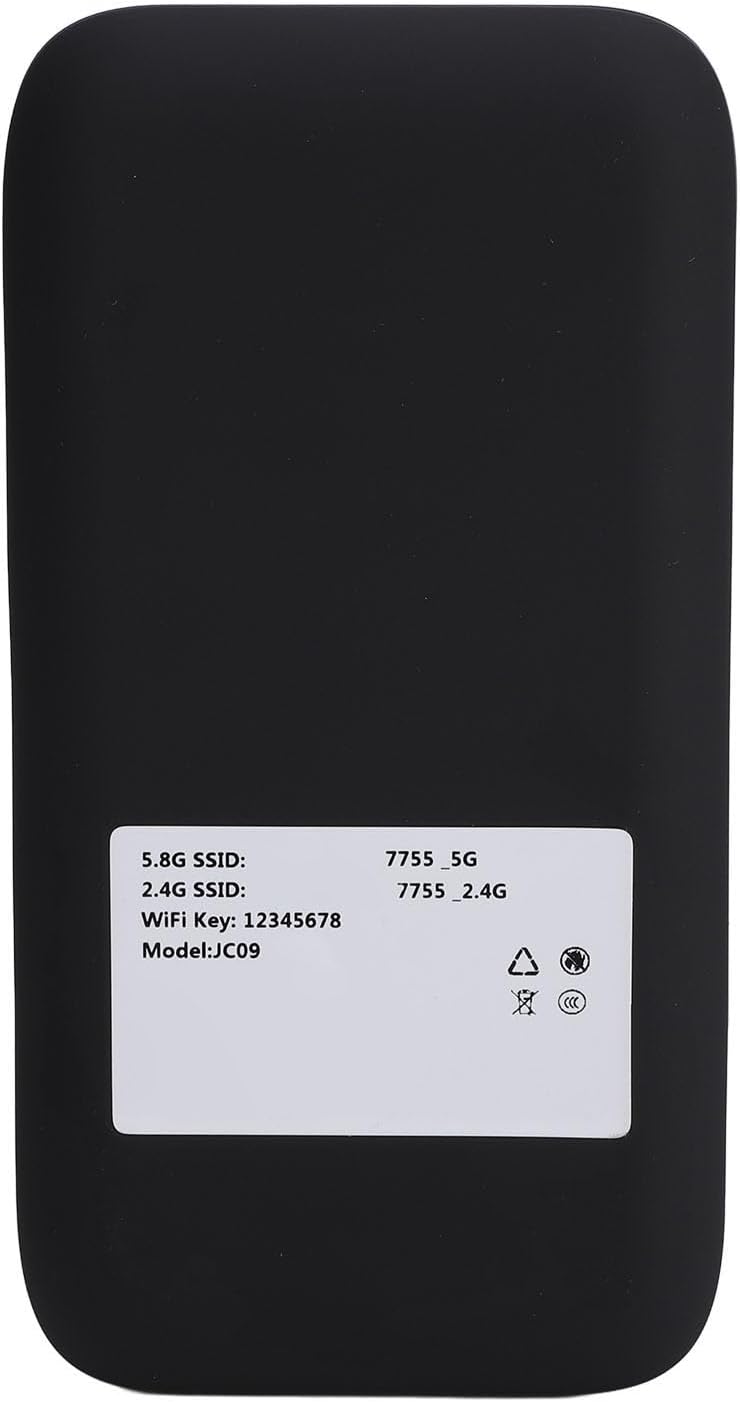
Image: The back of the mobile hotspot, displaying a label with the default 5.8G and 2.4G SSIDs and the Wi-Fi Key for initial connection.
5. Operating Instructions
5.1. Connecting Multiple Devices
The Wisoqu Mobile Hotspot supports connecting up to 16 devices simultaneously. Follow the "Initial Wi-Fi Connection" steps for each device you wish to connect.

Image: An illustration depicting various electronic devices, such as laptops, tablets, and smartphones, wirelessly connected to the mobile hotspot, demonstrating its multi-device capability.
5.2. Monitoring Device Status
The 2.01-inch color screen provides real-time information:
- Signal Strength: Indicates the strength of the 5G/4G cellular signal.
- Battery Level: Shows the remaining battery charge.
- Connected Devices: Displays the number of devices currently connected to the hotspot.
- Data Usage: Provides an overview of data consumed.
- Network Name (SSID) & Password: Visible for easy reference.

Image: The Wisoqu mobile hotspot with its screen illuminated, showing icons for signal strength, battery level, connected devices, and other network details.
5.3. Charging the Device
Connect the included USB charging cable to the device's USB-C port and plug the other end into a compatible USB power adapter (not included) or a computer's USB port. The screen will indicate charging status.
6. Maintenance
- Cleaning: Use a soft, dry cloth to clean the device. Avoid liquid cleaners or abrasive materials.
- Storage: Store the device in a cool, dry place away from direct sunlight and extreme temperatures.
- Battery Care: For optimal battery life, avoid fully discharging the battery frequently. Charge the device regularly.
- Software Updates: Periodically check the manufacturer's website for any available firmware updates to ensure optimal performance and security.
7. Troubleshooting
| Problem | Possible Solution |
|---|---|
| No Internet Connection |
|
| Device Not Powering On |
|
| Slow Connection Speed |
|
| Cannot Connect to Wi-Fi |
|
8. Specifications

Image: The mobile hotspot device shown with its length (136mm/3.35in), width (72mm/2.83in), and thickness (16mm/0.63in) clearly indicated by arrows and measurements.
| Feature | Detail |
|---|---|
| Model Name | Wisoqufnh09zd4c6 |
| Brand | Wisoqu |
| Connectivity Technology | 5G, 4G LTE, 3G, Wi-Fi (802.11a/b/g/n/ac/ax) |
| Wireless Communication Standard | 802.11a/b/g/n/ac/ax (WiFi6) |
| Frequency Band Class | Dual-Band (2.4GHz, 5.8GHz) |
| Max Download Speed | Up to 2.77Gbps |
| Max Upload Speed | Up to 1.25Gbps |
| Battery Capacity | 7100mAh Polymer Battery |
| Connected Devices | Up to 16 devices simultaneously |
| Screen Size | 2.01 Inch Color Screen |
| Dimensions (L x W x H) | 136mm x 72mm x 16mm (approx. 5.35 x 2.83 x 0.63 inches) |
| Item Weight | 10.8 ounces |
| Durability | IP67 reinforced design (drop, dust, water protection) |
9. Product Overview Video
Video: A brief overview of the Wisoqu 5G WiFi6 LTE Mobile Hotspot, showcasing its design, screen interface, and key features. This video provides a visual introduction to the device's appearance and basic functionality.
10. Warranty and Support
For warranty information, please refer to the documentation included with your purchase or visit the official Wisoqu website. If you encounter any issues or require technical assistance, please contact Wisoqu customer support through their official channels.
Protection plans may be available for extended coverage. Please check with your retailer for details on available protection plans.