
Imagebon 7''(2+32G)
Imagebon Android Carplay Screen
User Manual
1. Introduction
Welcome to the user manual for your new Imagebon 7-inch Android Carplay Screen. This device is designed to enhance your in-car entertainment and navigation experience with its powerful Android system, wireless connectivity, and multimedia capabilities. Please read this manual carefully to ensure proper installation, operation, and maintenance of your device.
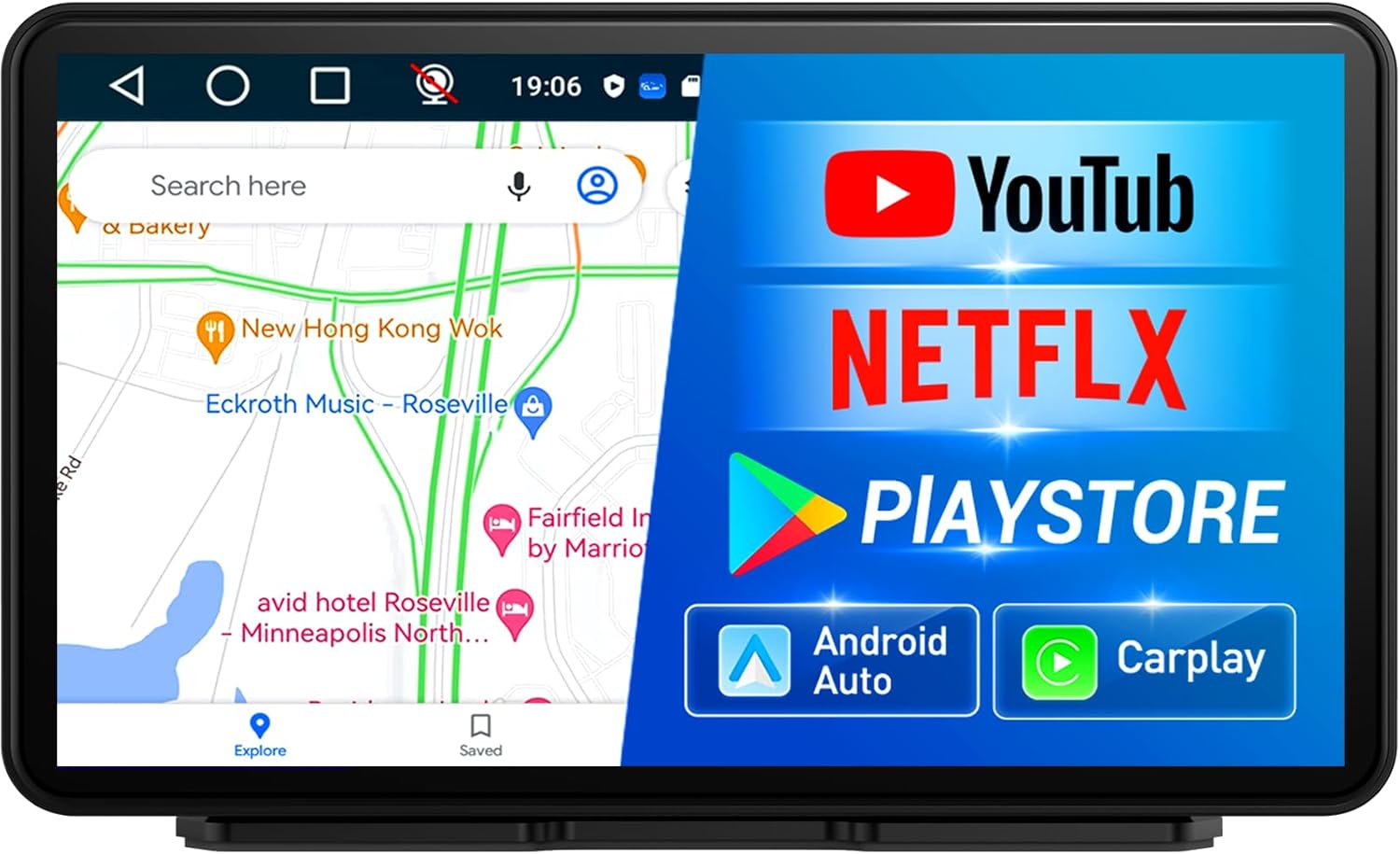
Figure 1: Main view of the Imagebon Android Carplay Screen.
2. Product Features
- Portable Display Audio with Android System: Equipped with a 4-Core CPU, 2GB RAM, and 32GB ROM for smooth performance and ample storage.
- Powerful Android System: Access online browsing and the Google Play Store for app downloads and content streaming. Supports offline maps for reliable navigation.
- Seamless Connectivity: Supports wireless CarPlay and Android Auto via Bluetooth or Wi-Fi for hands-free calls and app control.
- Customizable and Convenience: Multiple audio outputs (AUX, FM, Bluetooth, built-in speaker) and SD card playback. AirPlay and Miracast support for screen mirroring.
- Enhanced Audio and Display Experience: Superior sound quality with various audio output options including Bluetooth, USB, AUX, FM, and USB flash drives.

Figure 2: The Imagebon model supports a wider range of applications compared to other carplay screens.
3. Setup
3.1 Initial Power-Up
Before first use, ensure the device is charged for at least 10 minutes or more. Use the original car charger or a charging head that provides at least 5V/3A to ensure stable power supply.

Figure 3: The device powers on, displaying its Android system and memory specifications.
3.2 Network Connection
To access online features such as maps, Netflix, and YouTube, connect the device to a Wi-Fi network or your smartphone's hotspot. Navigate to the 'Settings' menu on the device to configure your network connection.
4. Operating Instructions
4.1 Wireless CarPlay and Android Auto
The Imagebon Carplay Screen supports both wireless Apple CarPlay and Android Auto. Connect your smartphone via Bluetooth or Wi-Fi to enable seamless integration. This allows for voice calls, hands-free control, and access to your favorite navigation and music apps directly on the screen.
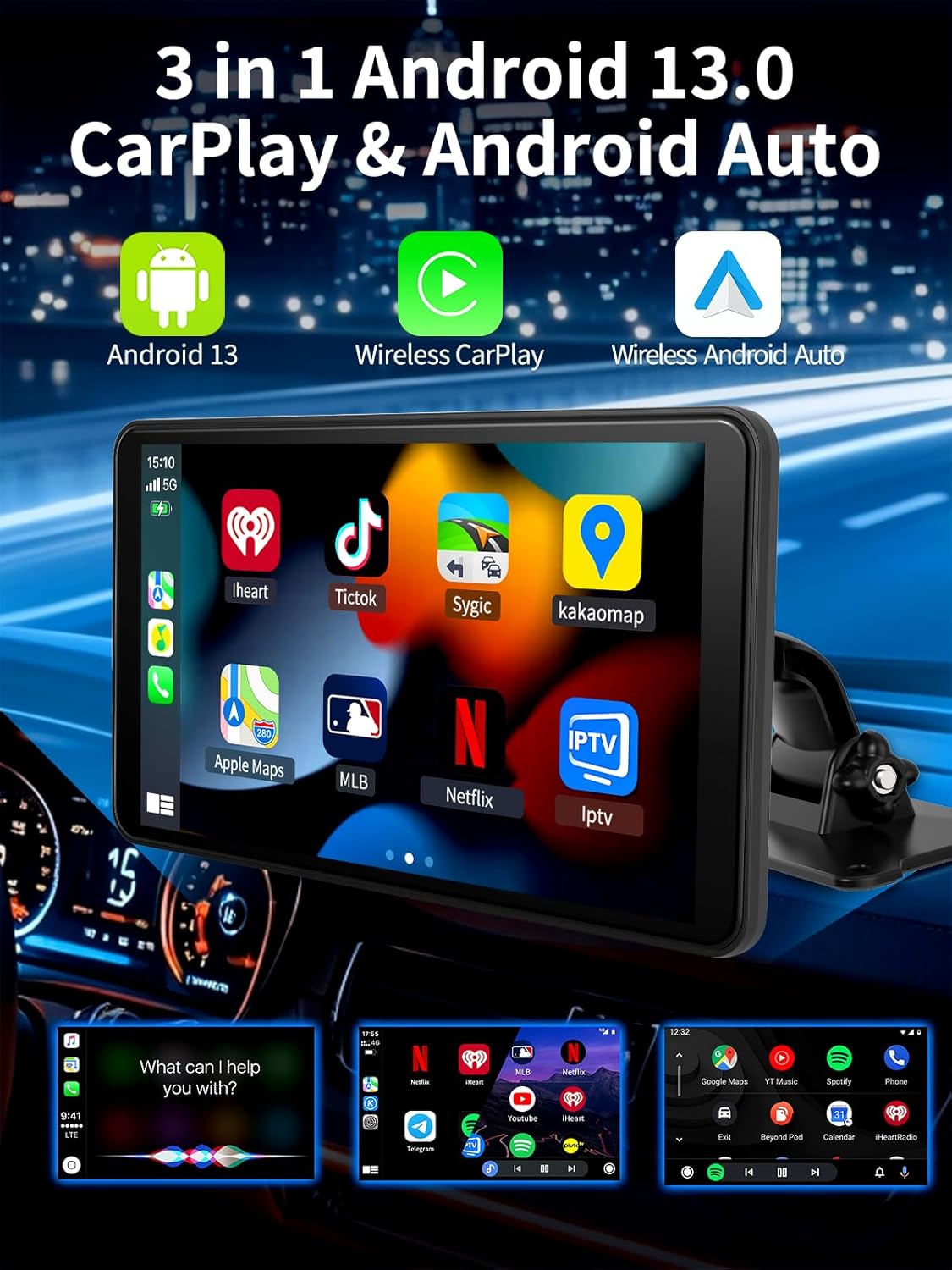
Figure 4: The device supports Android 13, Wireless CarPlay, and Wireless Android Auto for comprehensive smartphone integration.
4.2 GPS Navigation
The device features built-in GPS navigation. Connect to Wi-Fi or your phone's hotspot to access real-time navigation apps like Google Maps and Waze. It also supports offline map downloads, ensuring navigation even without an internet connection.

Figure 5: The screen provides clear GPS navigation, supporting various mapping applications.
4.3 Multimedia Playback
Enjoy a wide range of entertainment options. The powerful Android system allows you to download and stream content from apps like YouTube and Netflix. You can also play music, videos, and images directly from an SD card.

Figure 6: The device supports multiple settings and applications for enhanced user experience.
4.4 Bluetooth Music and Calls
Connect your phone via Bluetooth to stream music and make/receive calls directly through the Carplay screen. The device offers superior sound quality through various audio output options.

Figure 7: Seamless Bluetooth connectivity for music streaming and hands-free calling.
4.5 Mirror Link (AirPlay & Miracast)
Utilize AirPlay and Miracast features to mirror your device's screen onto the Carplay display. This allows you to easily access maps, YouTube, Netflix videos, and your favorite music from your smartphone.
4.6 AI Voice Control
The device supports AI voice control, primarily available when using CarPlay or Android Auto mode. This feature allows for convenient, hands-free operation of various functions.
5. Maintenance
To ensure the longevity and optimal performance of your Imagebon Carplay Screen, follow these maintenance guidelines:
- Cleaning: Use a soft, lint-free cloth to clean the screen. For stubborn smudges, slightly dampen the cloth with water or a screen-safe cleaner. Avoid harsh chemicals.
- Storage: When not in use for extended periods, store the device in a cool, dry place away from direct sunlight and extreme temperatures.
- Software Updates: The device supports Over-The-Air (OTA) upgrades. Regularly check for and install software updates to ensure you have the latest features and performance improvements.

Figure 8: The device supports OTA (Over-The-Air) software upgrades for continuous improvement.
6. Troubleshooting
If you encounter issues with your Imagebon Carplay Screen, refer to the table below for common problems and their solutions:
| Problem | Possible Cause | Solution |
|---|---|---|
| Device does not power on. | Insufficient power supply or not charged. | Ensure the device is connected to a 5V/3A power source. Charge for at least 10 minutes before attempting to power on. |
| Cannot connect to Wi-Fi/Hotspot. | Incorrect password, out of range, or 5Ghz hotspot incompatibility. | Verify Wi-Fi password. Move closer to the Wi-Fi source. Ensure your hotspot is 2.4Ghz if the device does not support 5Ghz. |
| CarPlay/Android Auto not connecting wirelessly. | Bluetooth not paired or Wi-Fi connection unstable. | Ensure Bluetooth is enabled on both devices and paired. Check Wi-Fi signal strength. Restart both the phone and the Carplay screen. |
| No audio output. | Incorrect audio output mode selected or volume too low. | Check the selected audio output (AUX, FM, Bluetooth). Increase volume on both the device and your car stereo. |
| Apps are slow or crashing. | Too many apps running in the background or low storage. | Close unnecessary background apps. Clear cache or uninstall unused apps to free up storage. Consider a factory reset if issues persist. |
7. Specifications
| Feature | Detail |
|---|---|
| Model Number | 7''(2+32G) |
| Screen Diagonal | 7 inches / 18 cm |
| Processor | 4 Core CPU |
| RAM | 2GB |
| ROM (Internal Storage) | 32GB |
| Operating System | Android |
| Connectivity | Wireless CarPlay, Android Auto, Bluetooth, Wi-Fi |
| Navigation | Built-in GPS, Supports offline maps |
| Audio Output Modes | AUX, FM, Bluetooth, Built-in Speaker, USB |
| Supported Media | SD card for music, videos, images |
| Mirroring | AirPlay, Miracast |
| Item Weight | 2.05 pounds |
| Package Dimensions | 8.7 x 6.38 x 4.88 inches |
8. What's in the Box
Your Imagebon Android Carplay Screen package includes the following items:
- Imagebon Carplay Screen Unit
- AUX Cable
- Car Charger
- 3M Sticky Mount

Figure 9: Contents included in the product package.
9. Warranty and Support
Imagebon products are designed for reliability and performance. For information regarding warranty coverage, technical support, or service inquiries, please refer to the warranty card included in your product packaging or visit the official Imagebon support website. Keep your purchase receipt as proof of purchase for any warranty claims.
Related documents7''(2+32G)


Ask a question about this manual
Ask about setup, troubleshooting, compatibility, parts, safety, or missing instructions. Manuals+ will review the question and use this page’s manual context to help answer it.