
Introduction
This manual provides detailed instructions for the installation, operation, maintenance, and troubleshooting of your Podofo Autoradio 2 DIN car stereo system. Please read this manual thoroughly before using the product to ensure proper functionality and safety.
The Podofo Autoradio features a 7-inch touchscreen, Mirror Link functionality for iOS and Android devices, Bluetooth hands-free calling and music streaming, FM radio, USB connectivity, steering wheel control compatibility, and includes a 12-LED rearview camera for enhanced safety.

Package Contents
- 1 x Podofo Autoradio 2 DIN Unit
- 1 x 12-LED Rearview Camera
- 1 x Power Cable
- 1 x Remote Control
- 1 x Steering Wheel Remote Control
- 1 x User Manual
- Installation Accessories (e.g., mounting frame)

Setup and Installation
1. Pre-Installation Check
Ensure your vehicle has a standard 2 DIN slot (installation size: 178mm (L) x 65mm (W) x 103mm (H)). Disconnect the vehicle's battery before starting installation.
2. Wiring Connections
- Power Cable: Connect the yellow wire to the constant 12V power supply, the red wire to the accessory 12V power supply (ignition switched), and the black wire to ground.
- Speaker Cables: Connect the speaker output wires to your vehicle's speakers. Ensure correct polarity.
- Rearview Camera: Connect the camera's video output to the "CAMIN" input on the autoradio. Connect the camera's power to the vehicle's reverse light circuit (red wire to +12V, black wire to ground) and the trigger wire (labeled "back" or "reverse") to the reverse light positive.
- Steering Wheel Control (SWC): Connect your vehicle's SWC cable to the "Key 1" wire of the autoradio. Refer to the "Steering Wheel Control" section for configuration.
- AUX-IN/USB: Connect external devices via the front panel AUX-IN port or USB port.

3. Mounting the Unit
Secure the autoradio into the vehicle's dashboard using the provided mounting frame and screws. Reconnect the vehicle's battery.

Operating Instructions
1. Basic Operation
- Power On/Off: Press the power button on the unit or remote control.
- Volume Control: Use the physical knobs on the unit or the remote control.
- Menu Navigation: Use the touchscreen to navigate through menus and select functions.
- Seven Color Backlight: The unit features 7-color button backlighting. These colors are soft and non-glaring.

2. Mirror Link Function
The Mirror Link feature allows you to display your smartphone screen on the autoradio's display.
- Connect your smartphone to the autoradio via a USB cable.
- On the autoradio, select the "Mirror Link" or "PhoneLink" option.
- For Android phones, two-way control is supported, meaning you can control your phone from the autoradio screen.
- For iOS phones (iPhone), one-way control is supported, allowing you to view your iPhone screen on the autoradio.
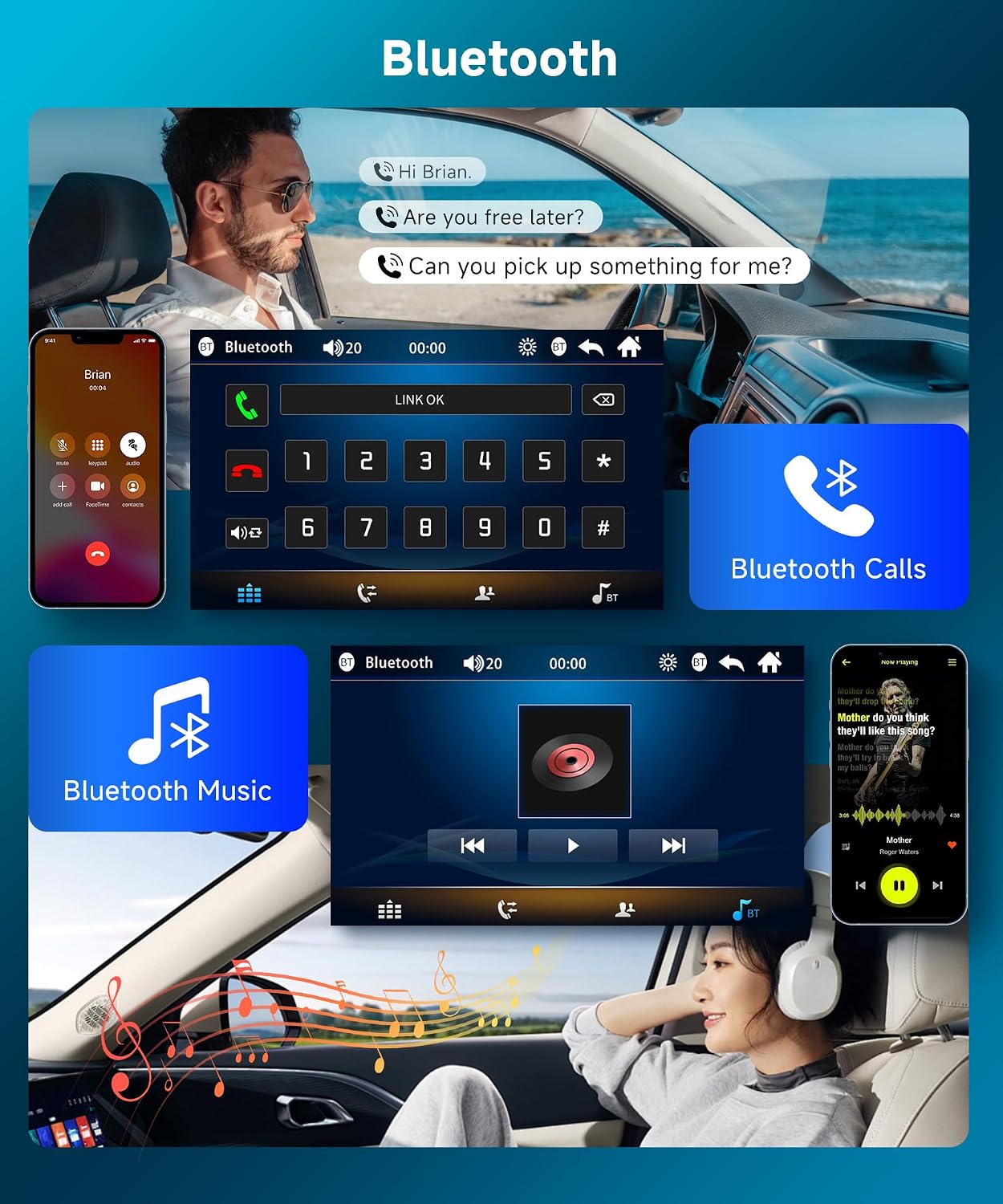
3. Bluetooth Connectivity
The built-in Bluetooth allows for hands-free calling and wireless music streaming.
- Pairing: Go to the Bluetooth menu on the autoradio. Enable Bluetooth on your smartphone and search for "CAR BT". Select it to pair.
- Hands-Free Calling: Once paired, you can make and receive calls directly through the autoradio. The unit supports phonebook download.
- Music Streaming: Play music from your smartphone wirelessly via Bluetooth.
4. FM Radio
Access your favorite radio stations with the integrated FM tuner.
- Station Search: Use the automatic scan function to find and store available FM stations.
- Presets: The unit can store up to 18 radio presets.
- Frequency Range: 87.5-108 MHz.

5. Steering Wheel Control
Control the autoradio conveniently using your vehicle's steering wheel buttons.
- After connecting the "Key 1" wire during installation, access the "Steering Wheel Control" settings in the autoradio's menu.
- Follow the on-screen instructions to program each button on your steering wheel to the desired function (e.g., volume up/down, track skip, mode change).
6. AUX-IN and USB Playback
The unit supports external audio and video sources via AUX-IN and USB.
- AUX-IN: Connect external audio devices (MP3 players, phones) to the 3.5mm AUX-IN jack on the front panel. Select AUX as the source.
- USB: Insert a USB drive into the front USB 2.0 port to play supported audio (MP3/WMA/WAV/APE/FLAC) and video (RM/RMVB/AVI/MP4/MKV/3GP) files.
- The USB port also functions as a charging port for mobile devices.
7. Rearview Camera
The included 12-LED rearview camera provides a clear view when reversing.
- When the vehicle is shifted into reverse gear, the autoradio will automatically display the camera feed on the screen.
- The camera features a wide-angle lens, is waterproof, and offers night vision capabilities.
Maintenance
- Cleaning the Screen: Use a soft, lint-free cloth to gently wipe the touchscreen. Do not use abrasive cleaners or solvents.
- General Cleaning: Keep the unit free from dust and debris. Use a soft, dry cloth for cleaning the exterior.
- Software Updates: Check the manufacturer's website for any available firmware updates. Follow instructions carefully if performing an update.
- Avoid Extreme Temperatures: Operate the unit within the specified temperature range (-10°C to 60°C).
Troubleshooting
| Problem | Possible Cause | Solution |
|---|---|---|
| Unit does not power on. | Incorrect power wiring; blown fuse; vehicle battery disconnected. | Check power cable connections (yellow, red, black). Inspect vehicle fuses. Ensure battery is connected. |
| No sound. | Volume too low; incorrect speaker wiring; mute function active. | Increase volume. Check speaker connections and polarity. Deactivate mute. |
| Poor FM radio reception. | Antenna not connected or damaged; weak signal area. | Ensure antenna is properly connected. Try scanning for stations again. |
| Bluetooth pairing issues. | Bluetooth not enabled on phone/unit; incorrect pairing procedure. | Ensure Bluetooth is enabled on both devices. Restart pairing process. Check device visibility. |
| Mirror Link not working. | Incorrect USB connection; phone not compatible; app not installed (Android). | Ensure USB cable is functional and properly connected. Verify phone compatibility (Android two-way, iOS one-way). For Android, ensure CMLPLAY is used. |
| Rearview camera not displaying. | Camera not powered; trigger wire not connected; incorrect video input. | Check camera power connection to reverse light. Ensure trigger wire is connected. Verify video input to "CAMIN". |
Specifications
| Feature | Detail |
|---|---|
| System | WINCE |
| Chipset | C200S |
| Screen Size | 7 inches |
| Screen Resolution | 800 x 480 |
| Mirror Link | Supports Android phones (two-way control), iOS phones (one-way control) |
| Radio Band | FM (87.5-108 MHz) |
| Radio Chip | QN8035 |
| Output Power | 4 x 45 W (Rated), 180 Watts (Peak) |
| Operating Temperature | -10°C to 60°C |
| Bluetooth Name | CAR BT |
| Amplifier Chip | TDA7388 |
| USB Interface | USB 2.0 |
| Audio Format Support | MP3 / WMA / WAV / APE / FLAC |
| Video Format Support | RM / RMVB / AVI / MP4 / MKV / 3GP |
| Supported Languages | English, Spanish, French, Portuguese, German, Italian, Russian, Turkish, Arabic, Hebrew, Polish, Japanese, Chinese |
| Model Number | PODN2042A3B4 |
| Item Weight | 1.07 Kilograms |
Warranty and Support
Podofo is committed to providing quality products and customer satisfaction. This product comes with the following support:
- Customer Service: Quick replies to inquiries, typically within 18 hours.
- Return Policy: 60-day worry-free return period.
- Replacement: 24-month replacement available for eligible issues.
- Technical Support: Lifetime after-sales consultation and technical support.
For any questions or assistance, please contact Podofo customer support through your purchase platform or the official Podofo website.


