1. Introduction
This manual provides detailed instructions for setting up, operating, and maintaining your Dekala T2 Pro Smart Tag Tracker. The T2 Pro is designed to help you locate your valuable items using Apple's "Find My" network, offering peace of mind and efficient item recovery.
Please read this manual thoroughly before using the device to ensure proper functionality and to maximize your user experience.
2. Product Overview
The Dekala T2 Pro Smart Tag Tracker is a compact and portable device that integrates seamlessly with the Apple "Find My" network. Key features include:
- Apple "Find My" Network Compatibility: Utilizes the vast network of Apple devices for secure and precise location tracking.
- Ultra-Wideband (UWB) Technology: Enables high-precision tracking for both indoor and outdoor environments.
- Distance-Based "Left Behind" Warning: Notifies you if your tagged item is out of range for more than 4 minutes.
- Audible Notification: Activate a sound from the tracker via Siri or the "Find My" app to help you pinpoint nearby items.
- Lost Mode with Contact Information: Allows finders to access your contact details securely if your item is lost.
- Multi-Device Tracking and Sharing: Track multiple T2 Pro devices and share item locations with other "Find My" users.
- Replaceable Battery: Designed for long-term use with an easily replaceable battery.
- Privacy Encrypted: Ensures your location data remains private and secure.

Image: The Dekala T2 Pro Smart Tag Tracker highlighting its compact design, replaceable battery feature, and privacy encryption capabilities.
3. Setup Instructions
Follow these steps to set up your Dekala T2 Pro Smart Tag Tracker with your Apple device:
- Prepare Your Device: Ensure your Apple iPhone, iPad, or iPod touch is running the latest version of iOS and has Bluetooth enabled.
- Open the "Find My" App: On your Apple device, open the pre-installed "Find My" application.
- Enable Bluetooth: From your device's Control Center or Settings, ensure Bluetooth is turned on.
- Add New Item: In the "Find My" app, navigate to the "Items" tab. Tap on the "+" icon, then select "Add Other Item".
- Activate Tracker: Press and hold the button on your Dekala T2 Pro Smart Tag Tracker until it emits a sound, indicating it's in pairing mode.
- Connect: Your Apple device will detect the T2 Pro. Follow the on-screen prompts to name your tracker and assign an icon.
- Confirmation: Once connected, the T2 Pro will appear in your "Items" list within the "Find My" app.

Image: Visual guide demonstrating the three main steps for pairing the Dekala T2 Pro Smart Tag Tracker with the Apple "Find My" app.
4. Operating Instructions
4.1 Locating Your Item
To find an item attached to your Dekala T2 Pro:
- Using the "Find My" App: Open the "Find My" app, go to the "Items" tab, and select your T2 Pro. You will see its last known location on a map.
- Playing a Sound: If the item is nearby, tap "Play Sound" in the app. The T2 Pro will emit an audible alert to help you pinpoint its exact location.
- Using Siri: You can also ask Siri, "Hey Siri, where are my keys?" (or whatever you named your tracker) to play a sound on the T2 Pro.
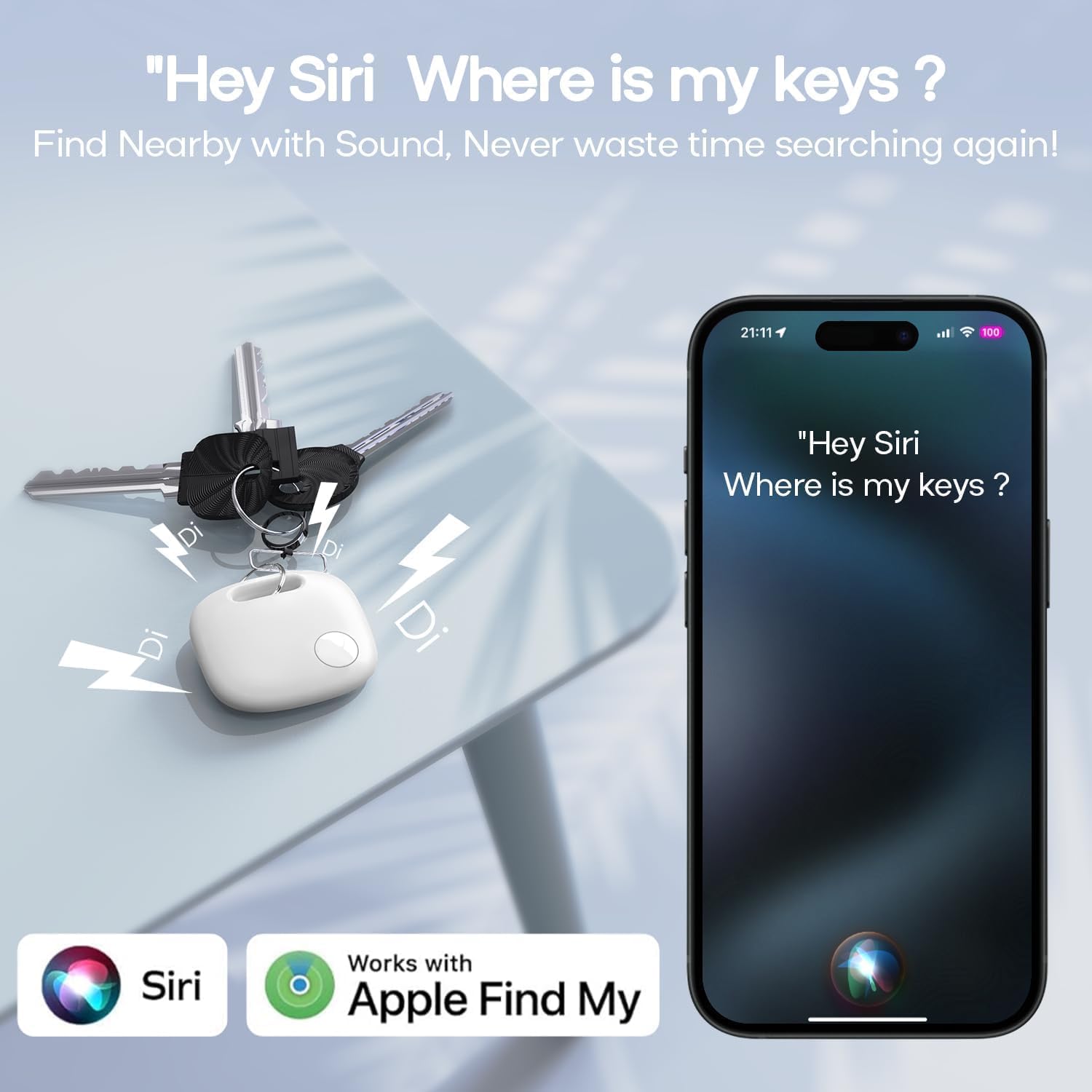
Image: The Dekala T2 Pro Smart Tag Tracker on a set of keys, illustrating how to use Siri to activate an audible alert for nearby item location.
4.2 "Left Behind" Alerts
The T2 Pro can notify you if you leave an item behind. If your tracker is separated from your Apple device for more than 4 minutes, you will receive an alert on your device.
- To manage these alerts, go to the "Find My" app, select your T2 Pro, and adjust the "Notify When Left Behind" settings.

Image: An iPhone displaying a "Smart Tag Left Behind" notification, demonstrating the alert feature when the tracker is separated from the user's device.
4.3 Lost Mode
If your item is lost, you can activate Lost Mode:
- In the "Find My" app, select your T2 Pro.
- Scroll down and enable "Lost Mode".
- You can enter a phone number or email address where a finder can contact you.
- If someone finds your T2 Pro and scans it with an NFC-enabled smartphone, they will see your contact information.

Image: Illustration of the Lost Mode feature, showing a user navigating to a lost item's location on a map and the contact information displayed on an iPhone in Lost Mode.
4.4 Multi-Device Tracking and Sharing
You can add multiple T2 Pro devices to your "Find My" app to track various items simultaneously. Additionally, you can share the location of your T2 Pro with other "Find My" users, allowing friends or family to help locate items.
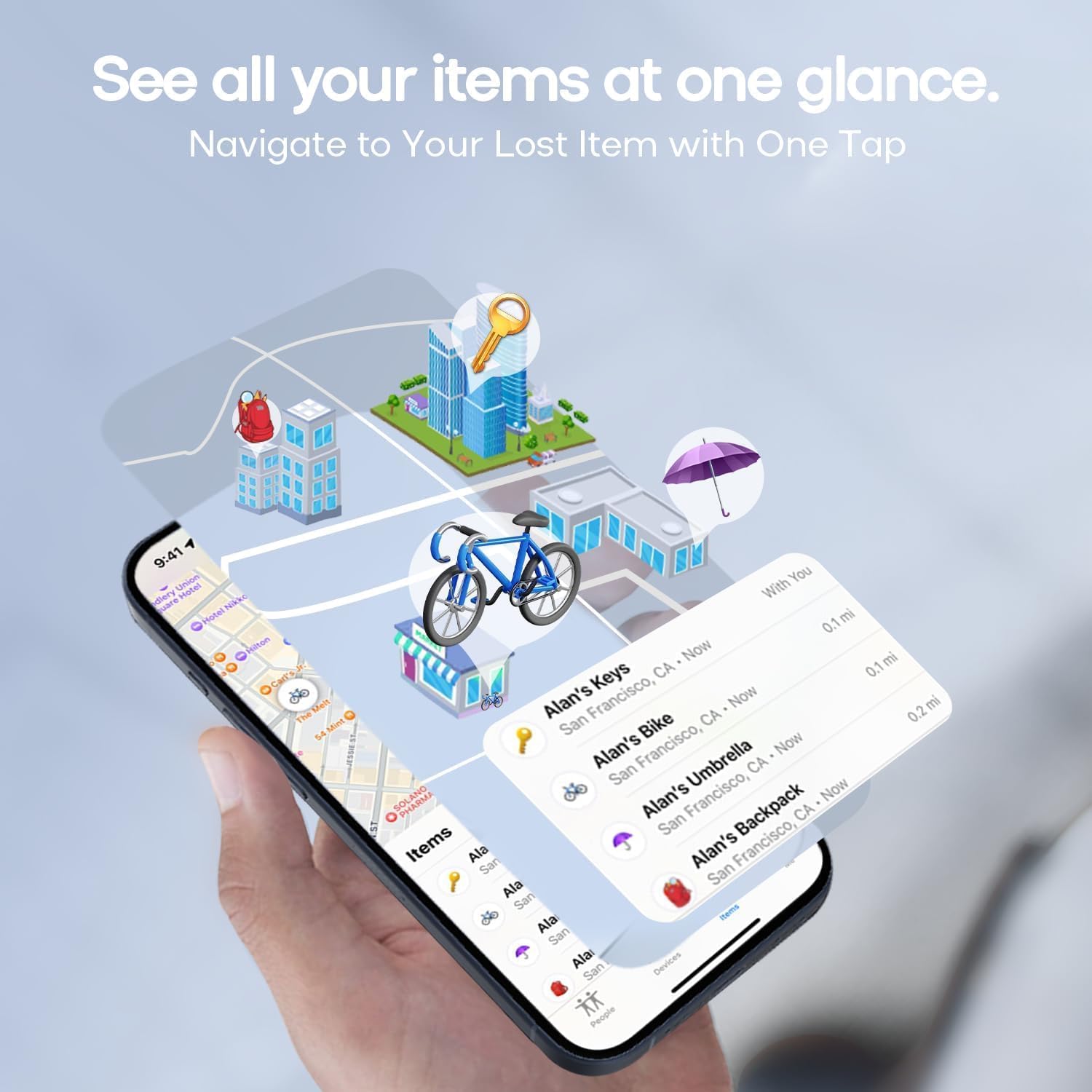
Image: An iPhone displaying the "Find My" app interface, showing multiple items (keys, bike, umbrella, backpack) being tracked simultaneously on a map.
5. Maintenance
5.1 Battery Replacement
The Dekala T2 Pro uses a replaceable coin cell battery (CR2032). The battery is designed to last approximately one year under normal usage. You can check the battery status in the "Find My" app.
- To replace the battery, gently open the tracker casing.
- Remove the old CR2032 battery.
- Insert a new CR2032 battery with the positive (+) side facing up.
- Close the tracker casing securely.
Note: Dispose of used batteries responsibly according to local regulations.
5.2 Cleaning
To clean your T2 Pro, wipe it with a soft, dry, lint-free cloth. Avoid using abrasive materials, solvents, or aerosol sprays, as these can damage the device.
6. Troubleshooting
6.1 Tracker Not Connecting/Pairing
- Ensure Bluetooth is enabled on your Apple device.
- Make sure the T2 Pro is within range of your Apple device during pairing.
- Check the battery level of the T2 Pro. Replace if necessary.
- Restart your Apple device and try the pairing process again.
- Ensure your "Find My" app is updated to the latest version.
6.2 No Sound from Tracker
- Verify that the T2 Pro is connected and within Bluetooth range of your Apple device.
- Check the battery level. A low battery might affect sound output.
- Ensure your device's volume is not muted or too low.
6.3 Inaccurate Location
- Location accuracy depends on the density of Apple devices in the vicinity. In areas with fewer Apple devices, location updates may be less frequent or precise.
- Ensure your Apple device has a stable internet connection (Wi-Fi or cellular data) for the "Find My" app to receive location updates.
- UWB technology provides high precision when close, but overall location relies on the broader "Find My" network.
7. Specifications
| Model Number | T2 Pro |
| Brand | Dekala |
| Dimensions | 25 x 25 x 15 mm (0.98 x 0.98 x 0.59 inches) |
| Weight | Approximately 50 grams |
| Material | Acrylonitrile Butadiene Styrene (ABS) |
| Battery Type | CR2032 Coin Cell (Replaceable) |
| Connectivity | Bluetooth, Apple "Find My" Network |
| Compatibility | iOS devices only (iPhone, iPad, iPod touch) |
8. Safety Information
- Keep the device out of reach of small children and pets to prevent accidental ingestion of small parts, especially the battery.
- Do not expose the device to extreme temperatures, direct sunlight, or moisture.
- Do not attempt to disassemble or modify the device, as this may void the warranty and cause damage.
- Dispose of the device and its battery responsibly according to local environmental regulations.
9. Warranty and Support
For warranty information and technical support, please refer to the documentation provided with your purchase or visit the official Dekala website. If you encounter any issues not covered in this manual, please contact Dekala customer service for assistance.


