
Matbip SW02-blue&red
Matbip Wireless Controller User Manual
Model: SW02-blue&red
1. Introduction
Thank you for purchasing the Matbip Wireless Controller. This manual provides detailed instructions on how to set up, operate, and maintain your controller. Please read this manual carefully before use to ensure optimal performance and longevity of your device.
2. Product Overview
The Matbip Wireless Controller is designed for an enhanced gaming experience across multiple platforms. It features programmable back buttons, adjustable TURBO function, HD vibration, and a 6-axis gyro sensor.
2.1 Package Contents
- 1 x Matbip Wireless Controller
- 1 x USB Charging Cable
- 1 x User Manual
2.2 Controller Layout

Figure 2.2.1: Front and rear view of the Matbip Wireless Controller with all buttons and ports labeled. Key components include Left/Right Analog Sticks, Direction Pad, ABXY Buttons, TURBO Button, Capture Button, Home Button, Menu Selection buttons, L/R/ZL/ZR Buttons, M1/M2 Programmable Back Buttons, LED Indicators, and Type-C Interface.
- Left Analog Stick: For movement and navigation.
- Direction Pad: For directional input.
- ABXY Buttons: Standard action buttons.
- Right Analog Stick: For camera control and aiming.
- TURBO Button: Activates rapid fire function.
- Capture Button: Takes screenshots.
- Home Button: Returns to the console's home screen.
- Menu Selection Buttons (+/-): For menu navigation.
- L/R/ZL/ZR Buttons: Shoulder and trigger buttons.
- M1/M2 Buttons: Programmable back buttons.
- LED Indicators: Show connection status and battery level.
- Type-C Interface: For charging and wired connection.
3. Setup and Connection
3.1 Charging the Controller
Before first use, fully charge the controller. Connect the supplied USB charging cable to the Type-C port on the controller and the other end to a USB power source (e.g., console, PC, USB wall adapter).
- A full charge typically takes approximately 3 hours.
- The built-in 600mAh battery provides approximately 16-20 hours of continuous use on a full charge. Actual usage time may vary depending on game and vibration settings.

Figure 3.1.1: The controller features a 600mAh battery, offering 16-20 hours of gameplay per charge.
3.2 Wireless Connection to Nintendo Switch/Switch Lite/Switch OLED
- From the HOME Menu, select "Controllers" > "Change Grip/Order".
- On the next screen, press and hold the Home button on the Matbip controller for 3-5 seconds until the LED indicators start flashing rapidly.
- Once connected, the LED indicator(s) on the controller will remain solid, and the console will register the controller.
Wake-up Feature: The controller supports one-key wake-up. When the console is in standby mode, press the Home button on the controller to wake up the console and automatically reconnect.
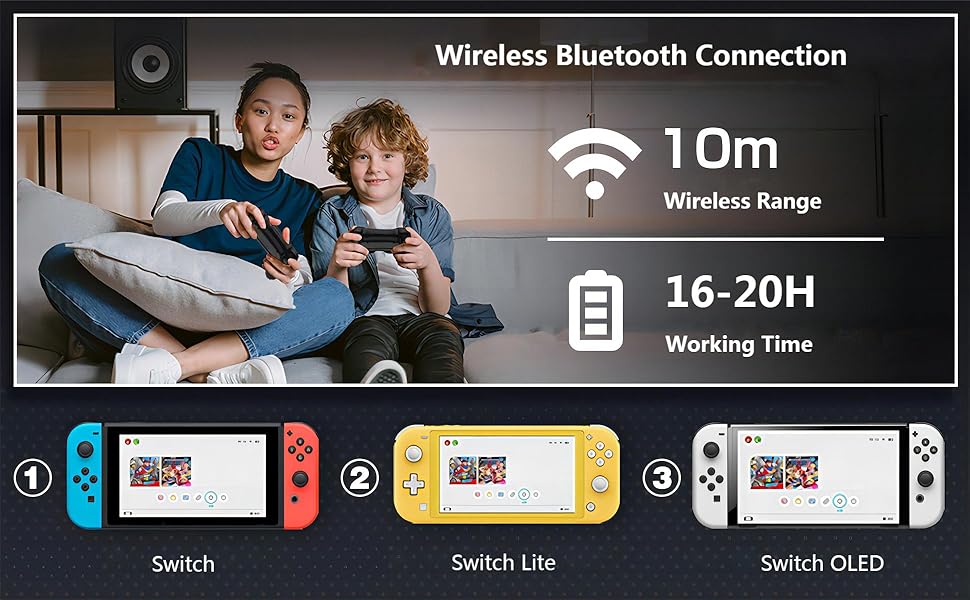
Figure 3.2.1: The controller connects wirelessly via Bluetooth to Nintendo Switch, Switch Lite, and Switch OLED consoles, offering a wireless range of up to 10 meters.
3.3 Wired/Bluetooth Connection to PC (X-Input Mode)
- Wired Connection: Connect the controller to your PC using the USB charging cable. The PC should automatically detect and install the necessary drivers.
- Bluetooth Connection: Ensure your PC has Bluetooth enabled. Go to your PC's Bluetooth settings and search for new devices. Select the Matbip controller from the list to pair. The controller will operate in X-Input mode for PC compatibility.
4. Operating Instructions
4.1 TURBO Function
The TURBO function allows for rapid, continuous input of a button press. This can be useful in games requiring fast button mashing.
- Activate TURBO: Press and hold the TURBO button, then press the desired action button (A/B/X/Y/L/R/ZL/ZR) to enable TURBO for that button.
- Adjust TURBO Speed: While holding the TURBO button, press the Right Analog Stick (R3) up or down to cycle through 3 speed levels:
- Level 1: 5 times/second
- Level 2: 12 times/second
- Level 3: 20 times/second
- Deactivate TURBO: Press and hold the TURBO button, then press the action button again to disable TURBO for that button. Alternatively, press and hold the TURBO button for 5 seconds to clear all TURBO settings.

Figure 4.1.1: The TURBO function allows for rapid button presses, with adjustable speeds up to 20 shots per second, providing an advantage in fast-paced games.
4.2 Programmable Back Buttons (M1/M2)
The M1 and M2 back buttons can be programmed to execute a sequence of up to 16 button actions, or to replicate other buttons for complex "combo techniques."
- Enter Programming Mode: Press and hold the M1 (or M2) button and the TURBO button simultaneously for 3 seconds. The LED indicators will flash slowly to indicate programming mode.
- Record Actions: Press the desired sequence of buttons (up to 16 actions).
- Save Program: Press the M1 (or M2) button again to save the recorded sequence. The LED indicators will stop flashing and return to normal.
- Clear Program: To clear a programmed button, repeat step 1, then press the M1 (or M2) button twice without recording any actions.

Figure 4.2.1: The M1 and M2 buttons on the back of the controller can be programmed to perform complex button combinations or sequences, enhancing gameplay.
4.3 HD Vibration Adjustment
The controller features 4 levels of HD vibration feedback to enhance immersion in games.
- Adjust Vibration: Press and hold the TURBO button, then press the Left Analog Stick (L3) up or down to cycle through the 4 vibration levels (0%, 30%, 70%, 100%).
- Release the TURBO button to set the desired vibration level.

Figure 4.3.1: The controller offers 4 adjustable levels of HD vibration (0%, 30%, 70%, 100%) for a more realistic gaming experience.
4.4 6-Axis Motion Sensor
The integrated high-sensitivity 6-axis detection system allows for tilt and movement control in compatible games.
- The motion sensor detects swinging motion, differentiates viewing motion, and enables precise direction control.
- Ensure the controller is calibrated correctly within your game settings if you experience issues with motion control.

Figure 4.4.1: The 6-axis motion sensor provides precise control by detecting physical movements like swinging, tilting, and directional changes, enhancing interactive gameplay.
5. Compatibility
The Matbip Wireless Controller is compatible with the following systems:
- Nintendo Switch
- Nintendo Switch Lite
- Nintendo Switch OLED
- PC (via wired USB or Bluetooth in X-Input mode)
6. Maintenance
- Keep the controller away from dust, moisture, and extreme temperatures.
- Clean the controller with a soft, dry cloth. Do not use harsh chemicals or abrasive materials.
- Avoid dropping or subjecting the controller to strong impacts.
- When not in use for extended periods, store the controller in a safe place and ensure it is partially charged to preserve battery health.
7. Troubleshooting
| Problem | Possible Cause | Solution |
|---|---|---|
| Controller does not connect/pair. | Low battery; out of range; pairing mode not activated; interference. | Ensure controller is charged. Move closer to the console/PC. Re-enter pairing mode (hold Home button). Turn off other Bluetooth devices. |
| Input lag or unresponsive buttons. | Low battery; wireless interference; software glitch. | Charge the controller. Reduce distance to console/PC. Restart the controller and console. Try wired connection to PC to rule out wireless issues. |
| Controller disconnects frequently. | Low battery; wireless interference; console/PC issues. | Ensure controller is fully charged. Minimize wireless interference. Update console/PC software. |
| Analog stick "drift" or incorrect input. | Calibration issue; physical wear. | Recalibrate analog sticks through the console's system settings. If the issue persists, contact customer support. |
| Vibration is too strong or too weak. | Vibration level setting. | Adjust the HD vibration level as described in Section 4.3. |
8. Specifications
- Model Number: SW02-blue&red
- Connectivity: Wireless (Bluetooth), Wired (USB Type-C)
- Compatibility: Nintendo Switch, Switch Lite, Switch OLED, PC
- Battery Capacity: 600mAh
- Charging Time: Approximately 3 hours
- Working Time: 16-20 hours (approximate, varies with usage)
- Vibration: 4-step HD Vibration
- Motion Sensor: 6-axis Gyro
- Programmable Buttons: 2 (M1, M2)
- TURBO Function: 3 adjustable speeds (5/12/20 times/sec)
- Dimensions: 6.77 x 4.53 x 2.72 inches
- Weight: 9.14 ounces
9. Warranty and Support
Matbip provides customer support for its products. If you encounter any issues or have questions regarding your Matbip Wireless Controller, please contact us via email. We aim to respond to all inquiries within 24 hours.
For further assistance, please refer to the contact information provided with your purchase or visit the official Matbip store on Amazon: Matbip Store
Related documentsSW02-blue&red

Ask a question about this manual
Ask about setup, troubleshooting, compatibility, parts, safety, or missing instructions. Manuals+ will review the question and use this page’s manual context to help answer it.