
ZdalaMit ERF6A80
ERF6A80 Voice Remote Control User Manual
Model: ERF6A80
Brand: ZdalaMit
1. Introduction
This manual provides detailed instructions for the setup, operation, and maintenance of your new ZdalaMit ERF6A80 Voice Replacement Remote Control. This remote is designed to be compatible with specific Hisense Class A7 and U8 Series LCD 4K Google TVs, offering voice control functionality for enhanced user experience.
2. Product Overview
The ERF6A80 remote control is a direct replacement designed to seamlessly integrate with your compatible Hisense Google TV. It features dedicated buttons for popular streaming services and a built-in microphone for voice commands.
2.1 Package Contents
- 1X ERF6A80 Voice Replacement Remote Control
Note: 2X 1.5V AAA Alkaline Batteries are required and are not included in the package.
2.2 Remote Control Layout
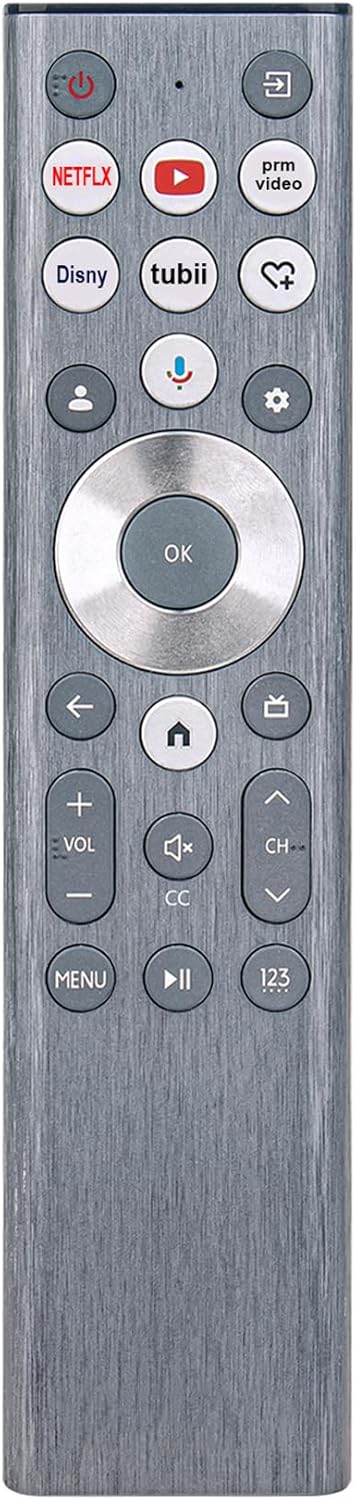
Figure 2.1: Front view of the ERF6A80 Voice Replacement Remote Control, showing all buttons including power, navigation, volume, channel, and dedicated app buttons for Netflix, YouTube, and Prime Video.

Figure 2.2: The ERF6A80 remote control with a focus on the voice command button, indicated by a microphone icon, located centrally above the navigation pad.
3. Setup
3.1 Battery Installation
- Locate the battery compartment on the back of the remote control.
- Slide open the battery cover.
- Insert two (2) 1.5V AAA Alkaline Batteries, ensuring correct polarity (+ and -).
- Close the battery cover securely.
3.2 Pairing the Remote Control
The ERF6A80 remote control requires pairing with your Hisense TV to enable full functionality, especially voice control. Follow these steps:
- Ensure your Hisense TV is powered on.
- If this is the first time powering on your TV, on-screen instructions for remote pairing may appear. Follow those prompts.
- If the remote does not pair automatically or if you are re-pairing, hold the remote control within 10 feet (304.8 cm) of the TV.
- Simultaneously press and hold the Back button (
 ) and the Home button () for at least 3 seconds.
- Continue holding until you observe a light pulsing on the remote control, indicating it is in pairing mode.
- Release the buttons. The TV should display a confirmation message once pairing is successful.
Note: If pairing fails, ensure batteries are fresh and correctly inserted, and repeat the pairing process.
4. Operating the Remote Control
4.1 Basic Functions
- Power Button: Turns the TV on or off.
- Navigation Pad (Up/Down/Left/Right/OK): Used to navigate menus and select items on the screen.
- Volume Up/Down: Adjusts the TV's volume.
- Channel Up/Down: Changes TV channels.
- Back Button: Returns to the previous screen or menu.
- Home Button: Returns to the TV's home screen.
- Mute Button: Mutes or unmutes the TV audio.
- Dedicated App Buttons: Quick access to streaming services like Netflix, YouTube, and Prime Video.
4.2 Using Voice Control
The ERF6A80 remote features a voice control function, allowing you to issue commands to your TV using your voice.
- Press the Voice Button (microphone icon) on the remote control.
- Hold the remote close to your mouth and speak your command clearly.
- Examples of commands include: "Open Netflix," "Search for action movies," "What's the weather?" or "Turn up the volume."

Figure 4.1: A user's hand holding the ERF6A80 remote control, demonstrating its use in a typical living room environment with a TV and soundbar setup.
5. Maintenance
5.1 Battery Replacement
When the remote control's performance degrades or it becomes unresponsive, it is likely time to replace the batteries. Follow the battery installation steps in Section 3.1.
5.2 Cleaning
To clean the remote control, use a soft, dry cloth. For stubborn dirt, slightly dampen the cloth with water or a mild, non-abrasive cleaner. Do not use harsh chemicals or immerse the remote in water.
6. Troubleshooting
| Problem | Possible Cause | Solution |
|---|---|---|
| Remote not responding. | Low or dead batteries. Incorrect battery insertion. | Replace batteries with fresh 1.5V AAA Alkaline batteries. Ensure correct polarity. |
| Remote not pairing with TV. | Remote too far from TV. Incorrect pairing procedure. Interference. | Ensure remote is within 10 feet (304.8 cm) of the TV. Repeat pairing steps (hold Back and Home buttons for 3+ seconds). Remove any obstructions between remote and TV. |
| Voice control not working. | Remote not paired. Microphone obstructed. | Ensure remote is successfully paired. Check if anything is covering the microphone hole on the remote. |
| Buttons are sticky or unresponsive. | Dirt or debris under buttons. | Clean the remote control as described in Section 5.2. |
7. Specifications
| Feature | Detail |
|---|---|
| Model Number | ERF6A80 |
| Compatible Devices | Hisense Class A7 U8 Series LCD 4K Google TV (Models: 100U88N, 85U88N, 75U88N, 65U88N, 55U88N, 43A7N, 50A7N, 55A7N, 65A7N, 75A7N, 85A7N, 55U8N, 65U8N, 75U8N, 85U8N, 100U8N) |
| Power Supply | 2X 1.5V AAA Alkaline Battery |
| Special Feature | Voice Search |
| Color | Black |
| Product Dimensions | 5.9 x 1.57 x 0.55 inches (15 x 4 x 1.4 cm) |
| Item Weight | 1.41 ounces (40 grams) |

Figure 7.1: The ERF6A80 remote control displaying its approximate length (7.6 inches) and width (1.7 inches).
8. Warranty and Support
For warranty information or technical support regarding your ZdalaMit ERF6A80 Voice Replacement Remote Control, please refer to the seller's information on the product purchase page or contact the manufacturer directly. Keep your proof of purchase for any warranty claims.
Ask a question about this manual
Ask about setup, troubleshooting, compatibility, parts, safety, or missing instructions. Manuals+ will review the question and use this page’s manual context to help answer it.