
weelikeit Weelikeit P51L Tablet
Weelikeit P51L 12-inch Android Tablet User Manual
Model: Weelikeit P51L Tablet
Introduction
Thank you for choosing the Weelikeit P51L 12-inch Android Tablet. This device is designed to provide a versatile and powerful computing experience, featuring a high-resolution display, robust performance, and extensive connectivity options. This user manual will guide you through the setup, operation, maintenance, and troubleshooting of your new tablet to ensure optimal performance and longevity.

Image: The Weelikeit P51L tablet shown with its detachable keyboard, charger, and USB-C cable, highlighting its comprehensive package.
Product Overview and Features
The Weelikeit P51L tablet is equipped with advanced features for both productivity and entertainment.
- Display: 11.97-inch 2K FHD IPS (1200x2000 pixels) Incell display for clear and vibrant visuals, with blue light filtering for eye protection.
- Performance: Octa-Core UNISOC T616 processor and Mali G57 GPU for smooth multitasking and gaming.
- Memory & Storage: 16GB RAM (8GB physical + 8GB extended) and 256GB internal storage, expandable up to 1TB via Micro SD card.
- Battery: Large 8000mAh battery with 20W PD fast charging for extended use.
- Connectivity: Dual SIM 4G LTE support, dual-band Wi-Fi (2.4GHz/5GHz), and Bluetooth 5.0 for reliable connections.
- Cameras: 13MP rear camera and 5MP front camera for photos, video calls, and selfies.
- Operating System: Android 14 with GMS certification, providing access to a wide range of Google Play Store applications.
- Design: Slim 7.5mm all-metal body, weighing 570 grams, designed for portability.
- Audio: Equipped with 4 sound chambers for an enhanced external listening experience.
- Navigation: Integrated GPS functionality for offline map usage and navigation.

Image: Visual representation of the tablet's core specifications including RAM, ROM, display size, battery, and camera details.
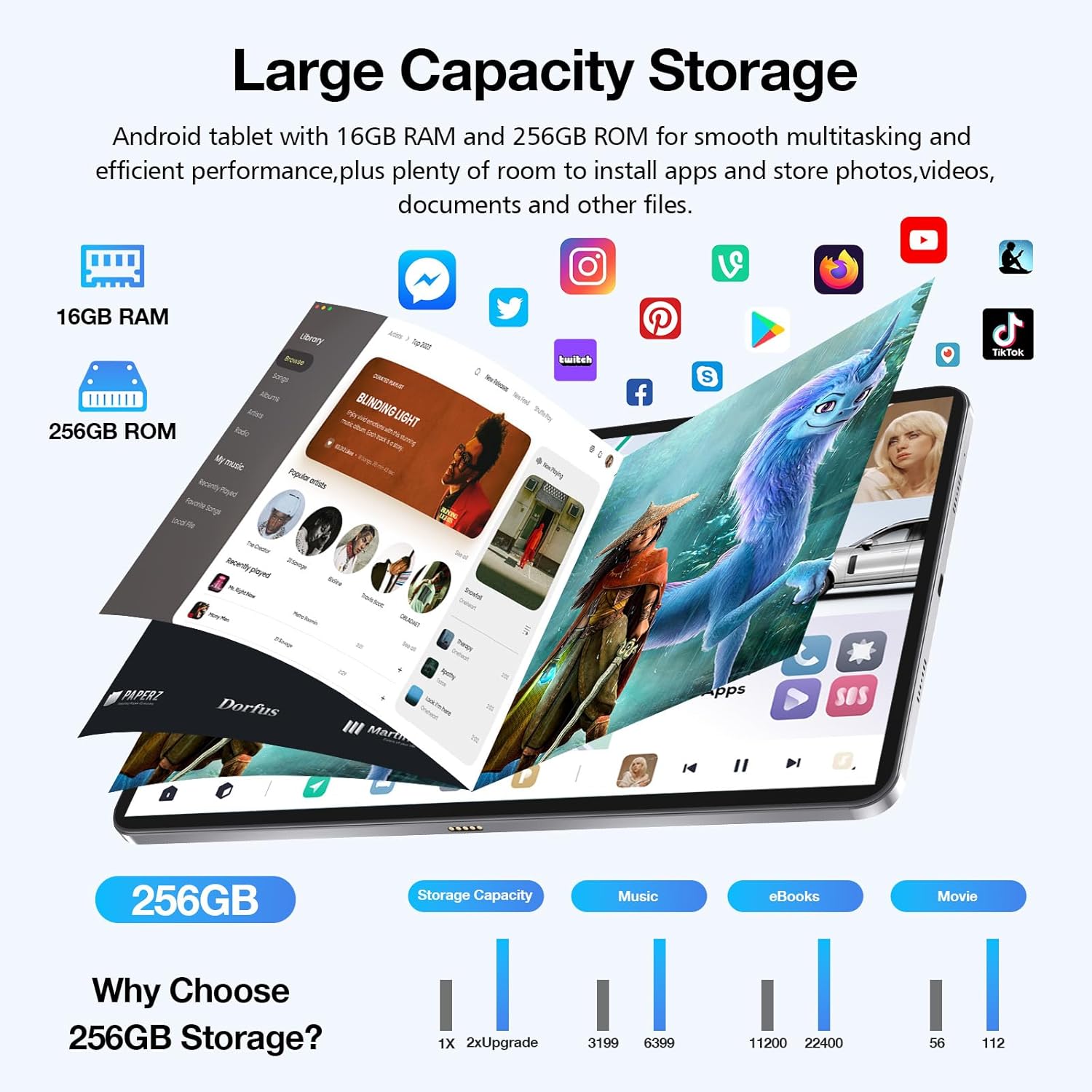
Image: An illustration demonstrating the tablet's large 256GB storage capacity, suitable for numerous apps, photos, videos, and documents.
Setup Guide
1. Unboxing and Initial Charge
Carefully remove all components from the packaging. Before first use, fully charge the tablet using the provided 20W PD fast charger and Type-C cable. The battery indicator on the screen will show charging progress.

Image: The tablet laid out with its accessories, including the wireless keyboard, protective film, USB-C cable, and power adapter.
2. Inserting SIM and Micro SD Cards
Locate the SIM/TF card tray on the side of the tablet. Use the provided SIM ejector tool to open the tray. Insert your 4G LTE SIM cards and/or a Micro SD card (up to 1TB) into the designated slots. Ensure the cards are correctly oriented as indicated on the tray. Gently push the tray back into the tablet until it clicks into place.
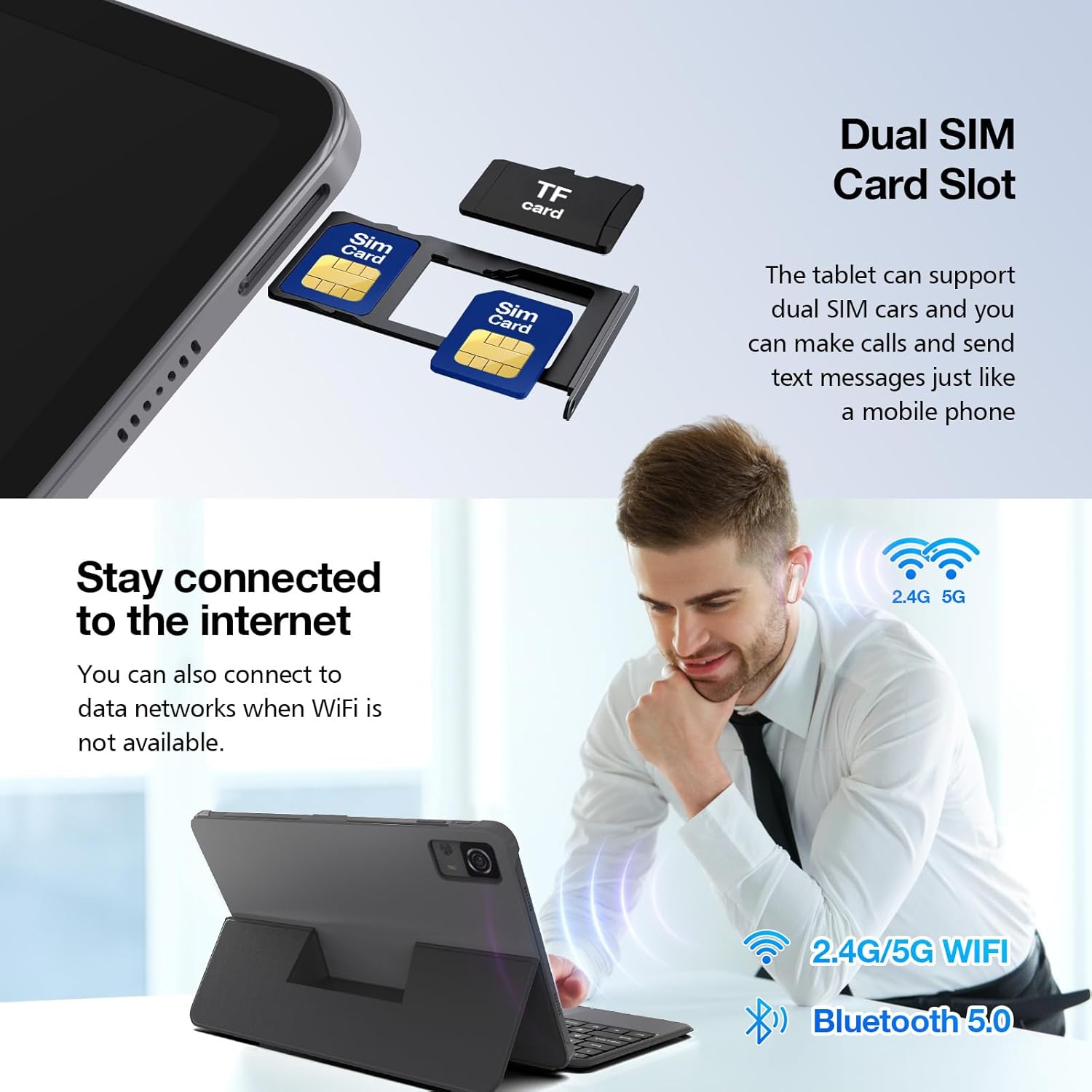
Image: A close-up view of the tablet's dual SIM card slot, illustrating how to insert SIM and TF (Micro SD) cards.
3. Connecting the Wireless Keyboard
The tablet comes with a detachable wireless keyboard. Align the tablet with the magnetic connector on the keyboard case. The keyboard will automatically connect via Bluetooth. Ensure Bluetooth is enabled on your tablet if the connection does not establish automatically.
4. Initial Power On and Setup Wizard
Press and hold the power button until the Weelikeit logo appears. Follow the on-screen instructions to complete the initial setup, including language selection, Wi-Fi connection, Google account login, and security settings.
Operating Instructions
1. Basic Navigation (Android 14)
The tablet runs on Android 14, offering an intuitive user interface. Use touch gestures for navigation:
- Tap: Select an item or open an app.
- Swipe: Scroll through screens or lists.
- Pinch-to-zoom: Zoom in or out on images and web pages.
- Long press: Access contextual menus or move icons.

Image: The tablet displaying a racing game, illustrating the smooth performance of Android 14 and its enhanced user experience.
2. Connecting to Wi-Fi and Mobile Data
To connect to Wi-Fi, go to Settings > Network & internet > Wi-Fi, select your network, and enter the password. For mobile data, ensure your SIM card is inserted and mobile data is enabled in Settings > Network & internet > Mobile network.
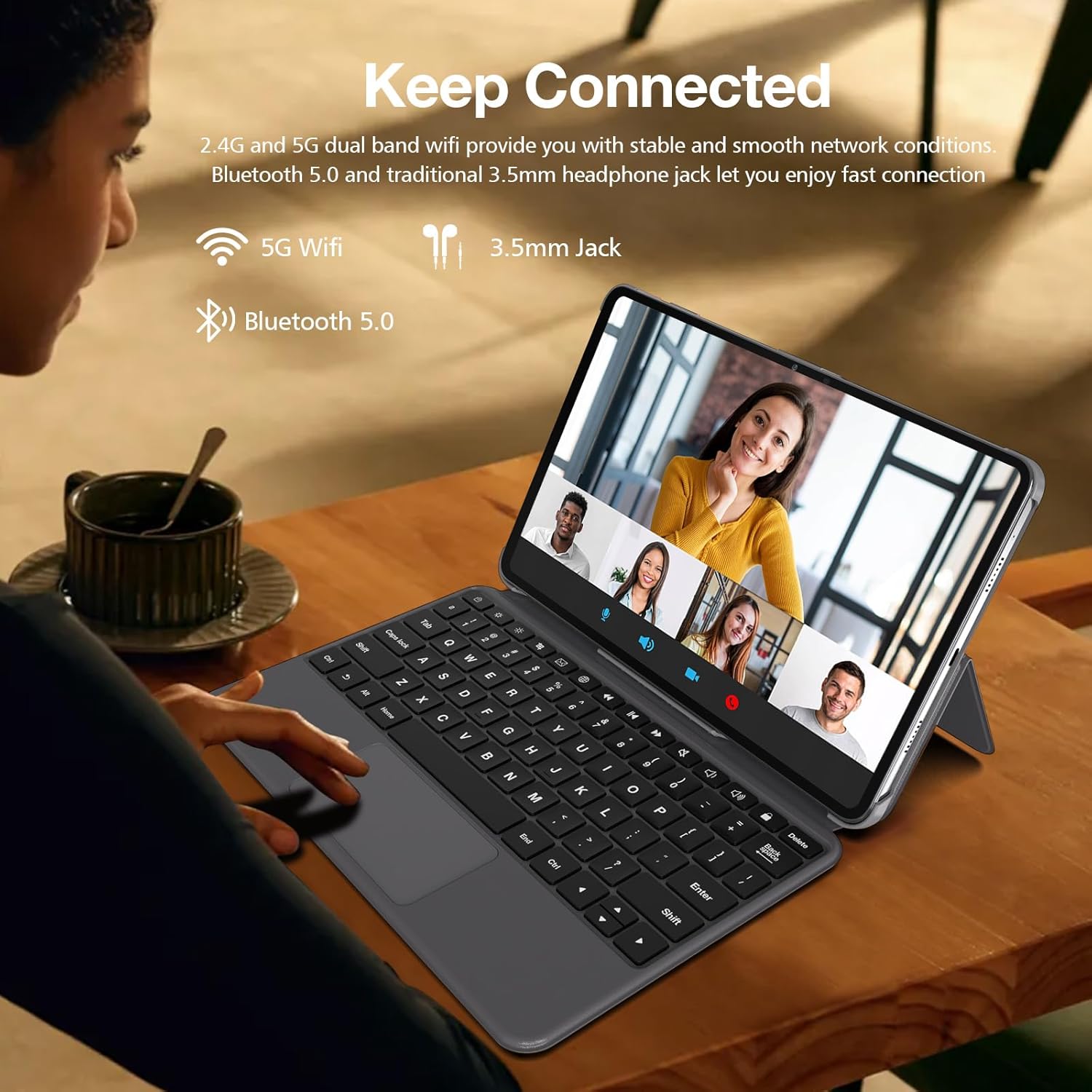
Image: A user interacting with the tablet, demonstrating its connectivity features like dual-band Wi-Fi and Bluetooth 5.0 for stable network access and peripheral connections.
3. Making Calls and Sending Messages (4G LTE)
With a compatible 4G LTE SIM card, you can make and receive calls and send text messages directly from your tablet, similar to a smartphone. Use the pre-installed Phone and Messages applications.
4. Using Cameras
The tablet features a 13MP rear camera and a 5MP front camera. Open the Camera app to capture photos and videos. Tap the screen to focus, and use the on-screen controls to switch between modes (photo, video, panorama) and cameras.

Image: A visual highlighting the tablet's 13MP rear camera and 5MP front camera, capable of capturing moments with clarity.
5. Storage Management
To manage your 256GB internal storage and any inserted Micro SD card, navigate to Settings > Storage. Here you can view storage usage, free up space, and manage files.
6. GPS Navigation
The tablet includes GPS functionality. You can use pre-installed mapping applications or download others from the Google Play Store. For offline navigation, download maps in advance when connected to Wi-Fi.

Image: The tablet mounted in a car, demonstrating its GPS capabilities for real-time positioning and navigation.
Maintenance
1. Cleaning the Tablet
Use a soft, lint-free cloth to clean the screen and body of the tablet. For stubborn smudges, slightly dampen the cloth with water or a screen cleaner. Avoid using harsh chemicals or abrasive materials.
2. Battery Care
To prolong battery life, avoid exposing the tablet to extreme temperatures. It is recommended to keep the battery charge between 20% and 80% for optimal long-term health. Use only the provided charger or a certified compatible charger.
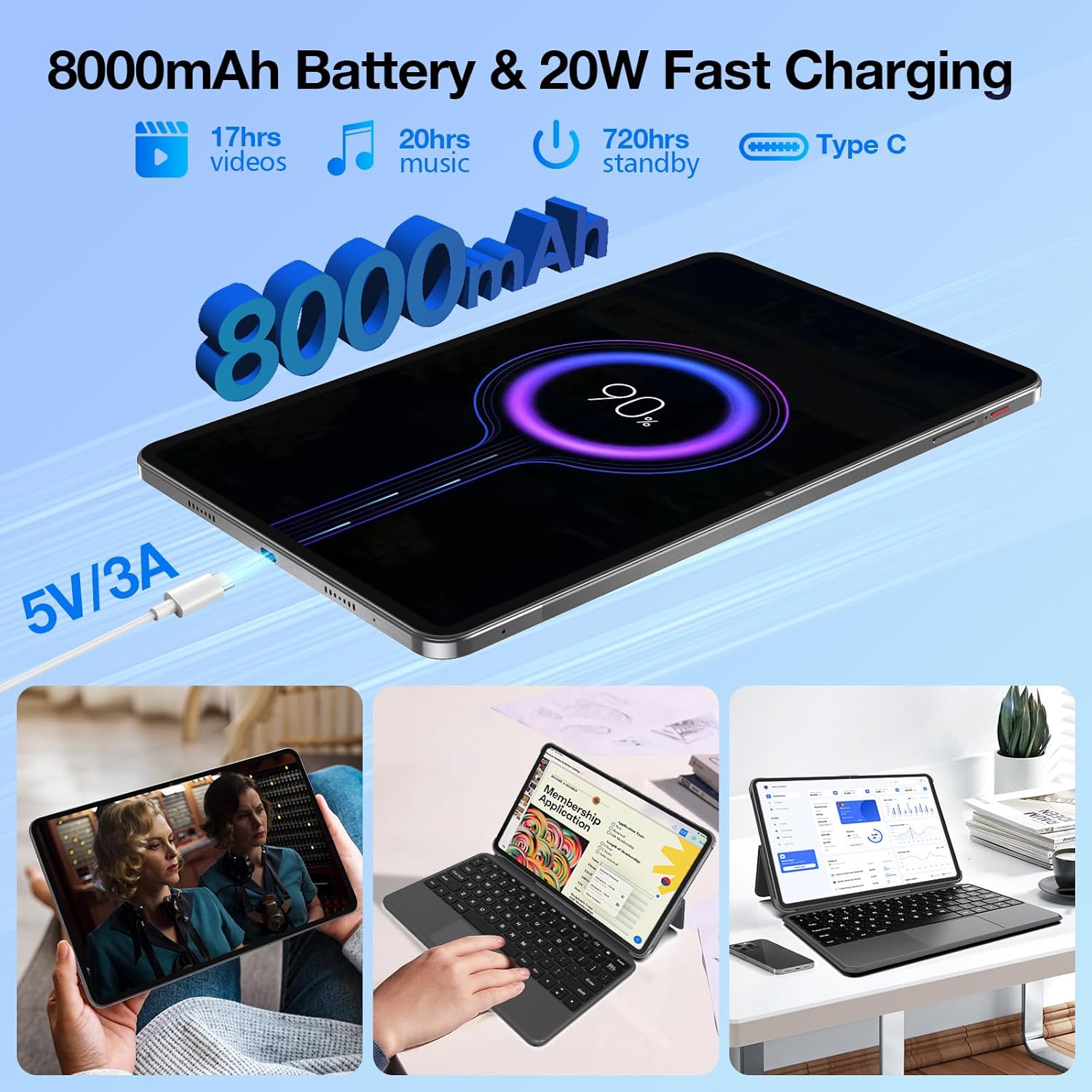
Image: An illustration of the tablet's 8000mAh battery and 20W fast charging capability, indicating long usage times for videos, music, and standby.
3. Software Updates
Regularly check for system updates to ensure your tablet has the latest features, security patches, and performance improvements. Go to Settings > System > System update to check for and install available updates.
Troubleshooting
This section addresses common issues you might encounter with your Weelikeit P51L tablet.
- Tablet does not power on: Ensure the tablet is charged. Connect it to the charger and wait a few minutes before attempting to power on again. If it still doesn't turn on, perform a forced restart by holding the power button for 10-15 seconds.
- Screen is unresponsive: Restart the tablet. If the issue persists, ensure the screen is clean and free of debris.
- Cannot connect to Wi-Fi: Check if Wi-Fi is enabled in settings. Restart your Wi-Fi router. Forget the network on your tablet and try reconnecting.
- Poor mobile data signal or cannot set up APN: Ensure your SIM card is correctly inserted and activated with your carrier. For APN settings, contact your mobile service provider for the correct configuration details and manually enter them in Settings > Network & internet > Mobile network > Access Point Names.
- Apps are crashing or running slowly: Close background applications. Clear the cache of problematic apps (Settings > Apps > [App Name] > Storage & cache > Clear cache). If the issue continues, consider uninstalling and reinstalling the app.
- Battery drains quickly: Reduce screen brightness. Disable unused features like Bluetooth or GPS. Close background apps. Check battery usage in Settings > Battery to identify power-hungry applications.
If you encounter issues not covered here, please refer to the Warranty and Support section for further assistance.
Specifications
| Feature | Specification |
|---|---|
| Brand | weelikeit |
| Model Number | Weelikeit P51L Tablet |
| Operating System | Android 14 |
| Processor Brand | Unisoc |
| Processor Speed | 2 GHz |
| Screen Size | 11.97 Inches |
| Display Resolution | 2000 x 1200 Pixels (2K FHD IPS) |
| RAM Size | 16 GB (8GB + 8GB extended) |
| Storage Capacity | 256 GB (Expandable up to 1TB via Micro SD) |
| Battery Capacity | 8000 mAh |
| Charging | 20W PD Fast Charging |
| Connectivity | 4G LTE, Dual SIM, Wi-Fi (802.11ax, 2.4GHz/5GHz), Bluetooth 5.0 |
| Rear Camera | 13 MP |
| Front Camera | 5 MP |
| Dimensions (L x W x H) | 27.8 x 17.4 x 0.75 cm |
| Weight | 1.6 kilograms (approx. 570 grams for tablet only) |
| Special Features | Fast Charging, Detachable Keyboard, Cellular Connectivity, Phone Call Functionality, Expandable Storage, GPS |
Warranty and Support
Weelikeit offers a 24-month warranty and lifetime technical service for your P51L tablet. If you encounter any problems after purchasing our products, please do not hesitate to contact our professional technical team. We are committed to providing the best possible support to resolve any issues you may have.
For support, please refer to the contact information provided with your product packaging or visit the official Weelikeit support website.
Related documentsWeelikeit P51L Tablet


Ask a question about this manual
Ask about setup, troubleshooting, compatibility, parts, safety, or missing instructions. Manuals+ will review the question and use this page’s manual context to help answer it.