
Timekettle X1
Timekettle X1 AI Interpreter Hub User Manual
Model: X1
Introduction
The Timekettle X1 AI Interpreter Hub is a standalone, two-way simultaneous translator device designed to revolutionize cross-language communication. It integrates cutting-edge AI technology to provide effortless translation for various scenarios, from one-on-one conversations to multi-person meetings.
This manual provides detailed instructions on setting up, operating, maintaining, and troubleshooting your X1 device to ensure optimal performance.
1. Setup
1.1 Unboxing and Initial Charge
Upon unboxing your Timekettle X1, ensure all components are present: the X1 Interpreter Hub, two translator earbuds, and a USB-C charging cable. It is recommended to fully charge the device before first use. Connect the USB-C cable to the X1 Hub and a power source. The device features a 5-minute quick charge for 90 minutes of translation time.

Figure 1: Timekettle X1 AI Interpreter Hub with included earbuds.
1.2 Connecting to Wi-Fi
The X1 is a standalone device and requires a Wi-Fi connection for most online translation features. Navigate to the 'Settings' menu on the touchscreen, select 'WLAN', and connect to your preferred Wi-Fi network. No external mobile phone or app is required for basic operation.

Figure 2: The X1 device displaying its main interface, ready for Wi-Fi connection.
2. Operating Modes
The Timekettle X1 offers several operating modes tailored for different communication needs. Each mode leverages the device's AI Semantic Segmentation Technology for faster and smoother translations.
2.1 One-on-One Mode
This mode is designed for intimate, two-person conversations. Each participant wears one earbud, allowing for bidirectional simultaneous translation.
- From the main screen, select 'One-on-One'.
- Each user should wear one earbud (L or R).
- Choose the desired languages for each earbud.
- Begin speaking. The device will provide real-time translation in your earbud and display translated text on the screen.
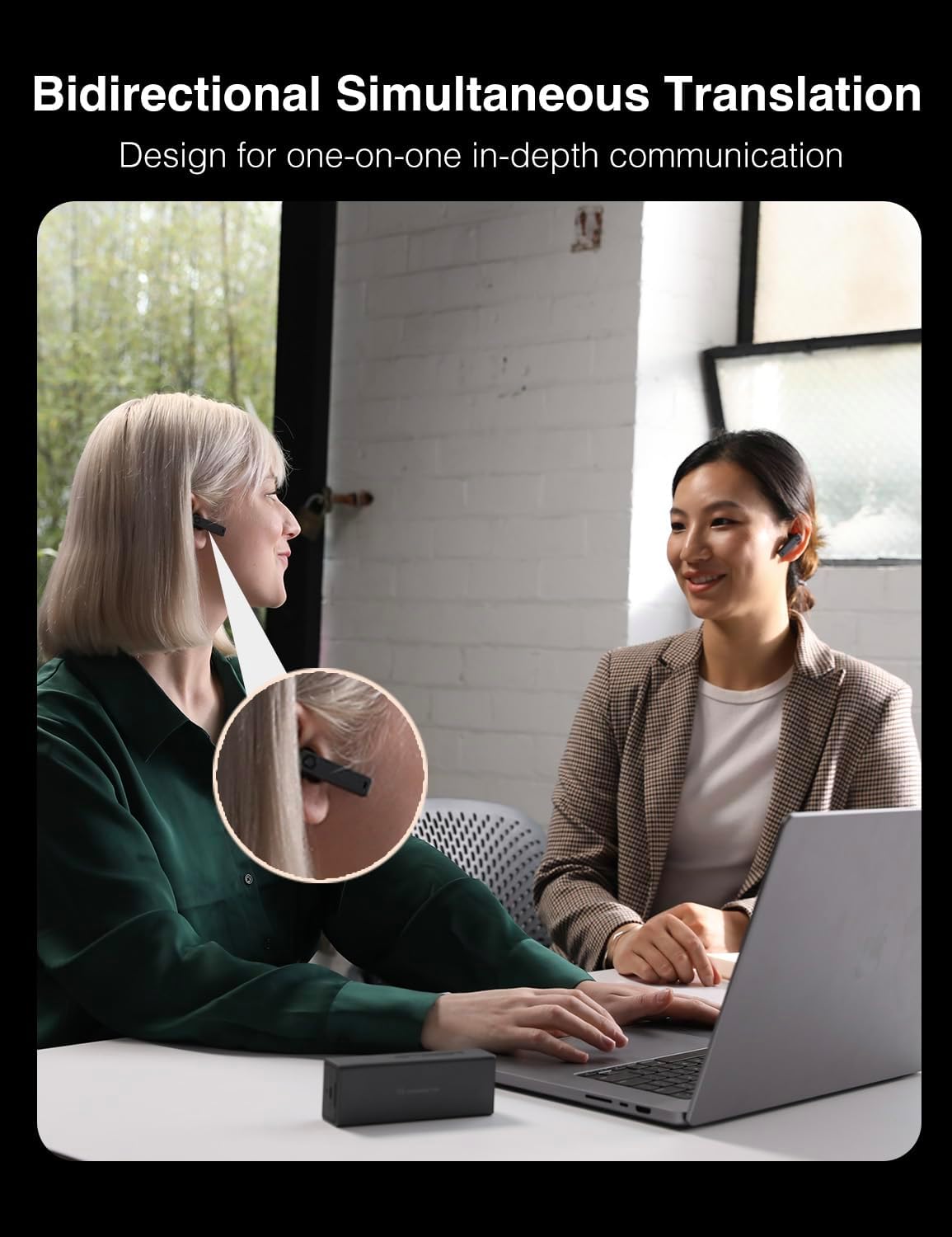
Figure 3: Demonstrating the One-on-One mode for direct conversations.
Video 1: Official guide for using the Timekettle X1 AI Translator in One-on-One Mode. This video demonstrates how two individuals can share earbuds for seamless, real-time translated conversations.
2.2 Listen & Play Mode
Ideal for understanding foreign content or conversations where you are primarily listening. Place the X1 Hub near the sound source, and wear the earbuds to receive translations.
- Select 'Listen & Play' from the main screen.
- Place the X1 Hub close to the speaker or audio source.
- Wear your earbuds to listen to the translated audio.
- To speak, hold the 'Back' button on the X1 Hub, speak, and release to play your audio for automatic translation.

Figure 4: The Listen & Play mode in action, allowing users to understand conversations or media by placing the device near the source.
Video 2: Guide to using the Listen & Play Mode on the Timekettle X1 AI Translator. This video illustrates how to set up the device to listen to and translate spoken content from a single source.
2.3 Ask & Go Mode
For quick, on-the-go interactions without needing to wear earbuds. Simply hold the device and speak, then pass it to the other person.
- Select 'Ask & Go' from the main screen.
- Hold the 'Back' button, speak your phrase, and release. The device will translate and play the audio through its speaker.
- Pass the device to the other person for their response.

Figure 5: The Ask & Go mode, demonstrating how to use the device for quick, direct translations without earbuds.
Video 3: Tutorial for the Ask & Go Mode on the Timekettle X1 AI Translator. This video shows how to use the device for quick, direct conversations by holding and speaking into the unit.
2.4 Multi-Person Mode
Facilitates multilingual meetings with up to 20 participants in 5 languages simultaneously. Each participant requires their own X1 device.
- Select 'Multi-Person' from the main screen.
- The meeting organizer creates a meeting room and shares the meeting number and password.
- Participants join by entering the meeting details.
- In 'Speech mode', only the administrator can speak. In 'Discussion mode', all participants can speak freely.

Figure 6: A multi-person meeting facilitated by multiple Timekettle X1 devices, enabling simultaneous translation for all attendees.
Video 4: Instructions for the Multi-Person Mode on the Timekettle X1 Translator Device. This video explains how to set up and manage group conversations with multiple X1 devices.
2.5 Voice-Call Mode
Experience seamless remote conversations with simultaneous translation. Both parties need an X1 device.
- Select 'Voice Call' from the main screen.
- Dial the unique six-digit number of the other X1 device.
- Once connected, you can begin a remote bilingual conversation in real-time.

Figure 7: The Voice-Call mode, enabling remote conversations with real-time translation between two X1 devices.
Video 5: Voice-Call Mode Guide for the Timekettle X1 AI Translator Device. This video demonstrates how to initiate and conduct remote translated calls using two X1 devices.
2.6 Media Translation Mode
Seamlessly translate foreign videos or online meeting video calls for better comprehension.
- Connect the X1 Hub to your computer or media device.
- The X1 will translate the audio from the media, allowing you to understand foreign content.

Figure 8: The Media Translation mode, showing the X1 device translating audio from a video playing on a laptop.
2.7 Presentation Mode
Enhance speeches and presentations with real-time subtitles and the option to share them via QR code.
- Select 'Presentation' mode.
- Integrate the X1 with PC desktop assistance.
- Real-time subtitles will be generated, and can be shared with the audience.

Figure 9: Presentation mode in use, with the X1 device providing real-time translation for a speaker and displaying subtitles on a connected screen.
3. Offline Translation
The Timekettle X1 supports offline translation for 13 language pairs, ensuring seamless communication even without an internet connection. This feature is available in One-on-One and Listen & Play modes.
- Navigate to the settings for 'One-on-One' or 'Listen & Play' mode.
- Tap on 'Offline Translation' to access available language packs.
- Download the desired language pairs. Ensure you have sufficient storage space.
- Once downloaded, enable the offline translation function.

Figure 10: The X1 device displaying available offline language packs for download.
Video 6: Offline Translation Guide for the Timekettle X1 AI Translator. This video demonstrates how to download and enable offline language packs for use without an internet connection.
4. Maintenance
4.1 Cleaning the Device
Regularly clean the X1 Hub and earbuds with a soft, dry, lint-free cloth. Avoid using abrasive materials, alcohol, or chemical cleaners, as these can damage the device's surface or internal components.
4.2 Software Updates
Ensure your X1 device is running the latest firmware for optimal performance and new features. Connect to Wi-Fi and navigate to 'Settings' > 'System Update' to check for and install available updates.
4.3 Battery Care
The X1 features an ultra-long battery life. To prolong battery lifespan, avoid extreme temperatures and store the device with a partial charge if not used for extended periods.
5. Troubleshooting
| Problem | Possible Cause | Solution |
|---|---|---|
| Device not turning on | Low battery; Power button not pressed correctly. | Charge the device; Press and hold the power button for 3-5 seconds. |
| No translation output | No internet connection (for online modes); Incorrect language selection; Earbuds not paired. | Check Wi-Fi connection; Verify selected languages; Re-pair earbuds. |
| Poor translation accuracy | Background noise; Speaker too far from microphone; Outdated firmware. | Reduce noise; Move closer to the device; Update device firmware. |
| Earbuds not connecting | Earbuds not properly seated in charging case; Bluetooth interference. | Ensure earbuds are correctly placed; Restart the X1 Hub and try re-pairing. |
6. Specifications
- Model: Timekettle X1 AI Interpreter Hub
- Dimensions: 6.18 x 6.02 x 2.24 inches
- Item Weight: 1.23 pounds
- Battery: 1 Lithium Polymer battery (included)
- Online Languages: 40 languages, 93 accents
- Offline Languages: 13 language pairs
- Multi-Person Meeting Support: Up to 20 participants in 5 languages
- Connectivity: Wi-Fi, Bluetooth
- Manufacturer: Timekettle
7. Warranty Information
The Timekettle X1 AI Interpreter Hub comes with a standard manufacturer's warranty. Please refer to the warranty card included in your product packaging for specific terms and conditions, including warranty period and coverage details. Keep your proof of purchase for warranty claims.
8. Customer Support
For technical assistance, product inquiries, or warranty support, please contact Timekettle Customer Service:
- Website: www.timekettle.co
- Email: Refer to product packaging or official website for support email.
- Online Resources: Visit the Timekettle support page for FAQs, video tutorials, and software downloads.
Related documentsX1


Ask a question about this manual
Ask about setup, troubleshooting, compatibility, parts, safety, or missing instructions. Manuals+ will review the question and use this page’s manual context to help answer it.