
1. Introduction
This manual provides detailed instructions for the installation, operation, maintenance, and troubleshooting of your Biorunn Android 12 Car Radio Stereo. This unit is specifically designed for Mazda CX-5 models from 2014 to 2016 that come with an OEM navigation screen (B Version). Please read this manual thoroughly before installation and use to ensure proper functionality and safety.
Important Note: This unit is compatible only with Mazda CX-5 2014-2016 vehicles equipped with the original navigation system (B version). It is not suitable for vehicles without the original navigation system. If you are unsure about your vehicle's compatibility, please consult your vehicle's documentation or contact Biorunn support with a picture of your car's center console.
2. Setup and Installation
2.1 Compatibility Check
Before proceeding with installation, verify your vehicle's center console configuration. The Biorunn Android 12 Car Radio Stereo is designed for Mazda CX-5 2014-2016 models with the OEM navigation screen (B Version).

Image: This image illustrates different center console configurations for Mazda CX-5. Version B, highlighted with a red box, indicates compatibility with this head unit. Please ensure your vehicle matches version B.
2.2 Package Contents
Please ensure all components are present before beginning installation:
- Biorunn Android 12 Car Radio Stereo Head Unit
- Power Harness
- GPS Antenna
- USB Cables
- External Microphone
- User Manual (This document)
- Additional accessories as per your specific package
2.3 Installation Overview
Installation of the head unit requires technical knowledge and familiarity with car electronics. It is recommended to have the unit installed by a qualified professional. Incorrect installation can damage the unit or your vehicle.
- Disconnect Battery: Before starting, disconnect the vehicle's negative battery terminal to prevent electrical shorts.
- Remove Original Unit: Carefully remove the existing car radio and trim panels. Refer to your vehicle's service manual for specific instructions.
- Connect Wiring: Connect the provided power harness, GPS antenna, USB cables, and other necessary connections to the new head unit and the vehicle's wiring. Ensure all connections are secure.
- Mount New Unit: Securely mount the Biorunn head unit into the dashboard.
- Reconnect Battery: Reconnect the vehicle's negative battery terminal.
- Initial Power On: Turn on the vehicle's ignition and power on the head unit to test basic functionality.

Image: The Biorunn Android 12 Car Radio Stereo Head Unit, showing its 12.3-inch QLED display.

Image: The Biorunn head unit seamlessly integrated into the dashboard of a Mazda CX-5, demonstrating its large display and user interface.
3. Operating Instructions
3.1 Basic Operation
The unit operates on Android 12, providing a familiar and intuitive user interface. The 12.3-inch QLED display offers clear visuals and responsive touch control.
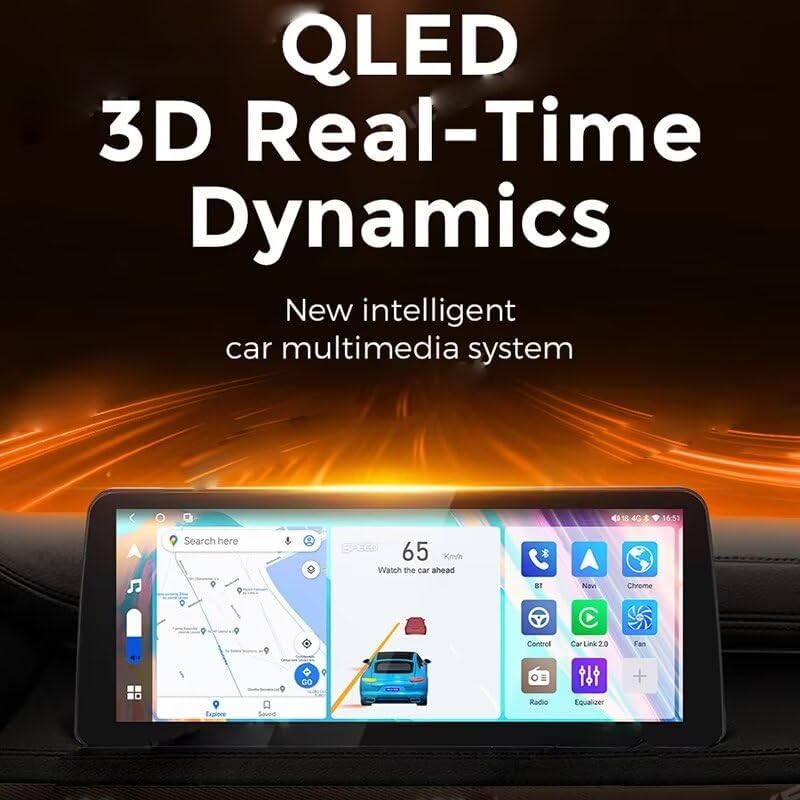
Image: The QLED display showcasing 3D real-time dynamics, indicating a modern and responsive multimedia system.
3.2 Navigation and GPS
The unit features built-in GPS and Beidou navigation capabilities. Access navigation applications through the main menu. Ensure the GPS antenna is properly installed for optimal signal reception.
3.3 Wireless and Wired Car-Play / Android Auto
Connect your smartphone wirelessly or via USB to access Apple Car-Play or Android Auto. This allows for seamless integration of phone functions such as calls, messages, music, and maps directly on the head unit's display.

Image: The display showing the integrated Car-Play interface, allowing access to phone applications like calls, music, and navigation.
3.4 Radio Functions (FM/AM/RDS)
The unit supports FM and AM radio bands with RDS (Radio Data System) functionality. Use the radio application to scan for stations, save presets, and view station information where available.
3.5 Bluetooth Connectivity
Equipped with Bluetooth 5.0 (Realtek8761), the unit supports hands-free calling, phone book download, and audio streaming from your mobile device. Pair your phone through the Bluetooth settings menu.
3.6 Multimedia Playback
The unit supports various audio and video formats. Play media from connected USB devices or streaming apps. The system includes DSP (Digital Signal Processor) for enhanced audio quality and supports 5.1 channel audio output (4 speakers + 1 subwoofer + 1 center speaker) via fiber optic and coaxial digital outputs.
3.7 User Interface Customization
The Android 12 system allows for extensive customization of the user interface.
- Sliding Multifunctional UI: Swipe left or right on the home screen to access different widgets and information panels.
- Customizable Layout: Arrange widgets and application icons to suit your preferences.
- Application Icon Customization: Add or remove up to nine customizable application icons on the home screen for quick access.

Image: A home screen displaying various widgets for music, weather, car information, and DVR, demonstrating fast operation and a customizable layout.
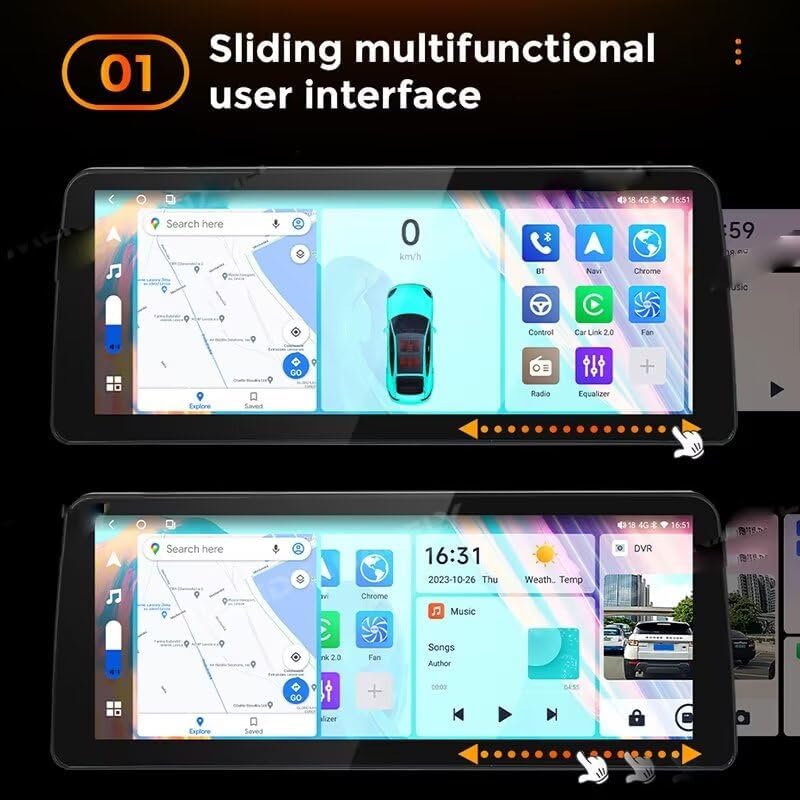
Image: Illustration of the sliding multifunctional user interface, showing how different panels can be accessed by swiping.

Image: Demonstration of customizing the placement of software icons and widgets on the user interface.

Image: A pop-up menu showing how to add or remove customizable application icons on the home screen.
3.8 Steering Wheel Control
The unit supports original steering wheel remote control functionality. This allows you to control various functions of the head unit without taking your hands off the steering wheel.
3.9 AHD Reversing Video
Connect an AHD 1920*1080 high-definition reversing camera (sold separately) to enable automatic display of the rear view when the vehicle is in reverse gear.
4. Maintenance
To ensure the longevity and optimal performance of your Biorunn car radio stereo, follow these maintenance guidelines:
- Cleaning: Use a soft, dry cloth to clean the screen and exterior surfaces. Avoid abrasive cleaners or solvents that could damage the display or finish.
- Software Updates: Periodically check for and install available software updates to ensure the system has the latest features and security patches. Updates can typically be found in the system settings or on the Biorunn support website.
- Avoid Extreme Temperatures: Do not expose the unit to extreme temperatures, direct sunlight for prolonged periods, or high humidity, as this can affect performance and lifespan.
5. Troubleshooting
If you encounter issues with your Biorunn car radio stereo, refer to the following common troubleshooting steps:
- No Power: Check all power connections and ensure the vehicle's battery is charged. Verify the fuse for the head unit.
- No Sound: Check speaker connections, volume levels, and audio output settings. Ensure the mute function is not activated.
- Touchscreen Unresponsive: Try restarting the unit. If the issue persists, a factory reset might be necessary (note: this will erase all user data).
- GPS Signal Loss: Ensure the GPS antenna is properly installed and has a clear view of the sky. Check antenna connections.
- Bluetooth Pairing Issues: Ensure Bluetooth is enabled on both the head unit and your mobile device. Delete previous pairings and try pairing again.
- Car-Play/Android Auto Not Connecting: Verify your phone's compatibility and ensure the Car-Play/Android Auto app is updated. Try a different USB cable if using a wired connection.
For persistent issues or problems not covered here, please contact Biorunn customer support.
6. Specifications
| Feature | Specification |
|---|---|
| Operating System | Android 12 |
| CPU | 8 Core |
| RAM | 2GB |
| ROM | 32GB |
| Screen Type | 2.5D Tempered Touch Screen + QLED Quantum Dot Display |
| Screen Size | 12.3 Inches |
| Resolution | 1920 x 720 |
| Bluetooth | Realtek8761 (Bluetooth 5.0) |
| Internet Connectivity | 4G LTE, Wi-Fi |
| Navigation | GPS + Beidou |
| Radio | FM, AM, RDS Support |
| Audio Output | Fiber optic and coaxial digital output, Supports 5.1 channel audio |
| Special Features | Wireless/Wired Car-Play, Android Auto, Split Screen, Steering Wheel Control, AHD Reversing Video, DSP, Brightness Adjustment |
| Compatible Vehicle | Mazda CX-5 2014-2016 with OEM Navigation (B Version) |
7. Warranty and Support
For warranty information, please refer to the documentation provided with your purchase or visit the official Biorunn website. If you require technical assistance, have questions about installation, or need to report an issue, please contact Biorunn customer support through their official channels. When contacting support, please have your product model (2GB RAM 32GB ROM) and purchase details ready.