
1. Introduction
Thank you for choosing the AULA AM210 Wireless + Bluetooth Gaming Mouse. This ultra-lightweight mouse is designed for versatility and precision, offering dual-mode connectivity (2.4G wireless and Bluetooth) and adjustable DPI settings. Its ergonomic design ensures comfort during extended use, making it suitable for various computing tasks and gaming. This manual provides detailed instructions for setup, operation, and maintenance to ensure optimal performance.
2. Package Contents
Please verify that all items are present in the package:
- 1 x AULA AM210 Wireless + Bluetooth Gaming Mouse
- 1 x USB Receiver (2.4G)
- 1 x USB Charging Cable
- 1 x User Manual

Image: Contents of the AULA AM210 package, including the mouse, USB cable, and user manual.
3. Product Overview
The AULA AM210 mouse features a transparent, ergonomic, and lightweight design for comfortable and precise control. It integrates a 400mAh rechargeable battery and a unique luminous decorative strip.
3.1 Design and Aesthetics
The mouse is constructed from high-transparency PC material, showcasing its internal components with a sleek, modern aesthetic. Its ergonomic shape is designed to fit comfortably in your hand, reducing strain during prolonged use.

Image: A top-down view of the AULA AM210 mouse, highlighting its transparent casing and internal structure.

Image: A side view illustrating the ergonomic and sleek profile of the AULA AM210 mouse.
3.2 Connectivity Options
The AM210 offers dual-mode connectivity, allowing you to switch between a stable 2.4G wireless connection via a USB receiver or a convenient Bluetooth connection for broader device compatibility.
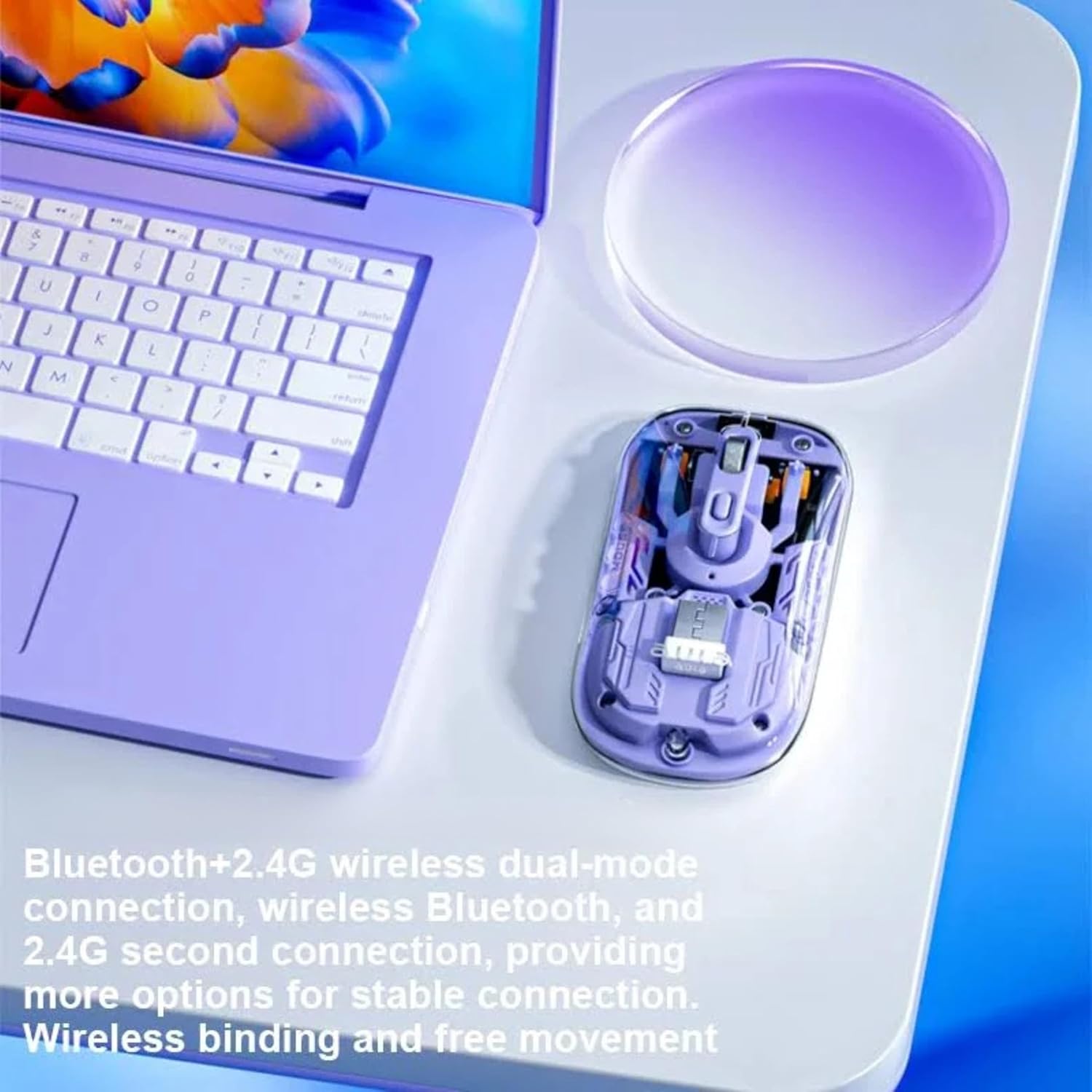
Image: The AULA AM210 mouse positioned beside a laptop, demonstrating its dual Bluetooth and 2.4G wireless connectivity options.
3.3 Battery and Charging
Equipped with a 400mAh Lithium Polymer rechargeable battery, the mouse provides long-lasting performance. It can be conveniently recharged using the included USB cable.

Image: The AULA AM210 mouse with an overlay indicating its 400mAh battery capacity.
3.4 Luminous Decorative Strip
The mouse features a unique luminous decorative strip on its sides. This strip illuminates when the mouse is stationary and turns off when the mouse is in motion, adding a distinctive visual element.

Image: A visual representation of the AULA AM210 mouse's luminous decorative strip.
4. Setup Guide
4.1 Charging the Mouse
- Connect the included USB charging cable to the charging port on the front of the mouse.
- Plug the other end of the USB cable into a powered USB port on your computer or a USB wall adapter.
- The indicator light will show charging status (refer to Section 5.3 for details). Allow sufficient time for a full charge before first use.
4.2 2.4G Wireless Connection
- Locate the USB receiver, typically stored in a compartment on the underside of the mouse.
- Plug the USB receiver into an available USB port on your computer.
- Turn on the mouse using the power switch on the underside.
- The mouse should automatically connect to your computer. If not, ensure the mode switch on the mouse is set to 2.4G wireless mode.
4.3 Bluetooth Connection
- Turn on the mouse using the power switch on the underside.
- Switch the mode selector on the underside of the mouse to Bluetooth mode. The indicator light will begin to flash, indicating pairing mode.
- On your computer or device, open Bluetooth settings.
- Search for new devices and select "AULA AM210" from the list.
- Follow any on-screen prompts to complete the pairing process. The indicator light on the mouse will become solid when successfully connected.
5. Operating Instructions
5.1 Power On/Off
Use the power switch located on the underside of the mouse to turn it ON or OFF.
5.2 DPI Adjustment
The AULA AM210 mouse features adjustable DPI settings (800, 1200, and 1600 DPI) to suit your preference for cursor speed and precision. Press the DPI button, usually located near the scroll wheel, to cycle through the available DPI settings. The indicator lights may change to reflect the current DPI level.
5.3 Understanding Indicator Lights
The mouse is equipped with indicator lights that provide information on its status:
- Charging Indicator: Illuminates during charging and turns off when fully charged.
- Bluetooth Pairing Indicator: Flashes when in Bluetooth pairing mode and becomes solid upon successful connection.
- Low Battery Indicator: May flash or change color to indicate a low battery level, prompting you to recharge the mouse.
- DPI Indicator: May briefly illuminate or change pattern to show the selected DPI level.
6. Maintenance
6.1 Cleaning
To clean your mouse, use a soft, dry cloth. For stubborn dirt, slightly dampen the cloth with water or a mild, non-abrasive cleaner. Avoid using harsh chemicals or abrasive materials, as these can damage the mouse's surface.
6.2 Storage
When not in use for extended periods, store the mouse in a cool, dry place away from direct sunlight and extreme temperatures. Ensure the mouse is turned off to conserve battery life.
7. Troubleshooting
| Problem | Possible Solution |
|---|---|
| Mouse not responding (2.4G Wireless) |
|
| Mouse not responding (Bluetooth) |
|
| Cursor movement is erratic or slow |
|
| Mouse not charging |
|
8. Specifications
| Feature | Detail |
|---|---|
| Brand | AULA |
| Model | AM210 |
| Connectivity | 2.4G Wireless, Bluetooth |
| DPI Settings | 800 / 1200 / 1600 DPI (Adjustable) |
| Movement Detection | Optical |
| Battery Type | Lithium Polymer |
| Battery Capacity | 400mAh |
| Product Dimensions | 11.35 x 5.8 x 0.1 cm |
| Item Weight | 63 g |
| Material | Plastic |
| Compatible Operating Systems | Windows 2000/XP/7/8/10/VISTA, Linux, Mac |
| Compatible Devices | Personal Computer, Smartphone, Tablet |
| Special Features | Ergonomic Design, Lightweight, Portable, Rechargeable, Wireless |
9. Warranty and Support
AULA products are designed for reliability and performance. For information regarding warranty coverage, technical support, or service inquiries, please refer to the warranty card included with your product or visit the official AULA website. Keep your proof of purchase for warranty claims.
For further assistance, you may contact AULA customer support through their official channels.


