
nubia PA3142
nubia RedMagic Wireless Gaming Controller User Manual
Model: PA3142
1. Introduction
Thank you for choosing the nubia RedMagic Wireless Gaming Controller. This high-performance gamepad is designed to provide a superior gaming experience across multiple platforms, including Windows PC, Android, iOS, Steam, and Nintendo Switch. Featuring Hall Effect joysticks and triggers, customizable RGB lighting, and a dedicated charging dock, this controller offers precision, comfort, and versatility. Please read this manual carefully to ensure proper setup and optimal use of your new gaming controller.
2. Product Features
- Multi-Platform Compatibility: Compatible with Windows PC, Android, iOS, Steam, TV, Laptop, and Nintendo Switch. Supports wired, Bluetooth, and 2.4G wireless dongle connection modes.
- Aluminum Alloy Charging Dock: Conveniently charge the controller by placing it on the included dock. Features charging status display and helps maintain a tidy gaming setup. Equipped with an 860mAh battery for extended gameplay.
- Hall Effect Joysticks and Triggers: Provides precise control with zero deadzone and 256 layers of change. Micro triggers and analog triggers can be freely switched for versatile gameplay. Eliminates stick drift for smooth and accurate input.
- Cool RGB Lighting: Transparent PC material with an embedded RGB strip offering 5 adjustable colors and 5 different light modes. Customizable via the "Goper" app to enhance your gaming atmosphere.
- 1000 Hz Wired/Wireless Polling Rate: Enhances responsiveness and synchronization between player actions and in-game events, ensuring smoother and more consistent gaming.
- Buttons Mapping: Features 2 macro back buttons for customizing trigger combos and other functions. Mappable buttons include A/B/X/Y/LB/RB/LT/RT/LS/RS/View/Menu/Capture/D-Pad.
- PC/Phone Support APP Customization: Use the "Goper" app (accessible via QR code in the manual) to customize macro functions, joystick and trigger ranges, key switches, motor vibration intensity, RGB light settings, and more.
3. Setup Guide
3.1 Package Contents
- nubia RedMagic Wireless Gaming Controller
- Charging Dock
- USB-C Cable
- 2.4G Wireless Dongle
- User Manual (this document)
3.2 Initial Charging
Before first use, fully charge the controller. Place the controller onto the charging dock, ensuring the charging pins align. Connect the USB-C cable to the charging dock and a power source (e.g., PC USB port, USB wall adapter). The charging indicator on the dock will show the charging status.
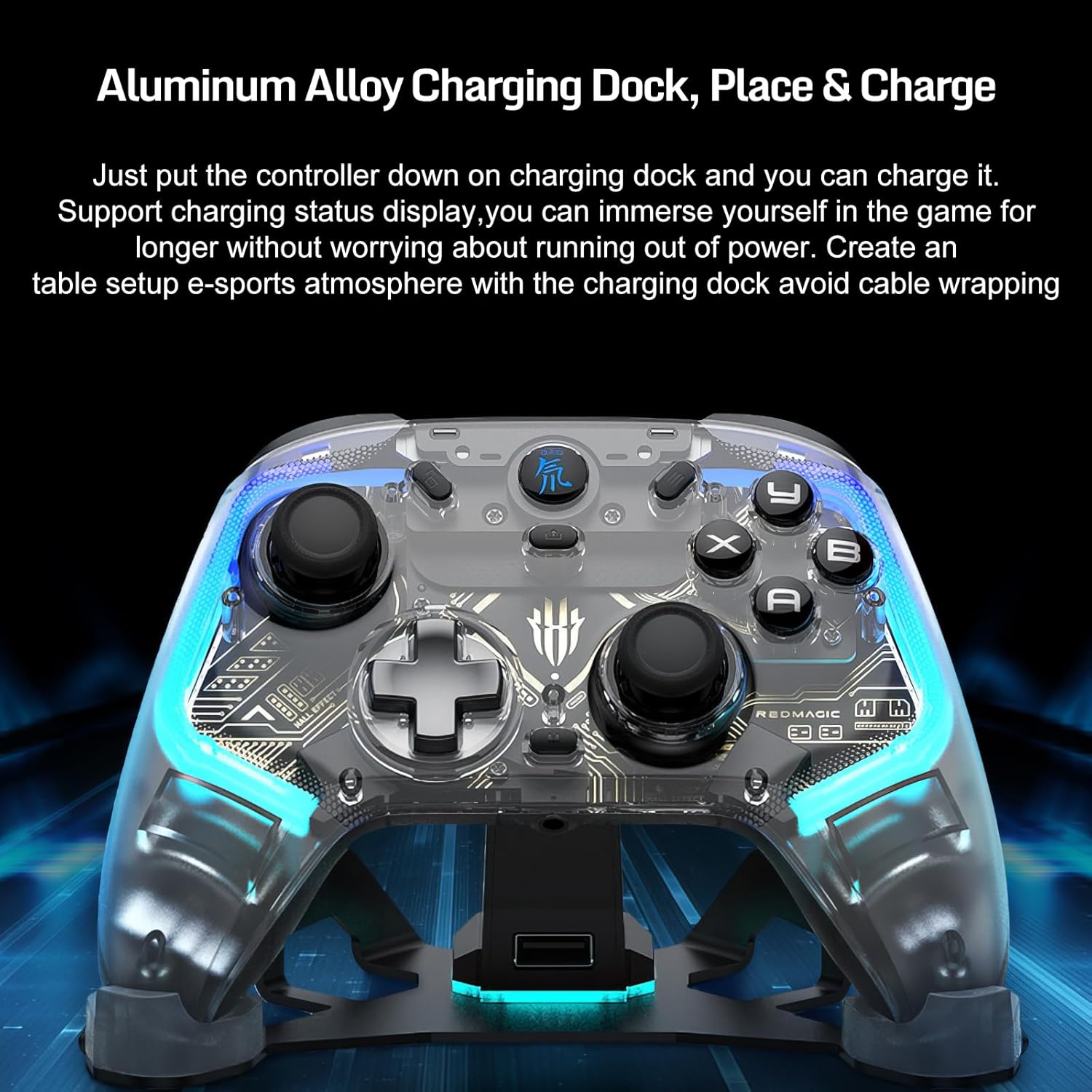
Image: The nubia RedMagic Wireless Gaming Controller resting on its aluminum alloy charging dock, illustrating the convenient 'place and charge' functionality. The image highlights the sleek design of both the controller and the dock, emphasizing ease of use for charging.
3.3 Powering On/Off
- Power On: Press and hold the RedMagic logo button (center button) for 2 seconds. The RGB lights will illuminate.
- Power Off: Press and hold the RedMagic logo button for 5 seconds until the lights turn off. The controller will automatically power off after 5 minutes of inactivity when not connected.
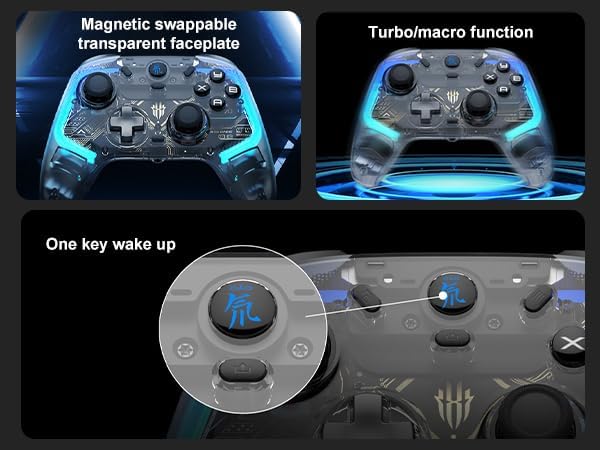
Image: A close-up view of the nubia RedMagic controller's central RedMagic logo button, indicating its function as a 'One key wake up' button. This image also shows the transparent faceplate and highlights the turbo/macro function, demonstrating key operational features.
4. Operating Instructions
4.1 Connection Modes
The controller supports three connection methods:
- Wired Connection: Connect the controller directly to your device using the USB-C cable.
- Bluetooth Connection: For wireless pairing with compatible devices.
- 2.4G Wireless Dongle: For wireless connection via the included USB dongle, typically for PCs or devices without Bluetooth.
4.2 Pairing with Devices (Bluetooth)
The pairing method varies slightly depending on the device. Ensure the controller is powered off before starting the pairing process.
- General Bluetooth Pairing (PC/Android/iOS):
- Power off the controller.
- Press and hold the RedMagic logo button + A button simultaneously for 3 seconds until the RGB lights flash rapidly, indicating pairing mode.
- On your device, go to Bluetooth settings and search for new devices.
- Select "RedMagic Controller" from the list. The RGB lights will become solid when connected.
- Nintendo Switch Pairing:
- On your Nintendo Switch, go to HOME Menu > Controllers > Change Grip/Order.
- Power off the controller.
- Press and hold the RedMagic logo button + Y button simultaneously for 3 seconds until the RGB lights flash rapidly.
- The Switch will detect the controller. The RGB lights will become solid when connected.
- Steam Pairing (via Bluetooth):
- Ensure Steam is running and Steam Input is enabled for generic gamepads.
- Follow the "General Bluetooth Pairing" steps above.
- Once paired with your PC, Steam should recognize the controller.
4.3 Pairing with Devices (2.4G Wireless Dongle)
- Insert the 2.4G wireless dongle into a USB port on your PC or compatible device.
- Power off the controller.
- Press and hold the RedMagic logo button + X button simultaneously for 3 seconds until the RGB lights flash rapidly.
- The controller will automatically connect to the dongle. The RGB lights will become solid when connected.
4.4 Customization with Goper App
Download the "Goper" app by scanning the QR code provided in the physical manual or searching in your device's app store. The app allows you to:
- Customize macro functions for the back buttons.
- Adjust joystick and trigger ranges.
- Remap buttons.
- Set motor vibration intensity.
- Configure RGB lighting effects and colors.
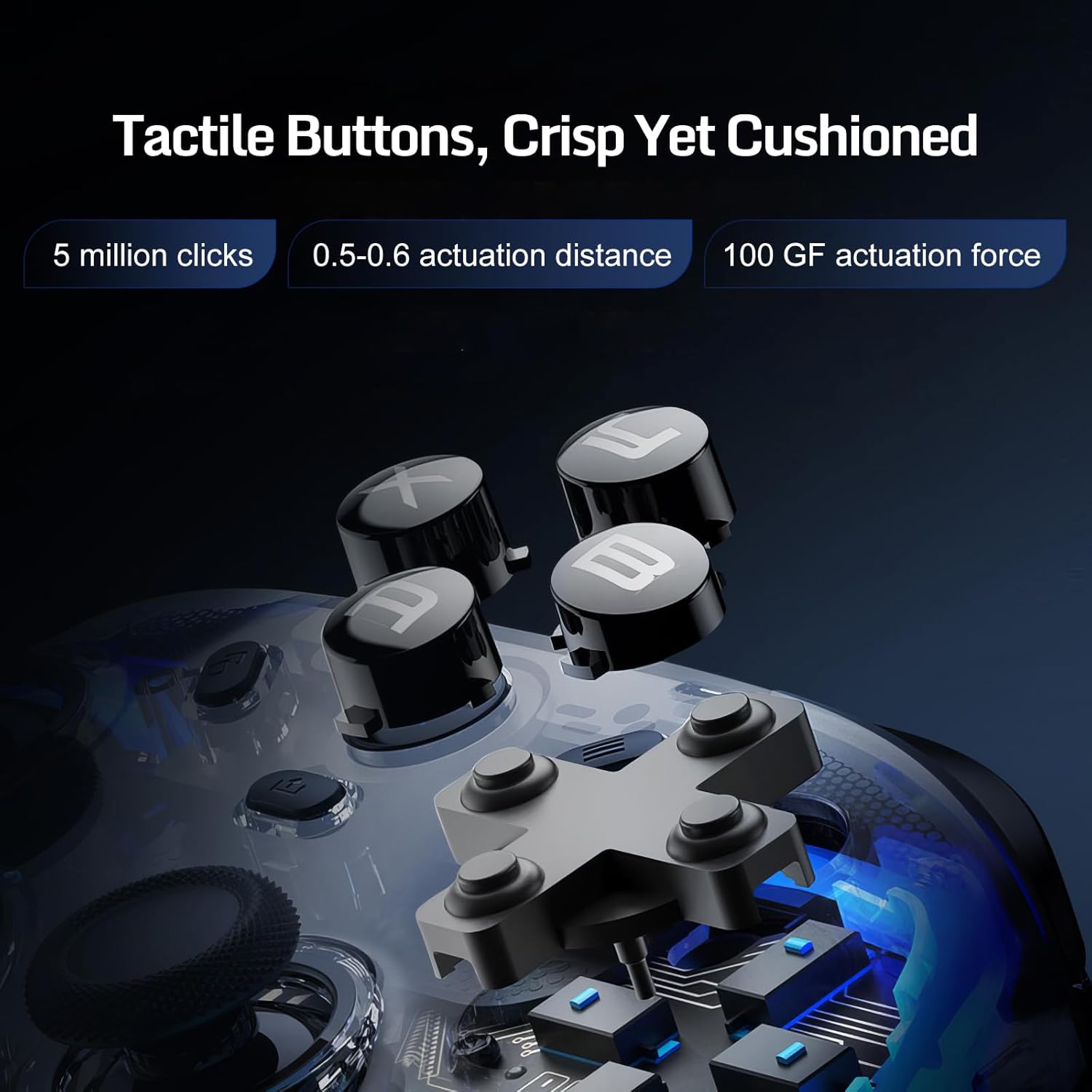
Image: A detailed view of the nubia RedMagic controller's tactile buttons, highlighting their crisp yet cushioned feel. The image provides specifications such as '5 million clicks', '0.5-0.6 actuation distance', and '100 GF actuation force', emphasizing the durability and responsiveness of the buttons.

Image: A close-up internal view of the nubia RedMagic controller's micro switches and Hall Effect togglable triggers. This image illustrates the advanced technology behind the triggers, allowing for precise control and dual-mode functionality, crucial for various gaming genres.

Image: A visual representation emphasizing the 'Wireless High 1000Hz Report Rate' of the nubia RedMagic controller. The image highlights the responsiveness and synchronization benefits, crucial for competitive gaming, ensuring smooth and consistent performance.
5. Maintenance
- Cleaning: Use a soft, dry cloth to clean the controller and charging dock. Do not use abrasive cleaners or solvents.
- Storage: Store the controller in a cool, dry place away from direct sunlight and extreme temperatures.
- Battery Care: To prolong battery life, avoid fully discharging the controller frequently. Charge it regularly, even if not in use for extended periods.
6. Troubleshooting
- Controller not powering on: Ensure the controller is charged. Connect it to the charging dock or directly via USB-C cable.
- Controller not connecting/pairing:
- Ensure the controller is in the correct pairing mode for your device (refer to Section 4.2).
- Check your device's Bluetooth settings and ensure Bluetooth is enabled.
- Remove any previous pairings of the controller from your device and try pairing again.
- Try restarting both the controller and your device.
- If using the 2.4G dongle, ensure it is properly inserted and try a different USB port.
- Buttons/Joysticks not responding:
- Ensure the controller is properly connected.
- Check for any physical obstructions or debris around the buttons/joysticks.
- Try resetting the controller (if a reset button is available, typically a small pinhole on the back, use a paperclip to press it).
- Update controller firmware via the Goper app if available.
- RGB lights not working correctly: Use the Goper app to check and adjust RGB settings.
7. Specifications
| Feature | Detail |
|---|---|
| Model Number | PA3142 |
| Batteries | 1 Lithium Ion battery (included) |
| Package Dimensions | 17.91 x 16.61 x 10.39 cm |
| Item Weight | 50 g |
| Connectivity | Wired, Bluetooth, 2.4G Wireless |
| Polling Rate | 1000 Hz (Wired/Wireless) |
8. Warranty and Support
For warranty information, technical support, or service inquiries, please refer to the official nubia website or contact your point of purchase. Keep your proof of purchase for warranty claims.
Ask a question about this manual
Ask about setup, troubleshooting, compatibility, parts, safety, or missing instructions. Manuals+ will review the question and use this page’s manual context to help answer it.