
IAMJOY DG-1
IAMJOY Gaming Earbuds DG-1 User Manual
Model: DG-1 | Brand: IAMJOY
1. Introduction
Thank you for choosing IAMJOY Gaming Earbuds DG-1. These earbuds are designed to provide an immersive audio experience with ultra-low latency, making them ideal for gaming across various platforms. This manual will guide you through the setup, operation, maintenance, and troubleshooting of your new earbuds.

Image: IAMJOY Gaming Earbuds DG-1 in their open charging case, with the USB dongle visible. This illustrates the product's main components.
2. Safety Information
Please read this section carefully before using the product to ensure safe and proper operation.
- Do not expose the earbuds or charging case to extreme temperatures, humidity, or liquids.
- Avoid dropping or subjecting the device to strong impacts.
- Do not attempt to disassemble or repair the product yourself. Contact customer support for assistance.
- Keep out of reach of children.
- Dispose of the product responsibly according to local regulations.
3. What's in the Box
Verify that all items are present in the package:
- IAMJOY Gaming Earbuds (Left and Right)
- Wireless Charging Case
- USB Charging Cable
- User Manual
- Multiple Sizes of Eartips
- Protective Case
4. Product Overview
Familiarize yourself with the components of your IAMJOY Gaming Earbuds.

Image: An exploded view diagram of the earbud's internal structure, highlighting the 13mm speaker dynamic audio driver and acoustic cavity design for high-fidelity sound.

Image: A detailed diagram illustrating the placement of the Talk Mic and Feedforward Mic within the earbud, contributing to noise cancellation and clear communication.
5. Setup
5.1 Charging the Earbuds and Case
Before first use, fully charge the earbuds and the charging case. The charging case features a digital power display to show battery levels.
- Connect the charging case to a USB power source using the provided USB cable.
- Place the earbuds into the charging case. Ensure they are properly seated.
- A full charge for the case takes approximately 1.5 hours.
- Earbuds provide 6-8 hours of playtime on a single charge. The charging case extends total playtime to approximately 90 hours.

Image: The charging case with its digital display, highlighting the 1.5-hour fast charging time, 6-hour earbud playtime, and 90-hour total playtime with the case.
5.2 Pass-Through Charging
The charging case supports pass-through charging, allowing you to charge the case and earbuds while playing. This is particularly useful when connecting the dongle to a VR headset's USB-C port.

Image: The charging case connected to a smartphone via a USB-C cable, demonstrating its capability to act as an emergency power supply with its built-in 2000mAh rechargeable battery.
5.3 Connecting to Devices (2.4GHz Dongle & Bluetooth)
The IAMJOY Gaming Earbuds offer dual connectivity options: a 2.4GHz wireless dongle for ultra-low latency gaming and Bluetooth 5.4 for general use.
2.4GHz Dongle Connection (Recommended for Gaming)
- Insert the 2.4GHz USB dongle into an available USB-A or USB-C port on your compatible device (e.g., PC, PS5/4, Switch, Steam Deck, Meta Quest).
- The earbuds will automatically connect to the dongle when powered on and within range.
- Ensure the audio output setting on your device is set to the earbuds/dongle.
Bluetooth Connection
- Open the charging case and ensure the earbuds are inside.
- On your device (e.g., phone, laptop), enable Bluetooth and search for new devices.
- Select "IAMJOY DG-1" from the list of available devices to pair.
- The earbuds can connect to Bluetooth and the dongle simultaneously, allowing you to answer calls mid-game without pausing.
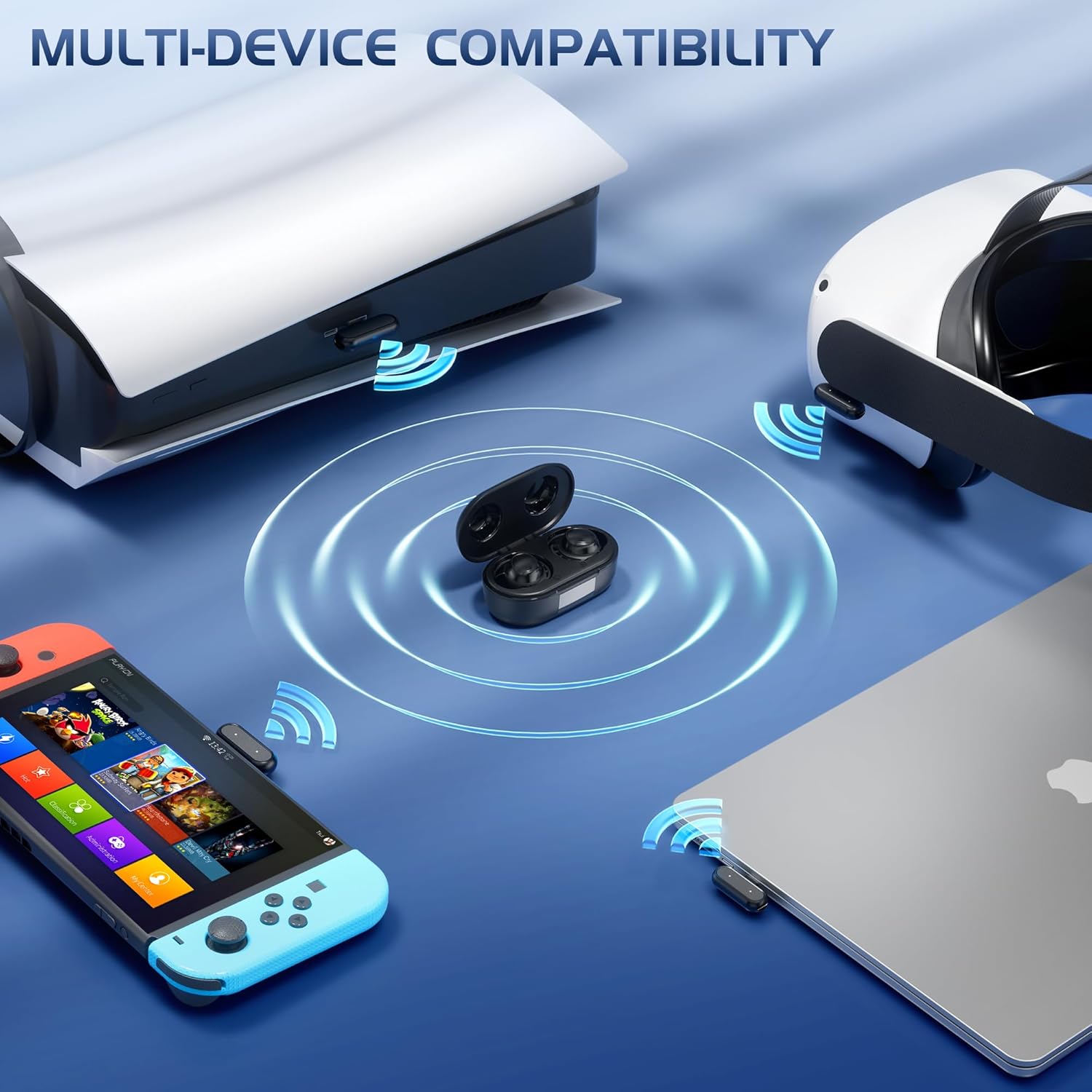
Image: A visual representation of the earbuds' multi-device compatibility, showing connections to a PlayStation console, Meta Quest VR headset, Nintendo Switch, and a laptop, all via the 2.4GHz dongle.

Image: A comprehensive diagram illustrating the wide range of compatible devices for the earbuds, including Nintendo Switch, PC, VR headsets (Meta/Oculus Quest), PlayStation, Steam Deck, and smartphones.
Important Note for PS4/PS5 Connection:
Do not plug the dongle into the controller or into the back of the PS4/PS5. Do not connect to PS4/PS5 via Bluetooth. Xbox requires a dedicated adapter (not included) to use.

Image: A diagram demonstrating the correct method for connecting the 2.4GHz dongle to both PS4 and PS5 consoles, emphasizing not to plug it into the controller or the console's rear ports.
6. Operating Instructions
6.1 Touch Controls
The earbuds feature intuitive touch controls for various functions:

Image: A detailed diagram outlining the touch control functions for both left (L) and right (R) earbuds, including volume adjustment (Bluetooth only), next/previous song, play/pause, answer/end/refuse calls, and voice assistant activation.
- Long Press (L/R): Volume down (L, Bluetooth only), Volume up (R, Bluetooth only)
- Click x2 (R): Next Song
- Click x2 (L): Previous Song
- Click x1 (L/R): Play/Pause
- Click x1 (L/R): Answer/End call
- Long Press x2s (L/R): Refuse to accept call
- Click x3 (L): Voice Assistant
6.2 Gaming Experience & Low Latency
The 2.4GHz high-speed wireless connection, custom chipset, and LC3 codec provide an ultra-low latency of 20ms, ensuring synchronized audio for an immersive gaming experience.

Image: A dynamic image illustrating the immersive gaming experience provided by the earbuds, emphasizing the 20ms ultra-low latency mode for synchronized audio.
6.3 High-Fidelity Stereo Sound
Experience clear surround sound with frequencies as low as 20kHz, enhancing your gaming and media consumption.
6.4 Noise-Canceling Microphone
Equipped with four noise-canceling smart microphones, the earbuds accurately capture your voice and reduce background noise for clear communication with teammates.

Image: A user playing a VR game while wearing the earbuds, with an overlay demonstrating the ability to connect via both Bluetooth and 2.4GHz simultaneously to answer calls without interrupting gameplay.
6.5 Comfortable and Stable Fit
The unique ear-wing design and included multiple sizes of ear tips ensure a secure and comfortable fit, even during vigorous activity.
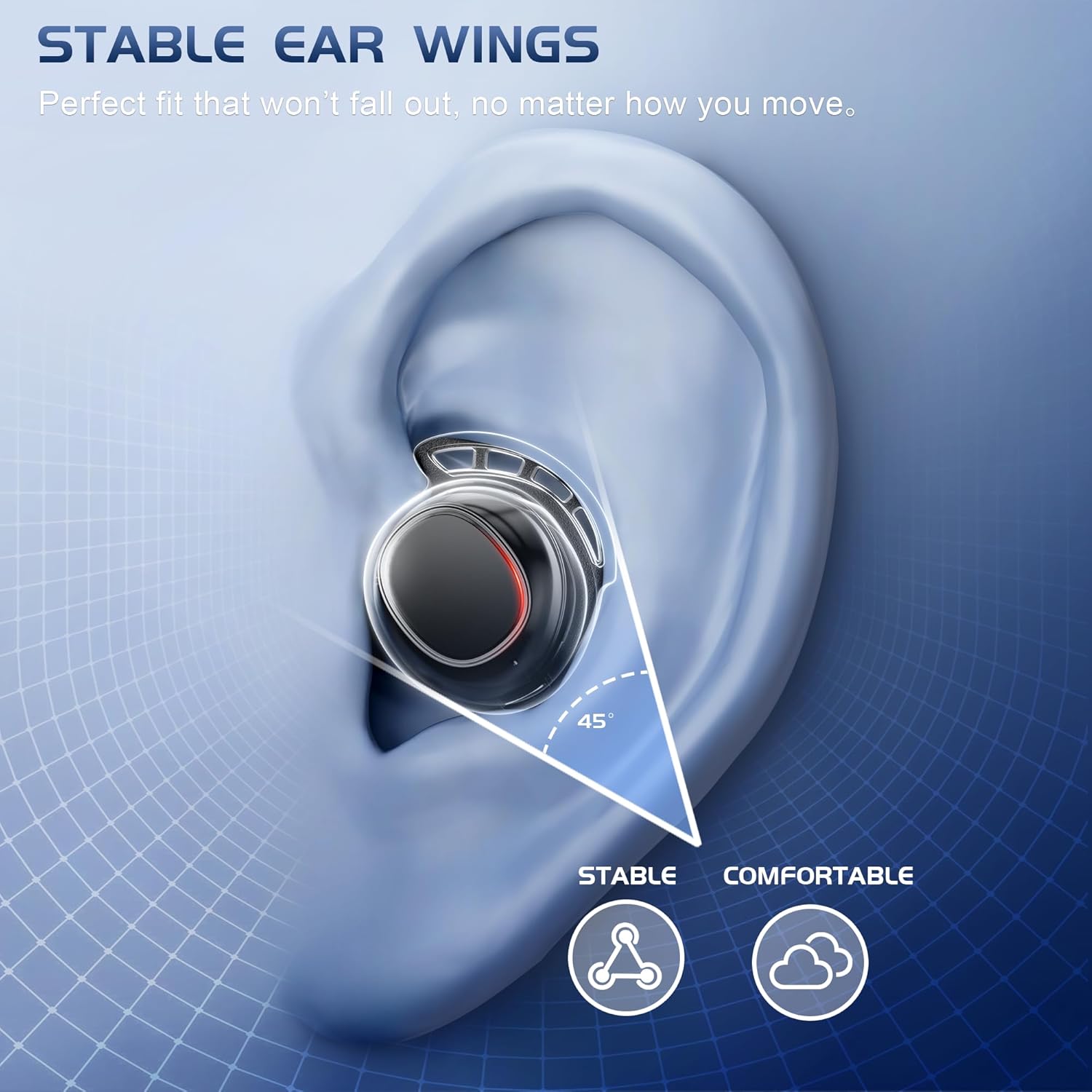
Image: A diagram illustrating how the earbud's stable ear wings provide a perfect and comfortable fit within the ear, preventing it from falling out during movement.
6.6 Usage Scenarios
The IAMJOY Gaming Earbuds are versatile for various activities:

Image: A collage of four images depicting different usage scenarios for the earbuds: gaming, working at a computer, exercising, and relaxing, showcasing their versatility.
7. Maintenance
7.1 Cleaning
- Gently wipe the earbuds and charging case with a soft, dry, lint-free cloth.
- Remove ear tips and clean them with mild soap and water if necessary. Ensure they are completely dry before reattaching.
- Do not use harsh chemicals or abrasive materials for cleaning.
7.2 Water Resistance
The earbuds have a waterproof rating (Water Resistance Level: Waterproof). However, they are not designed for submersion. Avoid exposing them to excessive water or sweat for prolonged periods.

Image: An earbud shown with water splashing around it, visually representing its waterproof feature.
7.3 Storage
When not in use, store the earbuds in their charging case to protect them and ensure they remain charged.
8. Troubleshooting
If you encounter issues with your IAMJOY Gaming Earbuds, refer to the following common solutions:
8.1 Connection Issues
- Earbuds not connecting: Ensure earbuds are charged and within range of the dongle or Bluetooth device. Re-insert the dongle or re-pair via Bluetooth.
- No sound: Check device's audio output settings to ensure the earbuds are selected. Increase volume on both the earbuds and the connected device.
8.2 PS5 Sound Issues
If you experience sound issues with your PS5:
- Go to Settings > Sound > Audio Output and select the correct device.
- Ensure your PS5 software is up to date.
- Ensure the TV/monitor and PS5 volume are turned up.

Image: A screenshot of the PS5's audio settings menu, providing visual guidance on how to select the correct audio output device to resolve sound issues.
8.3 PS4 Sound Low or Disconnecting
If you experience low sound or disconnections with your PS4:
- Go to Settings > Devices > Audio Devices > Output to Headphones > All Audio.
- Ensure your PS4 software is up to date.
- Ensure the TV/monitor and PS4 volume are turned up.

Image: A screenshot of the PS4's audio device settings, showing the path to adjust headphone output to "All Audio" for troubleshooting low sound or disconnection issues.
9. Specifications
| Feature | Detail |
|---|---|
| Model Name | DG-1 |
| Connectivity Technology | Wireless Bluetooth 5.4 and 2.4GHz Dongle |
| Audio Latency | 20 Milliseconds |
| Frequency Range | 20 Hz - 20 kHz |
| Earbuds Playtime (Single Charge) | 6-8 Hours |
| Total Playtime (with Charging Case) | 90 Hours |
| Charging Time (Case) | 1.5 Hours |
| Carrying Case Battery Capacity | 2000 Milliamp Hours |
| Control Type | Touch Control |
| Noise Control | Hybrid Noise Cancellation |
| Water Resistance Level | Waterproof |
| Compatible Devices | Meta Quest VR, PlayStation, Switch, Pico 4 Ultra, Steam Deck, Oculus Quest, Consoles, Phones, Laptops, PCs |
| Material | Acrylonitrile Butadiene Styrene (ABS) |
| Item Weight | 5.9 ounces (earbuds + case) |
| Product Dimensions | 1.39 x 4.4 x 3.79 inches |
10. Warranty and Support
IAMJOY is committed to ensuring your complete satisfaction with your purchase. If you experience any issues or have questions regarding your Gaming Earbuds DG-1, please do not hesitate to contact us.
Our team is dedicated to providing fast, helpful support and resolving any concerns you may have, so you can enjoy your product with confidence.
Please refer to your purchase documentation or the retailer's website for specific warranty terms and contact information.
Ask a question about this manual
Ask about setup, troubleshooting, compatibility, parts, safety, or missing instructions. Manuals+ will review the question and use this page’s manual context to help answer it.