
Introduction
This manual provides comprehensive instructions for the setup, operation, and maintenance of your AFEXOA Multi-functional Night Light Bluetooth Speaker Alarm Clock. This device integrates a Bluetooth speaker, sound machine, touch-controlled LED lamp, and digital alarm clock, designed to enhance your daily routine and sleep environment.
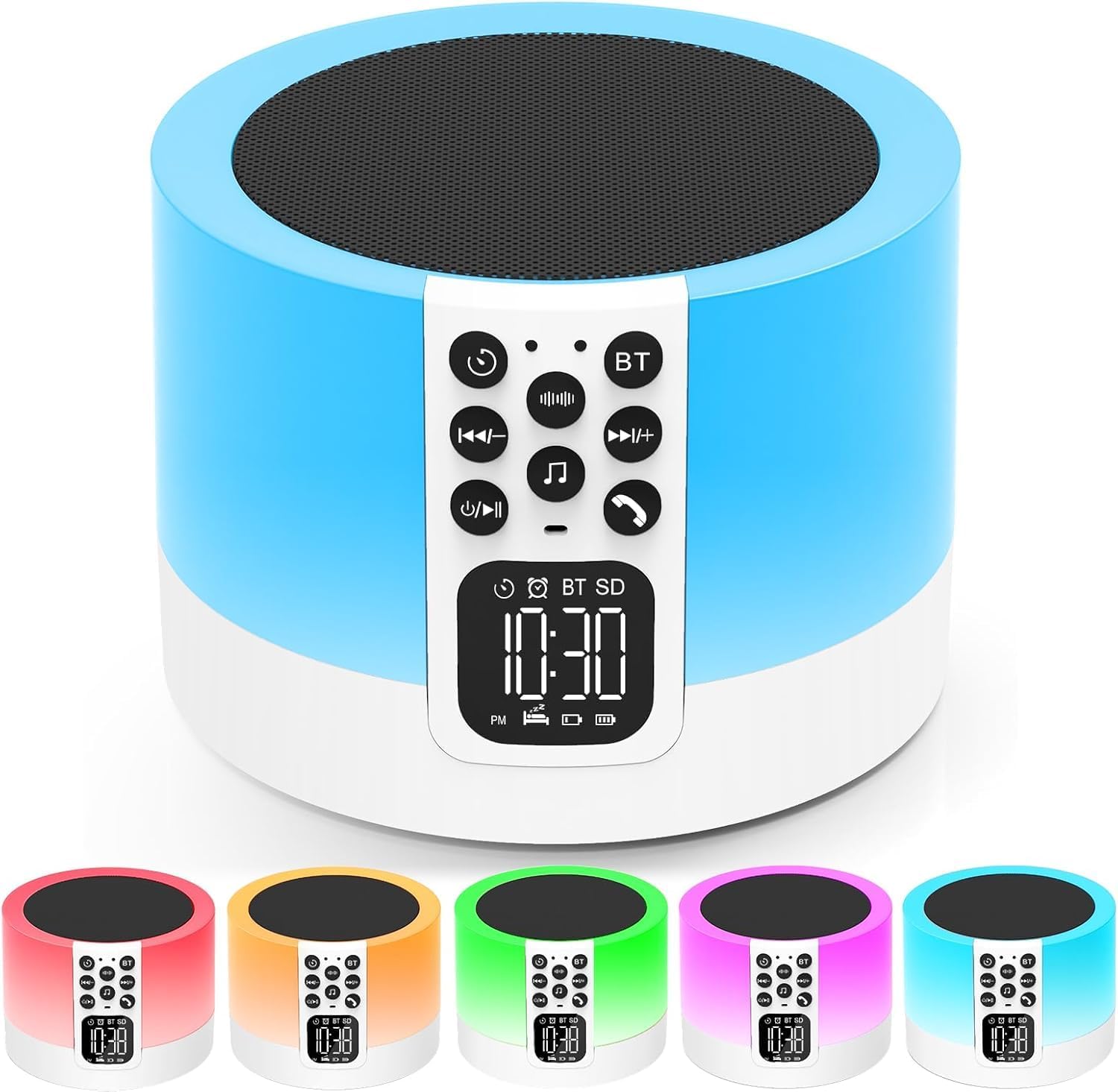
Figure 1: The AFEXOA Night Light Bluetooth Speaker Alarm Clock, showcasing its compact cylindrical design and integrated control panel with a digital display. The device is shown in a white and blue color scheme, highlighting its speaker grille on top and various light color options at the bottom.

Figure 2: An illustrative diagram highlighting the five primary functions of the device: Sound Machine (with 10 white noises and 20 natural sounds), MP3 Player (supporting USB Flash Drive and Micro SD Card), Night Light (with 7 monochromatic light options), Alarm Clock (customizable alarm tones), and Bluetooth Speaker (high fidelity stereo sound).
Safety Information
- Read all instructions carefully before use and retain for future reference.
- Do not expose the device to water, moisture, or extreme temperatures.
- Avoid dropping or subjecting the device to strong impacts.
- Do not attempt to disassemble, repair, or modify the device yourself. Contact qualified personnel for service.
- Keep the device away from heat sources such as radiators, heat registers, stoves, or other apparatus (including amplifiers) that produce heat.
- Use only the provided charging cable and a compatible power adapter.
- Ensure proper ventilation around the device during operation.
Package Contents
Please check the package for the following items:
- AFEXOA Night Light Bluetooth Speaker Alarm Clock
- USB Type-C Charging Cable
- User Manual (this document)
Product Overview
Familiarize yourself with the device's controls and ports:

Figure 3: Detailed diagram of the device's control panel (front) and rear ports. The front panel includes buttons for White Noise Sound, Timer, Volume Down/Previous Track, Power On/Off/Pause, Natural Sound & Lullaby, Bluetooth On/Off, Volume Up/Next Track, and Hands-free Calls. The rear panel features a Micro SD/TF card slot, Power On/Off switch, 12/24h time setup button, alarm setup button, Type-C USB power port, and USB HOST port (for USB drive, not for charging other devices).
Control Panel (Front)
- White Noise Sound Button: Cycles through white noise sounds.
- Timer Button: Sets sleep timer (15/30/60/90 minutes).
- Volume Down / Previous Track: Press to decrease volume; Press and hold for previous track.
- Power On/Off / Pause: Press to pause/play; Press and hold to turn off/on sound and light.
- Natural Sound & Lullaby Button: Cycles through natural sounds and lullabies.
- Bluetooth On/Off Button: Activates/deactivates Bluetooth pairing mode.
- Volume Up / Next Track: Press to increase volume; Press and hold for next track.
- Hands-free Calls Button: Answers/ends phone calls when connected via Bluetooth.
- Digital Display: Shows time, alarm status, battery, and mode indicators.
Rear Ports and Switches
- Micro SD/TF Card Slot: For playing music from a Micro SD/TF card.
- Power On/Off Switch: Main power switch for the device.
- 12/24h Button: Toggles between 12-hour and 24-hour time display.
- Time Setup Button: Used for setting the time.
- Alarm Setup Button: Used for setting alarms.
- Type-C USB Power Port: For charging the device.
- USB HOST Port: For playing music from a USB flash drive. Note: This port cannot charge other devices.
Setup
1. Charging the Device
Before first use, fully charge the device. Connect the provided Type-C USB charging cable to the Type-C USB Power Port on the rear of the device and the other end to a compatible USB power adapter (not included) or a computer's USB port.

Figure 4: The device can be powered by an AC adapter (wall outlet) or a USB port from a computer or power bank using the provided Type-C cable.
The battery indicator on the digital display will show charging status. Once fully charged, the indicator will change or turn off depending on the model's specific behavior.
2. Power On/Off
Locate the main Power On/Off switch on the rear of the device and slide it to the "ON" position. The digital display will light up. To turn off the device completely, slide the switch to the "OFF" position.
Operating Instructions
1. Setting Time and Alarm
- Setting Time:
- Press the Time Setup Button on the rear. The hour digits will flash.
- Use the Volume Up/Next Track and Volume Down/Previous Track buttons on the front panel to adjust the hour.
- Press the Time Setup Button again to move to minute adjustment. Adjust minutes using the volume buttons.
- Press the Time Setup Button one more time to confirm and exit time setting.
- To switch between 12-hour and 24-hour mode, press the 12/24h Button on the rear.
- Setting Alarm:
- Press the Alarm Setup Button on the rear. The alarm hour digits will flash.
- Use the Volume Up/Next Track and Volume Down/Previous Track buttons to adjust the alarm hour.
- Press the Alarm Setup Button again to move to alarm minute adjustment. Adjust minutes using the volume buttons.
- Press the Alarm Setup Button one more time to confirm and activate the alarm. An alarm icon will appear on the display.
- To disable the alarm, press the Alarm Setup Button until the alarm icon disappears.
- When the alarm sounds, tap the top mesh of the device to activate the snooze function (9 minutes). To stop the alarm, press any button on the front panel.
- You can set your favorite music from a USB Flash Drive or Micro SD Card as your alarm ringtone. Refer to the MP3 Player section for media playback.
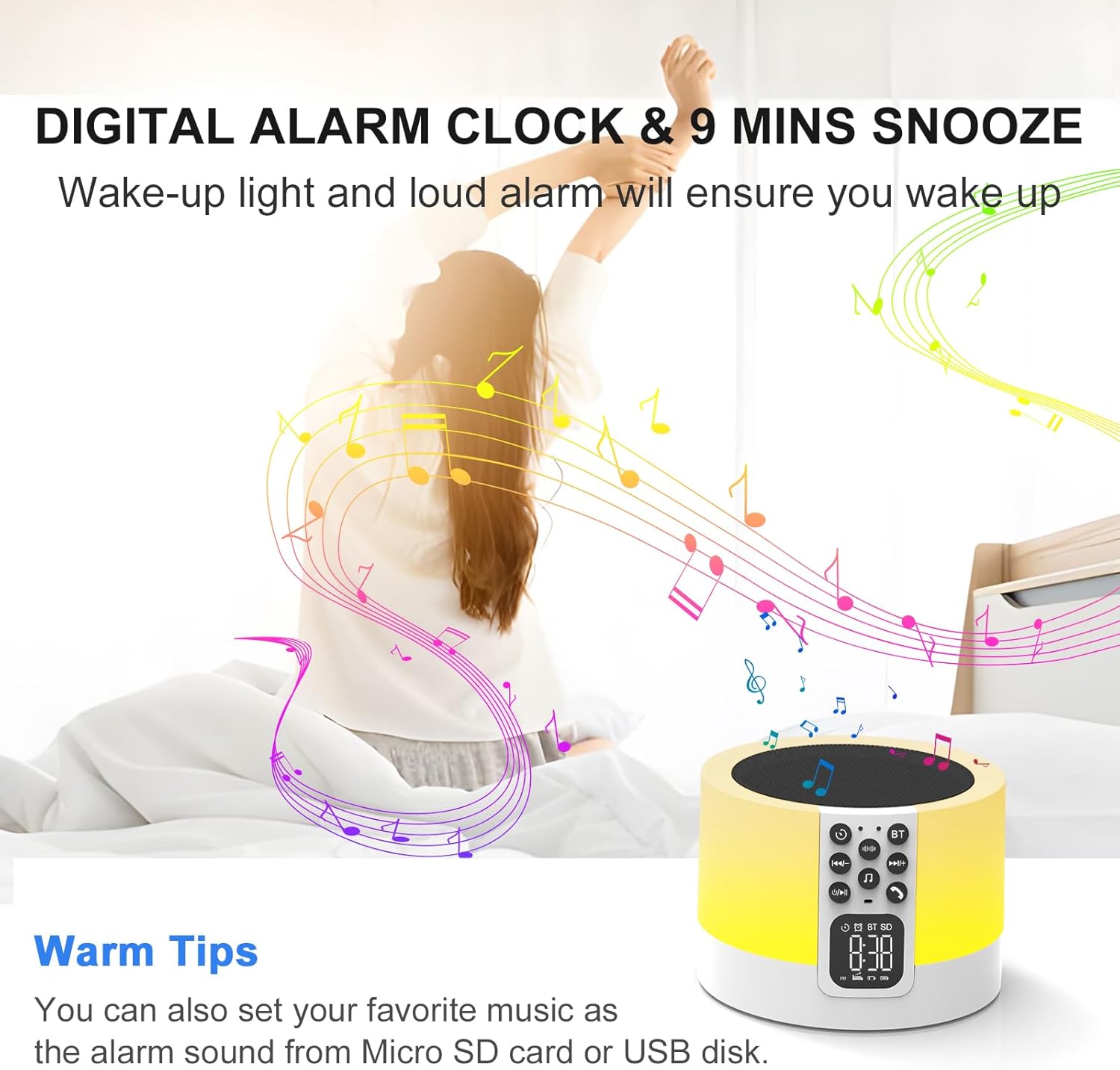
Figure 5: The digital alarm clock feature ensures you wake up with customizable tones, including your favorite music from a Micro SD card or USB disk.
2. Night Light Functions
The device features a sensitive touch top mesh for light control.
- Warm White Light:
- Slightly tap the top mesh to cycle through 3 levels of warm white brightness (30%, 60%, 100%).
- Continue tapping to turn off the warm white light.
- RGB Color Changing Light:
- After cycling through the warm white light levels, tap the top mesh again to enter the multi-color cycle mode. The light will smoothly transition through various RGB colors.
- To fix a specific color, long press the top mesh and then release when your desired color appears. The light will remain on that color.
- To return to warm white light or turn off the light, tap the top mesh again.
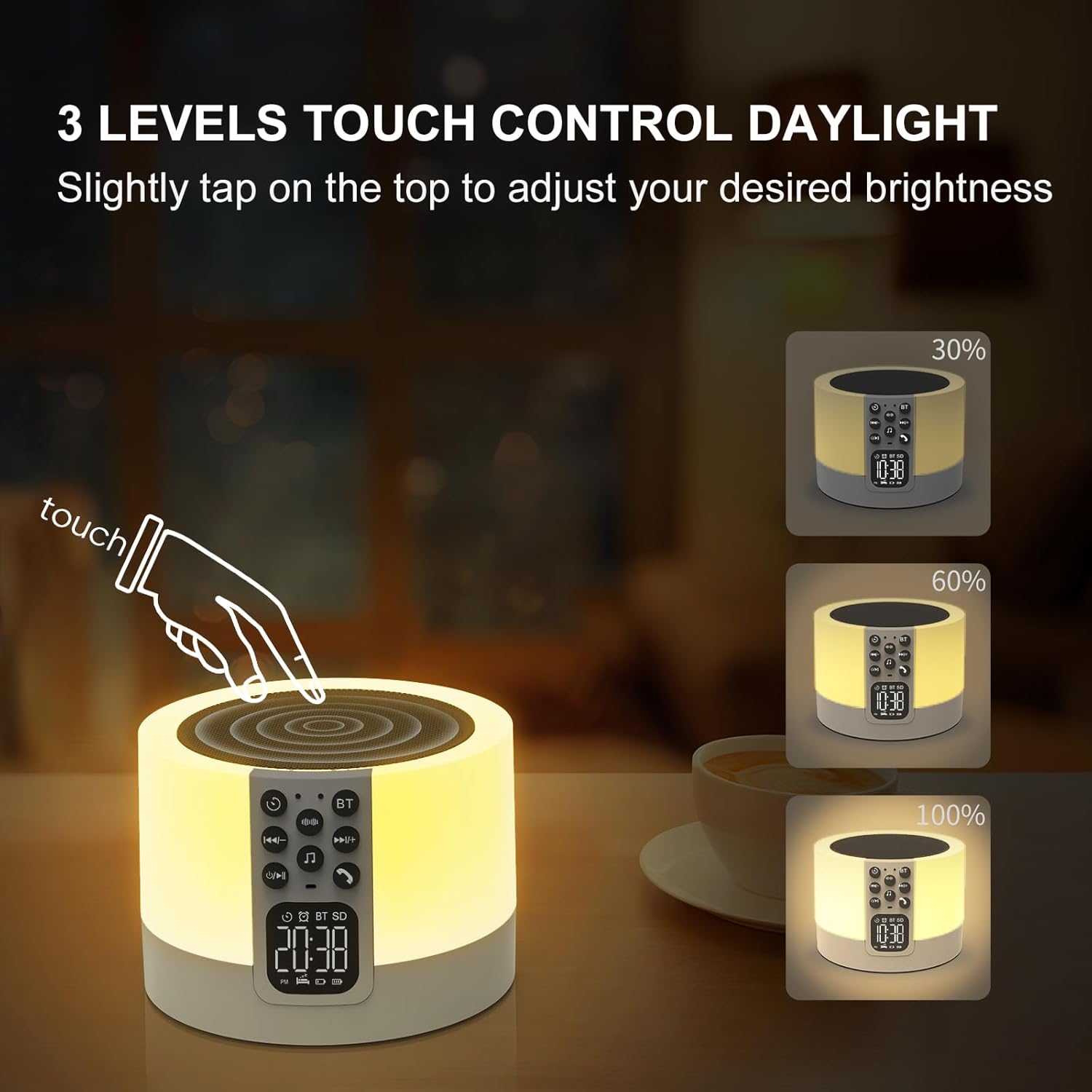
Figure 6: Adjusting the warm white light brightness by tapping the top mesh. Three levels of brightness are available: 30%, 60%, and 100%.

Figure 7: The device offers a breathing light mode with automatic color cycling. A long press on the top mesh allows you to select and fix a specific ambient light color from a range of options.
3. Bluetooth Speaker Pairing
The device functions as a Hi-Fi stereo Bluetooth speaker.
- Ensure the device is powered on.
- Press the Bluetooth On/Off Button on the front panel. The display will show "BT" and a blinking Bluetooth icon, indicating it's in pairing mode.
- On your smartphone or other Bluetooth-enabled device, search for "DY29Z-01" or "AFEXOA Speaker" in the Bluetooth settings.
- Select the device to pair. Once successfully paired, you will hear a confirmation sound, and the Bluetooth icon on the display will stop blinking.
- You can now play audio from your connected device through the speaker.
- To disconnect, turn off Bluetooth on your connected device or press the Bluetooth On/Off Button on the speaker again.

Figure 8: The device in Bluetooth mode, connected to a smartphone for audio playback. The rear ports for Micro SD/TF card and USB HOST are also visible, enabling MP3 player functionality.
4. Sound Machine (White Noise & Natural Sounds)
The device offers 30 built-in soothing sounds for relaxation and sleep.
- Press the White Noise Sound Button to cycle through various white noise, fan noise, and pink noise options.
- Press the Natural Sound & Lullaby Button to cycle through natural sounds (e.g., insect, flowing water, bonfire, bird singing, wind, waves, raining) and lullabies.
- Adjust the volume using the Volume Up/Next Track and Volume Down/Previous Track buttons.
Sleep Timer Function
To set a sleep timer for the sound machine:
- Press the Timer Button repeatedly to select a duration: 15, 30, 60, or 90 minutes.
- The device will automatically turn off the sound and light after the selected time expires.
- To cancel the sleep timer, press the Timer Button until no timer duration is displayed.

Figure 9: The device provides 30 soothing sounds, including white noise, fan sounds, and various natural sounds and lullabies, with a sleep timer function for 15, 30, 60, or 90 minutes.
5. MP3 Player (USB Flash Drive & Micro SD/TF Card)
The device can play MP3 audio files directly from a USB flash drive or Micro SD/TF card.
- Insert a USB flash drive into the USB HOST Port or a Micro SD/TF card into the Micro SD/TF Card Slot on the rear of the device.
- The device should automatically detect the media and begin playing audio. If not, press the Power On/Off / Pause button to initiate playback.
- Use the Volume Up/Next Track and Volume Down/Previous Track buttons to navigate between tracks and adjust volume.

Figure 10: The device supports playing music from USB Flash Drives and TF/Micro SD Cards, offering 30 levels of volume control for personalized listening.
6. Hands-Free Calls
When connected to a smartphone via Bluetooth, you can use the device for hands-free calls.
- When an incoming call is received, the device will ring.
- Press the Hands-free Calls Button on the front panel to answer the call.
- Press the Hands-free Calls Button again to end the call.

Figure 11: The device supports hands-free calling when paired with a Bluetooth-enabled smartphone, allowing users to answer and end calls directly from the speaker.
Maintenance
- Cleaning: Use a soft, dry cloth to wipe the surface of the device. Do not use abrasive cleaners, waxes, or solvents.
- Storage: When not in use for extended periods, store the device in a cool, dry place away from direct sunlight and extreme temperatures.
- Battery Care: To prolong battery life, avoid fully discharging the battery frequently. Charge the device regularly, even if not in active use.
Troubleshooting
| Problem | Possible Cause | Solution |
|---|---|---|
| Device does not power on. | Battery is low or depleted. Main power switch is off. | Charge the device. Ensure the main power switch on the rear is in the "ON" position. |
| Cannot connect via Bluetooth. | Bluetooth not enabled on device/speaker. Speaker is too far from the paired device. Interference. | Ensure Bluetooth is enabled on both devices. Bring devices closer. Turn off other Bluetooth devices nearby. Re-enter pairing mode on the speaker. |
| No sound from speaker. | Volume is too low. Device is paused. Incorrect mode selected. | Increase volume on both the speaker and the connected device. Press the Power On/Off / Pause button to resume playback. Ensure correct mode (Bluetooth, USB, SD) is active. |
| Light not working or unresponsive. | Light function is off. | Tap the top mesh to activate the light. Ensure the device is powered on. |
| Alarm does not sound. | Alarm is not set or disabled. Volume is too low. | Verify alarm is set and enabled (alarm icon visible). Increase speaker volume. |
Specifications
| Feature | Detail |
|---|---|
| Model Name | DY29Z-01 |
| Brand | AFEXOA |
| Color | White |
| Material | Acrylonitrile Butadiene Styrene |
| Power Source | Battery Powered |
| Battery Type | 1 Lithium Ion battery (included) |
| Product Dimensions | 3.54 x 1.5 x 2.36 inches |
| Item Weight | 1.1 pounds |
| Connectivity | Bluetooth 4.0, USB Flash Drive, Micro SD/TF Card |
| Light Features | 3-level Dimmable Warm White Light, RGB Color Changing, Touch Control |
| Sound Features | 30 Soothing Sounds (White Noise, Natural Sounds, Lullabies) |
| Alarm Features | Digital Alarm Clock, Snooze Function, Customizable Alarm Tones |
Warranty and Support
For warranty information, technical support, or any inquiries regarding your AFEXOA Night Light Bluetooth Speaker Alarm Clock, please contact the manufacturer directly through their official channels or the retailer from whom you purchased the product. Please retain your proof of purchase for warranty claims.


