
WOLFBOX G900 PRO
WOLFBOX G900 PRO Mirror Dash Cam User Manual
Model: G900 PRO
1. Product Overview
The WOLFBOX G900 PRO is a state-of-the-art mirror dash cam designed to enhance driving safety and provide comprehensive recording capabilities. It features high-resolution front and rear cameras, advanced image sensors for superior low-light performance, and smart connectivity options.
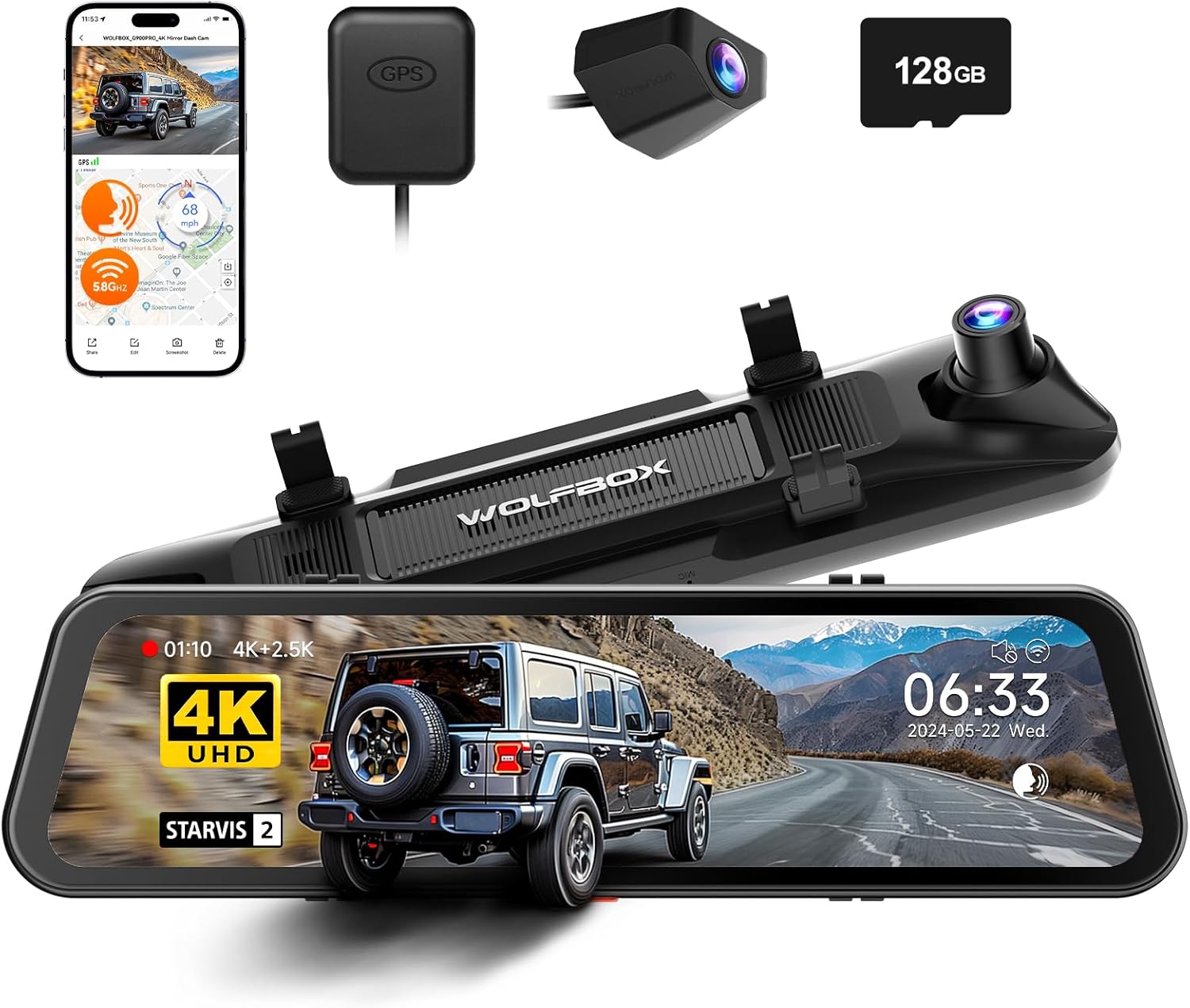
This dash cam offers crystal-clear video recording, intuitive voice control, and high-speed Wi-Fi for easy file management. It is an ideal solution for drivers seeking reliable and advanced vehicle surveillance.
Product Overview Video
Video 1.1: A brief overview of the WOLFBOX G900 PRO Mirror Dash Cam's features and design.
2. What's in the Box
Verify that all components are present and in good condition upon opening the package:
- 1 x G900 PRO 4K Mirror Dash Cam
- 1 x 2.5K USB-C Rear Camera with Screws and Adhesive Mount
- 1 x External GPS Antenna
- 1 x 128GB MicroSD Card
- 1 x 11.5FT Car Charger (USB-C Power Cable)
- 1 x 21.3FT Rear Camera Cable
- 1 x User Manual
- 5 x Cable Clips
- 4 x Straps

3. Setup & Installation
Follow these steps for proper installation of your WOLFBOX G900 PRO Mirror Dash Cam.
3.1 Mounting the Dash Cam
- Secure the G900 PRO mirror dash cam over your existing rearview mirror using the provided rubber straps. Ensure it is firmly attached and does not obstruct your view.
- Adjust the angle of the front camera lens to capture the road ahead clearly.
3.2 Connecting the Rear Camera
- Mount the rear camera on the rear windshield or license plate area using the adhesive mount or screws.
- Route the 21.3FT rear camera cable from the rear camera to the main dash cam unit. Conceal the cable along the vehicle's headliner and A-pillars for a neat installation.
- Connect the rear camera cable to the designated port on the main dash cam unit.
3.3 Connecting the GPS Antenna
- Attach the external GPS antenna to the dash cam unit.
- Mount the GPS antenna on the dashboard or a location with a clear view of the sky for optimal signal reception.
3.4 Powering the Device
- Insert the 128GB MicroSD card into the dash cam's card slot.
- Connect the 11.5FT car charger to the dash cam's power input port.
- Plug the car charger into your vehicle's 12V power outlet (cigarette lighter socket).
- Start your vehicle. The dash cam should power on automatically and begin recording.
3.5 Optional: Hardwire Kit for Parking Monitoring
For continuous 24-hour parking monitoring, a separate hardwire kit is required (ASIN: B0DY1DZDNG). This kit connects the dash cam directly to your vehicle's fuse box, providing constant power even when the ignition is off.
Installation Videos
Video 3.1: Detailed installation guide for the WOLFBOX mirror dash cam.
Video 3.2: Installation instructions for the USB-C Hardwire Kit.
4. Operating Instructions
Understand the core functionalities of your WOLFBOX G900 PRO.
4.1 Basic Operation
- Power On/Off: The device powers on automatically with vehicle ignition and powers off when the ignition is turned off (unless hardwired for parking monitoring).
- Recording: Continuous loop recording starts automatically when the device is powered on.
- Screen Display: The 12-inch touchscreen displays live views from the front and rear cameras. You can switch views or turn off the display while recording continues in the background.
4.2 Key Features
4.2.1 High-Resolution Recording
The G900 PRO records in stunning 4K (3840*2160) resolution for the front camera and 2.5K (2560*1440) for the rear camera, capturing clear details of your journey.

4.2.2 STARVIS 2 IMX678 Night Vision
Equipped with the Sony STARVIS 2 IMX678 image sensor and a 7-glass lens, the dash cam delivers superior low-light performance, ensuring clear recordings even in challenging night conditions.

4.2.3 5.8GHz WiFi & App Control
Connect your dash cam to the WOLFBOX App via high-speed 5.8GHz WiFi. This allows for quick downloading and sharing of videos directly to your smartphone without needing to remove the SD card.

4.2.4 Smart Voice Control
Operate essential functions hands-free using voice commands. This feature enhances driving safety by allowing you to control the dash cam without taking your hands off the wheel.
- Example commands: "Lock the video", "Take picture", "Turn off recording", "Turn on Audio", "Turn on WiFi".

4.2.5 Loop Recording
The dash cam continuously records, automatically overwriting the oldest unlocked footage when the memory card is full. This ensures that you always have the most recent recordings.
4.2.6 G-Sensor (Emergency Lock)
The built-in G-sensor detects sudden shakes or collisions. When triggered, it automatically locks the current video segment, preventing it from being overwritten by loop recording. This protects crucial evidence in case of an incident.
4.2.7 GPS Functionality
The external GPS antenna records your driving route, speed, and location data, which can be viewed alongside your video footage using the dedicated WOLFBOX player software.
4.2.8 Parking Monitoring
With the optional hardwire kit, the G900 PRO provides 24-hour parking surveillance. It can detect collisions (G-sensor) or record time-lapse videos while parked, offering continuous protection for your vehicle.


5. Maintenance
Proper maintenance ensures the longevity and optimal performance of your dash cam.
5.1 MicroSD Card Management
- Formatting: It is recommended to format the MicroSD card regularly (e.g., once a month) to prevent data corruption and ensure smooth recording. This can usually be done through the dash cam's settings menu.
- Capacity: The G900 PRO comes with a 128GB card and supports up to a 512GB card. Use high-quality, high-speed (Class 10 or U3 recommended) MicroSD cards for best performance.
5.2 Cleaning
- Lenses: Gently wipe the front and rear camera lenses with a soft, lint-free cloth to remove dust or smudges. Avoid abrasive materials that could scratch the lenses.
- Screen: Clean the touchscreen display with a microfiber cloth. Do not use harsh chemicals or sprays directly on the screen.
6. Troubleshooting
Here are solutions to common issues you might encounter:
| Problem | Possible Cause | Solution |
|---|---|---|
| Dash cam does not power on. | No power from car charger; faulty cable; loose connection. | Check car charger connection and vehicle's 12V outlet. Try a different power source or cable. |
| Recording stops or freezes. | SD card error; low-speed SD card; full SD card. | Format the SD card. Ensure it is a high-speed (Class 10/U3) card. Replace if faulty. |
| Rear camera not displaying. | Loose cable connection; damaged cable/camera. | Check the rear camera cable connection at both ends. Inspect cable for damage. |
| GPS signal not found. | GPS antenna obstructed; loose connection. | Ensure GPS antenna has a clear view of the sky and is securely connected. |
| Voice control not responding. | Microphone obstructed; incorrect commands. | Speak clearly and use the exact voice commands listed in the manual. Ensure no obstructions near the microphone. |
7. Specifications
Detailed technical specifications for the WOLFBOX G900 PRO Mirror Dash Cam:
- Model Name: G900 PRO
- Front Camera Resolution: 4K (3840x2160) @ 30fps
- Rear Camera Resolution: 2.5K (2560x1440) @ 30fps
- Image Sensor: STARVIS 2 IMX678
- Display: 12-inch Touch Screen
- Connectivity: 5.8GHz Wi-Fi, USB
- Special Features: Built-In GPS, Parking Monitor, Night Vision, App Control, Voice Control, Built-In Display, Touch Screen, Built-In WiFi, Reverse Assist, Loop Recording, G-Sensor, Built-In Supercapacitor
- Supported SD Card: Up to 512GB (128GB included)
- Product Dimensions: 1.5 x 12.01 x 2.99 inches
- Item Weight: 2.65 pounds
- Manufacturer: WOLFBOX
8. Warranty & Support
WOLFBOX is committed to providing high-quality products and excellent customer service.
8.1 Warranty Information
The WOLFBOX G900 PRO Mirror Dash Cam comes with a full 1-YEAR GUARANTEE from the date of purchase. This warranty covers manufacturing defects and ensures product longevity. Please retain your proof of purchase for warranty claims.
8.2 After-Sales Service
For any questions, technical support, or warranty inquiries, please contact our dedicated customer service team:
- Email: service@wolfbox.com
- Phone: +1 888 296 8399
Our support team is available to assist you with installation, operation, troubleshooting, and any other product-related concerns.
Related documentsG900 PRO


Ask a question about this manual
Ask about setup, troubleshooting, compatibility, parts, safety, or missing instructions. Manuals+ will review the question and use this page’s manual context to help answer it.