
1. Introduction
Thank you for choosing the Ninetom 12.3-inch Car Radio Touchscreen. This manual provides essential information for the proper installation, operation, and maintenance of your new infotainment system. This unit is designed to upgrade your Mercedes Benz ML/GL W166 X166 with a modern touchscreen interface, integrating wireless Apple CarPlay and Android Auto while preserving your vehicle's original functions.
2. Compatibility Check
This unit is specifically compatible with Mercedes Benz ML/GL W166 X166 models equipped with the NTG4.5 or NTG4.7 system. It is crucial to verify your car's system version before installation to ensure proper functionality. If you are unsure about your vehicle's NTG system, please consult your vehicle's manual or contact Ninetom customer support for assistance.

Figure 2.1: Visual guide for identifying compatible NTG4.5/4.7 systems. Ensure your car's interface matches the 'Fit' examples and not the 'Not Fit' examples (NTG4.0 or NTG5.0).
3. Package Contents
Please check the box for the following items:
- 1 x Ninetom 12.3-inch Car Radio Touchscreen (for NTG 4.5/4.7)
- 1 x Power Cable
- 1 x USB / LVDS Cable
- 1 x Mounting Bracket (Note: Back bracket may vary depending on model)
- 1 x Installation Tool Kit
- 1 x Installation Guide (English version may be available online or upon request)

Figure 3.1: All components included in the package: the 12.3-inch screen, power cable, USB/LVDS cable, mounting bracket, and installation tools.
4. Setup and Installation
The installation process is designed to be non-destructive, meaning no permanent modifications to your vehicle's wiring are required. Simply remove the original car dashboard components and connect the new unit using the provided cables.
4.1 Pre-Installation Steps
- Disconnect Battery: For safety, always disconnect the vehicle's battery before starting any electrical work.
- Remove Original Unit: Carefully remove the original car radio and display following your vehicle's service manual.
- Identify NTG System: Double-check your NTG system version as per Section 2.
4.2 Wiring Connections
Connect the provided power cable and USB/LVDS cable to the corresponding ports on the new unit and your vehicle's existing wiring harness. Ensure all connections are secure.
4.3 Mounting the Display
Attach the new 12.3-inch display to the provided mounting bracket and secure it in the dashboard opening. Ensure the display is firmly in place and does not obstruct any vehicle controls or airbags.
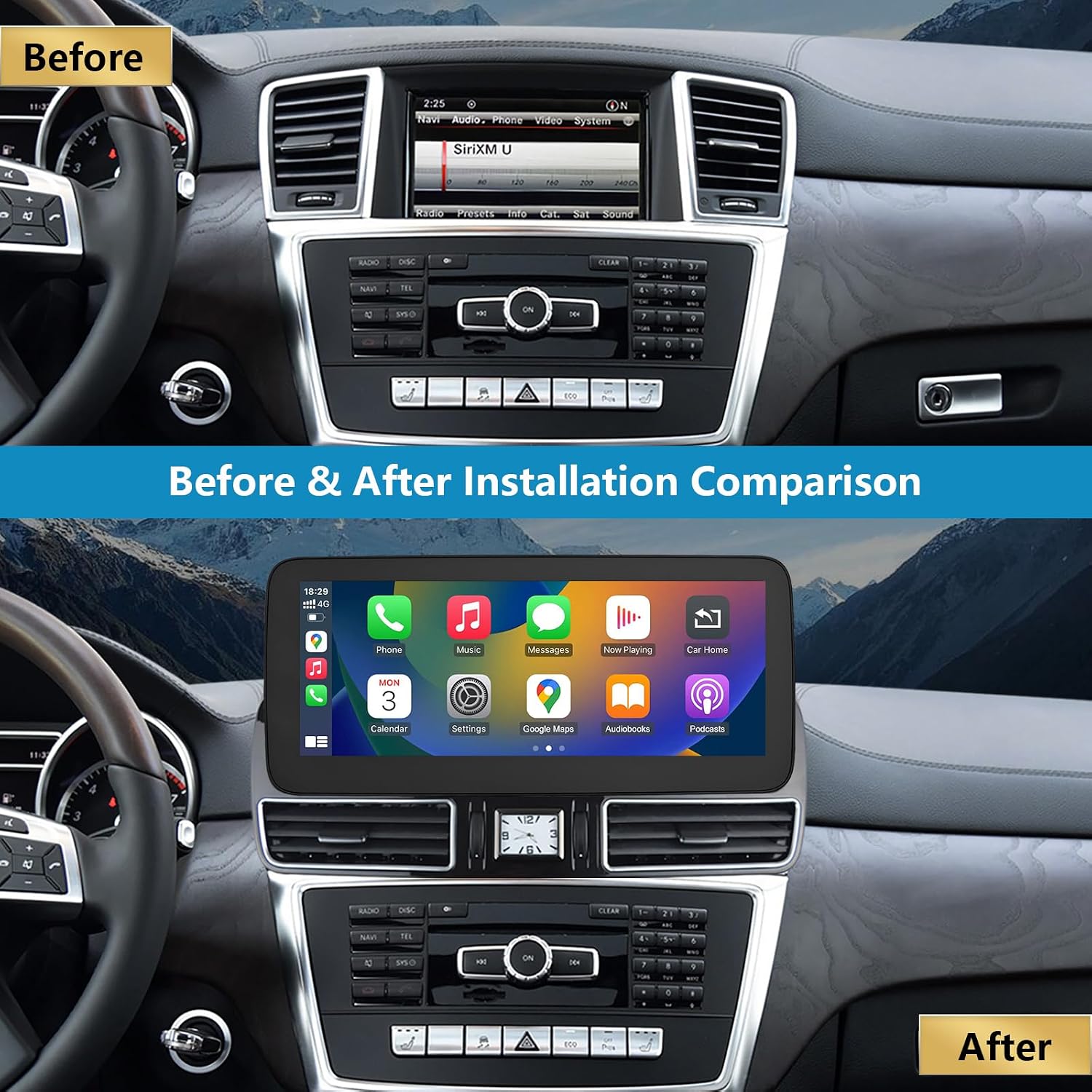
Figure 4.1: Comparison of the dashboard before and after the installation of the Ninetom 12.3-inch touchscreen.
5. Operating Instructions
The Ninetom touchscreen operates on a Linux system and integrates seamlessly with your vehicle's original functions.
5.1 System Overview
The unit features a 1920x720 resolution touchscreen. It supports preloaded map versions, various navigation software, and multiple languages.

Figure 5.1: The main Linux system interface, providing access to OEM Car Info, CarPlay, Android Auto, Autolink, and AirPlay.
5.2 Switching Between Systems
You can easily switch between the new Linux system and your vehicle's original NTG system. Simply tap the "OEM Car Info" icon on the Linux interface to return to the original system. To switch back to the Linux system, touch the screen.

Figure 5.2: The system allows seamless switching between the original car interface and the new Linux interface, retaining all original functions.
5.3 Wireless CarPlay and Android Auto
The unit supports both wireless and wired Apple CarPlay and Android Auto. These functions allow you to access GPS navigation, phone calls, messages, music, and other applications directly on the car's screen.
- Connection: Pair your smartphone via Bluetooth to enable wireless CarPlay or Android Auto. For wired connection, use a USB cable.
- Navigation: Use your preferred navigation apps (e.g., Apple Maps, Google Maps) displayed on the 12.3-inch screen.
- Music Playback: Stream music from your phone through the car's audio system.
- Hands-Free Calls: Make and receive calls using the integrated microphone and car speakers.
- Voice Control: Utilize Siri or Google Assistant for voice commands.

Figure 5.3: The unit displaying both wireless CarPlay and Android Auto interfaces, along with MirrorLink functionality.
5.4 MirrorLink / AirPlay
The MirrorLink and AirPlay functions allow you to mirror your smartphone's screen directly onto the car radio display. This is useful for displaying content not natively supported by CarPlay or Android Auto.
5.5 Retained Original Functions
The upgrade screen retains all original vehicle functions, including:
- Original car radio and amplifier functions.
- Factory joystick control and command knob.
- Steering wheel controls (volume, track skip, call answer/end).
- Original rear view camera and aftermarket camera support.
- Door open warnings and other vehicle information.

Figure 5.4: Examples of retained original functions, including the original system interface, new touch screen, reverse trajectory, one-touch screen switch, CD radio support, steering wheel control, original car audio, joystick, and shift control.

Figure 5.5: The original car steering wheel buttons remain fully functional for multimedia control and voice commands.

Figure 5.6: The new screen displays the rear camera view, including parking guidelines and obstacle detection.
6. Maintenance
To ensure the longevity and optimal performance of your Ninetom car radio touchscreen, follow these maintenance guidelines:
- Screen Cleaning: Use a soft, lint-free cloth specifically designed for electronics to clean the touchscreen. Avoid abrasive cleaners or harsh chemicals that can damage the screen coating.
- Temperature Control: The unit is designed to operate within a working temperature range of -30°C to +80°C. Avoid exposing the unit to extreme temperatures for prolonged periods.
- Software Updates: Periodically check for available software updates to ensure the system runs efficiently and has the latest features.
- Cable Connections: Ensure all cables remain securely connected to prevent intermittent issues.
7. Troubleshooting
If you encounter any issues with your Ninetom car radio touchscreen, refer to the following common troubleshooting steps:
| Problem | Possible Cause | Solution |
|---|---|---|
| No power/Screen blank | Loose power cable connection, blown fuse, incorrect wiring. | Check all power connections. Verify vehicle fuses. Re-check wiring according to the installation guide. |
| CarPlay/Android Auto not connecting | Bluetooth not paired, Wi-Fi disabled, incorrect phone settings, incompatible phone. | Ensure Bluetooth and Wi-Fi are enabled on your phone. Pair your phone with the unit. Check phone settings for CarPlay/Android Auto permissions. Try a different USB cable for wired connection. |
| No audio | Volume too low, incorrect audio source selected, loose audio cables. | Increase volume on both the unit and your phone. Ensure the correct audio input is selected. Check audio cable connections. |
| Touchscreen unresponsive | System freeze, debris on screen. | Restart the unit (if possible). Clean the screen thoroughly. If the issue persists, contact support. |
| Original functions not working | Incorrect system switching, loose connections to original system. | Ensure you have switched back to the "OEM Car Info" interface. Check all connections related to the original vehicle system. |
If these steps do not resolve the issue, please contact Ninetom customer support for further assistance.
8. Specifications
- Model Number: RT-LN-NTG45-12-ML
- Screen Size: 12.3 inches
- Resolution: 1920 x 720
- Operating System: Linux
- Connectivity: Wireless/Wired CarPlay, Android Auto, MirrorLink, Bluetooth
- Control Method: Touch, Original Joystick, Steering Wheel Controls
- Compatible Vehicle Type: Mercedes Benz ML/GL W166 X166 (NTG4.5/4.7 System)
- Working Temperature: -30°C to +80°C
- Product Weight: 2.5 Kilograms
- Package Dimensions: 39.5 x 18.4 x 17.3 cm
9. Warranty and Support
This Ninetom product comes with a 12-month warranty. In case of any manufacturing defects or issues arising from normal use within this period, please contact our professional customer service team for support. We offer technical assistance and installation support to ensure your satisfaction.
For warranty claims, technical support, or installation inquiries, please refer to the contact information provided with your purchase or visit the official Ninetom website.