
DEPSTECH DS620TL
DEPSTECH DS620TL 50ft Sewer Camera Instruction Manual
Model: DS620TL
Introduction
The DEPSTECH DS620TL 50ft Sewer Camera is an advanced inspection tool designed for examining hard-to-reach areas such as pipes, drains, walls, and automotive components. Featuring a 1080P HD triple-lens system and a 5-inch IPS screen, it provides clear visuals for detailed inspections. This manual provides essential information for the safe and effective operation of your device.
Package Contents
Verify that all items listed below are included in your package:
- Borescope Monitor with 50ft Semi-Rigid Cable
- Carrying Case
- USB Charging Cable
- Accessory Kit (Hook and Magnet)
- User Manual
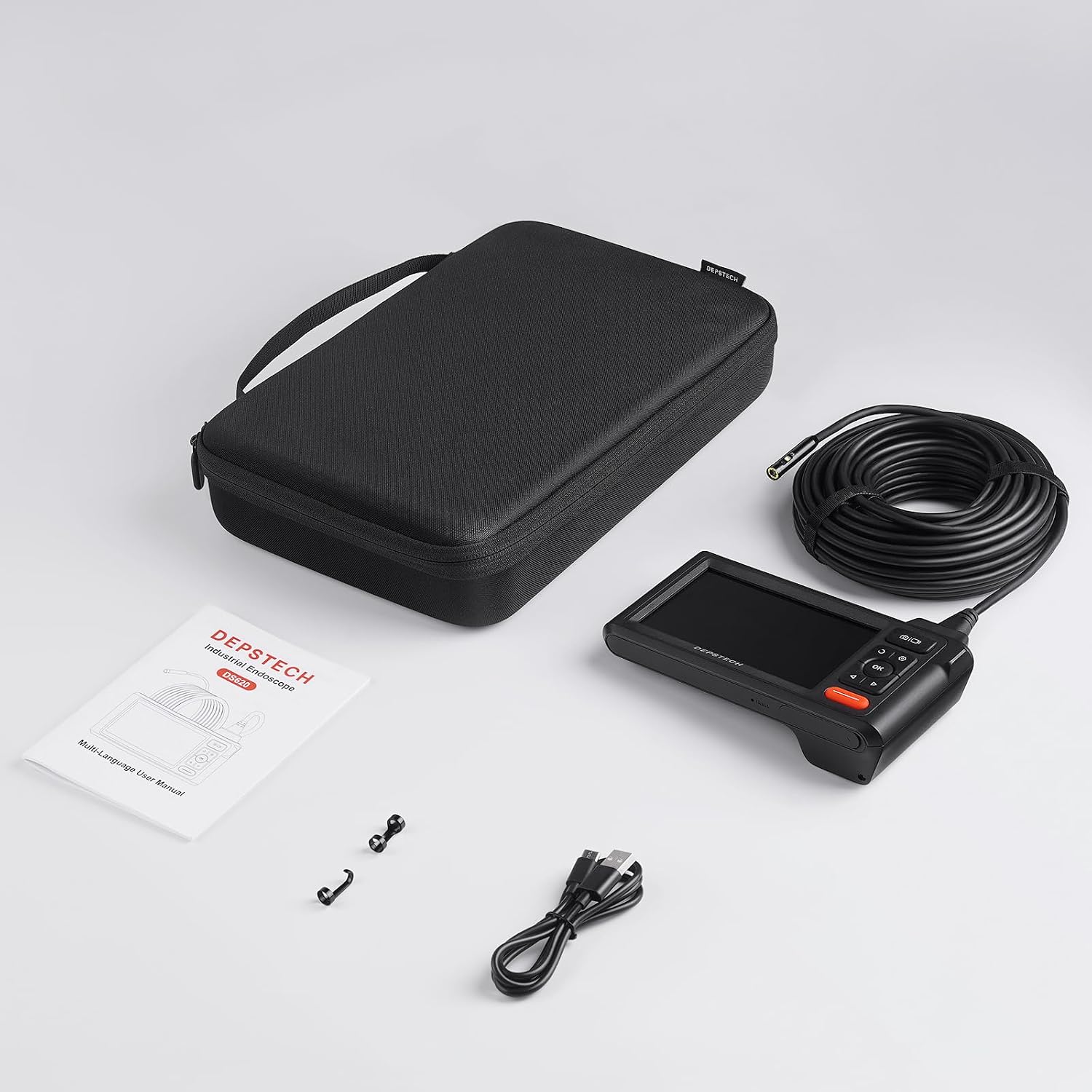
Image: Package contents of the DEPSTECH DS620TL, showing the main unit, coiled cable, carrying case, charging cable, and small accessories.
Product Features
Extended Reach 50ft Cable
The semi-rigid 50-foot cable allows for deep insertion into voids and confined spaces, providing access to areas such as plumbing, drains, walls, and automotive engines. For improved navigation through complex pipe systems, consider attaching a fish tape to the cable.

Image: The 50ft flexible snake camera cable, designed for extended reach into various inspection areas.

Image: Illustration of the 50ft flexible probe navigating a pipe, with a tip for using fish tape to enhance stiffness.
Innovative 1080P HD Triple Lens System
The camera features three lenses: one front-facing and two side-facing. This allows for comprehensive viewing angles without needing to rotate the cable. Easily switch between views to capture intricate details.

Image: The innovative triple-lens system, highlighting the front and side cameras for detailed inspections.

Image: Revolutionary HD Triple Lens Design, illustrating the internal components and benefits like improved clarity and color accuracy.
5-inch IPS Screen with Bluart 3.0 Technology
The large 5-inch IPS display provides clear, vibrant, and sharp images, reducing eye strain during inspections. Bluart 3.0 technology enhances image clarity, processing speed, and low-light performance, making it easier to identify hidden flaws.

Image: The 5-inch IPS display, showcasing its clear and vibrant image quality.

Image: Bluart 3.0 technology, highlighting its benefits for image quality and performance.
Ergonomic Design and Portability
Designed for user comfort, the handheld unit offers a secure grip and an intuitive interface for easy navigation. A protective carrying case is included for convenient transport and storage.

Image: Ergonomic grip of the borescope monitor for comfortable handling.
IP67 Waterproof Camera
The slim 7.9mm camera probe is IP67 rated, ensuring safe operation in damp or wet environments. Integrated adjustable lights provide illumination in dark spaces.
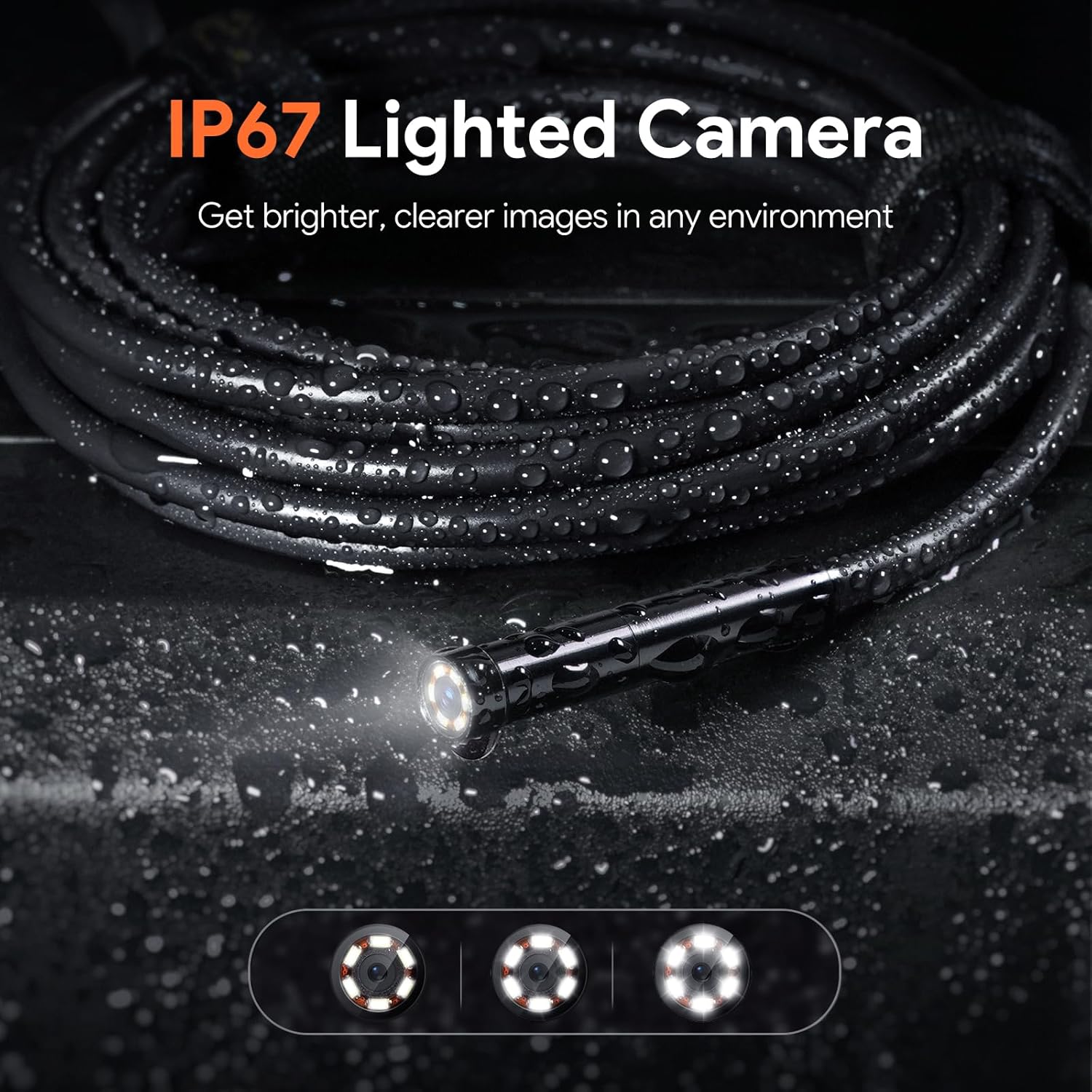
Image: IP67 lighted camera probe, demonstrating its waterproof capability and illumination in dark areas.
Extended Storage and Battery Life
The device includes a 32GB memory card for storing hours of video and thousands of still images. A large rechargeable battery provides up to 4 hours of continuous use on a single charge.

Image: Illustration of the internal battery, emphasizing extended battery life.

Image: A 32GB SD card being inserted into the device for extended storage.
Setup Instructions
- Charge the Device: Before first use, fully charge the borescope monitor using the provided USB charging cable. Connect the cable to the device's charging port and a standard USB power adapter (not included). The charging indicator will show progress.
- Insert SD Card: Locate the SD card slot on the side of the monitor. Insert the included 32GB memory card until it clicks into place. Ensure the card is inserted correctly to avoid damage.
- Attach Camera Cable: Connect the 50ft semi-rigid camera cable to the designated port on the borescope monitor. Ensure a secure connection.
- Power On: Press and hold the power button (usually marked with a power symbol) for a few seconds until the screen illuminates.
Operating Instructions
- Power On/Off: Press and hold the power button to turn the device on or off.
- Live View: Once powered on, the device will display a live feed from the camera.
- Adjust Camera Lights: Use the dedicated light adjustment buttons (refer to device interface for specific icons) to increase or decrease the brightness of the LED lights on the camera probe. This is crucial for illuminating dark inspection areas.
- Switch Lenses: Utilize the lens switch button (often labeled with a camera icon or multiple dots) to cycle between the front-facing lens and the two side-facing lenses. This allows for different perspectives without physical rotation.
- Capture Photos: Press the photo capture button (typically a camera icon) to take a still image of the current view. Images are saved to the inserted SD card.
- Record Videos: Press the video record button (often a video camera icon or red dot) to start recording. Press it again to stop recording. Videos are saved to the SD card.
- Review Media: Access the gallery or playback mode (usually via a menu button or dedicated icon) to view captured photos and videos. Use the navigation buttons to browse.
- Menu Navigation: Use the directional buttons (up, down, left, right) and the OK/Enter button to navigate through the device's settings and options.
Tips for Effective Use:
- Cable Maneuverability: For navigating long or winding pipes, consider taping the camera cable to a fish tape or a semi-rigid guide wire to provide additional stiffness and control.
- Focus Distance: The camera has an optimal focus range. Adjust the distance to the object being inspected to achieve the clearest image.
- Cleaning: After use in dirty environments, gently clean the camera lens and cable with a soft, damp cloth.

Image: User inspecting a dishwasher with the DEPSTECH DS620TL, illustrating ease of use.
Maintenance
- Cleaning the Camera Probe: After each use, especially in dirty or wet conditions, gently wipe the camera lens and the entire cable with a soft, lint-free cloth. If necessary, use a small amount of mild soap and water, then dry thoroughly. Do not use abrasive cleaners or solvents.
- Cleaning the Monitor: Use a dry, soft cloth to clean the monitor screen and body. Avoid spraying liquids directly onto the screen.
- Storage: Store the device and its accessories in the provided carrying case in a cool, dry place, away from direct sunlight and extreme temperatures. Ensure the cable is neatly coiled to prevent kinks or damage.
- Battery Care: For optimal battery life, charge the device regularly, even if not in frequent use. Avoid fully discharging the battery for extended periods.
Troubleshooting
| Problem | Possible Cause | Solution |
|---|---|---|
| Device does not power on. | Low battery; device not charged. | Charge the device fully using the USB cable. |
| No image on screen. | Camera cable not securely connected; camera lights off or too dim. | Ensure the camera cable is firmly connected. Adjust the camera light brightness. |
| Image is blurry or unclear. | Object is outside the optimal focus range; camera lens is dirty. | Adjust the distance between the camera and the object. Clean the camera lens. |
| Cannot save photos/videos. | SD card not inserted; SD card full; SD card corrupted. | Insert a valid SD card. Delete unnecessary files or replace the SD card. Format the SD card (this will erase all data). |
| Difficulty navigating tight bends in pipes. | Cable lacks sufficient rigidity for the application. | Attach the camera cable to a fish tape or a more rigid guide for better control. |
Specifications
| Feature | Detail |
|---|---|
| Model Number | DS620TL |
| Cable Length | 50 feet (approx. 15 meters) |
| Camera Type | Triple Lens Borescope |
| Video Capture Resolution | 1080p |
| Screen Size | 5-inch IPS |
| Waterproof Rating | IP67 (camera probe) |
| Macro Focus Range | 1-10 cm |
| Storage | 32GB Micro SD Card (included) |
| Battery | Rechargeable (1 A battery included) |
| Color | Black |
| Manufacturer | DEPSTECH |
Warranty and Support
The DEPSTECH DS620TL comes with a 2-year warranty. For any technical assistance, product inquiries, or warranty claims, please contact DEPSTECH customer support. 24/7 customer support is available to assist you.
Refer to the contact information provided in your product packaging or visit the official DEPSTECH website for support details.
Related documentsDS620TL


Ask a question about this manual
Ask about setup, troubleshooting, compatibility, parts, safety, or missing instructions. Manuals+ will review the question and use this page’s manual context to help answer it.