
1. Introduction
Welcome to the user manual for your SZBOX JX5 Mini PC. This compact and powerful device features a 5.5-inch touchscreen, an Intel Alder Lake N100 processor, 12GB LPDDR5 RAM, and runs on Windows 11. Designed for portability and efficiency, the JX5 is suitable for a variety of tasks, from daily computing to entertainment and business presentations. This manual provides essential information on setting up, operating, maintaining, and troubleshooting your device to ensure optimal performance and longevity.
2. Safety Information
- Do not expose the device to extreme temperatures, direct sunlight, or high humidity.
- Avoid dropping or subjecting the device to strong impacts.
- Use only the provided charger or a compatible power adapter.
- Keep the device away from water and other liquids.
- Do not attempt to disassemble or repair the device yourself. Contact customer support for assistance.
- Ensure proper ventilation to prevent overheating.
3. Package Contents
Please check the package contents upon unboxing. If any items are missing or damaged, contact your retailer or SZBOX customer support.
- SZBOX JX5 Mini PC Device Body x1
- Power Adapter/Charger x1
4. Product Overview
4.1 Key Features
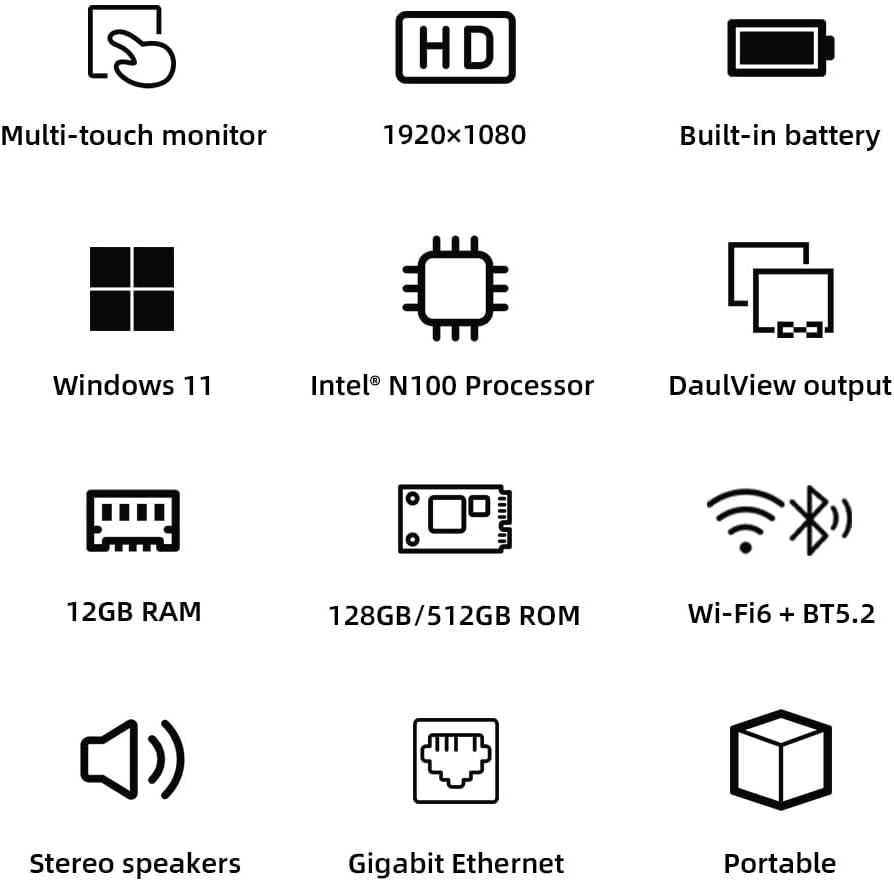
Image: Key Features Overview. This image illustrates the main features of the JX5 Mini PC, including its 5.5-inch multi-touch display with 1920x1080 resolution, built-in battery, Windows 11 operating system, Intel N100 processor, support for dual display output, 12GB LPDDR5 RAM, 128GB/512GB SSD storage, Wi-Fi 6 and Bluetooth 5.2 connectivity, stereo speakers, Gigabit Ethernet, and portable design.
- Processor: Intel Alder Lake N100 (up to 3.40GHz) for efficient performance.
- Graphics: Intel UHD Graphics for smooth visual processing.
- Memory: 12GB LPDDR5 4800MHz for superior multitasking.
- Storage: M.2 2242 SSD (available in 128GB, 256GB, or 512GB options) for fast data access.
- Display: 5.5-inch, 1920x1080 resolution, 5-point capacitive multi-touch screen.
- Operating System: Pre-installed with Windows 11.
- Connectivity: Wi-Fi 6 (802.11ax) and Bluetooth 5.2 for stable wireless connections.
- Ports: USB 3.0 x1, USB 2.0 x2, Full-function Type-C x1, HDMI Type A x1, RJ45 (Gigabit Ethernet) x1, 3.5mm Audio Jack x1.
- Battery: 1500mAh built-in battery for portability.
- Sensors: Built-in G-sensor for enhanced user experience.

Image: Processor and Memory Details. This image highlights the Intel N100 Processor's specifications, including its 6MB cache, LPDDR5 4800MHz memory support, and a maximum turbo frequency of 3.40GHz, along with integrated Intel UHD Graphics. It also visually compares the speed of 12GB LPDDR5 at 4800MHz against DDR4 at 3200MHz, emphasizing the performance advantage.
4.2 Ports and Connectors

Image: JX5 Mini PC Ports. This image displays the various ports available on the JX5 Mini PC. On one side, there is a LAN port and two USB 2.0 ports. On the other side, from left to right, are a microphone, a Full-function Type-C port, an HDMI port, a 3.5mm MIC/Headphone jack, a USB 3.0 port, and the Power Button.
- USB 3.0: Connect high-speed peripherals.
- USB 2.0 (x2): Connect standard USB devices like keyboards, mice, or external storage.
- Full-function Type-C: Supports data transfer, video output, and power delivery.
- HDMI Type A: Connect to external monitors, TVs, or projectors.
- RJ45 (LAN): For wired network connection (Gigabit Ethernet).
- 3.5mm Audio Jack: Connect headphones or external speakers.
- Power Button: To turn the device on/off or put it to sleep.
5. Setup
- Charge the Device: Before first use, connect the provided power adapter to the Type-C port or the dedicated power input and plug it into a power outlet. Allow the device to charge fully.
- Power On: Press and hold the Power Button located on the side of the device until the screen lights up.
- Initial Windows Setup: Follow the on-screen instructions to complete the Windows 11 setup process. This includes selecting your language, region, connecting to a Wi-Fi network, and creating a user account.
- Connect Peripherals (Optional):
- External Display: Connect an HDMI cable from the JX5's HDMI port to your monitor or TV. Alternatively, use a compatible Type-C to DisplayPort/HDMI adapter with the Full-function Type-C port.
- Keyboard/Mouse: Connect USB keyboards and mice to the available USB 2.0 or USB 3.0 ports. For wireless peripherals, use Bluetooth or a USB dongle.
- Wired Network: Connect an Ethernet cable to the RJ45 port for a stable wired internet connection.
6. Operating Instructions
6.1 Basic Operation
- Power On/Off: Press and hold the Power Button to turn on or off. A short press will put the device to sleep or wake it up.
- Touchscreen Navigation: Use your fingers to tap, swipe, pinch-to-zoom, and scroll on the 5.5-inch display, similar to a smartphone or tablet.
- Windows 11 Interface: Familiarize yourself with the Start Menu, Taskbar, and Action Center for quick access to applications and settings.
6.2 Connectivity

Image: Wireless Connectivity. This image highlights the JX5 Mini PC's support for Wi-Fi 6, offering high-speed internet access up to 9.6Gbps, and Bluetooth 5.2, enabling seamless connection to various peripherals such as speakers, earphones, printers, game controllers, tablets, smartphones, mice, and keyboards.
- Wi-Fi: Go to Settings > Network & internet > Wi-Fi to connect to available wireless networks. The device supports Wi-Fi 6 for fast and stable connections.
- Bluetooth: Enable Bluetooth in Settings > Bluetooth & devices to pair with Bluetooth-enabled accessories like headphones, keyboards, or mice.
- External Displays: The JX5 supports up to 3 screens. Connect via HDMI or the Full-function Type-C port. Use Windows display settings to configure display modes (duplicate, extend, second screen only). The built-in G-sensor supports automatic screen rotation when used as a tablet.

Image: Multi-Screen and G-Sensor Support. This image demonstrates the JX5 Mini PC's capability to support up to three external screens simultaneously, enhancing productivity. It also highlights the G-Sensor support, which allows the device's display to automatically rotate based on its orientation, useful when using it as a handheld tablet.
6.3 Usage Scenarios

Image: Versatile Usage Scenarios. This image illustrates the diverse applications of the JX5 Mini PC. It can be used for entertainment like watching movies, for productivity in work and learning environments, its compact size makes it ideal for travel and business trips, and it is also suitable for conducting meetings and presentations.
The JX5 Mini PC is designed for versatility. Its compact size and powerful specifications make it suitable for:
- Entertainment: Enjoy movies, music, and casual gaming.
- Productivity: Handle office tasks, browse the web, and engage in online learning.
- Portability: Easily carry it for business trips or on-the-go computing.
- Presentations: Connect to larger displays for meetings and presentations.
7. Maintenance
- Cleaning: Use a soft, dry cloth to clean the device. For the screen, use a screen-specific cleaning solution and a microfiber cloth. Avoid harsh chemicals.
- Software Updates: Regularly check for and install Windows updates to ensure system stability and security. Go to Settings > Windows Update.
- Battery Care: To prolong battery life, avoid fully discharging the battery frequently. Store the device in a cool, dry place if not used for extended periods.
- Storage: Keep the device in a protective case when traveling to prevent scratches or damage.
8. Troubleshooting
| Problem | Possible Solution |
|---|---|
| Device does not power on. | Ensure the device is charged. Connect the power adapter and try again. If the battery is completely drained, it may take a few minutes before it responds. |
| Wi-Fi connection issues. | Check if Wi-Fi is enabled in Windows settings. Restart your router and the JX5 Mini PC. Ensure you are within range of the Wi-Fi signal. |
| Bluetooth device not pairing. | Ensure Bluetooth is enabled on both the JX5 and the peripheral. Make sure the peripheral is in pairing mode. Try restarting both devices. |
| External display not detected. | Check cable connections (HDMI/Type-C). Ensure the external display is powered on and set to the correct input source. Press Windows key + P to cycle through display modes. |
| Touchscreen unresponsive. | Restart the device. Ensure the screen is clean and free of debris. If the issue persists, contact support. |
9. Specifications

Image: Detailed Product Specifications. This image provides a comprehensive list of the JX5 Mini PC's technical specifications, covering its model number, display characteristics, operating system, processor details, graphics, memory, storage options, audio, sensors, wireless and wired connectivity, available ports, battery capacity, weight, and power supply requirements.
| Feature | Detail |
|---|---|
| Model Name | JX5 |
| Brand | SZBOX |
| Display Size | 5.5 inches |
| Resolution | 1920 x 1080 |
| Touch Panel | 5-point Capacitive Touch |
| Operating System | Windows 11 |
| CPU | Intel Alder Lake-N N100 Processor (4 cores, 4 threads, 6M Cache, Max Turbo Frequency 3.40 GHz) |
| GPU | Intel UHD Graphics |
| Memory | 12GB LPDDR5 4800MHz |
| Storage | M.2 2242 SSD (128GB/256GB/512GB options) |
| Speaker | 8Ω 1W*2 |
| Sensor | G-Sensor |
| Wi-Fi | Wi-Fi 6 (802.11.ax/ac/b/g/n) |
| Bluetooth | Bluetooth 5.2 |
| LAN | 1000M (Gigabit Ethernet) |
| Ports | USB 3.0 x1, USB 2.0 x2, Full-function Type-C x1, HDMI Type A x1, RJ45 x1, 3.5mm Audio Jack x1 |
| Battery | 1500mAh 7.4V (Lithium-ion) |
| Weight | Approximately 360g (0.72 lbs) |
| Power Supply | PD charger DC15V/2A or 20V/1.5A |
10. Warranty and Support
Your SZBOX JX5 Mini PC comes with a manufacturer's warranty.
- Warranty Period: 12 months from the date of purchase.
- Coverage: The warranty covers defects in materials and workmanship under normal use. It does not cover damage caused by misuse, accidents, unauthorized repairs, or normal wear and tear.
- Customer Support: For technical assistance, warranty claims, or any questions regarding your JX5 Mini PC, please contact your retailer or visit the official SZBOX support website. Please have your purchase receipt and product model number (JX5) ready when contacting support.


