
Vamvo VF340
Vamvo Mini Projector WiFi Portable Movie Projectors User Manual
Model: VF340
Introduction
Thank you for choosing the Vamvo Mini Projector. This portable movie projector is designed to provide a high-quality cinematic experience with its 1080P resolution, wireless screen mirroring capabilities, and versatile connectivity. Its compact and lightweight design makes it ideal for home theater, outdoor movie nights, and gaming. Please read this manual carefully before use to ensure proper operation and maintenance.
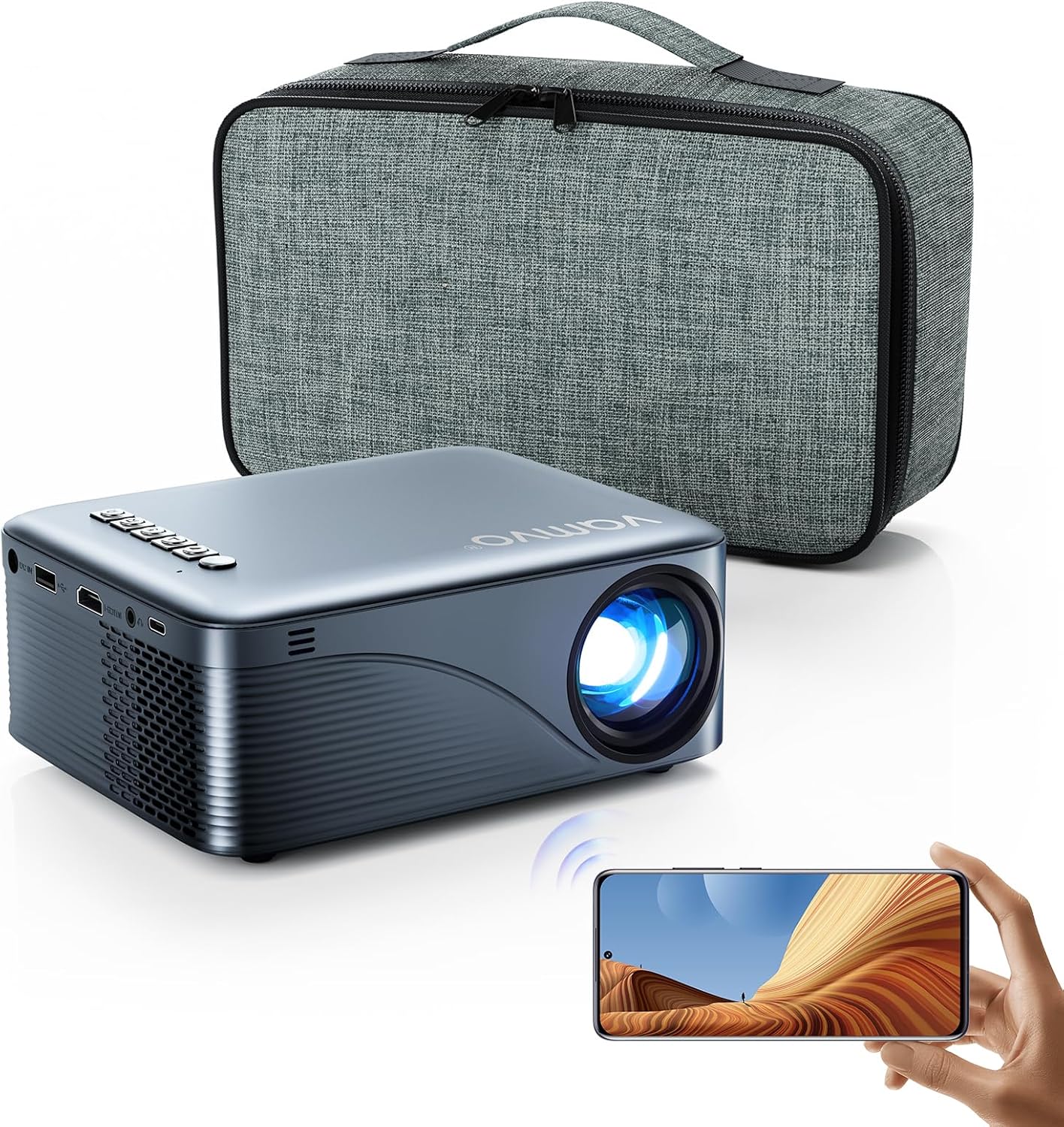
Image: The Vamvo Mini Projector, its dedicated carrying case, and a smartphone wirelessly connected, demonstrating its portability and screen mirroring feature.
What's in the Box
Upon unboxing your Vamvo Mini Projector, please ensure all the following items are present:
- Vamvo Mini Projector
- User Manual
- HDMI Cable
- Power Cable
- Remote Control
- AV Cable
- Carrying Case

Image: The Vamvo Mini Projector packaging, showcasing the projector and its included accessories such as cables and remote control.
Product Features
- Upgraded 1080P Resolution: Delivers clear and sharp detailed images with accurate color reproduction for a true and colorful viewing effect.
- Wireless Screen Mirroring: Easily connects iOS/Android/Windows 10 devices via Wi-Fi for seamless screen synchronization without extra cables.
- Wired Screen Mirroring: Supports direct connection of phones or tablets via data cable for convenient screen mirroring. (Use official data cables for best results).
- Bluetooth 5.4 Audio: Built-in stereo speaker provides cinematic audio. Connects wirelessly to Bluetooth speakers or headphones for enhanced sound. Note: Bluetooth is for audio transmission only, not for smartphone screen mirroring.
- Portable and Lightweight: Compact size (6.8"x5.35"x2.9") and light weight (1.45 lbs) make it highly portable for on-the-go entertainment.
- Large Screen Experience: Projects up to a 200-inch display, offering an immersive viewing experience for movies, TV shows, and gaming.
- Versatile Connectivity: Features HDMI, USB, and audio inputs, supporting laptops, smartphones, gaming consoles, TV sticks, USB sticks, and more.

Image: The projector displaying a screen with various streaming service logos and icons representing compatible devices like laptops, PCs, gaming consoles, and USB drives.
Setup Guide
- Power Connection: Connect the power cable to the projector and plug it into a power outlet.
- Placement: Place the projector on a stable, flat surface. For optimal viewing, position it perpendicular to the projection surface (wall or screen). Adjust the distance to achieve your desired screen size (up to 200 inches).
- Power On: Press the power button on the projector or remote control to turn it on.
- Focus Adjustment: Use the focus ring on the projector lens to sharpen the image until it is clear.
- Keystone Correction: If the image appears trapezoidal, use the keystone correction feature (manual or digital, if available) to adjust it to a rectangular shape.
Operating Instructions
Connecting Devices
The Vamvo Mini Projector offers multiple ways to connect your devices:
1. Wireless Screen Mirroring (Wi-Fi)
This feature allows you to cast content from your iOS, Android, or Windows 10 device wirelessly.
- Ensure your projector and smart device are connected to the same Wi-Fi network.
- Select the "Screen Mirroring" or "Wireless Display" option on your projector's menu.
- On your smart device, enable screen mirroring/casting and select the projector from the list of available devices.
- Follow any on-screen prompts to complete the connection.
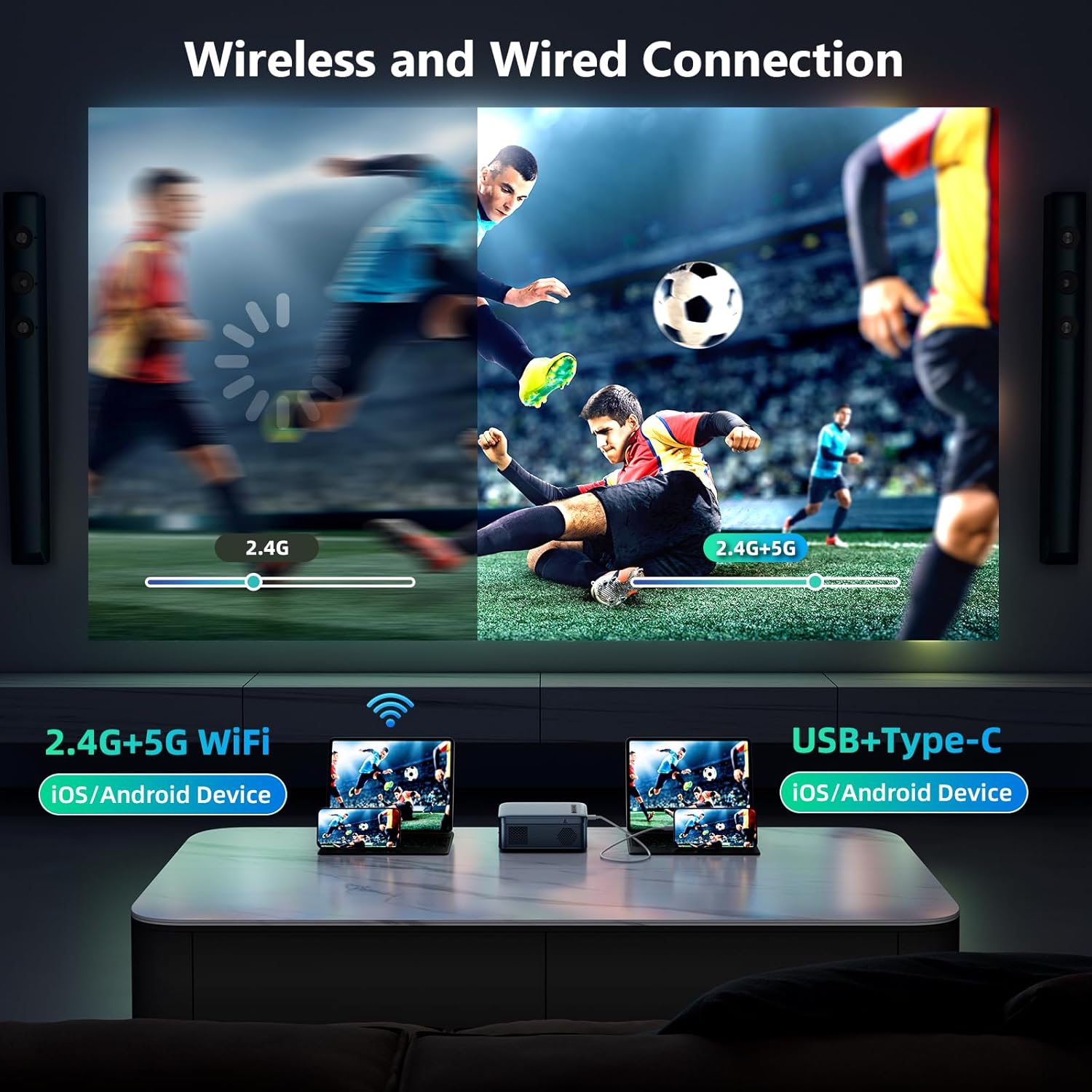
Image: A visual representation of the projector's wireless (2.4G+5G WiFi for iOS/Android) and wired (USB+Type-C for iOS/Android) screen mirroring capabilities.
2. Wired Screen Mirroring (USB/Type-C)
For a stable, direct connection, use a data cable.
- Connect your phone or tablet to the projector using its official data cable (e.g., USB-C to USB-C, Lightning to USB).
- Select the appropriate input source on the projector (e.g., USB or Type-C).
- The device screen should automatically mirror to the projector.
3. HDMI Connection
Connect laptops, gaming consoles, TV sticks, or other HDMI-enabled devices.
- Connect one end of the HDMI cable to your device and the other end to an HDMI port on the projector.
- Select the corresponding HDMI input source on the projector's menu.
4. USB Connection
Play media directly from a USB flash drive.
- Insert your USB flash drive into the USB port on the projector.
- Select the "Media" or "USB" input source from the projector's menu.
- Navigate through the files and select the content you wish to play.
5. Bluetooth Audio Connection
Connect external Bluetooth speakers or headphones for enhanced audio.
- Ensure your Bluetooth audio device is in pairing mode.
- On the projector, navigate to the Bluetooth settings.
- Select your Bluetooth audio device from the list to pair.
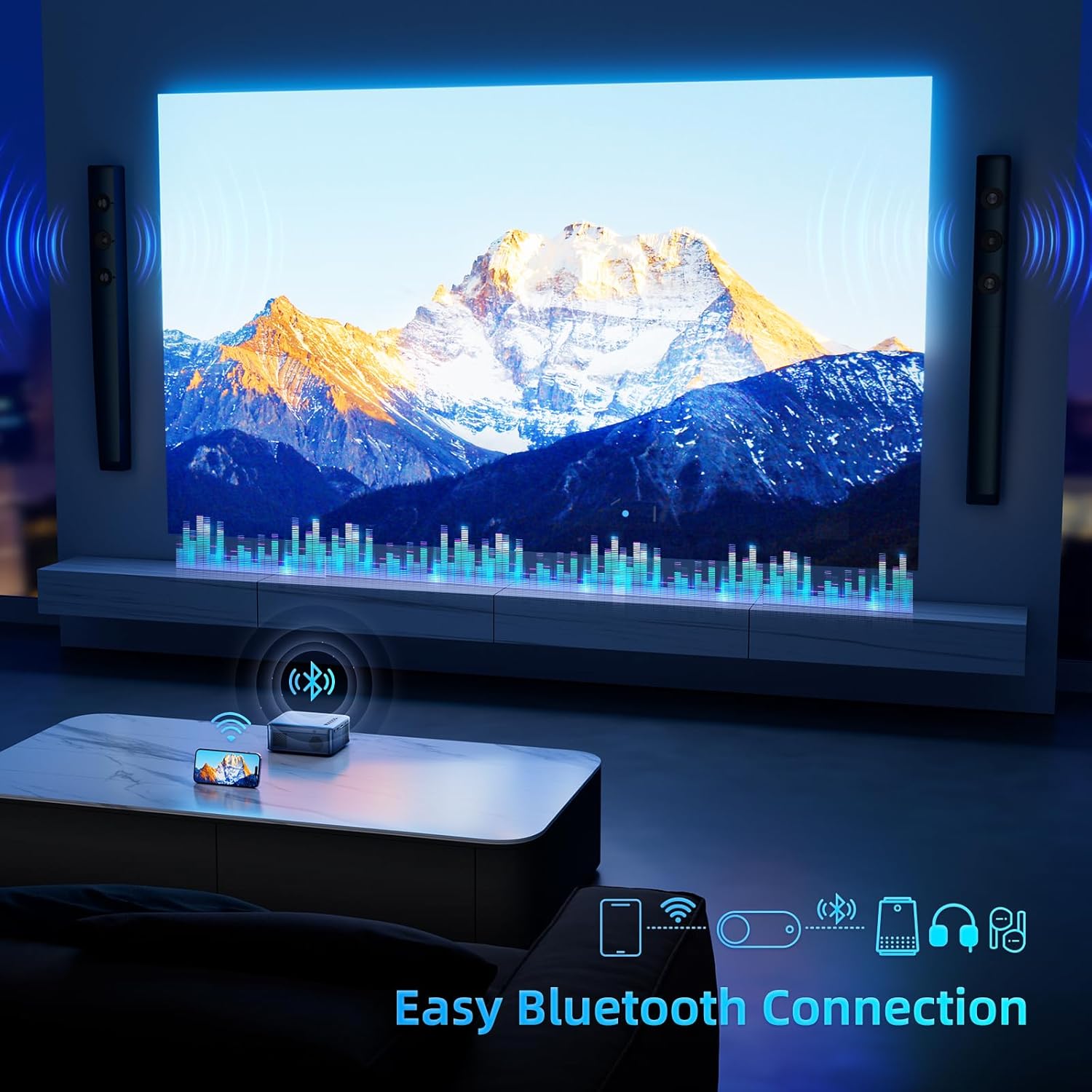
Image: The projector wirelessly connected to external speakers via Bluetooth, illustrating the easy audio connection feature.
Maintenance
Proper maintenance ensures the longevity and optimal performance of your projector.
- Cleaning the Lens: Use a soft, lint-free cloth specifically designed for optical lenses. Do not use abrasive cleaners or cloths that could scratch the lens.
- Cleaning the Exterior: Wipe the projector's exterior with a soft, dry cloth. For stubborn marks, slightly dampen the cloth with water. Avoid using harsh chemicals.
- Ventilation: Ensure the projector's ventilation openings are clear and not obstructed. Good airflow prevents overheating.
- Storage: When not in use for extended periods, store the projector in a cool, dry place, preferably in its original packaging or the provided carrying case, to protect it from dust and damage.
- Dust Filter: Regularly check and clean the dust filter (if applicable) to maintain optimal cooling performance. Refer to the user manual for specific instructions on accessing and cleaning the filter.
Troubleshooting
| Problem | Possible Cause / Solution |
|---|---|
| No image / "No Signal" message |
|
| Blurry image |
|
| No sound |
|
| Wireless mirroring issues |
|
If you encounter issues not listed here or if the problem persists, please contact Vamvo customer support for assistance.
Specifications
| Feature | Detail |
|---|---|
| Brand | Vamvo |
| Model Number | VF340 |
| Display Resolution | 1920 x 1080 (Full HD) |
| Connectivity Technology | TYPE-C, Wi-Fi (2.4G+5.8G), USB, HDMI, Audio |
| Special Features | Built-In Speaker, Portable, Bluetooth 5.4, Lightweight |
| Recommended Uses | Home Cinema, Gaming |
| Item Weight | 1.46 pounds |
| Package Dimensions | 10.55 x 7.13 x 4.13 inches |
| Color | Gunmetal Gray |
| Country of Origin | China |

Image: The product packaging displaying detailed specifications of the Vamvo Mini Projector.
Warranty and Support
Vamvo is committed to providing high-quality products and excellent customer service.
- Warranty Information: Please refer to the warranty card included in your product packaging for specific details regarding the warranty period and coverage.
- Technical Support: For any questions, technical assistance, or troubleshooting beyond this manual, please contact Vamvo customer support. You can typically find contact information on the Vamvo official website or through the retailer where you purchased the product.
- Online Resources: Visit the official Vamvo website for FAQs, updated manuals, and software/firmware updates.
Vamvo offers long-life technical support for its products.
Ask a question about this manual
Ask about setup, troubleshooting, compatibility, parts, safety, or missing instructions. Manuals+ will review the question and use this page’s manual context to help answer it.