
Novzix S9 White And Black 2Pack
Novzix Android Compatible Tracker Tag User Manual
Model: S9 White And Black 2Pack
Brand: Novzix
Introduction
This manual provides comprehensive instructions for the Novzix Android Compatible Tracker Tag, Model S9. This 2025 new model tracker tag is designed for Android 9 and above, seamlessly integrating with the Google Find My Device network to help you locate your items. Its compact design allows for easy attachment to various personal belongings.
The device is built with high-quality, water- and dust-resistant materials, ensuring durability in various environments. Location updates are provided every 3-30 minutes through the Google Find My Device network.

Figure 1: Novzix Android Compatible Tracker Tag (Black)
Setup Guide
1. Initial Device Preparation
The Novzix Tracker Tag comes with a pre-installed CR2032 battery. Ensure the battery is properly seated. If the device does not power on, you may need to replace the battery (see Maintenance section).
2. Android Device Compatibility
This tracker tag is compatible with Android devices running Android 9 and above. Some devices may require additional system updates for optimal compatibility. Ensure your Android device's Google Play Services are up to date.
Figure 2: Compatible with Android Devices (Android 9.0+)
3. Pairing with Google Find My Device
The setup process is straightforward via the Google Find My Device app. Follow these steps:
- Update Google Services:
- Go to your phone's Settings.
- Scroll down and tap on About phone.
- Find and tap on Android version.
- Tap on Google Play system update and check for updates. Restart your phone if prompted.
- Factory Reset (if needed): If you encounter pairing issues, perform a factory reset on the tracker tag.
- Quickly press the button on the tracker tag four times.
- Then, long press the fifth time until you hear a sound. This indicates a successful reset.
- Manual Pairing:
- Go to your phone's Settings.
- Scroll down and tap on Google.
- Tap on All services.
- Select Devices.
- Ensure "Scan for nearby devices" is enabled.
- Tap on "Wireless tag" (or similar name) when it appears to connect.
- Location Update Settings: To get faster location updates, configure the Find Hub App settings.
- Open the Find Hub App.
- Go to App Setting.
- Navigate to Find Hub.
- Select Find your offline devices.
- Choose "With network in all areas" for comprehensive tracking.
Video 1: Google Tracker Connection Issue Fix - This video demonstrates how to update Google services, factory reset the tracker, manually pair it, and configure location update settings for optimal performance.
Operating Instructions
Tracking Your Items
Once paired, your Novzix Tracker Tag will leverage the Google Find My Device network to provide location updates. You can view your item's location through the Google Find My Device app on your Android phone.
- Real-time Tracking: Location updates occur every 3-30 minutes, depending on network conditions and device activity.
- Sound Playback: Use the app to make the tracker tag play a sound, helping you locate items nearby.
- Lost Mode: If an item is lost, you can mark it as lost in the app. The Google Find My Device network will then help locate it, and you may receive notifications when it's found by another Android device.
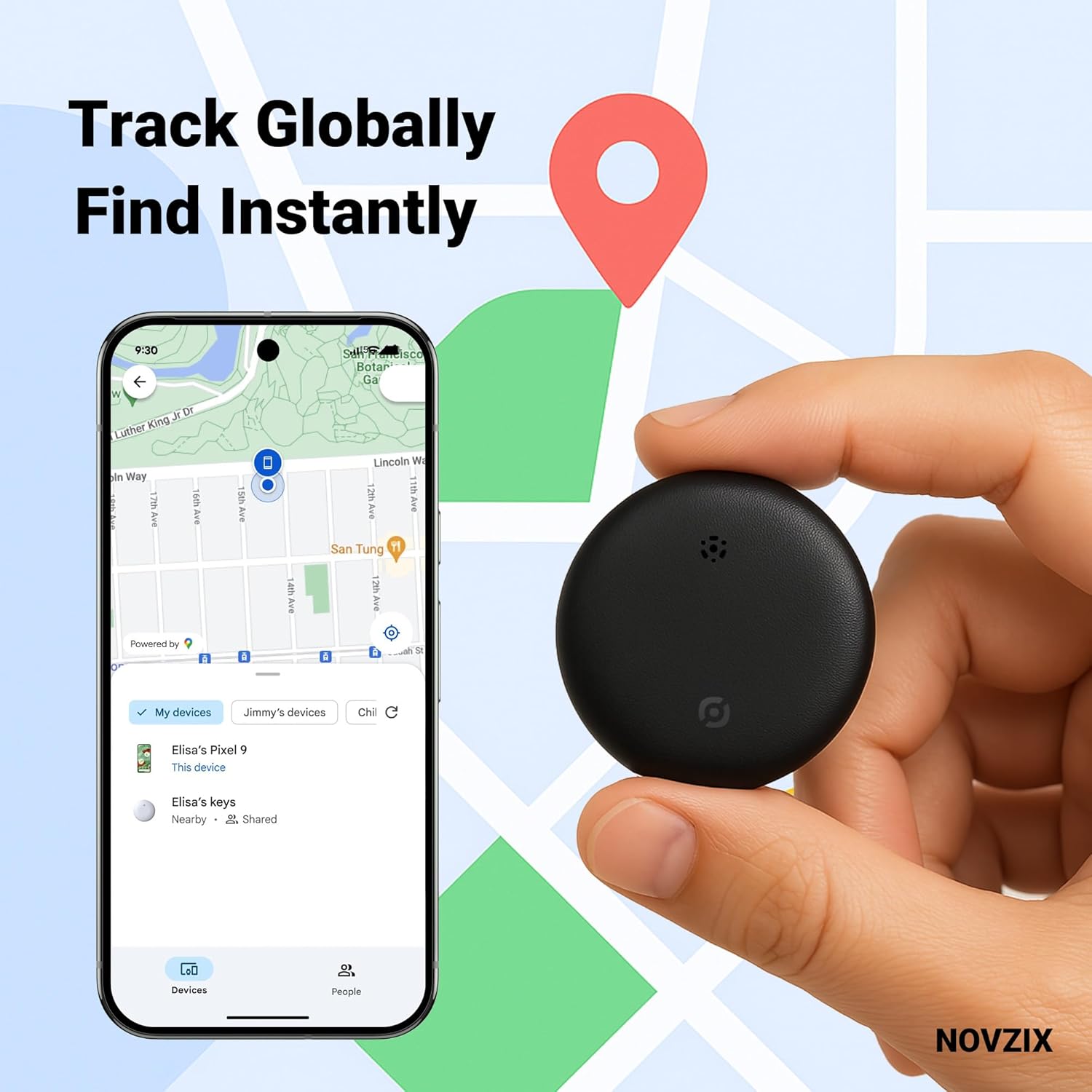
Figure 3: Track Globally, Find Instantly with the Google Find My Device app.
Attaching the Tracker Tag
The compact design of the Novzix Tracker Tag allows it to be easily attached to various items. Use the included strap or lanyard for convenience.
- Keys: Attach to your keyring.
- Wallets/Bags: Slip into a wallet compartment or attach to a bag strap.
- Luggage: Securely attach to luggage handles or zippers for travel.
- Other Valuables: Can be used for backpacks, pet collars, or even hidden in vehicles.

Figure 4: Never lose your luggage again.

Figure 5: Protect your keys, bags, and other valuables.
Maintenance
Battery Replacement
The Novzix Tracker Tag uses a standard CR2032 coin cell battery. A spare battery is included in some packages. To replace the battery:
- Locate the battery compartment on the back of the tracker tag.
- Use a small tool (like a coin) to twist open the battery cover counter-clockwise.
- Remove the old CR2032 battery.
- Insert the new CR2032 battery with the positive (+) side facing up.
- Align the battery cover and twist clockwise to secure it.
Care and Cleaning
The tracker tag is built with water and dust-resistant materials. To ensure longevity:
- Wipe the device with a soft, dry cloth.
- Avoid using harsh chemicals or abrasive cleaners.
- While water-resistant, avoid prolonged submersion in water.
Troubleshooting
| Problem | Possible Cause | Solution |
|---|---|---|
| Tracker not connecting to phone. | Outdated Google Play Services, pairing issue, low battery. |
|
| Inaccurate or infrequent location updates. | Network settings, limited network coverage. |
|
| Tracker not making sound. | Low battery, speaker obstruction, device malfunction. |
|
Specifications
- Model: S9 White And Black 2Pack
- Brand: Novzix
- Product Dimensions: 1.26 x 0.31 x 1.26 inches (32mm x 8mm x 32mm)
- Item Weight: 0.81 ounces
- Connectivity: NFC, Bluetooth (for Google Find My Device network)
- Battery: 1 x CR2032 (included)
- Compatibility: Android 9.0+ devices
- Material: Plastic
- Water & Dust Resistance: Yes (designed to withstand rain and outdoor conditions)
- Manufacturer: NOVZIX
- Country of Origin: China
- First Available: August 14, 2024

Figure 6: Product Dimensions and Packing List.
Warranty and Support
For warranty information and customer support, please refer to the contact details provided with your product packaging or visit the official Novzix website. Ensure you have your product model number (S9 White And Black 2Pack) and purchase details ready when contacting support.
You can also visit the Novzix Store on Amazon for additional resources and product information.
Ask a question about this manual
Ask about setup, troubleshooting, compatibility, parts, safety, or missing instructions. Manuals+ will review the question and use this page’s manual context to help answer it.