
1. Introduction
This manual provides instructions for the proper use and maintenance of your Yoidesu 3-in-1 USB Endoscope. This device is designed for industrial, mechanical, and pipeline inspection, offering clear visual access to hard-to-reach areas. It features versatile connectivity with Type C, USB, and microUSB interfaces.
2. Package Contents
Please verify that all items listed below are included in your package:
- 1 x Yoidesu 3-in-1 USB Endoscope (with 2m cable)
- 7 x Accessories (including USB adapter, microUSB adapter, magnet, hook, side mirror)
- 1 x User Manual

Image 2.1: The Yoidesu 3-in-1 USB Endoscope with its full set of accessories, including various adapters and tools.
3. Setup
Follow these steps to set up your Yoidesu Endoscope:
- Download the Application: Locate the QR code on the physical user manual included in your package. Scan this QR code with your smartphone or tablet to download the corresponding application required for the endoscope to function.
- Connect the Endoscope: The endoscope features Type C, USB, and microUSB interfaces for broad compatibility.
- For devices with a Type C port, directly plug in the endoscope's Type C connector.
- For devices with a microUSB port, use the provided microUSB adapter.
- For devices with a standard USB port (e.g., computers), use the provided USB adapter.
- Launch the Application: Once connected, open the downloaded application. Follow the on-screen prompts within the app to access the endoscope's functions and view the live feed.
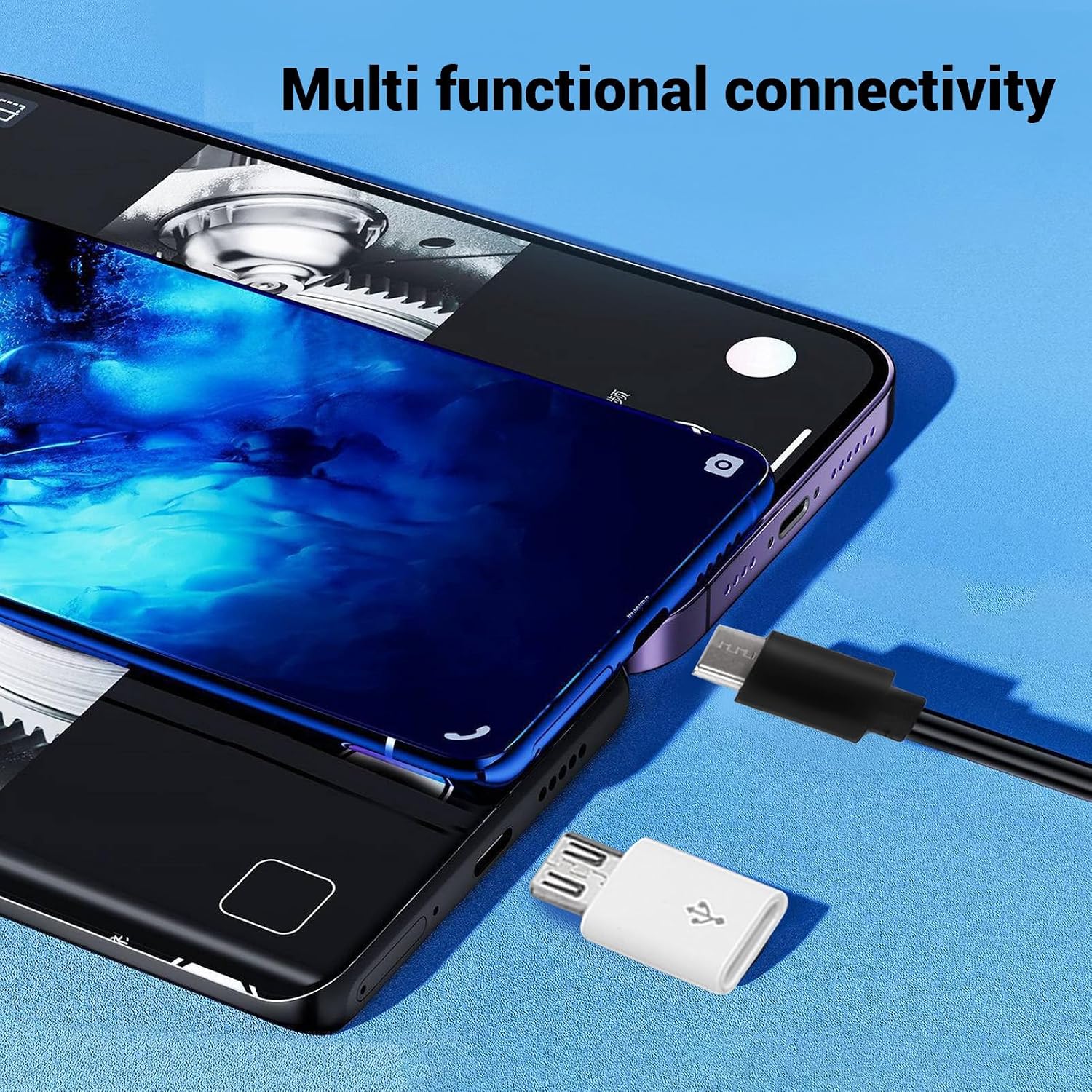
Image 3.1: Demonstrates connecting the endoscope to a smartphone using the Type C connector and the microUSB adapter for versatile device compatibility.
4. Operating Instructions
The Yoidesu Endoscope is designed for straightforward operation:
- Power On: The endoscope is powered directly by the connected device. Ensure your device has sufficient battery life.
- Adjust LED Brightness: The control unit on the cable features a dimmer wheel. Rotate this wheel to adjust the brightness of the LED lights around the camera lens, optimizing visibility in dark environments.
- Capture Images/Videos: Use the dedicated button on the control unit or the corresponding function within the application to capture still images or record videos.
- Navigate the Probe: The flexible 2-meter cable and 7mm diameter probe allow for navigation through narrow spaces. Carefully guide the probe into the inspection area.
- Utilize Accessories: Attach the magnet, hook, or side mirror accessories to the probe tip as needed for retrieving objects or viewing at different angles.

Image 4.1: A close-up view of the endoscope's control unit, highlighting the dimmer wheel for adjusting LED light intensity.

Image 4.2: The endoscope probe actively inspecting an area, with the live video feed displayed on a connected smartphone.
5. Maintenance
Proper maintenance ensures the longevity and performance of your endoscope:
- Cleaning: After each use, gently wipe the probe and lens with a soft, dry cloth. For stubborn dirt, a slightly damp cloth can be used, ensuring no liquid enters the camera housing. Do not use harsh chemicals or abrasive materials.
- Storage: Store the endoscope in a clean, dry place, away from direct sunlight and extreme temperatures. Coil the cable loosely to prevent damage.
- Water Resistance: The probe is waterproof, but the main control unit and connectors are not. Avoid submerging these components in liquid.
6. Troubleshooting
If you encounter issues with your Yoidesu Endoscope, refer to the following common solutions:
- No Image/Connectivity Issues:
- Ensure the endoscope is securely connected to your device using the correct adapter.
- Verify that the application is correctly installed and has the necessary permissions (e.g., camera access).
- Try restarting the application or your device.
- Test the endoscope with a different compatible device if possible to rule out device-specific issues.
- Unclear or Blurry Image:
- Clean the camera lens carefully with a soft cloth.
- Adjust the LED brightness using the dimmer wheel on the control unit.
- The optimal focus distance for this endoscope is typically within a few centimeters. Ensure the object of inspection is within this range. If the image is consistently blurry at close distances, it may be outside the minimum focus range.
- Application Not Responding:
- Close and reopen the application.
- Check for updates to the application in your device's app store.
- Ensure your device's operating system is up to date.
7. Specifications
Detailed technical specifications for the Yoidesu 3-in-1 USB Endoscope:
| Feature | Specification |
|---|---|
| Item Type | Industrial Endoscope |
| Material | Aluminum Alloy |
| Probe Diameter | Approx. 7mm / 0.28in |
| Pixels | 2MP |
| Cable Length | Approx. 2m / 6.56ft |
| Interface Type | Type C, USB, microUSB |
| Color | Black |
| Water Resistance Level | Waterproof (probe only) |
| Video Capture Resolution | 1080p |
| Item Weight | 1.83 ounces |
| Model Number | Yoidesu6qtmbgofe2 |

Image 7.1: The endoscope probe and cable, illustrating the 7mm diameter and 2m cable length.
8. Warranty and Support
For warranty information or technical support, please refer to the documentation provided with your purchase or contact the manufacturer directly. Keep your proof of purchase for warranty claims.