
1. Introduction
The 70mai Dash CAM M310 Plus 3K is a compact car camera designed to record your journeys in high resolution. It features advanced functionalities such as Wi-Fi connectivity, night vision, motion detection, time-lapse recording, Wide Dynamic Range (WDR), loop recording, and parking surveillance. This manual provides essential information for proper installation, operation, and maintenance of your device.

Image: The 70mai Dash CAM M310 Plus 3K, highlighting its compact design and features like 1620P resolution, WDR, F1.55 aperture, Wi-Fi, app control, voice control, 24-hour parking monitor, and support for up to 256GB MicroSD cards.
2. Safety Information
- Ensure the dash cam is installed in a location that does not obstruct the driver's view or interfere with vehicle safety features.
- Do not operate the device or adjust settings while driving. Perform all adjustments when the vehicle is safely parked.
- Use only the original power adapter and cables provided to prevent damage to the device and ensure proper operation.
- Avoid exposing the dash cam to extreme temperatures, direct sunlight for extended periods, or moisture.
- Keep the lens clean to ensure clear video recordings.
3. Package Contents
Verify that all items are present in the package:
- 70mai Dash CAM M310 Plus 3K
- Power Cable
- Car Charger
- Electrostatic Sticker
- Heat Resistant Adhesive
- Installation Tool
- User Manual
Note: A MicroSD card (Class 10 or higher, up to 256GB) is required for recording and is sold separately.
4. Product Overview
The 70mai Dash CAM M310 Plus 3K features a compact cylindrical design with a rotatable lens for flexible viewing angles. It includes a camera lens, microphone, speaker, power indicator, and a MicroSD card slot.
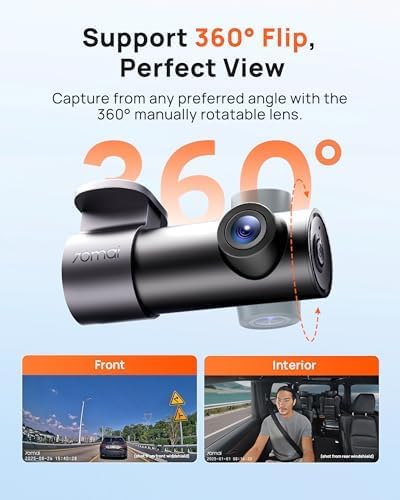
Image: The 70mai Dash CAM M310 Plus 3K demonstrating its 360-degree rotatable lens, allowing for various capture angles, including front view and interior view.
5. Setup
5.1 MicroSD Card Installation
- Ensure the dash cam is powered off.
- Insert a Class 10 or higher MicroSD card (up to 256GB) into the card slot until it clicks into place.
- It is recommended to format the MicroSD card within the 70mai app after installation for optimal performance.
5.2 Mounting the Dash Cam
- Clean the windshield area where you intend to mount the dash cam.
- Apply the electrostatic sticker to the windshield, ensuring no air bubbles.
- Attach the dash cam to the electrostatic sticker using the heat-resistant adhesive.
- Adjust the lens angle to capture the desired view (e.g., road ahead or vehicle interior).
5.3 Power Connection
- Connect the power cable to the dash cam's power port.
- Plug the car charger into your vehicle's cigarette lighter socket.
- Route the power cable neatly along the windshield and dashboard to avoid obstruction.
6. Operating Instructions
6.1 Automatic Recording
Once powered on, the dash cam will automatically begin recording. Videos are saved in segments to the MicroSD card.
6.2 Loop Recording
When the MicroSD card is full, the dash cam will automatically overwrite the oldest unlocked videos to continue recording.
6.3 G-Sensor (Emergency Recording)
The built-in G-sensor detects sudden movements or collisions. In such events, the dash cam automatically records and locks the current video segment to prevent it from being overwritten by loop recording.
6.4 Video Quality and Features
- 1620P (3K) Resolution: Records clear and detailed footage, making license plates and road signs more visible.
- WDR (Wide Dynamic Range): Balances exposure in challenging lighting conditions, such as tunnels or strong backlight, to ensure clear images.
- Night Vision: Equipped with an F1.55 large aperture lens, the dash cam provides enhanced clarity and brightness in low-light environments.

Image: Visual comparison demonstrating the superior clarity of 1620P (3K) resolution over 1080P and 1296P, with license plate details being significantly clearer.

Image: A comparison illustrating the improved night vision performance with an F1.55 aperture lens, showing increased brightness and clarity in dark conditions.
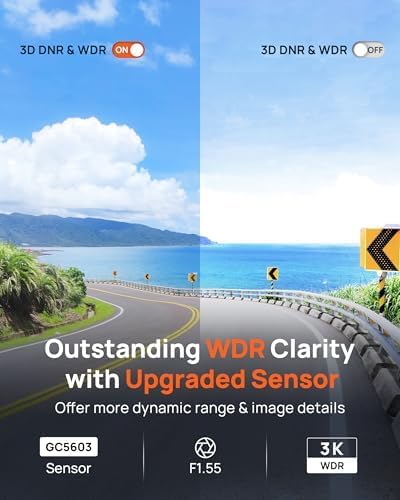
Image: Demonstrating the enhanced clarity provided by WDR technology with an upgraded sensor, offering a wider dynamic range and more image details.
6.5 Smart Voice Command
The dash cam supports voice commands for hands-free operation, enhancing safety while driving. Common commands include "Turn off hotspot," "Lock the video," and "Take photo."

Image: A driver interacting with the dash cam using smart voice commands, illustrating how to control functions like turning off the hotspot, locking video, or taking a photo without manual interaction.
7. App Control and Wi-Fi
The 70mai app allows you to control your dash cam, view live footage, download recorded videos, and adjust settings directly from your smartphone via Wi-Fi.
7.1 Connecting to the App
- Download the "70mai" app from your smartphone's app store.
- Power on the dash cam.
- Open the 70mai app and follow the on-screen instructions to connect to the dash cam's Wi-Fi hotspot.
7.2 App Functions
- View live video feed.
- Playback and download recorded videos to your phone.
- Adjust dash cam settings (e.g., resolution, G-sensor sensitivity, loop recording duration).
- Share videos to social media platforms.
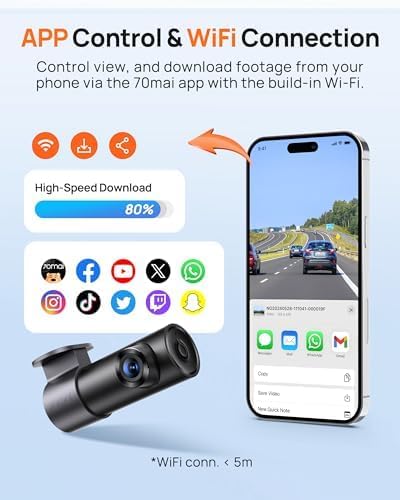
Image: A smartphone displaying the 70mai app interface, showing options for high-speed video download and sharing to various social media platforms, alongside the dash cam device.
8. Parking Surveillance
The 70mai Dash CAM M310 Plus 3K offers 24-hour parking surveillance to protect your vehicle when parked. This feature requires the 70mai Hardwire Kit UP03 or UP06 (sold separately).
8.1 Collision Detection
When the G-sensor detects a collision or sudden shake while parked, the dash cam automatically records a 30-second video before and after the impact, saving it as an emergency video.
8.2 Time-Lapse Recording
This feature compresses 30 minutes of footage into a 1-minute video, allowing for continuous long-term recording while minimizing power consumption and storage space.

Image: Illustrates the 24-hour parking surveillance capabilities, including automatic recording upon collision detection and time-lapse recording for continuous monitoring.
8.3 Surveillance Notice Sticker
The package includes warning stickers to inform passers-by that your vehicle is under 24/7 surveillance, acting as a deterrent.

Image: Hands holding a "24H Parking Surveillance 70mai Dash Cam" warning sticker, with examples of its placement on a car's front and rear windows.
9. Maintenance
- MicroSD Card Formatting: Regularly format your MicroSD card (at least once a month) through the 70mai app to ensure stable recording performance and prevent data corruption.
- Lens Cleaning: Use a soft, lint-free cloth to gently clean the dash cam lens. Avoid using abrasive cleaners or solvents.
- Firmware Updates: Check for firmware updates via the 70mai app. Keeping your firmware updated ensures optimal performance and access to new features.
10. Troubleshooting
| Problem | Solution |
|---|---|
| Dash cam does not power on. | Check the power cable connection and car charger. Ensure the vehicle's cigarette lighter socket is functioning. |
| Wi-Fi connection issues. | Ensure the dash cam is powered on. Restart both the dash cam and your smartphone. Try reconnecting via the 70mai app. |
| Recording errors or corrupted files. | Format the MicroSD card using the 70mai app. Ensure you are using a Class 10 or higher MicroSD card from a reputable brand. Replace the MicroSD card if the issue persists. |
| Poor video quality. | Clean the dash cam lens. Ensure the protective film has been removed from the lens. Check settings in the 70mai app to confirm desired resolution. |
| Voice commands not responding. | Ensure the microphone is not obstructed. Speak clearly and directly towards the dash cam. Reduce background noise if possible. |
11. Specifications
| Feature | Detail |
|---|---|
| Model Name | M310 Plus 3K |
| Video Resolution | 1296p (QHD) |
| Field of View | 139 Degrees |
| Aperture | F1.55 |
| Connectivity | Wi-Fi |
| Special Features | App Control, G-Sensor, Parking Monitor, Night Vision |
| Storage Support | MicroSD (Class 10, up to 256 GB) |
| Battery Type | Lithium-ion |
| Product Dimensions | 10.03 x 5.25 x 3.61 cm |
| Product Weight | 283 Grams |
| Included Components | Installation tool |
12. Warranty and Support
70mai products typically come with a manufacturer's warranty. For specific warranty details, please refer to the warranty card included in your package or visit the official 70mai website. For technical support, firmware updates, or further assistance, please contact 70mai customer service or visit their official support channels.
Official 70mai Website: www.70mai.com


