
1. Introduction
This manual provides detailed instructions for the ORICO 40Gbps M.2 NVMe Hard Drive Docking Station, Model IT28N-C. This device is designed for high-speed data transfer and offline cloning of M.2 NVMe Solid State Drives (SSDs). Please read this manual thoroughly before use to ensure proper operation and to maximize the product's performance and longevity.
2. Package Contents
Verify that all items listed below are included in your package:
- 1x M.2 Docking Station
- 2x Aluminum Heat Sink Cases
- 2x Metal Cooling Vests
- 1x USB-C to USB-C Data Cable (1m)
- 1x USB-C to USB-A Data Cable (1m)
- 2x Silicone Thermal Pads
- 2x Fasteners
- 1x Power Adapter
- 1x User Manual

Figure 2.1: Package Contents. This image displays the M.2 docking station, two aluminum heat sink cases, two metal cooling vests, USB-C to USB-C and USB-C to USB-A data cables, silicone thermal pads, fasteners, power adapter, and the user manual.
3. Product Overview
The ORICO 40Gbps M.2 NVMe Hard Drive Docking Station (IT28N-C) is a dual-bay device designed for efficient management of M.2 NVMe SSDs. It supports both online data transfer and offline cloning functionalities, offering high-speed performance and robust cooling.

Figure 3.1: ORICO 40Gbps M.2 NVMe Hard Drive Docking Station IT28N-C. The image shows the docking station with two M.2 SSDs in their protective cases inserted into the bays, along with the included USB-C cables.
Key Features:
- One-Button Offline Cloning: Allows direct SSD duplication without a computer connection.
- 40Gbps Data Transfer: Utilizes USB4.0 interface with Thunderbolt 4 compatibility for high-speed data transfer (up to 3300MB/s read, 3000MB/s write).
- Efficient Cloning Speed: Capable of cloning 1TB drives in approximately 20 minutes.
- Dual Independent Cooling System: Features aluminum alloy heatsinks, thermal silicone pads, a built-in cooling fan with dual-ventilation, and a full aluminum chassis for optimal thermal management.
- Wide Compatibility: Supports M-Key NVMe SSDs in various sizes (2230, 2242, 2260, 2280, 22110) up to 16TB capacity.
4. Setup Instructions
4.1. SSD Installation into Protective Case
- Slide the button on one end of the aluminum heat sink case to the right and push out the SSD tray from the bottom.
- Carefully insert your M.2 NVMe SSD into the slot on the tray. Secure it with the provided fastener.
- Apply the silicone thermal pad and metal cooling vest onto the SSD, ensuring good contact for heat dissipation.
- Push the assembled SSD tray back into the aluminum heat sink case until it clicks into place.

Figure 4.1: SSD Installation Steps. This diagram shows how to open the protective case, insert the SSD, apply cooling accessories, and close the case.
4.2. Inserting SSDs into the Docking Station
- Ensure the docking station is powered off and disconnected from any computer.
- Press the lock button on the docking station for the desired bay (Source or Target).
- Insert the SSD, now housed in its protective aluminum case, into the bay until it is securely seated.
- Repeat for the second SSD if using both bays.
4.3. Connecting to Power and Computer
- Connect the provided power adapter to the DC IN port on the docking station and plug it into a power outlet.
- For online data transfer, connect the docking station to your computer using the appropriate USB-C to USB-C or USB-C to USB-A cable.
5. Operating Instructions
5.1. Offline Cloning Procedure
The offline cloning function allows you to duplicate an SSD without connecting the docking station to a computer. This process copies all data from the Source Disk to the Target Disk.
Important Considerations:
- Both the source and target drives must be M.2 NVMe SSDs. SATA M.2 SSDs are not compatible.
- The capacity of the Target Disk must be equal to or greater than the capacity of the Source Disk.
- All data on the Target Disk will be erased during the cloning process. Back up any important data on the Target Disk before proceeding.
- Ensure the docking station is disconnected from any computer.
- Insert the Source Disk (the SSD you want to copy from) into the SOURCE bay.
- Insert the Target Disk (the SSD you want to copy to) into the TARGET bay.
- Connect the power adapter to the docking station and a power outlet.
- Toggle the switch on the docking station to the CLONE position.
- Press and hold the START button for approximately 5 seconds until the 25% indicator light begins to flash. This confirms the cloning process has started.
- The progress indicator lights (25%, 50%, 75%, 100%) will sequentially illuminate as the cloning progresses.
- Once all four indicator lights are steadily illuminated, the cloning process is complete.
- First, deactivate the power switch, then disconnect the power supply, and finally safely extract the hard drives.

Figure 5.1: Offline Cloning Setup. The image shows the docking station with two SSDs labeled 'Source Disk' and 'Target Disk', indicating the direction of data flow for cloning.

Figure 5.2: Offline Cloning Procedure Diagram. This diagram visually guides users through the steps of setting up and initiating an offline clone.
5.2. Online Data Transfer
To use the docking station for online data transfer, connect it to your computer via the provided USB-C cable. The docking station will be recognized as external storage, allowing you to read and write data to the inserted SSDs.
- Ensure SSDs are properly installed in their protective cases and inserted into the docking station bays.
- Connect the power adapter to the docking station and a power outlet.
- Connect the docking station to your computer using the USB-C to USB-C or USB-C to USB-A cable.
- The computer should detect the SSD(s) as external drives. You may need to initialize and format new SSDs through your operating system's disk management tools before use.
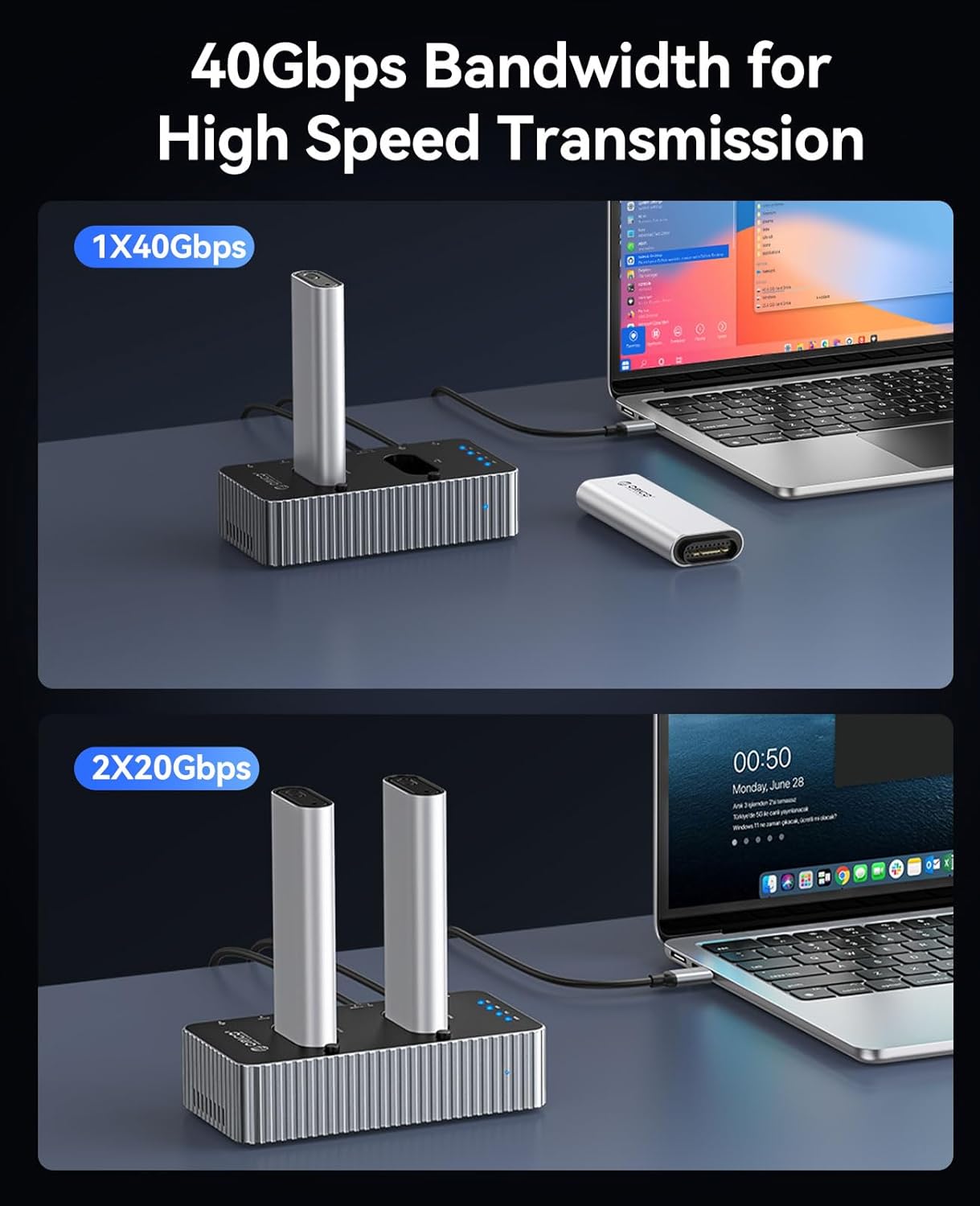
Figure 5.3: 40Gbps Data Transmission. This image shows the docking station connected to a laptop, highlighting its capability for high-speed data transfer.

Figure 5.4: Cloning Speed Comparison. This diagram illustrates the time taken to clone 1TB of data using USB4 M.2 (20 minutes), 10Gbps M.2 (1 hour), and SATA (4 hours).
6. Compatibility
The ORICO IT28N-C docking station offers broad compatibility with various M.2 NVMe SSDs and operating systems.
6.1. SSD Compatibility
- SSD Key: Supports M-Key NVMe SSDs. B-Key and B+M Key SATA M.2 SSDs are not supported.
- SSD Sizes: Compatible with M.2 NVMe SSDs of sizes 2230, 2242, 2260, 2280, and 22110.
- Capacity: Supports individual SSDs up to 16TB.
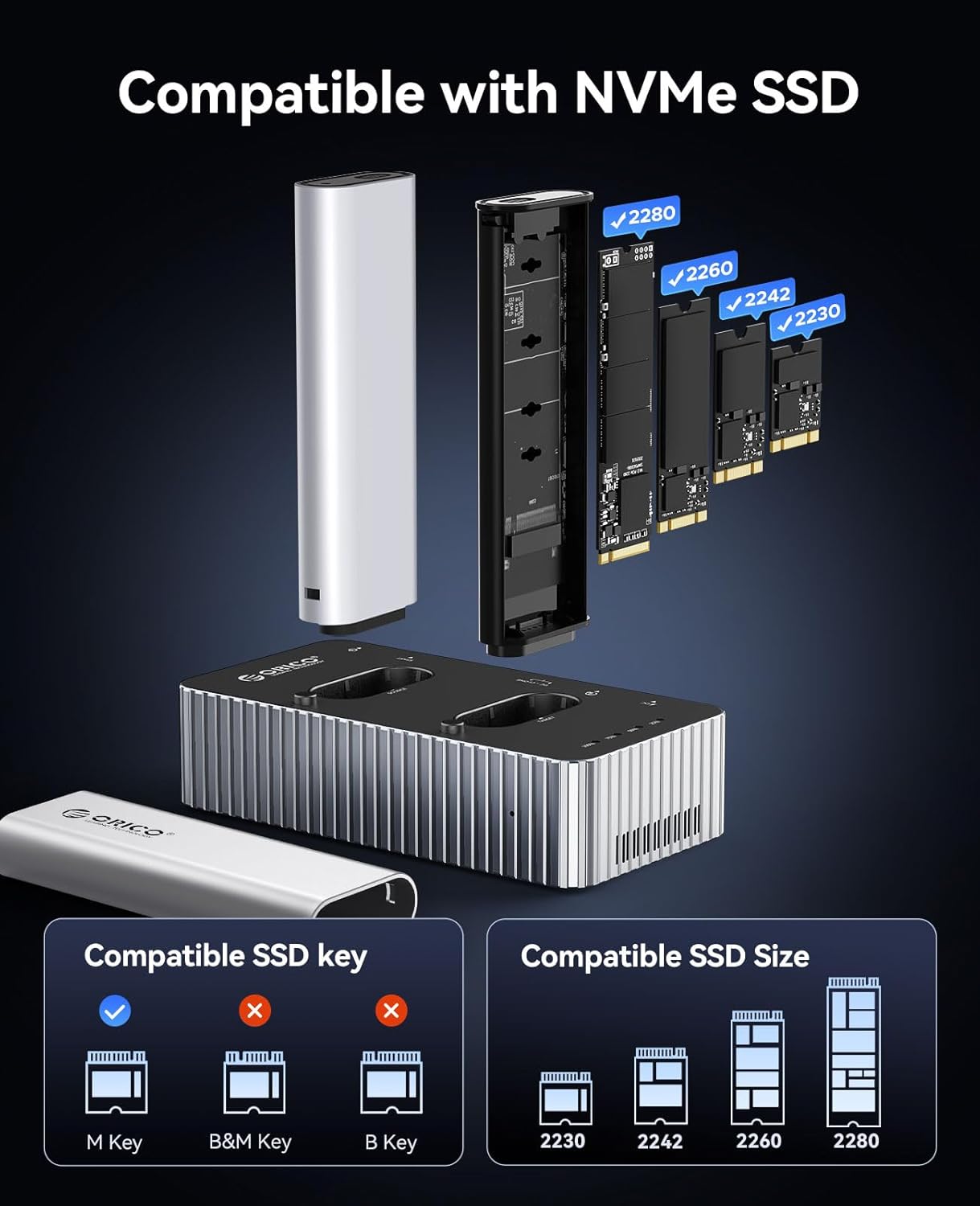
Figure 6.1: SSD Compatibility. This diagram illustrates the supported M-Key NVMe SSDs and various physical sizes (2230, 2242, 2260, 2280) that can be used with the docking station.
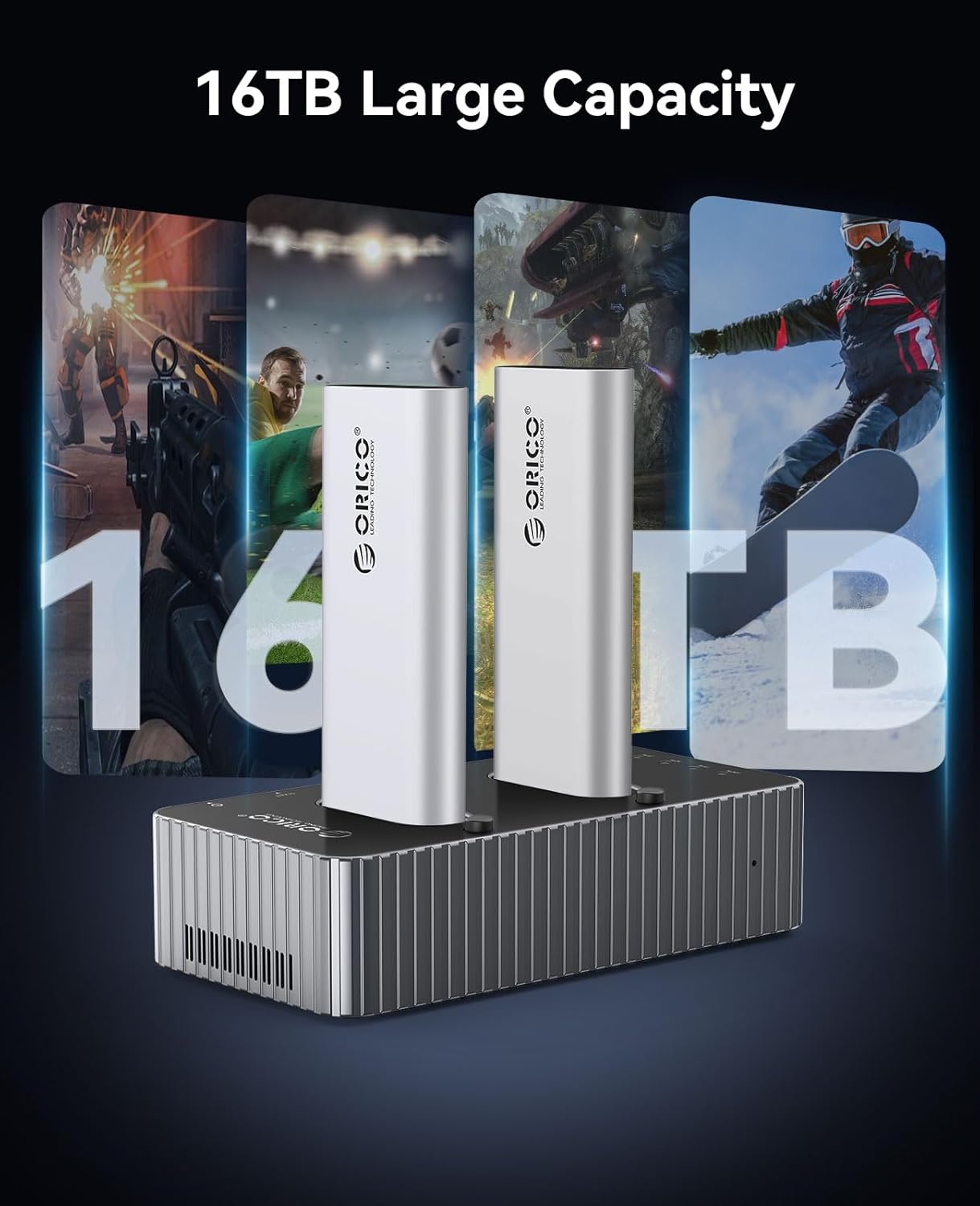
Figure 6.2: 16TB Large Capacity Support. The image highlights the docking station's ability to support high-capacity M.2 NVMe SSDs.
6.2. Operating System Compatibility
The docking station is compatible with a variety of operating systems, including Windows, macOS, and Linux.
7. Cooling System
The ORICO IT28N-C features a comprehensive dual independent cooling system to maintain optimal operating temperatures for your SSDs, preventing thermal throttling and ensuring stable performance during intensive operations like cloning or large data transfers.
- Aluminum Alloy Heatsinks: Two separated aluminum alloy heatsinks are included for each SSD.
- Thermal Silicone Pads: Used in conjunction with the heatsinks to improve heat transfer from the SSD.
- Built-in Cooling Fan: A fan with a dual-ventilation design actively dissipates heat.
- Full Aluminum Chassis: The docking station's body is constructed from aluminum, acting as a large passive heatsink.

Figure 7.1: Dual Independent Cooling System. This diagram shows the various cooling elements, including the aluminum alloy base, M.2 independent cooling units, and airflow paths.
7.1. Attached Aluminum SSD Protective Case
Each SSD is housed in an aluminum protective case that serves multiple functions:
- Protection: Safeguards the SSD's gold fingers from wear due to frequent insertion and removal.
- Overheating Prevention: Helps prevent overheating burns.
- Accidental Damage: Protects against physical damage.
- Heat Dissipation: Facilitates heat dissipation from the SSD.

Figure 7.2: Attached Aluminum SSD Protective Case. This image highlights the protective and heat-dissipating features of the individual SSD enclosures.
8. Maintenance
- Keep the docking station clean and free from dust. Use a soft, dry cloth for cleaning.
- Avoid exposing the device to extreme temperatures, humidity, or direct sunlight.
- Ensure proper ventilation around the docking station, especially during prolonged use.
- Do not attempt to disassemble or repair the device yourself, as this may void the warranty.
9. Troubleshooting
- Device Not Recognized:
• Ensure all cables (power and data) are securely connected.
• Verify that the SSDs are correctly installed in their protective cases and fully inserted into the docking station bays.
• Try connecting to a different USB port on your computer.
• For new SSDs, ensure they are initialized and formatted through your operating system's disk management utility. - Offline Cloning Failure:
• Confirm both Source and Target disks are M.2 NVMe SSDs.
• Ensure the Target Disk's capacity is equal to or greater than the Source Disk's capacity.
• Double-check that the cloning procedure steps (Section 5.1) are followed precisely, especially holding the START button for 5 seconds.
• Ensure the docking station is disconnected from any computer during offline cloning. - Slow Transfer Speeds:
• Ensure your computer's USB port supports USB4.0 or Thunderbolt 4 for maximum speeds. If using a lower-speed port (e.g., USB 3.2 Gen 2), speeds will be limited by that port.
• Verify that your SSDs are high-performance NVMe drives. Older or slower SSDs will not reach maximum speeds.
• When two drives are operating simultaneously, bandwidth may be shared, potentially affecting individual drive speeds. - Overheating:
• Ensure the SSDs are properly installed with the thermal pads and cooling vests inside their protective cases.
• Check that the docking station's ventilation slots are not obstructed.
10. Specifications
| Feature | Specification |
|---|---|
| Model Number | IT28N-C |
| Brand | ORICO |
| Interface | USB4.0 (Thunderbolt 4 compatible) |
| Data Transfer Rate | Up to 40Gbps (3300MB/s Read, 3000MB/s Write) |
| Compatible SSD Type | M-Key NVMe SSDs (PCIe NGFF) |
| Compatible SSD Sizes | 2230, 2242, 2260, 2280, 22110 |
| Max Capacity per Bay | 16TB |
| Cloning Function | One-Button Offline Clone |
| Cooling System | Dual Independent Cooling (Aluminum heatsinks, thermal pads, fan, aluminum chassis) |
| Operating System Support | Windows, macOS, Linux |
| Dimensions | 8.5 x 6.02 x 3.86 inches (Package) |
| Item Weight | 1.52 pounds |
11. Warranty and Support
ORICO products typically come with a one-year limited warranty. For warranty claims or technical support, please contact your original retailer or visit the official ORICO website for customer service information. Please retain your proof of purchase for warranty purposes.


