
1. Introduction
Thank you for choosing the Unitek External CD/DVD Drive. This device is designed to provide convenient optical disc reading and writing capabilities, along with expanded connectivity options for your computer. Its plug-and-play functionality ensures ease of use across various operating systems.
Key Features:
- 5-in-1 Functionality: External CD/DVD drive combined with a USB hub (1x USB 3.0, 1x USB 2.0, 1x USB-C 2.0) and an SD card slot.
- High-Speed Performance: Max 8x DVD-R Write/Read Speed and Max 24x CD Write/Read Speed, with data transfer rates up to 5 Gigabits/S (625MB/S) via USB 3.0.
- Wide Compatibility: Supports CD±R/RW, CD-ROM, DVD±R/RW, DVD-RAM, VCD, SVCD. Compatible with Windows 11/10/8/7/XP, Vista, Linux, and Mac OS 10.6 or above.
- Plug and Play: No external drivers or software installation required.
- Portable & Compact: Slim, lightweight design with a built-in cable for easy transport and organization.
2. Safety Information
Please read and follow these safety guidelines to ensure proper operation and prevent damage to the device or injury.
- Do not expose the device to water, moisture, or extreme temperatures.
- Avoid dropping or subjecting the device to strong impacts.
- Do not attempt to disassemble or repair the device yourself. Contact customer support for assistance.
- Ensure the device is placed on a stable, flat surface during operation to prevent accidental movement.
- Keep the device away from strong magnetic fields.
3. Package Contents
Verify that all items are present in your package:
- Unitek External CD/DVD Drive (Model: B21-Y)
- Integrated USB-A and USB-C connection cable
- User Manual (this document)
4. Setup
The Unitek External CD/DVD Drive is designed for simple plug-and-play operation.
4.1 Connecting the Drive
- Locate the integrated USB cable stored at the bottom of the drive.
- Connect the USB-A or USB-C end of the cable to an available USB port on your laptop, desktop, or other compatible device.
- The operating system will automatically detect and install the necessary drivers. This process may take a few moments.
- Once detected, the drive is ready for use.

Image: The Unitek External CD/DVD Drive with its integrated USB-A and USB-C cable, ready for connection to a laptop. The drive features a sleek white design with a disc tray partially open, revealing a CD.

Image: A close-up view of the dual USB 3.0 and USB-C connector cable, highlighting its high-speed data transfer capabilities. This cable allows for flexible connection to various computer ports.
4.2 Power Supply
For most devices, the drive will draw sufficient power directly from the USB connection. However, if you experience unstable operation or if connecting to a device with low power output (e.g., some older laptops or USB hubs), an additional power supply may be required.
- The drive features a Micro USB / 5V power port on the back.
- Connect a standard Micro USB cable (not included) to this port and to a 5V power adapter (e.g., a phone charger) or a powered USB hub.

Image: The underside of the Unitek External CD/DVD Drive, showing its anti-slip rubber feet for stability and the Micro USB / 5V power input port, which can be used for additional power if needed.
5. Operating Instructions
5.1 Inserting and Ejecting Discs
- To open the disc tray, gently press the Ejection Button located on the front of the drive. The tray will slide out.
- Carefully place your CD or DVD onto the tray, ensuring it is centered on the spindle.
- Gently push the tray back into the drive until it clicks into place.
- To eject the disc, press the Ejection Button again. Alternatively, you can eject the disc through your computer's operating system (e.g., right-click on the drive icon and select 'Eject').
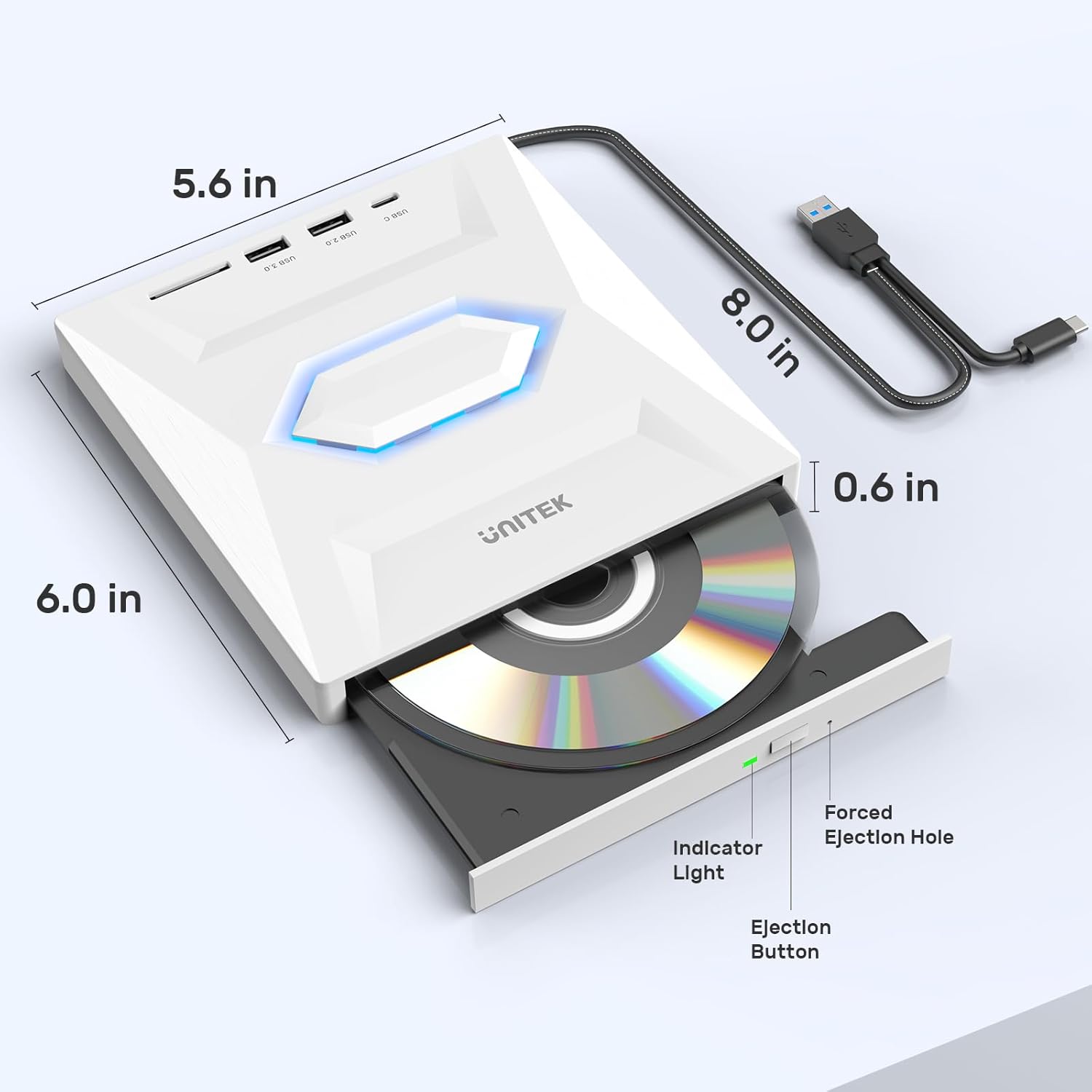
Image: A detailed view of the front of the Unitek External CD/DVD Drive, highlighting the Ejection Button, Indicator Light, and the Forced Ejection Hole for manual disc removal.
5.2 Using the Optical Drive
Once a disc is inserted and recognized, you can perform various functions:
- Playing Media: Use your computer's media player software to play audio CDs, video DVDs, or other compatible media files.
- Reading Data: Access files and folders on data CDs or DVDs.
- Burning Discs: Use compatible burning software (not included) to write data, music, or video to blank CD-R/RW or DVD±R/RW discs.
- Software Installation: Install software or operating systems from optical discs.

Image: A visual representation of the diverse applications for the Unitek External CD/DVD Drive, including burning CDs/DVDs, listening to music, watching movies, data backup, software installation, and using the SD card reader.
5.3 Using the USB Hub and SD Card Slot
The integrated USB ports and SD card slot allow you to connect additional peripherals and transfer data.
- USB Ports: Connect USB devices such as flash drives, external hard drives, mice, keyboards, or other USB computer accessories to the USB 3.0, USB 2.0, or USB-C 2.0 ports.
- SD Card Slot: Insert an SD card to transfer photos, videos, or other files to and from your computer.
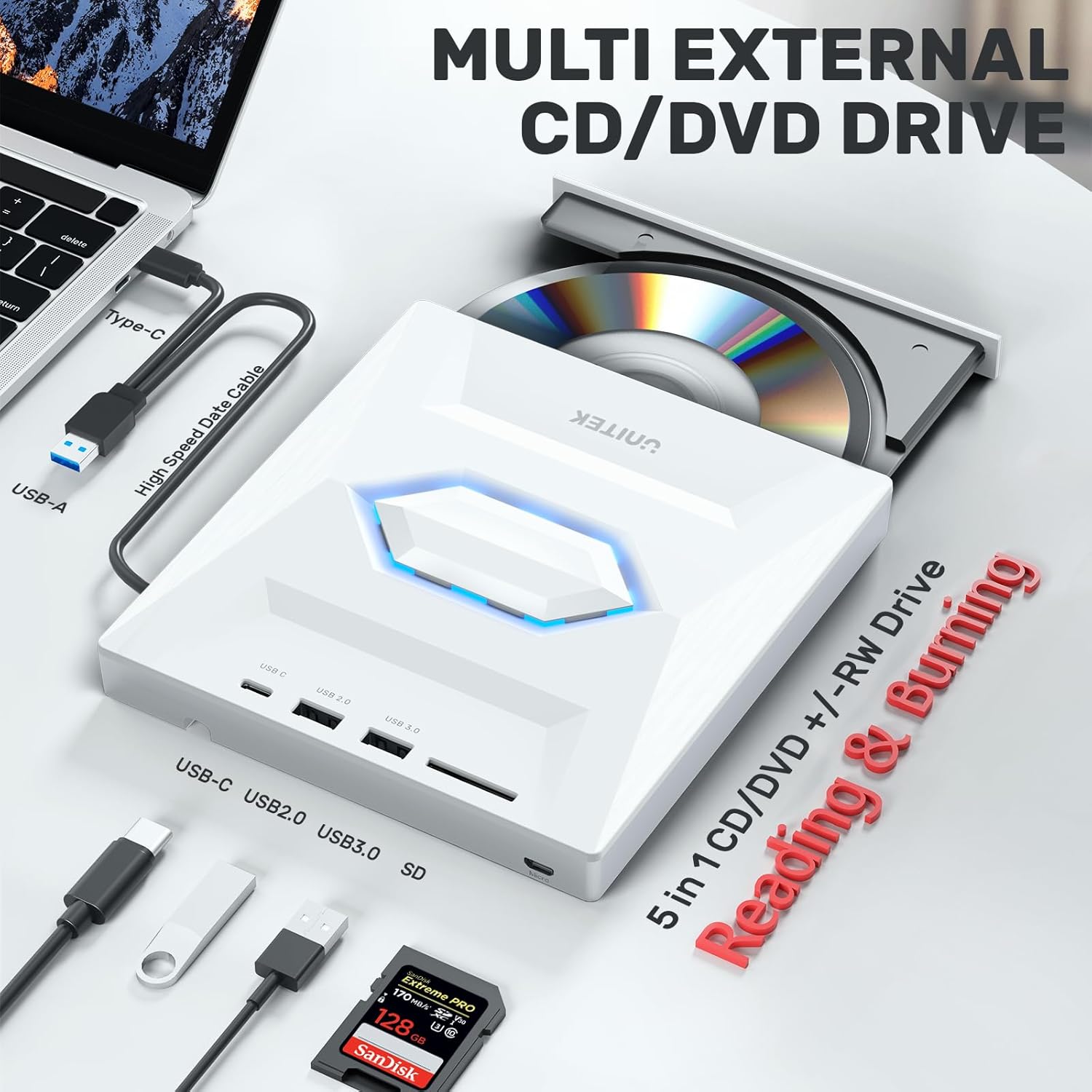
Image: The Unitek External CD/DVD Drive connected to a laptop, showcasing its multi-functional design with visible USB-C, USB 3.0, USB 2.0, and SD card slots, along with various peripherals connected.
5.4 System Compatibility
The drive is compatible with a broad range of operating systems and devices:
- Operating Systems: Windows 11/10/8/7/XP, Vista, Linux, Mac OS 10.6 or above.
- Devices: Macbook, iMac, Notebooks, Desktops, Laptops.
Note: This drive does NOT support TVs, cars, tablets, smartphones, Blu-Ray discs, or Chromebooks.

Image: A comprehensive compatibility chart illustrating the supported operating systems (Windows XP, 7, 8, 10, 11, Mac OS, Linux) and device types (Macbook, iMac, Notebook, Desktop, Laptop), along with a clear list of unsupported devices.
6. Maintenance
Proper care will extend the life of your Unitek External CD/DVD Drive.
- Cleaning: Use a soft, dry cloth to wipe the exterior of the drive. Do not use liquid cleaners or abrasive materials. For the optical lens, use a specialized CD/DVD lens cleaning kit.
- Storage: When not in use, store the drive in a clean, dry place away from direct sunlight and extreme temperatures.
- Handling: Always handle discs by their edges to avoid fingerprints and scratches.
7. Troubleshooting
If you encounter issues with your Unitek External CD/DVD Drive, please refer to the following common problems and solutions:
| Problem | Possible Cause | Solution |
|---|---|---|
| Drive not recognized by computer. | Loose connection, insufficient power, driver issue. | Ensure the USB cable is securely connected to both the drive and the computer. Try a different USB port. If necessary, connect an external 5V power supply to the drive's Micro USB port. Restart your computer. |
| Disc not ejecting. | Mechanical jam, software issue. | Press the Ejection Button firmly. Try ejecting the disc through your computer's operating system. If the tray is still stuck, locate the small 'Forced Ejection Hole' on the front of the drive and gently insert a straightened paperclip to manually open the tray. |
| Disc not reading/writing. | Dirty/scratched disc, incompatible disc type, dirty lens. | Clean the disc with a soft cloth. Ensure the disc type is supported by the drive. Try a different disc. Clean the drive's optical lens using a specialized cleaning kit. |
| Slow data transfer speeds. | Connected to USB 2.0 port, system overload. | Ensure the drive is connected to a USB 3.0 or USB-C port on your computer for optimal speeds. Close unnecessary applications on your computer. |
| Drive is noisy during operation. | Normal operation, unstable surface, damaged disc. | Some noise during disc rotation is normal. Ensure the drive is on a stable, flat surface. Check the disc for damage or imbalance. |
8. Specifications
| Feature | Detail |
|---|---|
| Brand | Unitek |
| Model Number | B21-Y |
| Optical Storage Read Speed | 24X CD, 8X DVD |
| Optical Storage Write Speed | 8x (DVD-R), 24x (CD) |
| Hardware Interface | USB 3.0 Type A, USB 3.0 Type C |
| Operating System Compatibility | Windows, Linux, macOS |
| Hardware Platform | Laptop, PC |
| Item Weight | 14.1 ounces |
| Color | 5-IN-1 WHITE |
| Dimensions (approx.) | 8.0 in x 6.0 in x 0.6 in (L x W x H) |
9. Warranty and Support
Unitek products are designed for reliability and performance. This product comes with a standard manufacturer's warranty. For detailed warranty information, product support, or technical assistance, please visit the official Unitek website or contact their customer service directly.
Unitek Official Website: Visit the Unitek Store on Amazon
Please retain your proof of purchase for warranty claims.


