
1. Introduction
The BoxWave AllReader SD Card Reader is a versatile device designed for easy transfer of files between various devices and SD or microSD cards. It features multiple interfaces for broad compatibility, allowing you to access photos, videos, music, and other data on the go. This manual provides instructions for setting up, operating, and maintaining your AllReader SD Card Reader.
2. Setup
Follow these steps to set up your BoxWave AllReader SD Card Reader:
- Insert Memory Card: Locate the appropriate slot on the AllReader for your SD or microSD card. Gently insert the card until it clicks into place. Ensure the card is inserted correctly to avoid damage.
- Connect to Device: The AllReader features four different connectors: USB-A, USB-C, Micro-USB, and Apple Lightning. Select the connector compatible with your smartphone, tablet, laptop, or desktop computer. Plug the AllReader firmly into the corresponding port on your device.
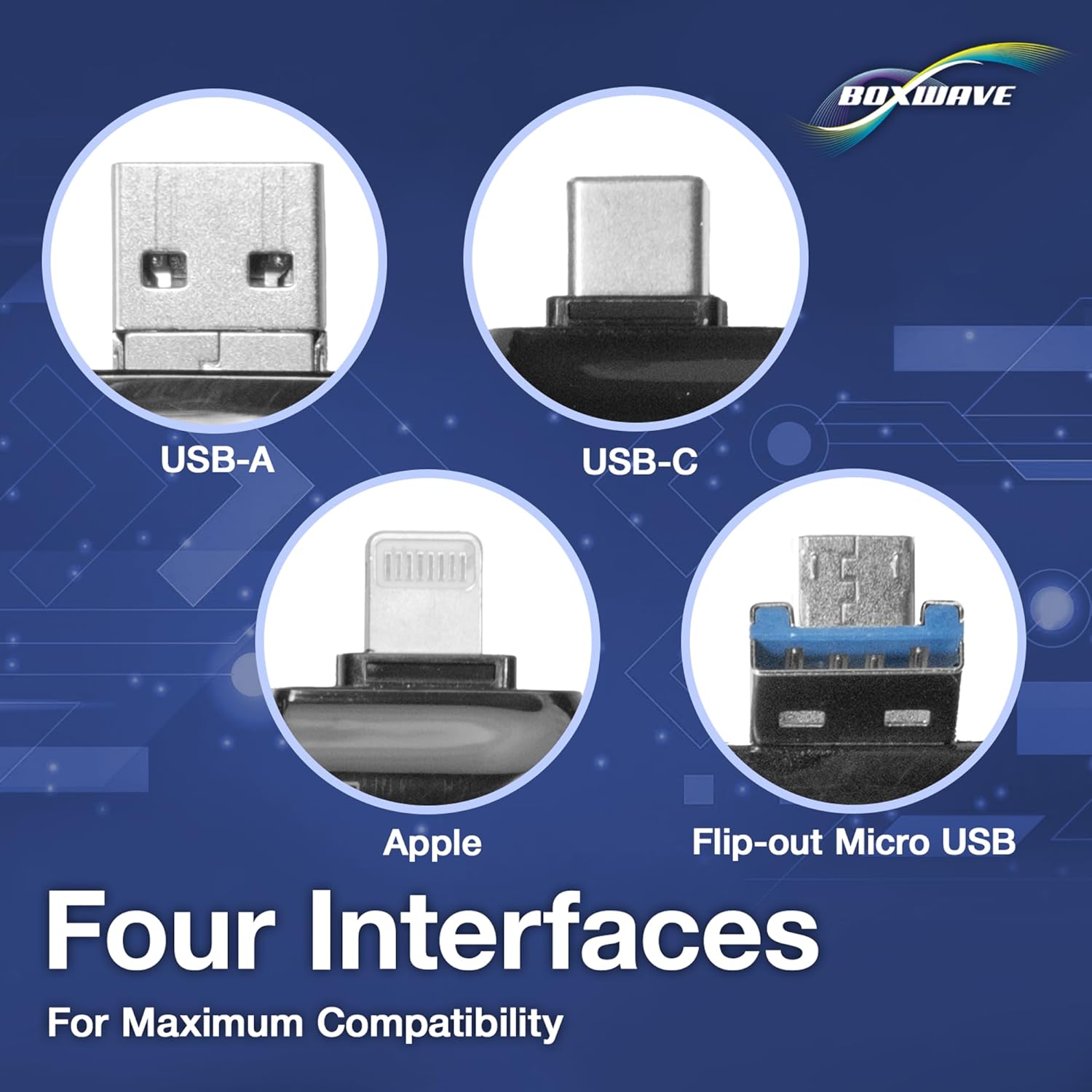

Once connected, your device should recognize the AllReader as an external storage device, allowing you to access the contents of the inserted memory card.
3. Operating Instructions
The AllReader SD Card Reader operates on a plug-and-play principle, requiring no additional drivers for most modern operating systems.
- Accessing Files: After connecting the AllReader with an inserted memory card to your device, navigate to your device's file manager or photo gallery application. The memory card will appear as a removable drive or external storage.
- Transferring Files: You can copy, move, or delete files between your device's internal storage and the memory card. Select the desired files, then choose the appropriate action (e.g., 'Copy', 'Move') and destination folder.
- Ejecting Safely: Before disconnecting the AllReader, always safely eject the device from your operating system to prevent data corruption. On computers, this is typically done via the 'Safely Remove Hardware' option. On mobile devices, simply unplugging after file operations are complete is usually sufficient, but confirm your device's specific guidelines.

4. Maintenance
To ensure the longevity and optimal performance of your AllReader SD Card Reader:
- Keep the device clean and free from dust and debris. Use a soft, dry cloth for cleaning.
- Avoid exposing the device to extreme temperatures, moisture, or direct sunlight.
- Do not force memory cards or connectors into their slots, as this can cause damage.
- Store the AllReader in a protective case or bag when not in use to prevent scratches or impacts.
5. Troubleshooting
If you encounter issues with your AllReader SD Card Reader, consider the following:
- Device Not Recognized:
- Ensure the AllReader is fully inserted into your device's port.
- Try a different port on your device, if available.
- Verify that the memory card is correctly inserted into the AllReader.
- Test with a different memory card to rule out card issues.
- Restart your host device (smartphone, computer).
- Slow Transfer Speeds:
- Transfer speeds can vary based on the memory card's speed class and the host device's USB version.
- Ensure your memory card is not damaged or corrupted.
- Cannot Access Files:
- Check if the memory card is formatted correctly for your device (e.g., FAT32, exFAT).
- Ensure your device has the necessary permissions to read external storage.
If problems persist, consult the support section of the BoxWave website.
6. Specifications
| Feature | Description |
|---|---|
| Model Name | AllReader SD Card Reader |
| Interfaces | USB-A, USB-C, Micro-USB, Apple Lightning |
| Card Compatibility | SD, microSD |
| Design | Compact, Multi-port |
| Weight | 6 ounces |
| Manufacturer | BoxWave |

7. Warranty and Support
For information regarding product warranty, technical support, or customer service, please visit the official BoxWave website or contact their customer support directly. Details can typically be found in the product packaging or on the manufacturer's website.