
Introduction
Welcome to the CRKD ATOM user manual. This document provides comprehensive instructions for setting up, operating, and maintaining your CRKD ATOM controller. The ATOM is a compact, wireless controller compatible with multiple platforms, designed for gaming on the go.
Product Overview
The CRKD ATOM is a miniature Bluetooth controller featuring a D-pad, action buttons (X, Y, A, B), plus/minus buttons, and four shoulder buttons (L, R, ZL, ZR). It includes a wrist strap for portability and a USB-C charging port.
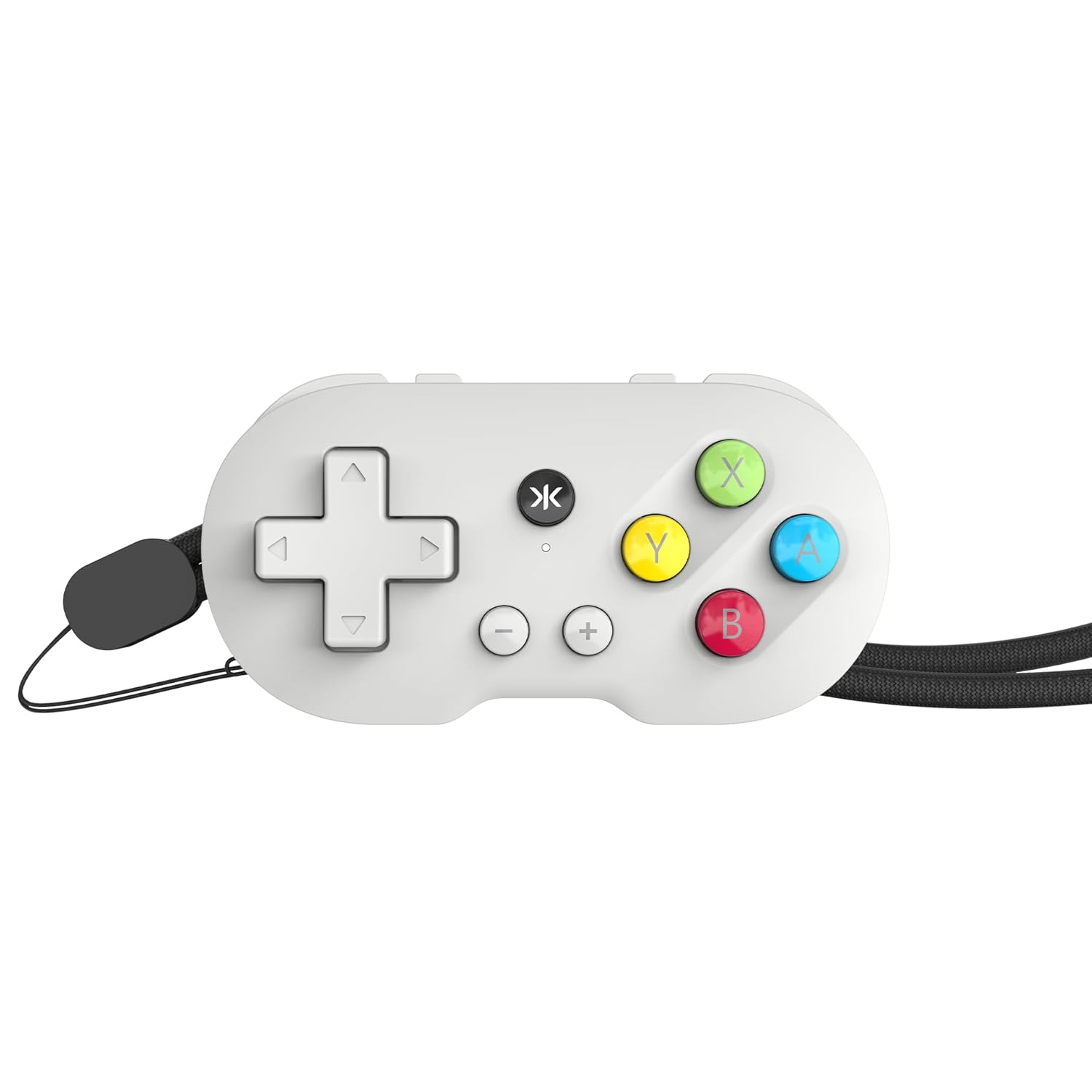
Image: Front view of the CRKD ATOM controller, showing the D-pad, action buttons, and CRKD logo.

Image: Side view of the CRKD ATOM controller, illustrating the L, R, ZL, and ZR shoulder buttons.

Image: The CRKD ATOM controller with its included wrist strap, enhancing portability and security.
Setup
Charging the Controller
The ATOM controller features a rechargeable battery providing up to 10 hours of gameplay on a single charge.

Image: A user holding the CRKD ATOM controller, representing its extended battery life.
- Connect the supplied USB-C charging cable to the controller's USB-C port.
- Connect the other end of the cable to a compatible USB power source.
- The LED indicator will show charging status and turn off when fully charged.
Initial Pairing
The CRKD ATOM uses Bluetooth for wireless connection. Specific button combinations are required for different device types.

Image: The CRKD ATOM controller with a Bluetooth logo, indicating its wireless connectivity feature.
Pairing with Nintendo Switch
To pair with a Nintendo Switch, ensure the console's Bluetooth is enabled. Navigate to the 'Controllers' menu on your Switch and select 'Change Grip/Order' to initiate pairing. The controller will appear as an available device.
Pairing with PC/Mac
To pair with a PC or Mac, hold the Up direction on the D-pad and the CRKD button simultaneously until the LED indicator flashes. Then, select the controller from your device's Bluetooth settings.
Pairing with Android/Mobile Devices
To pair with an Android or other mobile device, hold the Down direction on the D-pad and the CRKD button simultaneously until the LED indicator flashes. Then, select the controller from your device's Bluetooth settings.
Reconnecting to a Paired Device
For previously paired devices, quickly press the appropriate button combination (Up + CRKD for PC/Mac, Down + CRKD for Android) to reconnect.
Operating Instructions
Basic Controls
The CRKD ATOM features a standard D-pad, X, Y, A, B action buttons, plus (+) and minus (-) buttons, and L, R, ZL, ZR shoulder buttons. Button functions are typically mapped automatically by your device or game.
D-Pad Functionality (Android Specific)
On Android devices, the D-pad can be configured to function as a left or right analog stick, which may be necessary for certain games.
- Reset D-pad function to default: Press and hold D-pad and Minus (-) Button for 5 seconds. The status LED will blink and then return to solid.
- Change D-pad to function as Left Stick: Press and hold D-pad and Minus (-) Button for 5 seconds. The status LED will blink and then return to solid.
- Change D-pad to function as Right Stick: Press and hold D-pad and Minus (-) Button for 5 seconds. The status LED will blink and then return to solid.
Compatibility Notes
The ATOM controller is designed for games that do not heavily rely on analog joysticks. It is ideal for retro games, platformers, and titles where D-pad input is sufficient.
Note: This controller does not feature analog joysticks, limiting compatibility with games requiring precise analog input for character movement or camera control.
Maintenance
Cleaning
Use a soft, dry cloth to clean the controller. Avoid using harsh chemicals or abrasive materials, which may damage the finish or internal components.
Storage
Store the controller in a cool, dry place away from direct sunlight and extreme temperatures. Prolonged exposure to heat or moisture can affect performance and battery life.
Battery Care
To prolong battery life, avoid fully discharging the controller frequently. Charge the battery regularly, even if not in use for extended periods, to maintain optimal battery health.
Troubleshooting
Connection Issues
If the controller fails to connect or repeatedly disconnects:
- Ensure the controller is sufficiently charged.
- Verify the correct pairing button combination is used for your device (Up + CRKD for PC/Mac, Down + CRKD for Android).
- Remove the controller from your device's Bluetooth list and attempt to pair again.
- Restart your device and the controller.
Button Unresponsiveness
If buttons are not responding as expected, ensure the controller is properly paired and charged. For Android, check D-pad mapping settings as described in the Operating Instructions section.
General Advice
Always refer to the specific pairing and operating instructions provided in this manual for optimal performance. If issues persist, consult the CRKD support resources.
Specifications
- Model: 24-AT
- Dimensions: 2.72 x 0.59 x 1.34 inches
- Weight: 3.52 ounces
- Connectivity: Bluetooth Wireless
- Battery: 1 Lithium Polymer (included)
- Battery Life: Up to 10 hours
- Charging Port: USB-C
- Compatibility: Nintendo Switch, PC, Mac, Mobile, Smart TV
Warranty and Support
For warranty information and technical support, please visit the official CRKD website or contact CRKD customer service. Keep your proof of purchase for warranty claims.


