
TECBOT 2-in-1
TECBOT 2-in-1 Robot Vacuum Cleaner User Manual
Model: 2-in-1
1. Introduction
Thank you for choosing the TECBOT 2-in-1 Robot Vacuum Cleaner. This device is designed to provide efficient and convenient cleaning for your home, combining powerful vacuuming with a mopping function. Its slim profile allows it to clean under furniture, and multiple control options ensure ease of use. Please read this manual thoroughly before operation to ensure proper use and maintenance.
2. Important Safety Instructions
- Read all instructions before using this appliance.
- Do not operate the robot vacuum in wet environments or near water.
- Ensure the charging dock is placed on a level surface against a wall, with clear space around it.
- Keep loose cables, curtains, and other objects that could entangle the robot out of its path.
- Do not allow children or pets to play with the robot vacuum.
- Use only the original power adapter and charging dock provided by the manufacturer.
- Regularly clean the brushes and sensors to maintain optimal performance and prevent damage.
- The robot is equipped with cliff sensors to prevent falls. Ensure these sensors are clean and unobstructed.
3. Package Contents
Carefully unpack the box and ensure all items are present and in good condition. If any items are missing or damaged, please contact customer support.
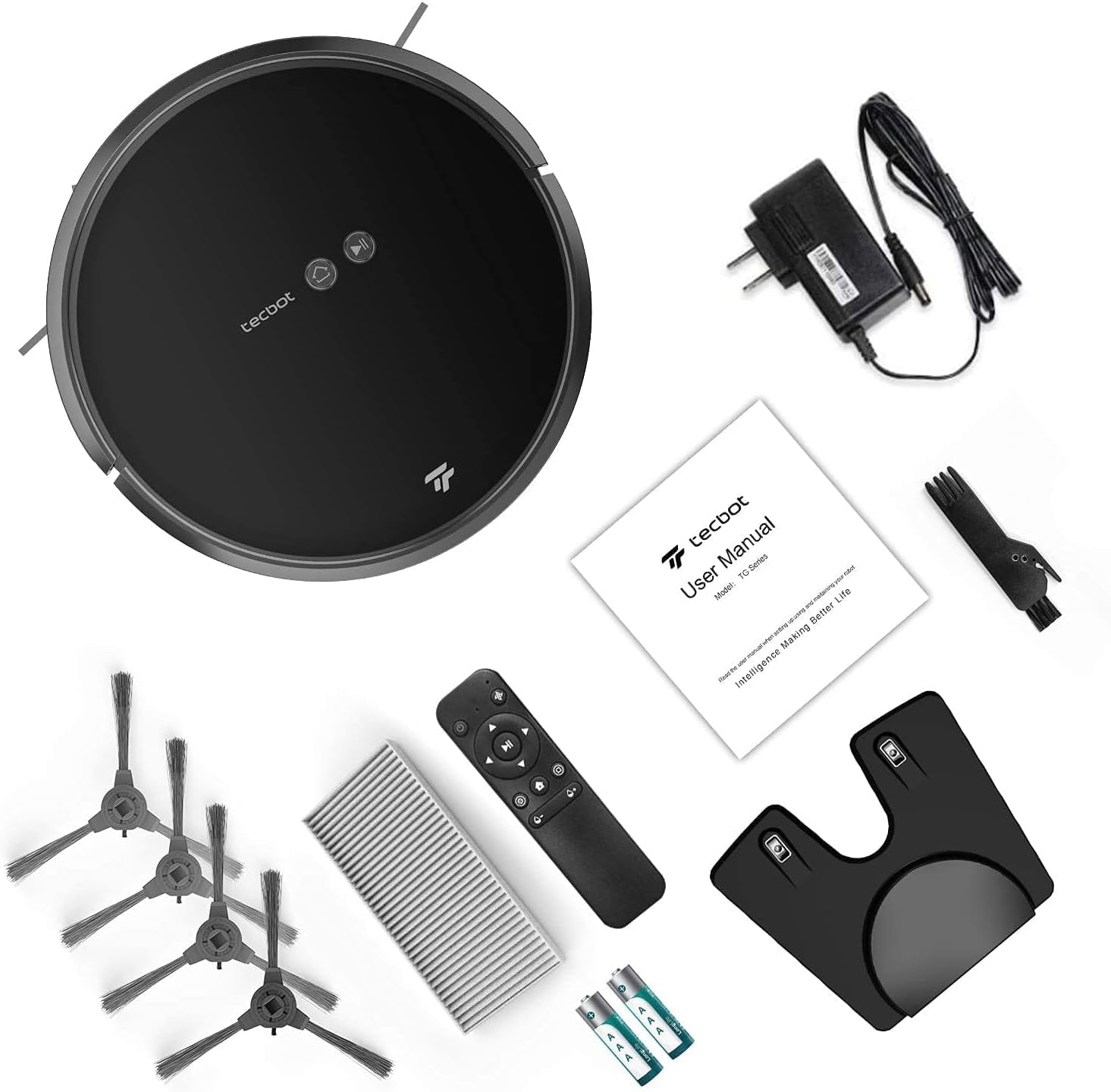
Image: All components included in the package, including the robot vacuum, charging dock, power adapter, remote control, side brushes, HEPA filter, and user manual.
- TECBOT Robot Vacuum Cleaner
- Charging Dock
- Power Adapter
- Remote Control (with batteries)
- Side Brushes (2 pairs)
- Dustbin (pre-installed)
- Water Tank (for mopping)
- HEPA Filter (pre-installed)
- Cleaning Tool
- User Manual
4. Product Components
4.1 Top View

Image: Top view of the robot vacuum, showing the power/start button and the Wi-Fi indicator.
- Power/Start Button: Press to start or pause cleaning.
- Wi-Fi Indicator: Shows connection status.
- Dustbin Release Button: Used to remove the dustbin.
4.2 Bottom View

Image: Bottom view of the robot vacuum, highlighting cliff detect sensors, dual side brushes, 2-in-1 multi-surface brushroll, and easy-empty dustbin.
- Cliff Detect Sensors: Prevent the robot from falling down stairs or off ledges.
- Dual Side Brushes: Designed to clean debris from edges and corners.
- 2-in-1 Multi-surface Brushroll: Effectively picks up dust, pet hair, and debris from various floor types.
- Driving Wheels: Allow the robot to move across different surfaces.
- Charging Contacts: Connect with the charging dock for recharging.
- Universal Wheel: Provides 360-degree movement.
5. Setup
5.1 Charging Dock Placement
Place the charging dock on a hard, level surface against a wall. Ensure there is at least 1 meter (3.3 feet) of clear space to the front and 0.5 meters (1.6 feet) to each side of the charging dock to allow the robot to return easily.
5.2 Initial Charging
Connect the power adapter to the charging dock and plug it into a wall outlet. Place the robot vacuum onto the charging dock, ensuring the charging contacts align. The robot will begin charging. For first-time use, fully charge the robot for at least 6 hours.
5.3 Installing Side Brushes
Snap the side brushes onto the square posts on the bottom of the robot until they click into place.
5.4 App Connection (Tuya Smart App)
Download the "Tuya Smart" app from your mobile app store. Follow the in-app instructions to connect your robot vacuum to your home Wi-Fi network. This will enable advanced features like scheduling, mode selection, and remote control.
6. Operating Instructions
6.1 Power On/Off
- Power On: Press and hold the power button on the robot for 3 seconds.
- Power Off: Press and hold the power button on the robot for 3 seconds when it is idle.
6.2 Cleaning Modes
The TECBOT robot vacuum offers 4 efficiency cleaning modes:

Image: Visual representation of the robot's cleaning modes: Auto, Spot, Edge, and Zigzag.
- Auto Cleaning: The robot automatically cleans the entire floor area. This is the default mode.
- Spot Cleaning: The robot cleans a specific area in a spiral pattern, ideal for concentrated dirt.
- Edge Cleaning: The robot cleans along walls and furniture edges.
- Zigzag Cleaning: The robot cleans in a systematic back-and-forth pattern, ensuring thorough coverage.
6.3 Control Methods
You can control your robot vacuum using the following methods:

Image: The three primary control methods: Tuya Smart App on a smartphone, the physical remote control, and voice control via Amazon Echo.
- Tuya Smart App: Provides full control, including scheduling, mode selection, and real-time cleaning progress.
- Remote Control: Allows basic control such as starting/stopping, changing modes, and sending the robot back to the charging dock.
- Button Control: The physical buttons on the robot allow for basic start/stop and return-to-charge functions.
6.4 Mopping Function
To use the mopping function, replace the dust tank with the 300ml water tank. Fill the water tank with clean water (do not use cleaning solutions that may clog the nozzle). Attach the mop cloth to the water tank. The robot will then vacuum and mop simultaneously.
7. Maintenance
Regular maintenance is crucial for optimal performance and longevity of your robot vacuum.
7.1 Emptying the Dustbin
Press the dustbin release button and pull out the dustbin. Open the dustbin lid and empty the contents into a trash can. It is recommended to empty the dustbin after each cleaning cycle.
7.2 Cleaning the Filter
Remove the HEPA filter from the dustbin. Tap the filter gently to remove dust. Do not wash the HEPA filter with water. Replace the filter every 3-6 months depending on usage.
7.3 Cleaning the Main Brush and Side Brushes
Remove the main brush cover and lift out the main brush. Use the provided cleaning tool to remove hair and debris tangled around the brush. Remove the side brushes by pulling them up and clean any hair or debris. Reinstall them securely.
7.4 Cleaning Sensors and Charging Contacts
Wipe the cliff sensors (located on the bottom of the robot) and the charging contacts (on the robot and charging dock) with a clean, dry cloth. Keep these areas free of dust and debris to ensure proper operation.
7.5 Cleaning the Water Tank and Mop Cloth
After mopping, empty any remaining water from the water tank. Remove the mop cloth and wash it thoroughly. Allow both the water tank and mop cloth to air dry completely before reassembling.
8. Troubleshooting
| Problem | Possible Cause | Solution |
|---|---|---|
| Robot does not power on | Low battery; Power switch off | Charge the robot; Ensure power switch is on |
| Robot cannot charge | Charging contacts dirty; Charging dock not powered | Clean charging contacts; Ensure charging dock is plugged in |
| Poor cleaning performance | Dustbin full; Brushes tangled; Filter clogged | Empty dustbin; Clean brushes; Clean/replace filter |
| Robot gets stuck frequently | Obstacles on floor; Cliff sensors dirty | Clear obstacles; Clean cliff sensors |
| App connection failed | Incorrect Wi-Fi password; Router too far; 5GHz Wi-Fi network | Re-enter password; Move robot closer to router; Ensure 2.4GHz Wi-Fi is used |
9. Specifications
| Feature | Detail |
|---|---|
| Model Name | 2-in-1 |
| Product Dimensions | 13.8"L x 13.8"W x 2.9"H |
| Suction Power | Up to 1800 Pa |
| Battery Capacity | 2600mAh |
| Runtime | Up to 100 minutes (vacuuming), 120 minutes (general battery life) |
| Dust Tank Capacity | 300ml |
| Water Tank Capacity | 300ml |
| Filter Type | HEPA, Sponge |
| Control Methods | WiFi (Tuya Smart App), Remote Control, Button Control |
| Compatible Devices | Amazon Echo |
| Item Weight | 6.8 pounds |
10. Warranty and Support
For warranty information and customer support, please refer to the documentation included in your product packaging or visit the official TECBOT website. Keep your purchase receipt as proof of purchase for any warranty claims.
Ask a question about this manual
Ask about setup, troubleshooting, compatibility, parts, safety, or missing instructions. Manuals+ will review the question and use this page’s manual context to help answer it.