
Tecno KL8 256+8
Tecno Spark 30 User Manual
Model: KL8 256+8
Introduction
Welcome to the user manual for your new Tecno Spark 30 smartphone. This guide provides comprehensive instructions on how to set up, operate, and maintain your device. Please read this manual carefully to ensure optimal performance and longevity of your phone.
The Tecno Spark 30 is a powerful 5G smartphone designed for seamless connectivity and high-performance tasks. It features a MediaTek Dimensity 6300 5G processor, a high-resolution 108MP main camera, and a smooth 120Hz display, offering an exceptional user experience.
Safety Information
Before using your device, please read all safety information to ensure safe and proper use. Failure to follow these safety instructions may result in injury, damage to your device, or other property damage.
- Battery Safety: Do not disassemble, impact, squeeze, or put the battery into fire. If the battery swells, stop using it immediately.
- Charging: Use only Tecno-approved chargers and cables. Unapproved chargers may cause fire, explosion, or other hazards.
- Water and Dust Resistance: While the device has an IP54 rating for dust and splash resistance, it is not waterproof. Avoid submerging the device in water.
- Operating Temperature: Operate the device within a temperature range of 0°C to 35°C (32°F to 95°F).
- Disposal: Dispose of the device and its battery responsibly according to local regulations. Do not dispose of them with household waste.
Package Contents
Please check the contents of your product box. If any items are missing or damaged, contact your retailer.
- Tecno Spark 30 Smartphone
- Power Adapter
- USB Type-C Cable
- SIM Ejector Tool
- Protective Case (may vary by region)
- Quick Start Guide
- Warranty Card
Product Overview
Familiarize yourself with the physical components of your Tecno Spark 30.

Front and back view of the Tecno Spark 30 smartphone, showcasing its camera module and display.
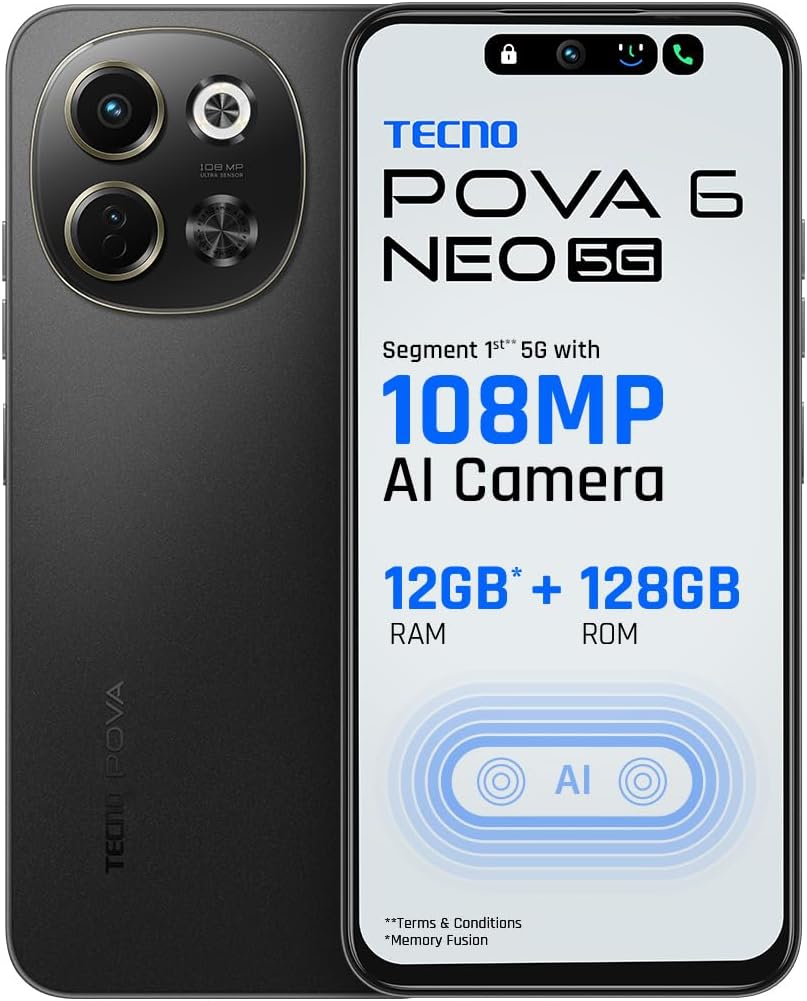
Front view of the Tecno Spark 30, highlighting the display and front camera.

Bottom view of the Tecno Spark 30, showing the USB-C port, headphone jack, and speaker grille.
Key Components:
- Front Camera: For selfies and video calls.
- Display: 6.67-inch screen with 120Hz refresh rate.
- Volume Buttons: Adjust media volume and ringtone volume.
- Power Button: Turn on/off the device, lock/unlock screen.
- SIM Card Tray: Insert Nano-SIM cards.
- USB Type-C Port: For charging and data transfer.
- Speaker: Audio output.
- Main Camera Module: Includes 108MP main camera and other sensors.
Setup
1. Inserting SIM Card(s)
- Locate the SIM card tray on the side of your phone.
- Insert the SIM ejector tool into the small hole next to the tray and push gently until the tray pops out.
- Place your Nano-SIM card(s) into the designated slots on the tray. Ensure the gold contacts face downwards.
- Carefully push the tray back into the phone until it clicks into place.
2. Charging the Battery
- Connect the USB Type-C cable to the charging port at the bottom of your phone.
- Connect the other end of the cable to the power adapter.
- Plug the power adapter into a wall outlet.
- The charging indicator will appear on the screen. Allow the phone to fully charge before first use.
3. Powering On/Off
- To Power On: Press and hold the Power button until the Tecno logo appears.
- To Power Off: Press and hold the Power button, then select "Power off" from the options on the screen.
4. Initial Setup Wizard
Upon first power-on, follow the on-screen instructions to complete the initial setup, including language selection, Wi-Fi connection, Google account setup, and security settings.
Operating Your Device
Making Calls
- Open the Phone app.
- Enter the phone number using the dial pad or select a contact from your Contacts list.
- Tap the call button to initiate the call.
Sending Messages
- Open the Messages app.
- Tap the "Start chat" or "New message" button.
- Enter the recipient's phone number or select from contacts.
- Type your message in the text field and tap the send button.
Using the Camera
The Tecno Spark 30 features a 108MP AI Camera for high-quality photos.
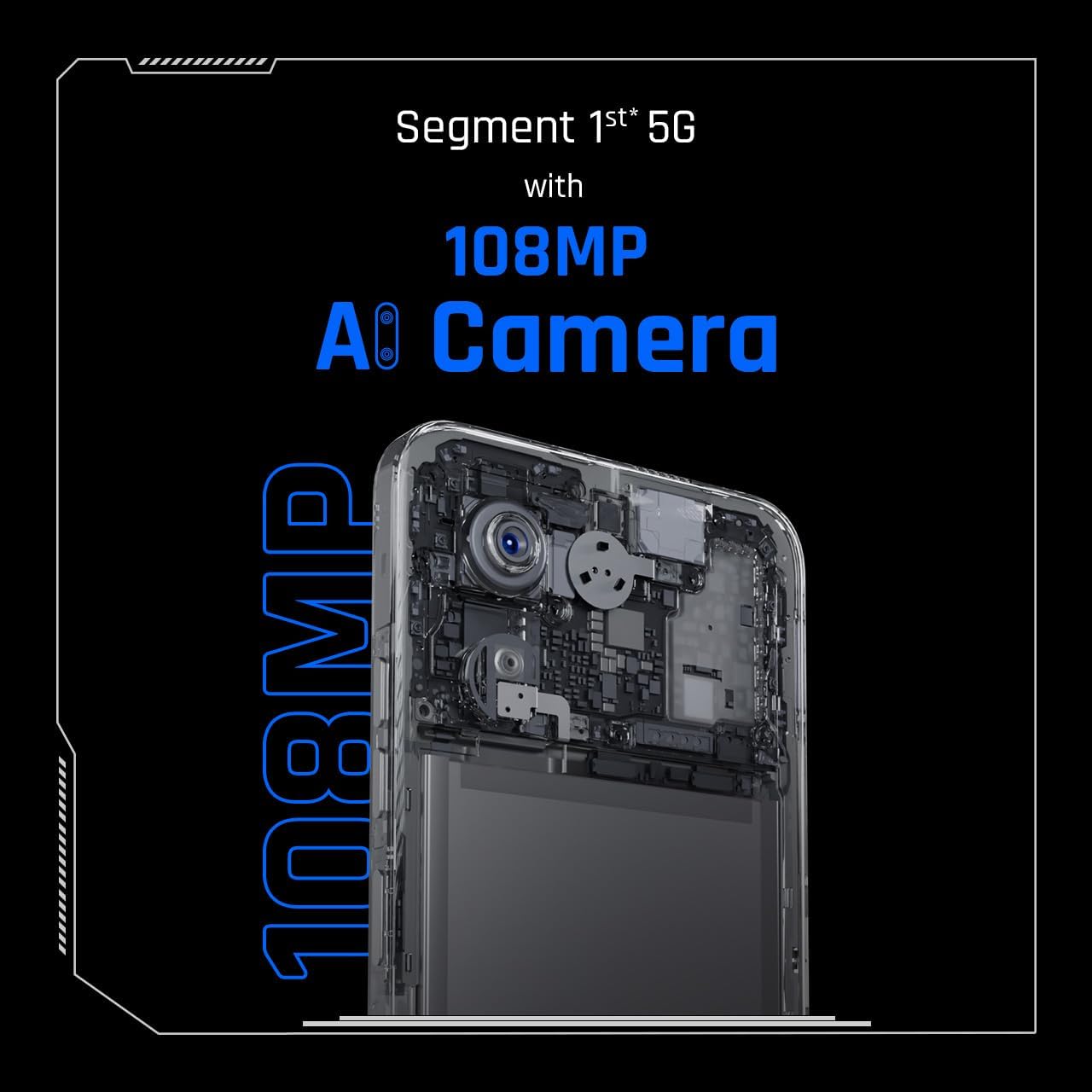
Close-up of the Tecno Spark 30's 108MP AI camera module.
- Open the Camera app.
- Select your desired mode (e.g., Photo, Video, Portrait).
- Frame your shot and tap the shutter button to capture.
Connecting to Wi-Fi
- Go to Settings > Network & internet > Wi-Fi.
- Turn on Wi-Fi.
- Select your desired network from the list and enter the password if prompted.
Infrared Remote Control
Your device includes an in-built infrared blaster, allowing it to function as a universal remote control for compatible home appliances.
- Open the pre-installed 'IR Remote' or 'Smart Remote' app.
- Follow the app's instructions to add and configure your home appliances (e.g., TV, AC, DVD player).
- Point the top of your phone towards the appliance and use the on-screen controls.
Maintenance
Proper maintenance ensures the longevity and optimal performance of your Tecno Spark 30.
- Cleaning: Use a soft, lint-free cloth to clean the screen and body of the phone. Avoid using harsh chemicals or abrasive materials.
- Software Updates: Regularly check for and install system updates to ensure your device has the latest features and security patches. Go to Settings > System > System update.
- Battery Care: Avoid extreme temperatures. Do not let the battery drain completely often. For long-term storage, keep the battery charged to around 50%.
- Storage Management: Periodically clear unnecessary files and apps to free up storage space and improve performance.
- Protecting the Screen: Consider using a screen protector and a protective case to prevent scratches and damage.
Troubleshooting
Here are solutions to some common issues you might encounter.
| Problem | Possible Solution |
|---|---|
| Phone won't turn on | Ensure the battery is charged. Connect to a charger and wait a few minutes before attempting to power on again. |
| Apps are crashing or freezing | Close the problematic app and reopen it. Clear the app's cache (Settings > Apps > [App Name] > Storage > Clear cache). Restart the phone. |
| Poor battery life | Reduce screen brightness, disable unused features (Wi-Fi, Bluetooth, GPS), close background apps, and check for power-intensive apps in battery usage settings. |
| Cannot connect to Wi-Fi | Ensure Wi-Fi is enabled. Restart your phone and the Wi-Fi router. Forget the network and reconnect. |
| Network connectivity issues (calls/data) | Check if SIM card is properly inserted. Ensure you have network coverage. Restart the phone. Reset network settings (Settings > System > Reset options > Reset Wi-Fi, mobile & Bluetooth). |
Specifications
Detailed technical specifications for the Tecno Spark 30.
| Feature | Specification |
|---|---|
| Model Name | Spark 30 |
| Model Number | KL8 256+8 |
| Brand | Tecno |
| Operating System | Android 14 |
| RAM Size | 8 GB |
| Storage Capacity | 256 GB |
| CPU Model | Cortex (MediaTek Dimensity 6300 5G) |
| CPU Speed | 1.8 GHz |
| Screen Size | 6.67 inches |
| Resolution | 720 x 1600 pixels |
| Refresh Rate | 120 Hz |
| Dimensions | 16.5 x 7.68 x 0.82 cm; 192 grams |
| Battery | 1 Lithium Polymer battery (included) |
| First Available Date | November 4, 2024 |
Warranty and Support
Your Tecno Spark 30 comes with a standard manufacturer's warranty. Please refer to the warranty card included in your package for specific terms and conditions, including warranty period and coverage details.
Customer Support:
For technical assistance, troubleshooting, or warranty claims, please contact Tecno customer support through their official website or the contact information provided in your warranty documentation.
You can also visit the official Tecno store on Amazon for more information and support: Tecno Store
Related documentsKL8 256+8


Ask a question about this manual
Ask about setup, troubleshooting, compatibility, parts, safety, or missing instructions. Manuals+ will review the question and use this page’s manual context to help answer it.