
Product Overview
The Mifaso PD30W Desk Clamp Power Strip (Model MFS2U8) is designed to provide convenient power access and surge protection for your electronic devices. This unit features 4 standard AC outlets, 2 USB-A ports, and 2 USB-C ports, including one 30W Power Delivery (PD) USB-C port, allowing you to charge up to 8 devices simultaneously. Its clamp-on design ensures easy installation on various desk types, optimizing your workspace by keeping power accessible and organized.

Image: The Mifaso Desk Clamp Power Strip is versatile for use in various environments such as offices, bedrooms, dorm rooms, and kitchens, providing convenient power access.
Setup and Installation
Follow these steps to properly install your Mifaso Desk Clamp Power Strip:
- Choose a Location: Select a suitable location on your desk or tabletop. Ensure the surface thickness is a maximum of 2 inches (5.08 cm) for secure clamping. The power strip requires a distance of 0.4" to 0.5" (1.0 to 1.27 cm) from the wall for optimal placement.
- Attach the Clamp: Position the power strip on the edge of your desk. Use the integrated clamp to secure the unit. Turn the knob on the clamp clockwise until it is firmly tightened against the desk surface. The clamp includes foam pads to protect your desk from scratches. No drilling or screws are required.
- Connect to Power: Plug the 5-foot extension cord into a standard wall outlet. The 45-degree right-angle plug design helps prevent blocking adjacent outlets.

Image: The power strip features a clamp-on design for easy, drill-free installation on desk edges up to 2 inches thick.

Image: Detail of the clamp mechanism, showing the screw and protective pads, designed for secure attachment without damaging the desk surface.

Image: The 5-foot extension cord features a 45-degree flat plug, allowing it to fit in tight spaces and avoid blocking other wall outlets.
Operating Instructions
The Mifaso Desk Clamp Power Strip offers multiple charging options for various devices.
Powering On/Off
Locate the ON/OFF switch on the unit. Press the switch to the "ON" position to supply power to the outlets and USB ports. Press it to the "OFF" position to cut power. This switch also acts as a circuit breaker for overload protection.

Image: The power strip features an ON/OFF switch that also serves as an overload protection circuit breaker.
AC Outlets
The power strip includes 4 standard AC outlets. These outlets are widely spaced (1.9 inches apart) to accommodate larger power adapters without blocking adjacent outlets. Plug your devices directly into these outlets.
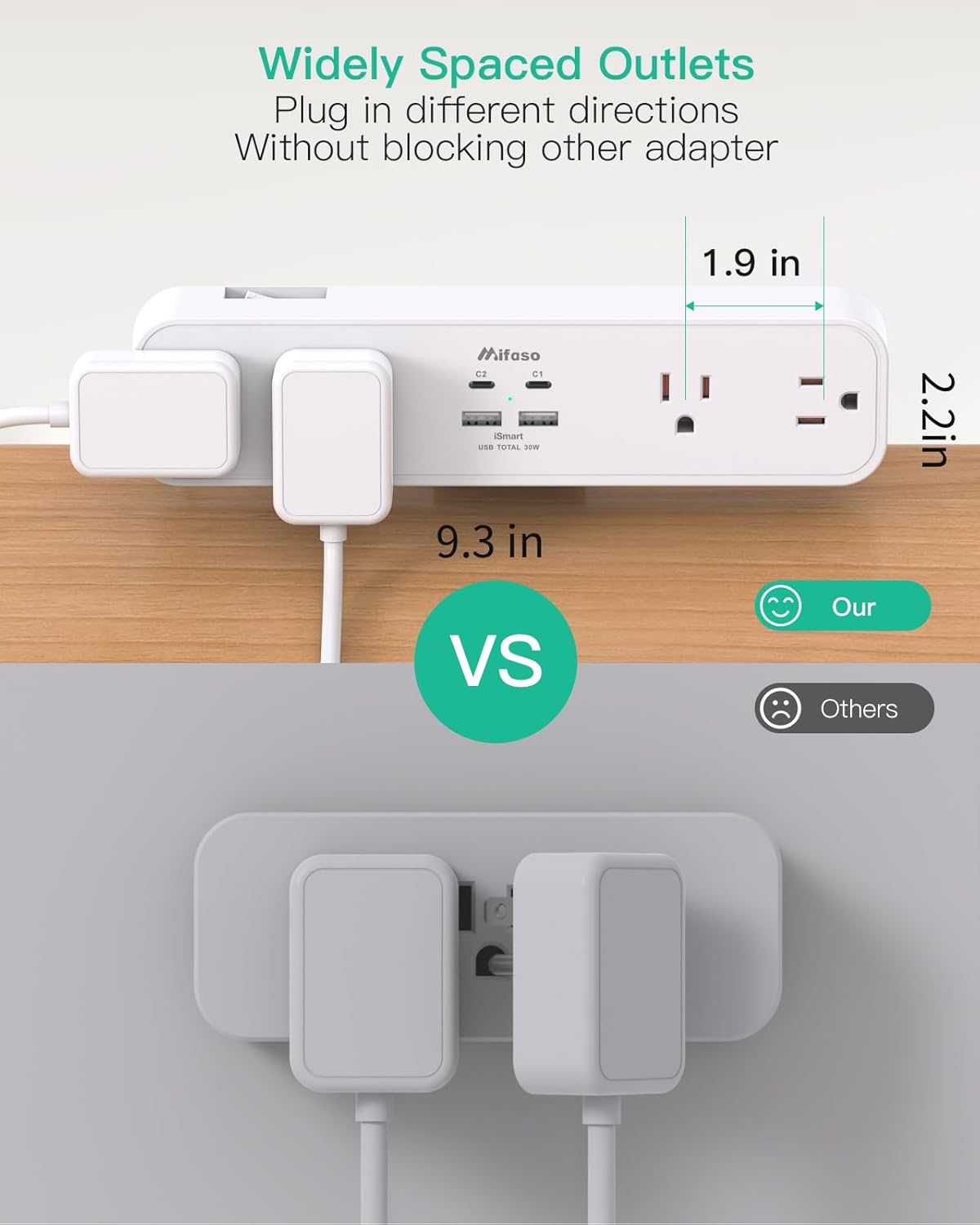
Image: The widely spaced AC outlets allow for multiple bulky adapters to be plugged in simultaneously without interference.
USB Charging Ports
The unit is equipped with 2 USB-A ports and 2 USB-C ports for charging mobile devices.
- USB-C1 Port: This port supports up to 30W Power Delivery (PD), ideal for fast-charging compatible devices like MacBooks, iPads, and smartphones. For optimal 30W fast charging, use this port alone.
- USB-C2 Port: This port provides standard USB-C charging.
- USB-A Ports (A1 & A2): These ports provide standard USB-A charging.
When multiple USB ports are used simultaneously, the total output is intelligently distributed. The maximum total output for all USB ports combined is 30W. If USB-C1 is used with other USB ports, its output will be limited to 18W, with the remaining ports sharing 12W.

Image: Illustration detailing the 30W Power Delivery capability of the USB-C1 port in single-port mode and the distributed power in multi-port mode.

Image: The power strip in use, demonstrating simultaneous charging of a laptop, tablet, and smartphone via its AC and USB ports.
Video: An overview of the Mifaso Smart Power Strip, highlighting its features and ease of use in a home or office setting.
Safety and Protection
The Mifaso Desk Clamp Power Strip is equipped with multiple safety features to protect your devices and ensure safe operation:
- Surge Protection (1080 Joules): Protects connected electronics from power surges and spikes.
- Overload Protection: The integrated ON/OFF switch acts as a circuit breaker, automatically shutting off power if the total connected load exceeds 1875W/15A.
- Over-Voltage Protection: Safeguards against excessive voltage input.
- Over-Current Protection: Prevents damage from excessive current flow.
- Over-Temperature Protection: Monitors and prevents overheating.
- Fire-Resistance: Constructed with fire-resistant materials for enhanced safety.
- Short-Circuit Protection: Protects against short-circuit events.
- Grounded Protection: Ensures proper grounding for electrical safety.
Always ensure that the total power consumption of connected devices does not exceed the rated power of 1875W/15A.

Image: Visual representation of the surge protection feature, indicating 1080 Joules of protection against power disturbances.
Maintenance and Troubleshooting
Maintenance
- Cleaning: Disconnect the power strip from the wall outlet before cleaning. Use a dry, soft cloth to wipe the surface. Do not use liquid cleaners or sprays.
- Inspection: Periodically inspect the power cord and the unit for any signs of damage, such as frayed wires or cracks. If damage is found, discontinue use and contact customer support.
- Cable Management: Utilize cable ties or clips to manage connected cords, preventing tangles and reducing strain on the outlets.
Troubleshooting
- No Power to Devices:
- Ensure the power strip's ON/OFF switch is in the "ON" position.
- Check if the power strip is securely plugged into a functioning wall outlet.
- Verify that the wall outlet itself has power by testing it with another device.
- If the ON/OFF switch has tripped (popped out), it indicates an overload. Disconnect some devices, then press the switch to reset it.
- Slow USB Charging:
- For optimal 30W PD charging, ensure only one device is connected to the USB-C1 port.
- If multiple USB devices are connected, the total 30W output is shared, which may reduce individual port speeds.
- Ensure your device and charging cable support fast charging protocols.
- Device Not Fitting in Clamp:
- The clamp is designed for desktops with a maximum thickness of 2 inches. Ensure your desk meets this specification.
Specifications
| Feature | Detail |
|---|---|
| Brand | Mifaso |
| Model Number | MFS2U8 |
| Color | White |
| Total Power Outlets | 8 (4 AC, 4 USB) |
| AC Outlets | 4 (Type B - 3 pin North American) |
| USB Ports | 2 USB-A, 2 USB-C |
| USB-C1 Output | Up to 30W Power Delivery (PD) |
| Total USB Output | 30W Max |
| Voltage | 125 Volts |
| Maximum Current | 15 Amps |
| Rated Power | 1875 Watts |
| Surge Protection Rating | 1080 Joules |
| Extension Cord Length | 5 feet (approx. 160 cm) |
| Product Dimensions | 9.3 x 2.2 x 1.6 inches (approx.) |
| Clamp Thickness Compatibility | Max 2 inches |
| Material | Plastic |
| Compatible Devices | Laptop, Smartphone, Tablet, Monitor, Personal Computer, Lamp, Printer, Router, Scanner, Speaker, Camera, Coffee Machine |

Image: The power strip with key dimensions (length, width, height) indicated for reference.
Warranty and Support
For warranty information, technical support, or any product-related inquiries, please contact Mifaso customer service directly. Refer to the product packaging or the official Mifaso website for the most up-to-date contact details and warranty terms.