
1. Introduction
Welcome to the user manual for your new Redragon M815 Gaming Mouse. This document provides essential information for setting up, operating, and maintaining your device to ensure optimal performance and longevity. The Redragon M815 is designed for high-performance gaming, featuring an ultra-lightweight design, high polling rate, and customizable buttons.
Package Contents:
- Redragon M815 Gaming Mouse
- User Manual
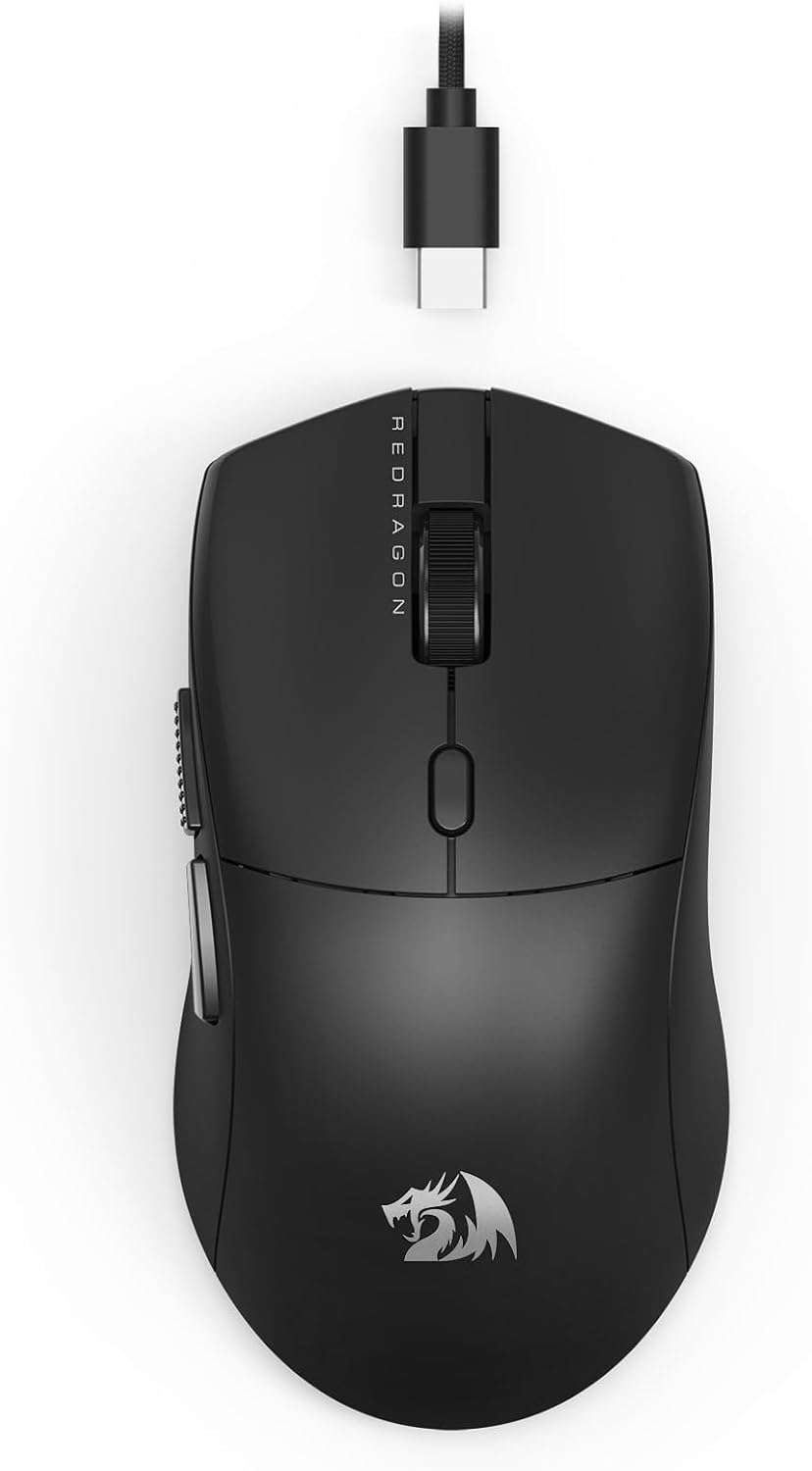
Figure 1.1: Redragon M815 Gaming Mouse with its wired USB connection.
2. Safety Information
Please read the following safety guidelines carefully before using your Redragon M815 Gaming Mouse to prevent damage to the device or injury to yourself.
- Do not expose the mouse to extreme temperatures, direct sunlight, or high humidity.
- Keep the device dry. Do not immerse it in water or other liquids.
- Avoid dropping or subjecting the mouse to strong impacts.
- Do not attempt to disassemble, modify, or repair the mouse yourself. This may void the warranty and could lead to electric shock or other hazards.
- Use only the provided USB cable for connection.
- Keep out of reach of children.
3. Setup
3.1 Connecting the Mouse
The Redragon M815 Gaming Mouse is a plug-and-play device for basic functionality.
- Locate an available USB port on your computer (PC, Laptop, or compatible Tablet).
- Insert the USB connector of the Redragon M815 mouse firmly into the USB port.
- Your operating system (Windows, Linux, Mac) should automatically detect and install the necessary basic drivers.
3.2 Software Installation (Optional, for Advanced Features)
To unlock the full potential of your Redragon M815, including programmable buttons, advanced DPI settings, and macro management, it is recommended to install the dedicated Redragon software.
- Visit the official Redragon website to download the latest software for the M815 model.
- Follow the on-screen instructions to complete the installation.
- Once installed, launch the software to customize your mouse settings.

Figure 3.1: Example of the Redragon software interface for customizing mouse settings.
4. Key Features
The Redragon M815 Gaming Mouse incorporates several advanced features designed to enhance your gaming and productivity experience.
4.1 8K Polling Rate Technology
The M815 features a true 8000Hz polling rate, meaning the mouse reports its position and clicks to your computer up to 8,000 times per second. This significantly reduces input latency, providing an ultra-responsive and precise control experience, crucial for competitive gaming.

Figure 4.1: Illustration of polling rate and its effect on transfer speed (latency).
4.2 Up to 26000 DPI Sensor
Equipped with a high-precision optical sensor (Pixart PAW 3395), the M815 offers a wide range of DPI (Dots Per Inch) settings, from 100 to 26000. Default DPI levels are pre-set (e.g., 1000/2000/4000/8000/26000), allowing for quick adjustments. Fine-tuning and custom DPI steps can be configured via the Redragon software to match your specific needs for different games or tasks.

Figure 4.2: The Pixart Advanced 26K DPI Optical Sensor (PAW 3395) for high precision.

Figure 4.3: Visual representation of adjustable DPI levels and report rates.
4.3 6 Programmable Keys
The M815 features 6 programmable buttons that can be customized for various functions, including keybinds, macros, and multimedia controls. Through the Redragon software, you can assign complex sequences of actions to a single button press, enhancing efficiency in both gaming and professional applications. The mouse also supports switching between multiple configuration modes.
4.4 44 Grams Ultra-Lightweight Design
Weighing only 44 grams, the Redragon M815 is engineered with ultra-lightweight materials and a carefully optimized form factor. This design minimizes fatigue during extended use and allows for rapid, precise movements, providing a highly controllable and agile gaming experience.

Figure 4.4: The Redragon M815 highlighting its 44-gram ultra-lightweight design.
4.5 Comfortable Symmetric Grip
The M815 features a symmetrical construction, designed to provide a comfortable and secure grip for various hand sizes and grip styles. This ergonomic design supports long-term use without discomfort, making it suitable for extended gaming sessions or work periods.

Figure 4.5: A user engaging in a gaming session with the Redragon M815 mouse.
5. Operating the Mouse
5.1 Basic Operation
Once connected, the Redragon M815 functions as a standard wired mouse. You can use the left-click, right-click, and scroll wheel for navigation and interaction within your operating system and applications.
5.2 DPI Adjustment
The mouse typically has a dedicated DPI button (often located behind the scroll wheel) that allows you to cycle through pre-set DPI levels. Each press will switch to the next DPI setting, indicated by a change in the mouse's LED light color (if applicable). Refer to the software for specific LED color assignments to DPI levels.
5.3 Customizing with Software
For advanced customization, launch the Redragon M815 software. Within the software, you can:
- Button Settings: Reassign functions to any of the 6 programmable buttons.
- Performance Settings: Adjust DPI levels precisely (100-26000), set polling rates (125-8000Hz), and configure mouse sensitivity.
- Macro Management: Create and assign complex macro sequences to buttons.
- Profile Management: Save multiple profiles with different settings for various games or applications and switch between them easily.
6. Maintenance
Proper maintenance will help extend the lifespan of your Redragon M815 Gaming Mouse.
6.1 Cleaning
- Disconnect the mouse from your computer before cleaning.
- Use a soft, dry, lint-free cloth to wipe the surface of the mouse.
- For stubborn dirt, slightly dampen the cloth with water. Do not use harsh chemicals, abrasive cleaners, or solvents.
- Use a cotton swab or compressed air to clean around the scroll wheel and button crevices.
- Ensure the mouse is completely dry before reconnecting it.
6.2 Storage
When not in use for extended periods, store the mouse in a cool, dry place, away from direct sunlight and extreme temperatures. Avoid placing heavy objects on top of the mouse.
7. Troubleshooting
If you encounter issues with your Redragon M815 Gaming Mouse, please refer to the following common solutions:
| Problem | Possible Cause | Solution |
|---|---|---|
| Mouse not responding | Loose USB connection, faulty USB port, driver issue. |
|
| DPI not changing | Software not installed/configured, physical button issue. |
|
| Programmable buttons not working | Incorrect software configuration, software not running. |
|
| Mouse cursor erratic or not moving smoothly | Dirty sensor, unsuitable mouse pad surface. |
|
8. Specifications
| Feature | Detail |
|---|---|
| Model | M815 |
| Brand | Redragon |
| Connectivity | Wired USB |
| Sensor Type | Optical (Pixart PAW 3395) |
| DPI Range | 100 - 26000 (Adjustable) |
| Polling Rate | 125Hz / 250Hz / 500Hz / 1000Hz / 2000Hz / 4000Hz / 8000Hz |
| Programmable Buttons | 6 |
| Weight | 54 grams |
| Dimensions (L x W x H) | 17.78 x 15.24 x 0.1 cm |
| Material | Plastic |
| Compatible Operating Systems | Windows, Linux, Mac |

Figure 8.1: Internal components highlighting the advanced controller for performance.

Figure 8.2: Exploded view illustrating the internal structure of the Redragon M815 mouse.
9. Warranty and Support
9.1 Warranty Information
The Redragon M815 Gaming Mouse comes with a limited warranty. Please refer to the warranty card included with your purchase or visit the official Redragon website for detailed warranty terms and conditions. Keep your proof of purchase for warranty claims.
9.2 Technical Support
For technical assistance, troubleshooting beyond this manual, or general inquiries, please contact Redragon customer support. You can find contact information and frequently asked questions (FAQs) on the official Redragon website:
Visit Redragon Official Website
Please have your product model (M815) and purchase details ready when contacting support.


