
AOCHUAN Smart X
AOCHUAN 3-Axis Gimbal Stabilizer Smart X Complete Combo1 Instruction Manual
Model: Smart X
Brand: AOCHUAN
1. Introduction
This manual provides detailed instructions for the setup, operation, and maintenance of your AOCHUAN 3-Axis Gimbal Stabilizer Smart X Complete Combo1. Please read this manual thoroughly before using the product to ensure proper functionality and to maximize your user experience.

Image 1: AOCHUAN Smart X Gimbal Stabilizer with included accessories.
2. What's in the Box
Verify that all items listed below are included in your package:
- 1x Smart X Gimbal (Black)
- 1x Multifunctional Tripod
- 1x RGB Magnetic Light
- 3x User Manuals
- 2x Charging Cables
- 1x All-in Storage Bag
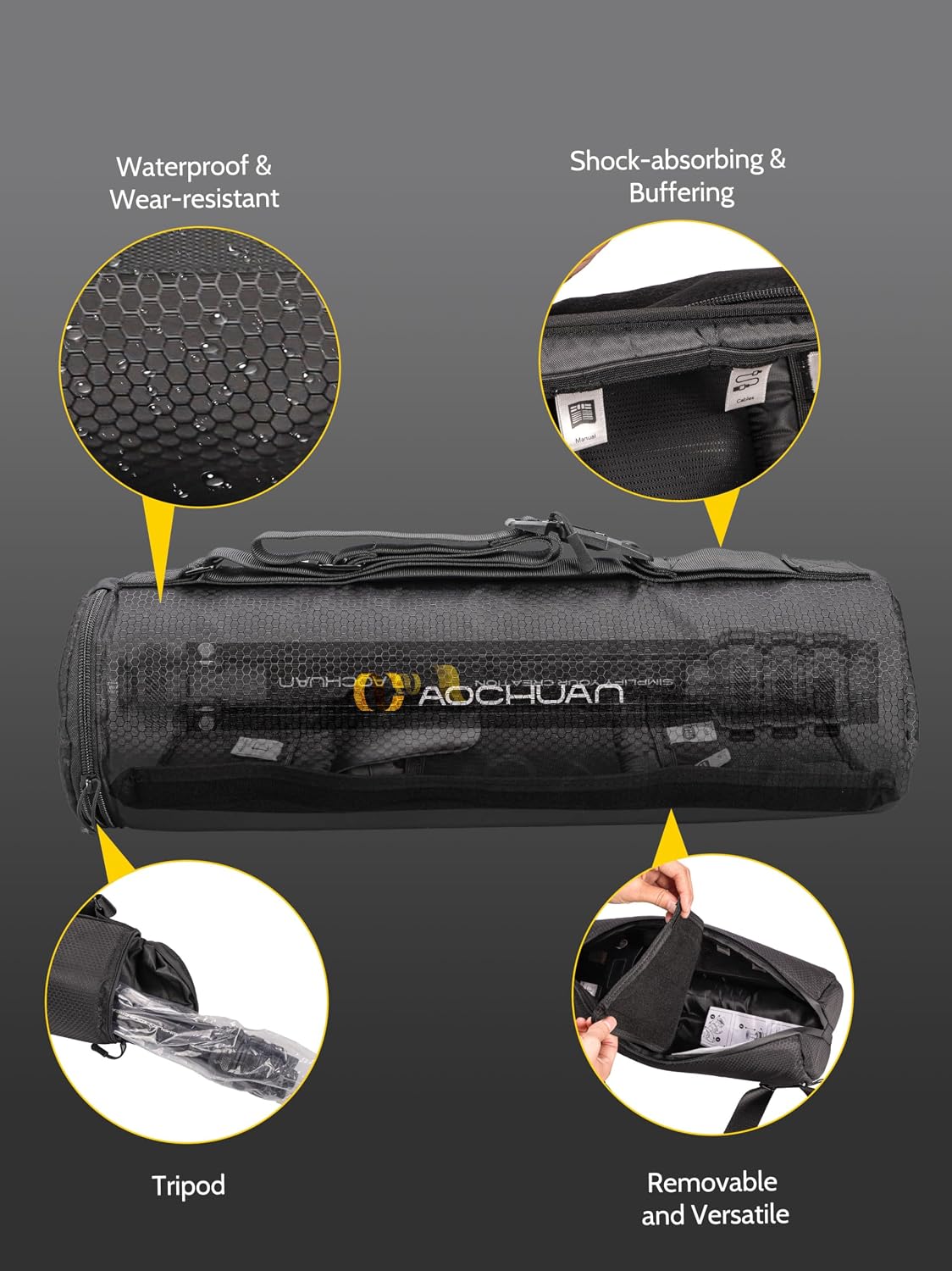
Image 2: The cylindrical padded carry bag, designed for organized storage of all components.
3. Product Features
3.1. SMART 7.0 Anti-Shake Algorithm
The Smart X Gimbal incorporates an enhanced brushless motor and the SMART 7.0 anti-shake algorithm. This technology ensures stable and smooth video footage, even during movement, making it suitable for dynamic content creation.

Image 3: Visual representation of improved stability with the gimbal's anti-shake algorithm.
3.2. AI Tracking and Gesture Control
The AOCHUAN APP features Smart 4.0 AI tracking capabilities, including face tracking, object tracking, and body tracking. This allows the gimbal to automatically follow subjects, keeping them centered in the frame. Additionally, the gimbal supports AI gesture control for convenient operation.

Image 4: The gimbal's AI tracking feature in action, following a subject.

Image 5: Examples of AI gesture controls for operating the gimbal.
3.3. Integrated Lighting Equipment
The gimbal includes a built-in ring light with three adjustable brightness levels to adapt to various environmental conditions. The complete combo also includes a long-lasting 7-color magnetic RGB light, which can be adjusted to add specific atmospheric effects to your video content.
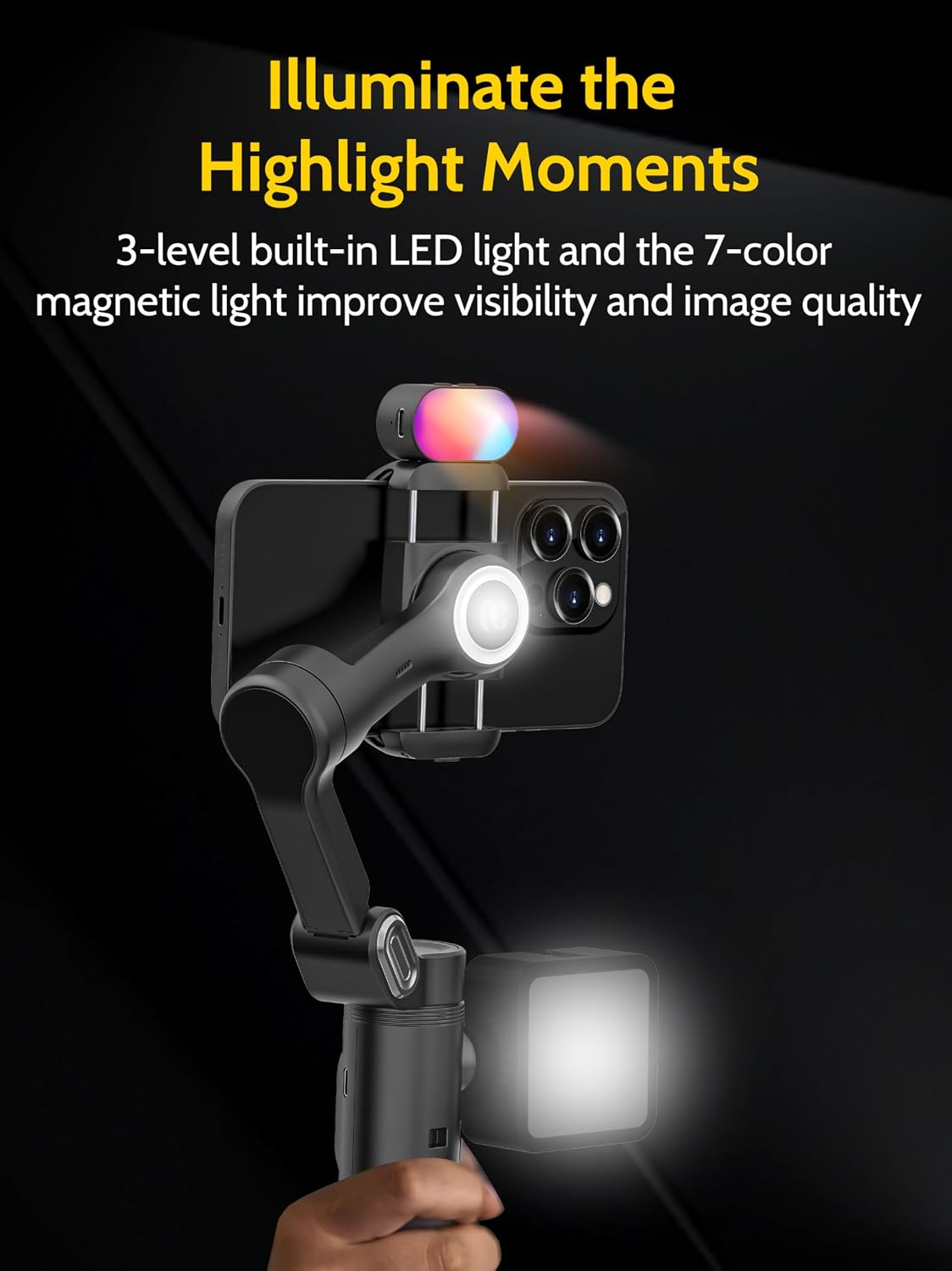
Image 6: The gimbal's built-in ring light and magnetic RGB light providing illumination.
3.4. Universal 1/4" Thread Design
A 1/4-inch standard thread is located on the left side of the gimbal, allowing for the attachment of various accessories such as external lights or microphones. An additional 1/4" thread at the bottom enables connection to the extendable tripod for ground-level shooting.

Image 7: The 1/4" universal thread for attaching additional accessories.
3.5. 3-Stage Extendable Tripod
The included versatile tripod is compatible with a range of devices, including the gimbal, smartphones, and compact cameras. Its lightweight design features three adjustable levels, extending from 14.76 inches to 50 inches, to accommodate various shooting heights.

Image 8: The 3-stage extendable tripod in use, demonstrating its adjustable height.
4. Setup Guide
4.1. Unboxing and Initial Inspection
Carefully remove all components from the storage bag. Inspect each item for any signs of damage. Ensure all listed accessories are present.
4.2. Charging the Gimbal
Connect the gimbal to a power source using one of the provided USB-C charging cables. The indicator lights on the gimbal will show the charging status. A full charge is recommended before first use.
4.3. Attaching the Tripod
The small tripod can be screwed directly into the 1/4" thread at the bottom of the gimbal. For the extendable tripod, ensure it is securely attached to the gimbal's base.
4.4. Mounting Your Smartphone
Gently expand the phone clamp on the gimbal and insert your smartphone. Ensure the phone is balanced as centrally as possible within the clamp to optimize gimbal performance.
4.5. App Installation and Connection
Download the official AOCHUAN APP from your smartphone's app store. Power on the gimbal. Open the app and follow the on-screen instructions to connect your gimbal via Bluetooth. This connection is essential for accessing advanced features like AI tracking and specific shooting modes.
Video 1: An overview of the AOCHUAN Smart X Complete Combo1, demonstrating its components and basic setup.
5. Operating Instructions
5.1. Power On/Off
Press and hold the power button on the gimbal for a few seconds to turn it on or off.
5.2. Mode Selection
The gimbal offers various modes (e.g., Pan Follow, Lock, POV). Refer to the gimbal's display or the app interface to select the desired mode for your shooting scenario.
5.3. Using the AI Tracking Features
Within the AOCHUAN APP, select your preferred tracking mode (Face, Body, or Object). Frame your subject, and the gimbal will automatically adjust to keep it in focus and centered.
5.4. Adjusting Lighting
The built-in ring light can be activated and adjusted for brightness directly on the gimbal. The magnetic RGB light can be attached to the gimbal and its color and mode adjusted to suit your creative needs.
5.5. Zoom and Focus Control
The AOCHUAN APP includes an innovative focus switch and zoom slider, allowing for precise control over your camera's focus and zoom, including effects like the Hitchcock-style zoom.
Video 2: A demonstration of the 3-Axis Gimbal Stabilizer's features, including AI tracking and lighting options.
6. Specifications
| Feature | Detail |
|---|---|
| Model | Smart X |
| Brand | AOCHUAN |
| Package Dimensions | 17.28 x 6.02 x 5.98 inches |
| Item Weight | 2.86 pounds (1.3 Kilograms) |
| Batteries | 1 Lithium Ion battery required (included) |
| Compatible Devices | Cellphone |
| Folded Size (Tripod) | 14.76 inches (or less) |
| Extendable Tripod Height | Up to 50 inches |
7. Supported Mobile Phone Functions
The following table outlines the functions supported by various iPhone and Samsung models. For a comprehensive compatibility list, please refer to the official AOCHUAN website or app.
| Manufacturer | Machine Type | Supporting Lens | Zoom | Video Recording | Slow Motion | Hitchcock | Time-lapse photography | Trajectory delay |
|---|---|---|---|---|---|---|---|---|
| iPhone | iPhone 15 Pro/Pro Max | Super wide angle + wide angle + telephoto | 1.0x~5.0x | 4k 60fps | 1080p 240fps | 4k 60fps | 4k 30fps | 4k 30fps |
| iPhone 15 | Super wide angle + wide angle + telephoto | 1.0x~5.0x | 4k 60fps | 1080p 240fps | 4k 60fps | 4k 30fps | 4k 30fps | |
| iPhone 14 Pro/Pro Max | Super wide angle + wide angle + telephoto | 1.0x~5.0x | 4k 60fps | 1080p 240fps | 4k 60fps | 4k 30fps | 4k 30fps | |
| iPhone 14 | Super wide angle + wide angle + telephoto | 1.0x~5.0x | 4k 60fps | 1080p 240fps | 4k 60fps | 4k 30fps | 4k 30fps | |
| iPhone | iPhone 13 Pro/Pro Max | 1.0x~5.0x | 4k 60fps | 1080p 240fps | 4k 60fps | 4k 30fps | 4k 30fps | |
| iPhone 13 | 1.0x~5.0x | 4k 60fps | 1080p 240fps | 4k 60fps | 4k 30fps | 4k 30fps | ||
| Samsung | Galaxy S23 Ultra | Main lens + an unknown lens | 1.0x~9.0x | 4k 30fps | NA | 4k 30fps | 1080p 30fps | 1080p 30fps |
| Galaxy S23 | Main lens + an unknown lens | 1.0x~9.0x | 4k 30fps | NA | 4k 30fps | 1080p 30fps | 1080p 30fps | |
| Galaxy S22/21 Ultra | Main lens + an unknown lens | 1.0x~9.0x | 4k 30fps | NA | 4k 30fps | 1080p 30fps | 1080p 30fps | |
| Pixel 7/6/5 | Main lens + an unknown lens | 1.0x~8.0x | 4k 30fps | NA | 4k 30fps | 1080p 30fps | 1080p 30fps |
Note: The above list is not exhaustive. Compatibility may vary based on phone model and software updates. Always refer to the latest information in the AOCHUAN APP.
8. Maintenance
8.1. Cleaning
Wipe the gimbal and accessories with a soft, dry cloth. Avoid using harsh chemicals or abrasive materials that could damage the finish. Do not immerse the gimbal in water.
8.2. Storage
When not in use, store the gimbal and its accessories in the provided padded carry bag to protect them from dust and physical damage. Store in a cool, dry place away from direct sunlight.
8.3. Battery Care
To prolong battery life, avoid fully discharging the gimbal's battery frequently. If storing for an extended period, charge the battery to approximately 50-60% and recharge every three months.
9. Troubleshooting
9.1. Gimbal Not Powering On
- Ensure the battery is sufficiently charged.
- Verify that the power button is pressed and held for the required duration.
9.2. Unstable Footage
- Check if the smartphone is properly balanced in the clamp.
- Ensure the gimbal is fully charged.
- Recalibrate the gimbal via the AOCHUAN APP if necessary.
9.3. App Connection Issues
- Ensure Bluetooth is enabled on your smartphone.
- Restart both the gimbal and the AOCHUAN APP.
- Check for app updates in your smartphone's app store.
10. Warranty and Support
For warranty information, technical support, or service inquiries, please refer to the official AOCHUAN website or contact their customer service directly. Keep your purchase receipt as proof of purchase for warranty claims.
Related documentsSmart X


Ask a question about this manual
Ask about setup, troubleshooting, compatibility, parts, safety, or missing instructions. Manuals+ will review the question and use this page’s manual context to help answer it.