1. Introduction
Thank you for choosing the ARZOPA 10.1" WiFi Digital Picture Frame. This manual provides essential information for setting up, operating, and maintaining your new digital frame. Please read it thoroughly before use to ensure optimal performance and longevity of your device.

Figure 1.1: ARZOPA 10.1" WiFi Digital Picture Frame
2. Safety Information
- Do not expose the device to water or excessive humidity.
- Avoid placing the frame in direct sunlight or near heat sources.
- Use only the provided power adapter.
- Keep out of reach of children.
- Do not attempt to disassemble or repair the device yourself. Contact customer support for assistance.
3. Package Contents
Verify that all items are present in the package:
- ARZOPA 10.1" WiFi Digital Picture Frame
- Power Adapter
- User Manual (this document)
4. Product Overview
4.1 Front View
The front of the frame features a 10.1-inch IPS HD anti-glare touch screen for vibrant photo and video display and easy interaction.

Figure 4.1: Front View - 10.1" IPS HD Touch Screen
4.2 Rear and Side Views
The rear and side of the frame house various ports and controls for functionality.
- Power Button: Turns the frame on/off or puts it to sleep.
- Wall Hole: For wall mounting the frame.
- Stand Hole: For attaching the included stand.
- Speaker: For audio playback with videos.
- Micro SD Slot: For expandable memory up to 128GB (TF card not included).
- USB-C Port: For data transfer.
- DC Power Port: For connecting the power adapter.

Figure 4.2: Rear View with Ports and Controls
5. Setup Guide
5.1 Initial Power On
- Connect the power adapter to the DC Power Port on the frame and plug it into a wall outlet.
- The frame will automatically power on. If not, press the Power Button.
- Follow the on-screen prompts to select your language and time zone.
5.2 Wi-Fi Connection
- From the initial setup screen or settings menu, select your Wi-Fi network.
- Enter your Wi-Fi password using the on-screen keyboard.
- Confirm the connection. A stable Wi-Fi connection is required for sharing photos and videos via the ARZOPA app.
5.3 ARZOPA App Installation and Pairing
The ARZOPA app allows for easy sharing of photos and videos to your frame from anywhere.
- Download the "ARZOPA" app from the App Store (iOS) or Google Play Store (Android).
- Open the ARZOPA app and register for an account.
- On your digital frame, navigate to the "Add new members" or "Frame gallery" section to find the unique QR code or code for your frame.
- In the ARZOPA app, select the option to add a new frame and scan the QR code or enter the code displayed on your frame.
- Once paired, you can begin sending content to your frame.
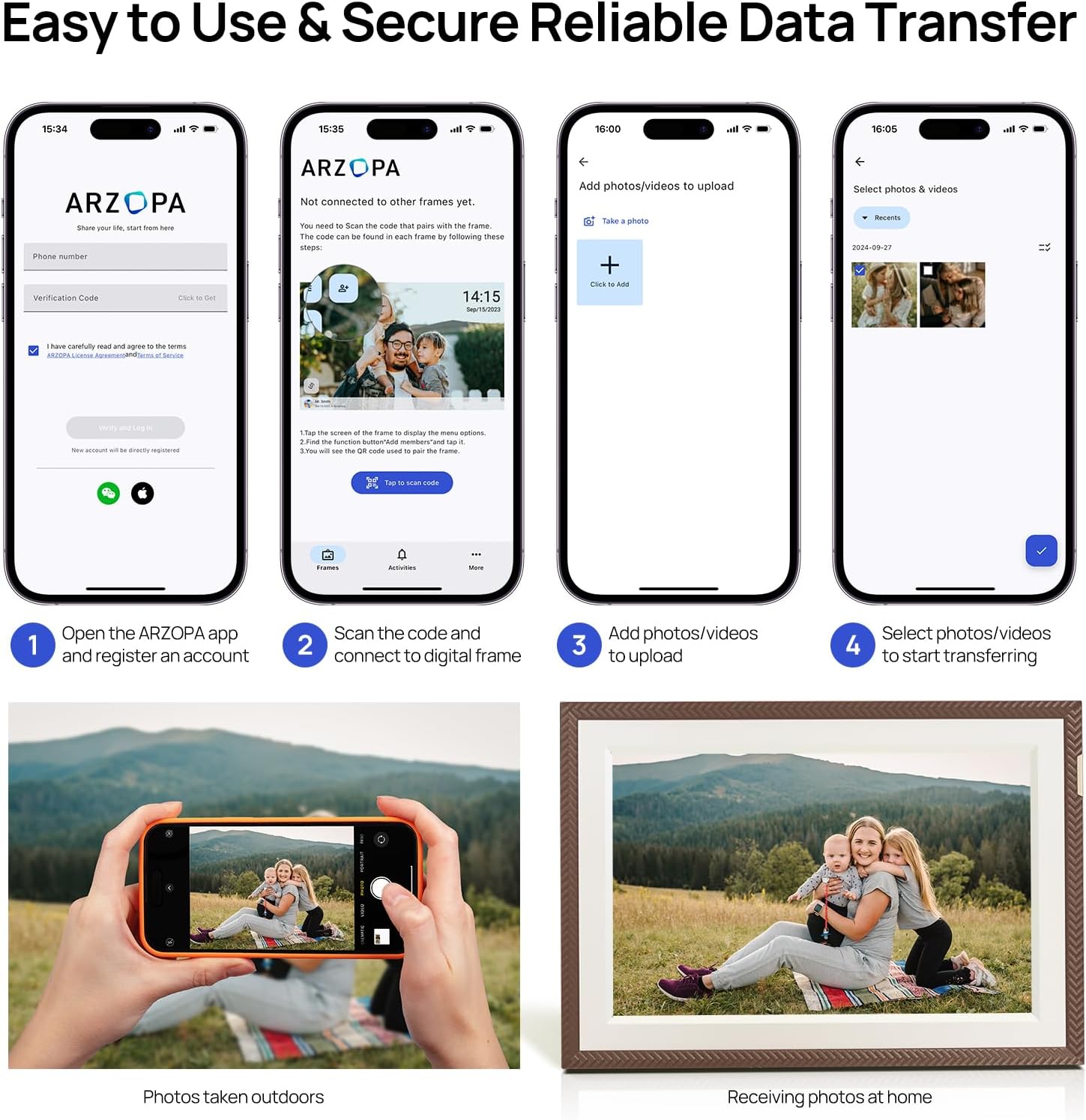
Figure 5.1: Easy Setup and Data Transfer via ARZOPA App
6. Operating Instructions
6.1 Uploading Photos and Videos
- Via ARZOPA App: Open the app, select your frame, and choose photos or videos from your device to upload. The frame supports unlimited single-upload photos and videos up to 2 minutes (125MB).
- Via TF Card: Insert a TF card (up to 128GB, not included) into the Micro SD slot. The frame can play content directly from the card.
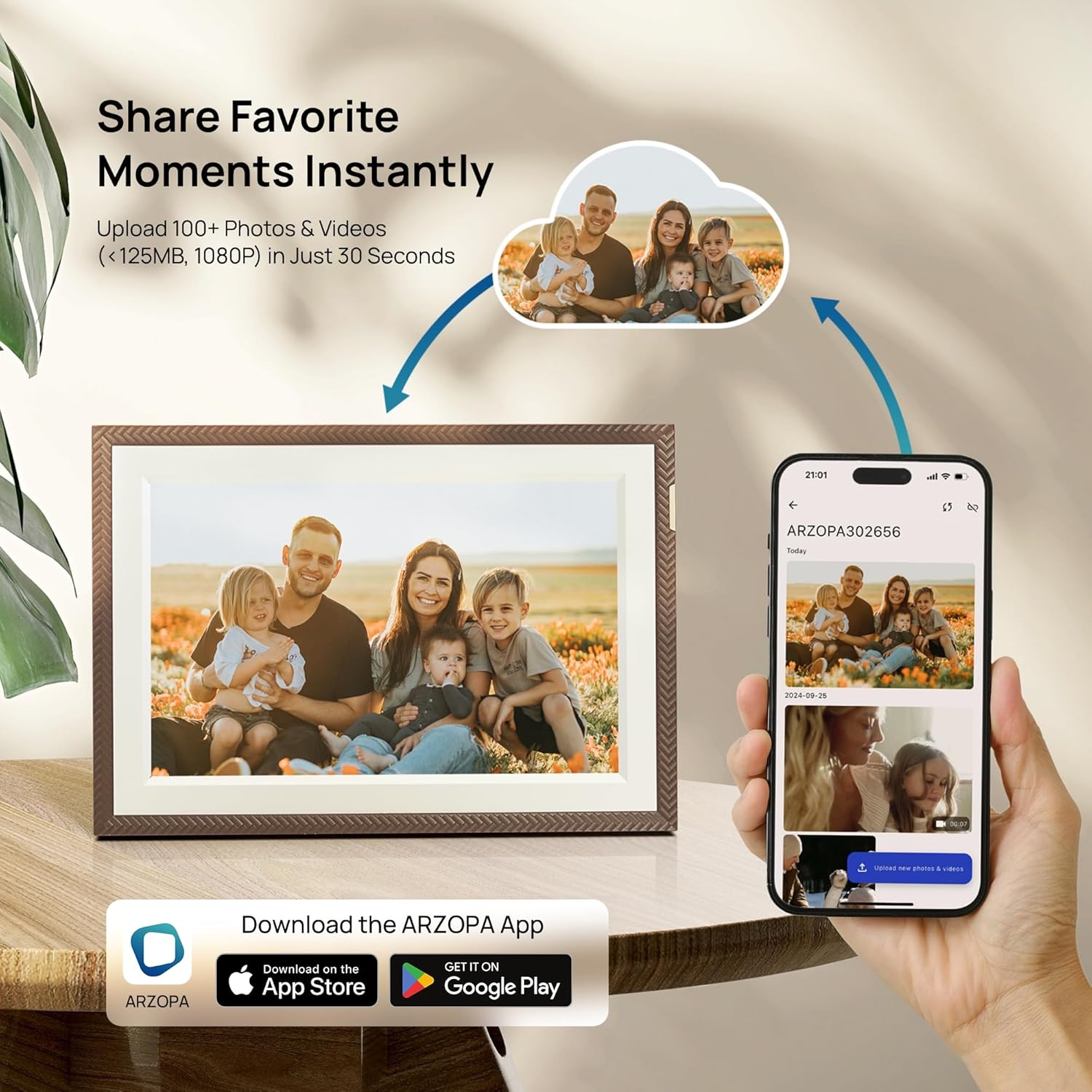
Figure 6.1: Share Favorite Moments Instantly
6.2 Managing Content and Settings
The frame's touch screen interface allows for easy navigation and customization.
- Frame Gallery: View all uploaded photos and videos.
- General Settings: Adjust brightness, playback interval, date/time, and other display options.
- Auto-Rotate: The frame automatically adjusts the display orientation (portrait or landscape) based on its physical position.

Figure 6.2: Auto-Rotate Functionality
6.3 Official Product Video
Video 6.1: ARZOPA Gold Metal Digital Frame WiFi. This video provides an overview of the ARZOPA digital frame, showcasing its design and key features, including Wi-Fi connectivity and ease of use.
7. Maintenance
7.1 Cleaning the Screen
To clean the screen, gently wipe it with a soft, lint-free cloth. For stubborn smudges, slightly dampen the cloth with water or a screen-cleaning solution. Avoid using harsh chemicals or abrasive materials.
7.2 General Care and Storage
- Keep the frame in a cool, dry place when not in use.
- Protect the frame from dust and extreme temperatures.
- Ensure proper ventilation around the frame to prevent overheating.
8. Troubleshooting
| Problem | Possible Cause | Solution |
|---|---|---|
| Frame does not power on. | No power, faulty adapter. | Ensure power adapter is securely connected and plugged into a working outlet. Try a different outlet. |
| Cannot connect to Wi-Fi. | Incorrect password, weak signal, network issue. | Double-check Wi-Fi password. Move frame closer to router. Restart router and frame. |
| Photos/Videos not appearing. | Upload failed, incorrect format, storage full. | Verify successful upload in the app. Ensure files are in supported formats (JPEG, PNG, WEBP for images; MP4, M4V, 3GP, MOV for videos). Check internal storage or TF card capacity. |
| Screen is unresponsive. | Temporary software glitch. | Restart the frame by holding the power button until it turns off, then power it back on. |
9. Specifications
| Feature | Detail |
|---|---|
| Brand | ARZOPA |
| Model Number | D10-Brown-10.1" |
| Screen Size | 10.1 Inches |
| Resolution | 1280x800 |
| Internal Storage | 32GB |
| Expandable Memory | Up to 128GB via TF Card (not included) |
| Connectivity | WiFi |
| Compatible Devices | Android, iOS, Personal Computer, Smartphone |
| Product Dimensions | 10.35 x 7.15 x 0.99 inches |
| Item Weight | 2.33 pounds |
10. Warranty and Support
10.1 Warranty Information
Specific warranty details are typically provided with your purchase documentation or on the product's official website. Please refer to those resources for the most accurate and up-to-date warranty terms.
10.2 Customer Support
For technical assistance, troubleshooting, or any questions regarding your ARZOPA Digital Picture Frame, please contact ARZOPA customer support. A dedicated customer support team responds within 48 hours, providing personalized technical assistance.
You may find contact information on the official ARZOPA website or through your purchase platform.


