
Introduction
Thank you for choosing the Portronics Bubble Dock Wireless Keyboard. This keyboard offers versatile connectivity options, including 2.4 GHz RF and Bluetooth 5.3, allowing seamless pairing with multiple devices. Its integrated tablet holder and rechargeable battery enhance convenience for both home and office use. This manual provides detailed instructions for setup, operation, maintenance, and troubleshooting to ensure optimal performance of your device.
Package Contents
- Portronics Bubble Dock Wireless Keyboard
- USB-C Charging Cable
- 2.4 GHz USB Receiver (typically stored in the keyboard's battery compartment or a dedicated slot)
- User Manual
Product Overview
Familiarize yourself with the key components of your Portronics Bubble Dock Wireless Keyboard.

Image: Top-down view of the Portronics Bubble Dock Wireless Keyboard, showcasing its QWERTY layout and ergonomic design.
- QWERTY Keyboard Layout: Standard layout for comfortable typing.
- Integrated Tablet Holder: A groove along the top edge designed to securely hold tablets or smartphones upright.
- Power Switch: Located on the side or back of the keyboard to turn the device on or off.
- Connectivity Indicators: LEDs to show active connection mode (2.4 GHz, BT1, BT2, BT3) and battery status.
- USB-C Charging Port: For recharging the internal battery.
- Function Keys (F1-F12): Multimedia hotkeys accessible via the 'Fn' key for quick control of media, volume, and other functions.
Setup
1. Charging the Keyboard

Image: Close-up of the keyboard's USB-C charging port with a cable connected, indicating the rechargeable battery feature.
Before initial use, fully charge the keyboard. Connect the provided USB-C charging cable to the keyboard's charging port and the other end to a USB power source (e.g., computer USB port, USB wall adapter). The charging indicator light will show the charging status and turn off or change color when fully charged.
2. Powering On/Off
Locate the power switch on the keyboard. Slide it to the 'ON' position to power on the keyboard. Slide it to the 'OFF' position when not in use to conserve battery.
3. Connecting via 2.4 GHz Wireless

Image: The keyboard connected to a laptop using the 2.4 GHz USB receiver, demonstrating one of its dual connectivity options.
- Locate the 2.4 GHz USB receiver, usually stored in a compartment on the keyboard.
- Insert the USB receiver into an available USB port on your computer or device.
- Turn on the keyboard.
- Press the 'Fn' key simultaneously with the '2.4G' key (often F1) to switch to 2.4 GHz mode. The corresponding indicator light will illuminate.
- The keyboard should automatically connect to your device.
4. Connecting via Bluetooth (Multi-Device Pairing)

Image: The keyboard paired with multiple devices (monitor, tablet, smartphone) via Bluetooth, demonstrating its multi-device pairing capability.
The keyboard supports pairing with up to three Bluetooth devices.
- Turn on the keyboard.
- Press the 'Fn' key simultaneously with one of the Bluetooth keys (BT1, BT2, or BT3, often F2, F3, F4) to select a Bluetooth channel. The corresponding indicator light will blink rapidly, indicating pairing mode.
- On your device (laptop, tablet, smartphone), enable Bluetooth and search for new devices.
- Select "Portronics Bubble Dock" (or similar name) from the list of available devices.
- If prompted, enter the pairing code displayed on your screen using the keyboard and press Enter.
- Once paired, the indicator light will stop blinking and remain solid for a few seconds before turning off, indicating a successful connection.
- Repeat these steps for other devices using BT2 and BT3 channels.
Operating Instructions
1. Switching Between Devices
To switch between connected devices, simply press the 'Fn' key along with the corresponding connectivity key:
- Fn + 2.4G (F1): Switch to 2.4 GHz wireless mode.
- Fn + BT1 (F2): Switch to Bluetooth Device 1.
- Fn + BT2 (F3): Switch to Bluetooth Device 2.
- Fn + BT3 (F4): Switch to Bluetooth Device 3.
2. Using the Tablet Holder

Image: A tablet positioned in the keyboard's built-in holder, illustrating how it conveniently holds devices upright.
The integrated groove at the top of the keyboard is designed to hold your tablet or smartphone upright, providing an optimal viewing angle while typing. Simply place your device into the groove.
3. Function Keys / Multimedia Hotkeys
The top row of keys (F1-F12) doubles as multimedia hotkeys. To activate these functions, press and hold the 'Fn' key while pressing the desired function key.
| Key Combination | Function |
|---|---|
| Fn + F1 | 2.4G Mode |
| Fn + F2 | Bluetooth 1 Mode |
| Fn + F3 | Bluetooth 2 Mode |
| Fn + F4 | Bluetooth 3 Mode |
| Fn + F5 | Previous Track |
| Fn + F6 | Play/Pause |
| Fn + F7 | Next Track |
| Fn + F8 | Mute |
| Fn + F9 | Volume Down |
| Fn + F10 | Volume Up |
| Fn + F11 | Search |
| Fn + F12 | Screenshot |
4. Wide Compatibility
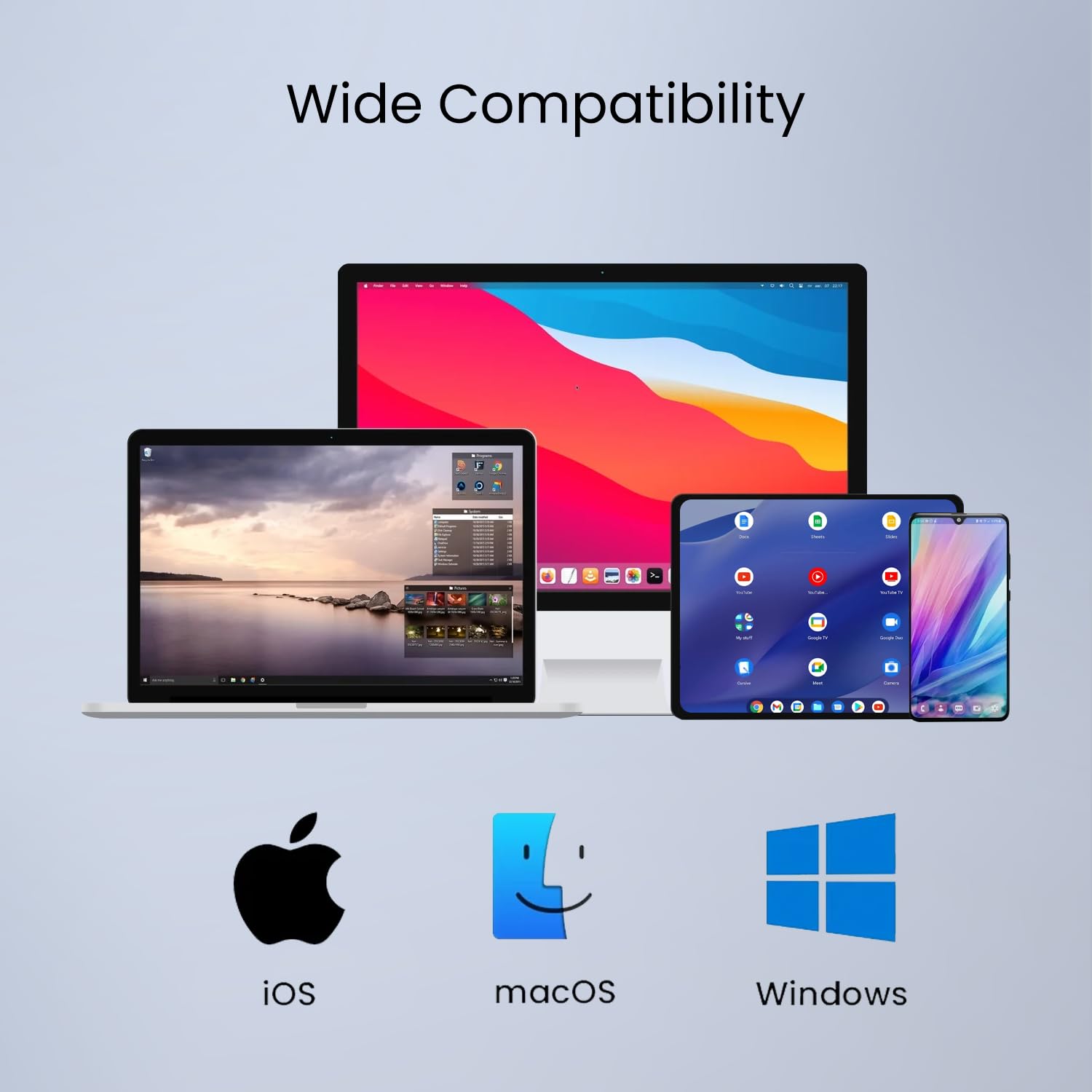
Image: Visual representation of the keyboard's compatibility with various operating systems including iOS, macOS, and Windows.
The Portronics Bubble Dock Wireless Keyboard is compatible with a wide range of operating systems, including iOS, macOS, Windows, and Android devices (for tablets/smartphones).
Maintenance
- Cleaning: Use a soft, dry cloth to clean the keyboard surface. For stubborn dirt, slightly dampen the cloth with water or a mild cleaning solution. Avoid excessive moisture.
- Storage: Store the keyboard in a cool, dry place away from direct sunlight and extreme temperatures.
- Battery Care: To prolong battery life, avoid fully discharging the keyboard frequently. Charge it regularly, even if not in constant use.
- USB Receiver: When not in use, store the 2.4 GHz USB receiver in its designated slot on the keyboard to prevent loss.
Troubleshooting
| Problem | Possible Solution |
|---|---|
| Keyboard not turning on. | Ensure the power switch is in the 'ON' position. Charge the keyboard fully using the USB-C cable. |
| Keyboard not connecting via 2.4 GHz. | Ensure the USB receiver is securely plugged into your device. Press Fn + 2.4G (F1) to select 2.4 GHz mode. Try a different USB port. |
| Keyboard not connecting via Bluetooth. | Ensure Bluetooth is enabled on your device. Press Fn + BT1/BT2/BT3 to select the correct channel and enter pairing mode. Remove previous pairings from your device's Bluetooth list and try pairing again. Ensure the keyboard is within range. |
| Keys not responding or delayed input. | Check battery level and recharge if necessary. Ensure the keyboard is close to your device and there are no strong interferences. Re-pair the keyboard. |
| Multimedia keys not working. | Ensure you are pressing the 'Fn' key simultaneously with the desired function key. Some functions may require specific software or operating system support. |
Specifications
| Brand | Portronics |
| Model Name | Bubble Dock |
| Model Number | POR-2192 |
| Connectivity Technology | Bluetooth 5.3, 2.4 GHz RF |
| Compatible Devices | Laptop, Tablet, Smartphone |
| Keyboard Layout | QWERTY |
| Switch Type | Membrane |
| Product Features | Dual Wireless, Multi-Device Pairing, Multimedia Hotkeys, Noise-Free Keystrokes, Built-in Tablet Holder |
| Battery | Rechargeable |
| Dimensions (L x W x H) | 30.5L x 17.3W x 2.8H Centimeters |
| Weight | 460 Grams |
| Enclosure Material | ABS Plastic |
Warranty and Support
Warranty Information
This Portronics Bubble Dock Wireless Keyboard comes with a 1 Year Manufacturing Defects Only warranty from the date of purchase. This warranty covers defects in materials and workmanship under normal use. It does not cover damage caused by misuse, accidents, unauthorized modifications, or normal wear and tear.
Customer Support
For any product-related queries, technical assistance, or warranty claims, please contact Portronics customer support:
- Email: help@portronics.com
- Phone: +91 9555-245-245
- Manufacturer Address: Portronics Digital Pvt ltd, First Floor Property No D 8 Upper Basement Sector 8 Noida Uttar Pradesh 201301
