1. Product Overview
The ProtoArc EKM01 Plus is a full-size ergonomic wireless keyboard and mouse combo designed to enhance comfort and productivity during extended use. It features a split, curved keyframe, a cushioned wrist rest, and multi-device connectivity options, including a USB receiver and Bluetooth. Both the keyboard and mouse are rechargeable via a Type-C cable.

Image 1.1: The ProtoArc EKM01 Plus ergonomic wireless keyboard and mouse combo, showcasing its split design and integrated wrist rest, alongside the contoured ergonomic mouse.
2. Key Features
- Full-size Ergonomic Design: Features a curved and split keyframe that promotes a natural, relaxed posture for wrists and forearms. Scooped keys are designed for comfortable and responsive typing.
- Cushioned Wrist Rest: An integrated wrist rest with a soft memory foam layer provides enhanced comfort and support, reducing wrist bending. Adjustable tilt legs allow for optimal keyboard positioning.
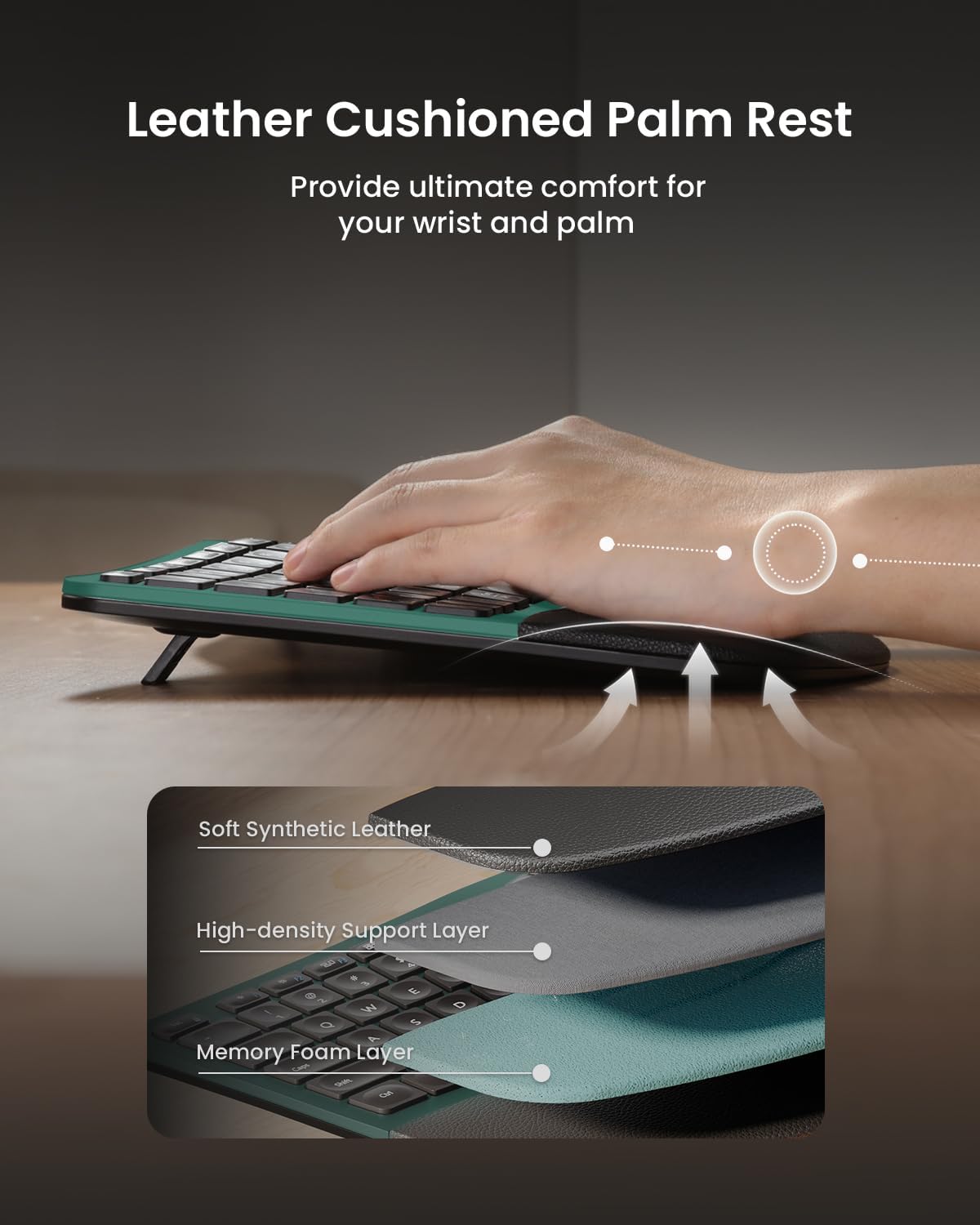
Image 2.1: Detailed view of the wrist rest construction, showing layers of soft synthetic leather, high-density support, and memory foam for optimal comfort.

Image 2.2: The keyboard with its adjustable tilt legs extended, demonstrating how the angle can be modified for comfortable typing whether seated or standing.
- Multi-Device Connectivity: Supports simultaneous connection to up to three devices via a USB receiver (2.4Ghz) or Bluetooth. Easily switch between connected devices with a single button press. Compatible with Windows 7/8/10, Mac OS X 10.12, and Android 4.3 or higher.

Image 2.3: The keyboard and mouse setup demonstrating multi-device connectivity, showing a laptop, desktop monitor, and tablet all potentially connected.
- Ergonomic Sculpted Mouse: Designed with a palm and thumb rest to provide superior wrist support and maintain a natural hand position, reducing strain. Features 2000 DPI for precise control and convenient forward/backward buttons for web browsing.
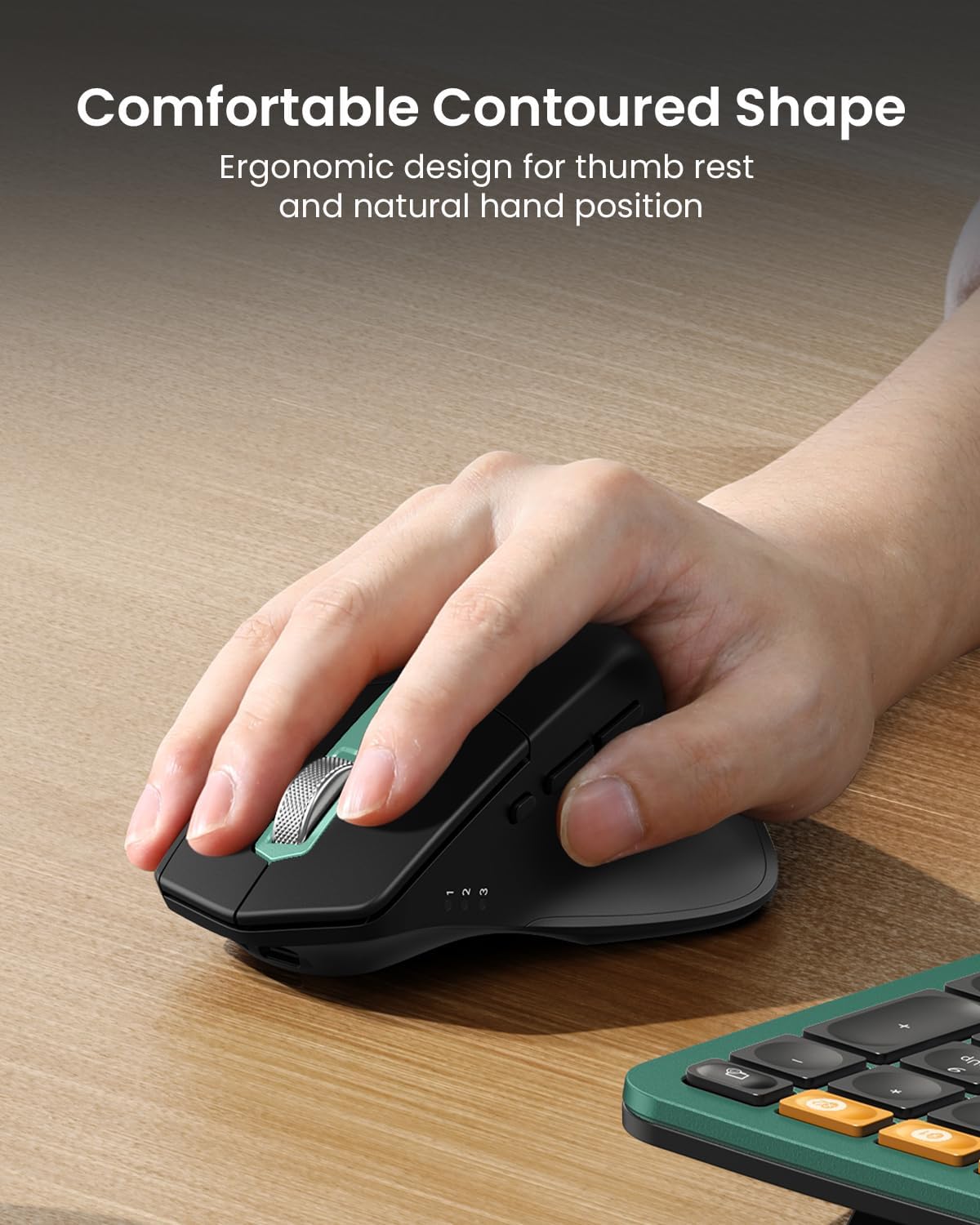
Image 2.4: A hand positioned comfortably on the ergonomic mouse, highlighting its contoured shape designed for natural hand placement and reduced wrist strain.
- Type-C Rechargeable: Both the keyboard and mouse are equipped with built-in 500mAh lithium batteries, rechargeable via the included Type-C cable. An auto-sleep mode conserves power after 30 minutes of inactivity.

Image 2.5: The keyboard and mouse connected via Type-C cables for recharging, illustrating the convenience of their built-in rechargeable batteries.
3. Package Contents
Upon opening your ProtoArc EKM01 Plus package, please verify that all the following items are included:
- ProtoArc EKM01 Plus Ergonomic Wireless Keyboard
- ProtoArc Ergonomic Wireless Mouse
- USB Receiver (typically stored in the keyboard's battery compartment or a dedicated slot)
- USB-A to Type-C Charging Cable
- User Manual (this document)
4. Setup and Installation
4.1 Initial Charging
Before first use, it is recommended to fully charge both the keyboard and the mouse. Connect the provided Type-C charging cable to the charging port on each device and to a USB power source (e.g., computer USB port, USB wall adapter). The charging indicator light will show charging status and turn off when fully charged.
4.2 Connecting Your Devices
The ProtoArc EKM01 Plus combo offers two primary connection methods: 2.4GHz wireless via USB receiver and Bluetooth.
4.2.1 2.4GHz Wireless Connection (USB Receiver)
- Locate the USB receiver. It is usually stored in a dedicated slot on the underside of the keyboard or mouse for safekeeping.
- Plug the USB receiver into an available USB-A port on your computer.
- Turn on the keyboard and mouse using their respective power switches.
- The devices should automatically connect to the receiver. If not, press the mode switch button on the keyboard/mouse until the 2.4G indicator light is active.
4.2.2 Bluetooth Connection
The keyboard and mouse can each connect to two separate Bluetooth devices (BT1 and BT2).
- Turn on the keyboard/mouse.
- Press the mode switch button on the device to select either BT1 or BT2. The corresponding indicator light will blink slowly, indicating it's ready for pairing.
- On your computer or device, open Bluetooth settings.
- Search for new devices. You should see "ProtoArc EKM01 Plus Keyboard" and "ProtoArc EKM01 Plus Mouse" (or similar names).
- Select the device you wish to pair and follow any on-screen prompts. The indicator light will turn solid once successfully paired.
- Repeat for the second Bluetooth slot (BT2) if connecting to another device.
4.3 Adjusting Keyboard Tilt
The keyboard features adjustable tilt legs at both the front and back to customize your typing angle for optimal comfort, whether seated or standing.
- Gently flip out the desired tilt legs on the underside of the keyboard to raise the front or back edge.
- Experiment with different angles to find the most comfortable position for your wrists and forearms.

Image 4.1: Close-up view of the adjustable tilt legs on the underside of the keyboard, showing their mechanism.
5. Operating Instructions
5.1 Switching Between Devices
To switch between connected devices (2.4G, BT1, BT2) for both the keyboard and mouse:
- On the keyboard, press the dedicated device switch buttons (often labeled 1, 2, 3 or similar) to select the desired connection mode.
- On the mouse, press the mode switch button (usually on the underside or top) to cycle through 2.4G, BT1, and BT2 connections.
5.2 Mouse DPI Adjustment
The mouse features adjustable DPI settings to control cursor sensitivity. You can cycle through 800, 1300, and 2000 DPI settings.
- Press the DPI button (often located near the scroll wheel or on the top of the mouse) to cycle through the settings.
- The indicator light will flash once for 800 DPI, twice for 1300 DPI, and three times for 2000 DPI.

Image 5.1: Diagram illustrating the DPI settings on the mouse, showing how the indicator light flashes to denote 800, 1300, or 2000 DPI.
5.3 Mouse Navigation Buttons
The ergonomic mouse includes dedicated forward and backward buttons, typically located on the side, for convenient web page navigation.
- Press the "Forward" button to navigate to the next page in your browser history.
- Press the "Backward" button to navigate to the previous page in your browser history.

Image 5.2: The ergonomic mouse highlighting the placement of the forward and backward navigation buttons, useful for web browsing.
6. Maintenance and Care
Proper maintenance ensures the longevity and optimal performance of your ProtoArc EKM01 Plus combo.
- Cleaning: Use a soft, dry, lint-free cloth to clean the surfaces of the keyboard and mouse. For stubborn dirt, slightly dampen the cloth with water or a mild, non-abrasive cleaner. Avoid excessive moisture.
- Wrist Rest Care: The cushioned wrist rest is made of soft synthetic leather. Avoid sharp objects that could puncture or scratch the surface. Clean with a damp cloth if necessary.
- Battery Care: To prolong battery life, avoid fully discharging the devices frequently. Recharge them when the low battery indicator appears. Store in a cool, dry place if not used for extended periods.
- Storage: When not in use, especially during travel, ensure the USB receiver is securely stored in its designated slot to prevent loss.
- Avoid Extreme Conditions: Do not expose the devices to extreme temperatures, direct sunlight, or high humidity.
7. Troubleshooting
If you encounter issues with your ProtoArc EKM01 Plus, refer to the following common solutions:
| Problem | Possible Cause | Solution |
|---|---|---|
| Keyboard/Mouse not responding | Low battery; Device turned off; Incorrect connection mode selected; USB receiver not plugged in or faulty; Bluetooth not paired. | Charge the device. Ensure power switch is ON. Press the mode switch button to select the correct connection (2.4G, BT1, BT2). Re-insert USB receiver. Re-pair Bluetooth. Try a different USB port. |
| Lag or intermittent connection | Interference from other wireless devices; Device too far from receiver/computer; Low battery. | Move closer to the receiver/computer. Remove other interfering wireless devices. Charge the device. |
| Keys not working or sticky | Debris under keycap; Software issue. | Gently clean around the affected key. Restart your computer. |
| Mouse cursor erratic or not moving | Dirty sensor; Using on an unsuitable surface; Low battery. | Clean the optical sensor on the underside of the mouse. Use on a mouse pad or a non-reflective, opaque surface. Charge the mouse. |
| Cannot switch between devices | Incorrect button pressed; Device not properly paired to all channels. | Ensure you are pressing the correct device switch buttons. Verify that all desired devices are correctly paired to their respective 2.4G/BT1/BT2 channels. |
If the problem persists after trying these solutions, please contact ProtoArc customer support for further assistance.
8. Specifications
| Feature | Detail |
|---|---|
| Model Number | EKM01 Plus |
| Brand | ProtoArc |
| Color | Green (as per current product variant) |
| Connectivity Technology | 2.4GHz Wireless (USB Receiver), Bluetooth |
| Compatible Devices | Laptop, Personal Computer (Windows 7/8/10, Mac OS X 10.12+, Android 4.3+) |
| Special Features | Ergonomic Split Design, Full Size Layout, Cushioned Wrist Rest, Adjustable Tilt Legs, Multi-Device Switching, Rechargeable |
| Keyboard Battery Capacity | 500mAh Lithium Battery |
| Mouse Battery Capacity | 500mAh Lithium Battery |
| Mouse DPI Settings | 800, 1300, 2000 DPI |
| Keyboard Dimensions (Approx.) | 20.75 inches (Length) x 11 inches (Width) |
| Item Weight (Combo) | 4.29 pounds |
| Package Dimensions | 20.6 x 12.5 x 2.5 inches |
| Date First Available | October 19, 2024 |
Note: Dimensions and weight are approximate and may vary slightly.
9. Warranty and Support
ProtoArc products are designed for reliability and performance. For specific warranty details regarding your EKM01 Plus keyboard and mouse combo, please refer to the warranty card included in your product packaging or visit the official ProtoArc website.
If you require technical support, have questions about product functionality, or need assistance with troubleshooting beyond what is covered in this manual, please contact ProtoArc customer service. Contact information is typically provided on the product packaging, the official website, or a dedicated support page.
For the most up-to-date information and support resources, please visit: ProtoArc Official Store on Amazon


