
1. Introduction
Thank you for choosing the VENTION 27000mAh 140W Power Bank. This high-capacity, fast-charging power bank is designed to provide reliable power for your laptops, smartphones, tablets, and other electronic devices on the go. Featuring multiple output ports and an intelligent digital display, it ensures efficient and safe charging. Please read this manual carefully before use to ensure optimal performance and longevity of your device.
2. Product Overview
The VENTION 140W Power Bank is equipped with advanced features for versatile charging. It includes two USB-C ports and one USB-A port, allowing simultaneous charging of multiple devices. The integrated digital display provides real-time information about the power bank's status.

Figure 2.1: VENTION 140W Power Bank and USB-C Cable
This image shows the VENTION 140W Power Bank, highlighting its sleek design and the included high-power USB-C to USB-C cable. The power bank features a prominent digital display on one end.

Figure 2.2: Digital Display and Ports
A detailed view of the power bank's digital display and its three output ports: two USB-C ports (C1 IN/OUT, C2 OUT) and one USB-A port (USB-A OUT). An ON/OFF button is also visible next to the USB-A port.
3. Setup
3.1 Initial Charging
Before first use, it is recommended to fully charge your VENTION Power Bank. Use the included 240W USB-C to USB-C cable and a compatible 140W PD charger (not included) to achieve the fastest charging speed. The power bank can be fully recharged in approximately 60 minutes.
3.2 Checking Battery Level
Press the ON/OFF button once to activate the digital display. The screen will show the current battery percentage and other relevant information.
4. Operating Instructions
4.1 Charging Your Devices
Connect your device to the power bank using an appropriate charging cable. The power bank will automatically detect the connected device and begin charging. The digital display will show the output power for each active port.
- USB-C1 Port: Provides up to 140W output, ideal for charging laptops like MacBook Pro.
- USB-C2 Port: Provides up to 20W output, suitable for smartphones and tablets.
- USB-A Port: Provides up to 18W output, suitable for low-power devices.
When multiple devices are connected, the power output will be distributed:
- USB-C1 + USB-C2: Up to 100W + 20W.
- USB-C1 + USB-A: Up to 100W + 18W.
- USB-C2 + USB-A: Up to 5V/3A (15W).
- USB-C1 + USB-C2 + USB-A: Up to 100W (USB-C1) + 15W (USB-C2 + USB-A combined).

Figure 4.1: Three-in-One Fast Charging
This image illustrates the VENTION Power Bank simultaneously charging a laptop (100W via USB-C1), a tablet (15W via USB-C2), and a smartphone (15W via USB-A), demonstrating its multi-device charging capability.

Figure 4.2: Three-Port Charging Power Distribution
This diagram visually explains the power output distribution when one, two, or three ports are used simultaneously, detailing the wattage for laptops, phones, and tablets from each port configuration.
4.2 Recharging the Power Bank
To recharge the power bank, connect a USB-C charger to the USB-C1 (IN/OUT) port. For the fastest recharge, use a 140W PD charger. The digital display will indicate the input power.

Figure 4.3: Bidirectional 140W Fast Charging
This image demonstrates the power bank's bidirectional 140W fast charging capability, showing it can charge a 16-inch MacBook Pro to 55% in 30 minutes and fully recharge itself to 100% in 60 minutes using the 140W charging port.
5. Digital Display Guide
The intelligent TFT color screen provides comprehensive information about the power bank's status. Press the power button to cycle through display modes or activate the screen.
- Battery Remaining: Shows the percentage of charge left.
- Input/Output Power: Displays the real-time wattage for each active port (C1, C2, A).
- Estimated Charge/Discharge Time: Provides an estimate of how long until fully charged or discharged.
- Run Time: Tracks the total operational time.
- Last Charge to 100%: Records the time of the last full charge.
- Battery Cycles: Shows the number of charge cycles.
- Total Input/Output: Displays cumulative energy transfer in Wh.
- Battery Temperature: Monitors the internal temperature for safety.
The screen automatically turns off after 30 seconds to save energy, but can be set to 'Always On' mode.
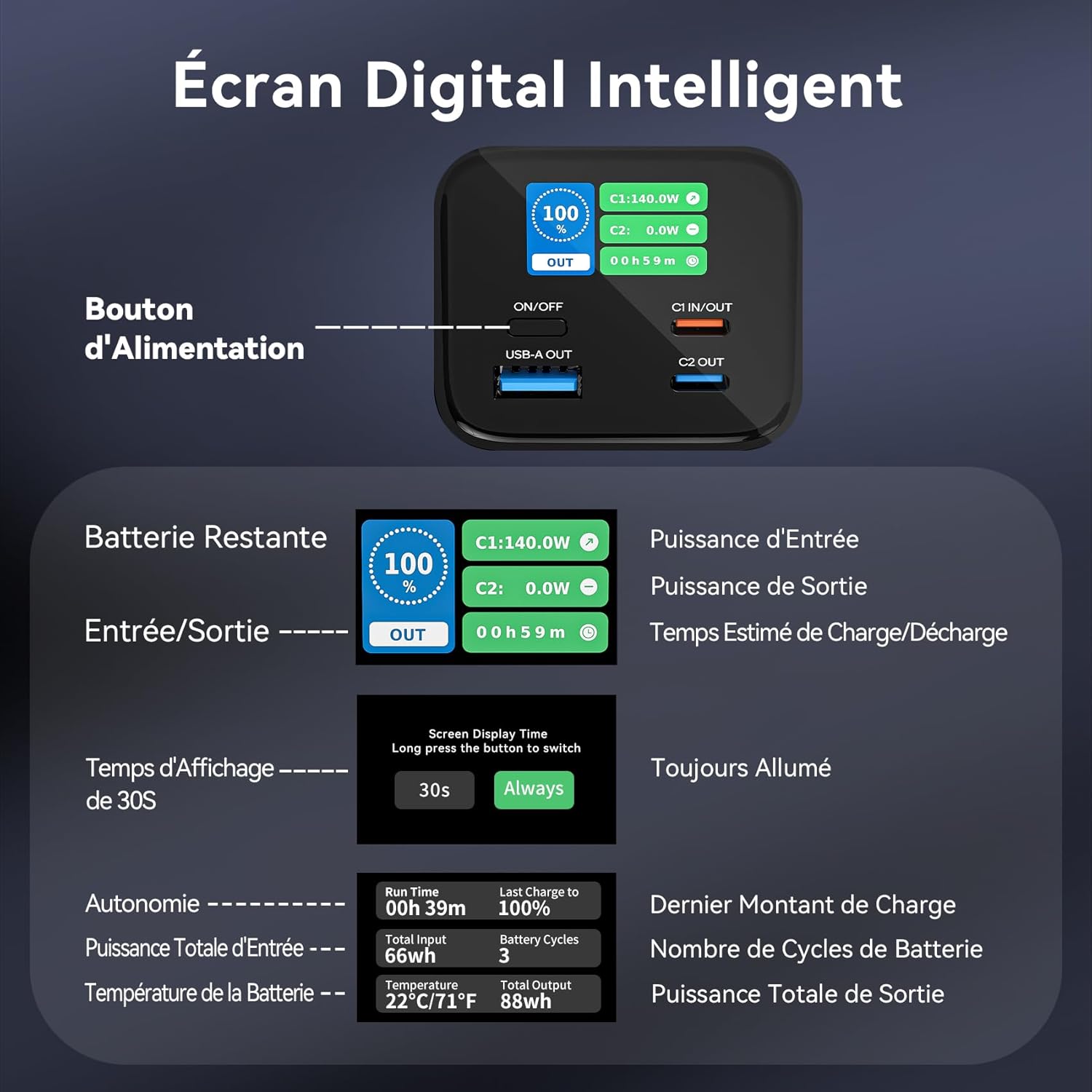
Figure 5.1: Intelligent Digital Screen Details
This image provides a detailed breakdown of the information displayed on the intelligent digital screen, including battery percentage, input/output power, estimated time, run time, last charge, battery cycles, total input/output, and battery temperature.
6. Compatibility
The VENTION 140W Power Bank offers extensive compatibility with a wide range of devices:
- Smartphones/Tablets: iPhone 15 Pro Max, Galaxy S23 Ultra, Pixel 7 Pro, Xiaomi, Samsung, OPPO, Vivo, iPad Pro, and more.
- Laptops: MacBook Pro 16", MacBook Air 13", ThinkBook, Xiaomi Book, and other USB-C compatible laptops.
- Game Consoles: Nintendo Switch handheld consoles and more.
- Low-Current Devices: Bluetooth earphones, electric toothbrushes, fitness bands, electric shavers, mini fans, etc.
- Camera Gear: Drones (e.g., DJI Mavic Air), action cameras, DSLR cameras, and more.

Figure 6.1: Extensive Device Compatibility
This image visually represents the broad compatibility of the power bank, showing it can charge various devices including smartphones, tablets, laptops, game consoles, low-current devices, and camera gear.
7. Safety Features and Multi-Protections
The VENTION Power Bank is built with multiple safety mechanisms to ensure secure and reliable operation:
- Over-temperature Protection: Prevents overheating.
- Over-voltage Protection: Safeguards against excessive voltage input/output.
- Fireproof Protection: Enhanced safety against fire hazards.
- Short-circuit Protection: Protects against short circuits.
- Over-current Protection: Prevents damage from excessive current.
- Overcharge Protection: Stops charging once the battery is full.
- Over-discharge Protection: Prevents battery from being fully depleted.
- Recovery Protection: Ensures safe recovery from abnormal states.
- Over-power Protection: Limits power output to safe levels.

Figure 7.1: Multiple Security Protections
This image displays the internal structure of the power bank and lists various safety protections, including protection against overheating, over-voltage, fire, short-circuits, over-current, overcharge, over-discharge, recovery, and over-power.
8. Maintenance
- Store the power bank in a cool, dry place away from direct sunlight and extreme temperatures.
- Avoid dropping or subjecting the power bank to strong impacts.
- Clean the surface with a soft, dry cloth. Do not use harsh chemicals or abrasive materials.
- If not used for extended periods, charge the power bank to about 50% every 3 months to preserve battery health.
- Do not attempt to disassemble or modify the power bank. This will void the warranty and may cause safety hazards.
9. Troubleshooting
9.1 Power Bank Not Charging
- Ensure the charging cable is securely connected to both the power bank and the wall charger.
- Verify that the wall charger is functioning correctly and provides sufficient power (preferably 140W PD).
- Try a different USB-C cable or wall charger.
9.2 Devices Not Charging
- Check if the power bank has sufficient charge.
- Ensure the charging cable connecting the device to the power bank is not damaged and is securely connected.
- Try a different port on the power bank.
- Verify that your device is compatible with the power output of the selected port.
- Press the power button on the power bank to ensure it is active.
9.3 Digital Display Not Working
- Press the ON/OFF button to activate the display.
- If the power bank is completely depleted, the display may not turn on until it receives some charge.
- If the issue persists, contact customer support.
10. Specifications
| Feature | Specification |
|---|---|
| Brand | Vention |
| Battery Capacity | 27000 Milliampere-hour (mAh) |
| Voltage | 5 Volts |
| Battery Composition | Lithium-ion |
| Connector Type | USB Type A, USB Type C |
| Number of Ports | 3 |
| Charging Time (Power Bank) | 60 minutes (with 140W PD charger) |
| Item Weight | 860 Grams |
| Product Dimensions | 16.6L x 5.1W x 5.5H centimeters |
| Portable | Yes |
11. Warranty and Support
Your VENTION 27000mAh 140W Power Bank comes with a 12-month warranty. Please retain your purchase receipt and the warranty card included in the package.
In case of any issues or questions regarding your product, please contact VENTION customer support via Amazon for prompt assistance. Our team is dedicated to providing you with the best possible service.


