Introduction
This manual provides instructions for the setup, operation, and troubleshooting of your VINABTY replacement voice smart remote control. This remote is designed to be compatible with various Samsung Neo QLED, 8K, The Frame, and Crystal UHD Series Televisions.

Image: The VINABTY replacement voice smart remote control shown alongside a modern Samsung television, illustrating its intended use.
Setup
1. Battery Installation
The remote control requires two (2) AAA batteries for operation. Follow these steps to install them:
- Locate the battery compartment cover on the back of the remote control.
- Slide the cover downwards or press the latch (if present) to open the compartment.
- Insert two AAA batteries, ensuring the positive (+) and negative (-) terminals align correctly with the markings inside the compartment.
- Replace the battery compartment cover by sliding it back into place until it clicks securely.

Image: The back of the remote control with the battery cover removed, showing the slots for two AAA batteries.
2. Pairing Instructions
To enable full functionality, including voice control, the remote must be paired with your Samsung TV. Follow these steps:
- Ensure your television is powered on.
- Point the remote control towards your television.
- Simultaneously press and hold the "Return" button (curved arrow) and the "Play/Pause" button (two vertical bars with a triangle) for approximately 3 to 5 seconds.
- A pairing message should appear on your TV screen, indicating that the remote control is connecting.
- Once paired, the remote control is ready for use.
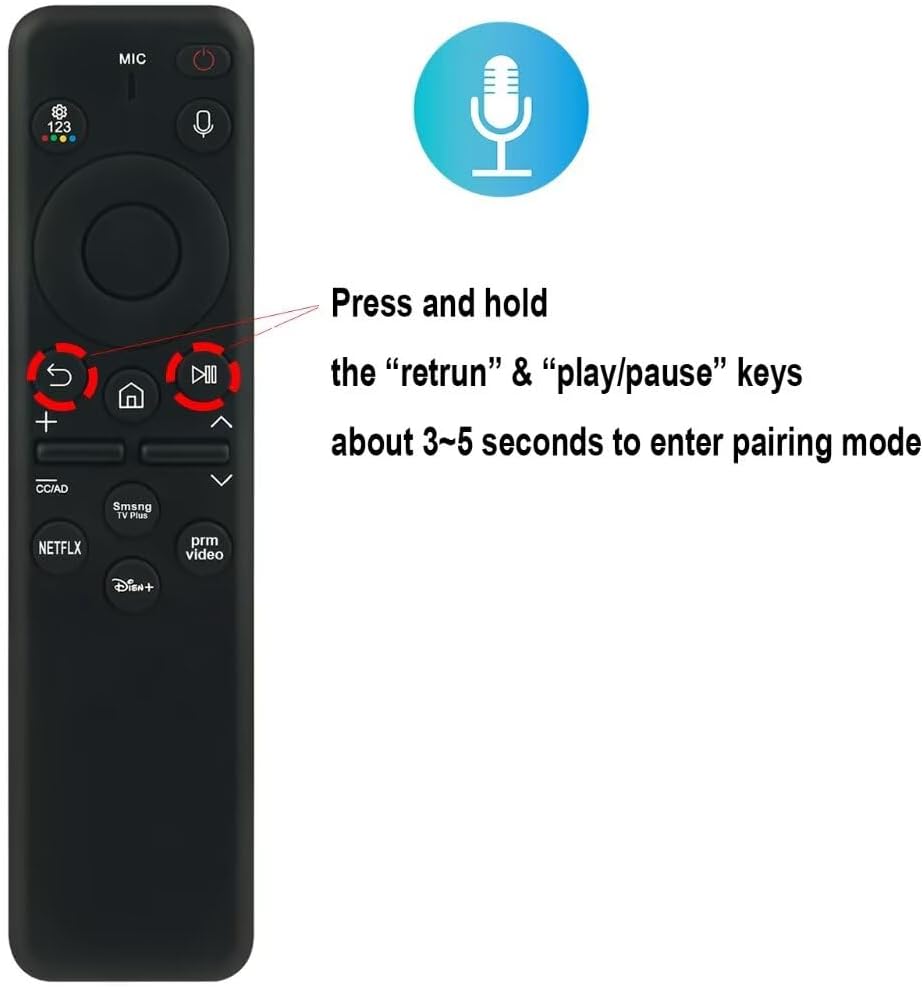
Image: A close-up of the remote control, with arrows pointing to the "Return" and "Play/Pause" buttons, illustrating the pairing process.
Operating Instructions
After successful pairing, your remote control provides intuitive access to your Samsung TV's features.
- Power Button: Located at the top right, press to turn the TV on or off.
- Voice Control Button (Microphone Icon): Press and hold this button to activate voice commands for your TV. Speak clearly into the remote.
- Directional Pad and Select Button: Use the circular directional pad to navigate menus and the central button to select items.
- Volume (+/-) Buttons: Adjust the television volume.
- Channel (Up/Down) Buttons: Change television channels.
- Home Button (House Icon): Returns you to the TV's Smart Hub or home screen.
- Netflix, Prime Video, Disney+ Buttons: Dedicated buttons for quick access to these streaming services.

Image: A front view of the VINABTY remote control, displaying all buttons and its physical dimensions.
Troubleshooting
If you encounter issues with your remote control, refer to the following common solutions:
- Remote Not Responding:
- Check if the batteries are correctly inserted and have sufficient charge. Replace them if necessary.
- Ensure there are no obstructions between the remote control and the TV.
- Attempt to re-pair the remote control with the TV using the pairing instructions provided in the Setup section.
- Voice Control Not Working:
- Confirm the remote is properly paired with the TV.
- Ensure you are pressing and holding the voice control button while speaking.
- Check your TV's settings to ensure voice control is enabled.
- Specific Buttons Not Functioning:
- If only certain buttons are not working, try re-pairing the remote.
- Clean the remote control surface, especially around the non-functioning buttons, to remove any debris.
Specifications
| Feature | Detail |
|---|---|
| Product Dimensions | 6 x 2 x 0.5 inches (15.2 x 3.9 x 1.27 cm) |
| Item Weight | 1.9 ounces (53.86 grams) |
| Item Model Numbers | BN59-01432A, BN59-01432D, BN59-01455E |
| Compatible Devices | Samsung Neo QLED TV, 8K, The Frame, Crystal UHD Series Televisions |
| Color | Black |
| Special Feature | Ergonomic design, Voice Control |
| Battery Type | 2 x AAA batteries (not included) |
Warranty and Support
For warranty information or technical support, please contact the seller or manufacturer directly. Keep your purchase receipt as proof of purchase.
Manufacturer: VINABTY factory


