
SignalBrick KM2
SignalBrick KM2 Cell Phone Signal Booster User Manual
Model: KM2
1. Product Overview
The SignalBrick KM2 Cell Phone Signal Booster is designed to enhance cellular signal strength within your vehicle, including cars, SUVs, and vans. It improves 5G, 4G LTE, and 3G signals across various frequency bands, ensuring clearer calls and faster data speeds for multiple users simultaneously.
This booster is compatible with all major U.S. carriers, including Verizon, AT&T, T-Mobile, and Sprint. Its omni-directional outdoor antenna captures signals from all directions, and the intelligent adjustment feature optimizes performance automatically.


2. Package Contents
Verify that all items listed below are included in your package:
- 1 x SignalBrick KM2 Car Cell Booster Unit
- 1 x Inside Antenna
- 1 x Outside Magnetic Antenna
- 1 x DC Power Adapter (Car Charger)

3. Setup & Installation
The SignalBrick KM2 booster is designed for easy installation without the need for drilling. Follow these steps for optimal performance:
- Mount the Outside Antenna: Place the magnetic outdoor antenna on the roof of your vehicle. Ensure it is positioned where it can receive signals from all directions.
- Route the Cable: Carefully route the cable from the outside antenna into the vehicle, typically through a door seal or trunk opening, ensuring it is not pinched.
- Install the Booster Unit: Mount the main booster unit inside the vehicle in a secure location, such as under a seat or in the trunk. Connect the outside antenna cable to the port labeled "OUTSIDE" on the booster.
- Install the Inside Antenna: Place the inside antenna within the vehicle where you need improved signal, typically near the driver or passenger area. Ensure it is at least 2 feet (0.6m) vertically and 3 feet (0.9m) horizontally away from the outside antenna to prevent oscillation. Connect the inside antenna cable to the port labeled "INSIDE" on the booster.
- Connect Power: Plug the DC power adapter into your vehicle's 12V power outlet (cigarette lighter) and connect the other end to the booster unit. The booster will power on automatically.
Important Note:
- Ensure sufficient separation between the outdoor and indoor antennas to prevent feedback and ensure proper operation.
- This product is designed for cars, SUVs, and vans. It is not recommended for larger vehicles like trucks or RVs, as the included cables may not be long enough for optimal antenna separation.

4. Operation
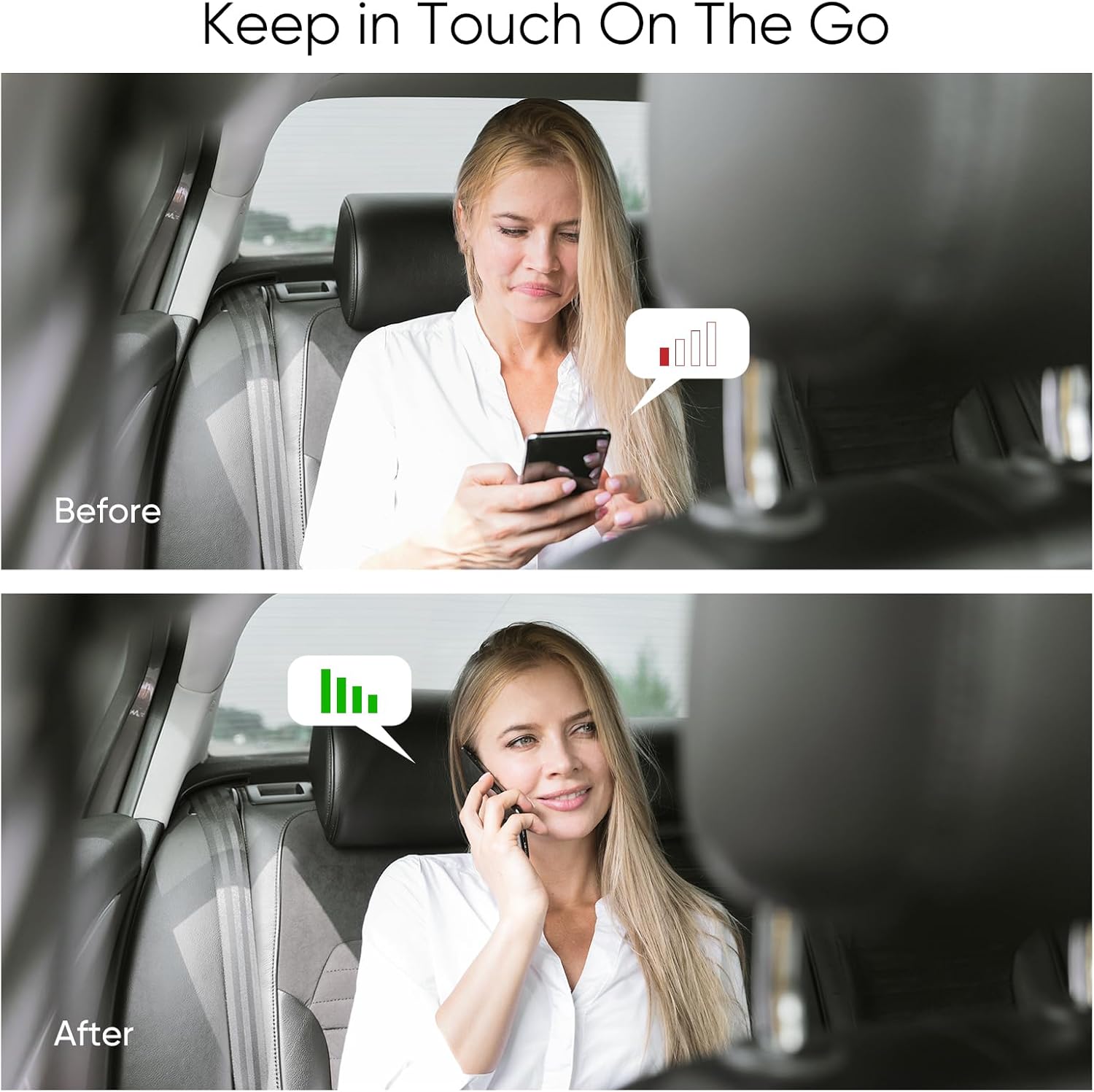
Once properly installed and powered on, the SignalBrick KM2 booster will automatically begin to amplify the cellular signals. The booster's intelligent adjustment function continuously optimizes the system gain and power to provide a stable signal without manual intervention.
You should observe an immediate improvement in signal strength on your mobile devices within the vehicle. This translates to:
- Clearer voice calls with fewer dropped calls.
- Faster data download and upload speeds.
- Smoother streaming of videos and online content.
- Support for multiple users and devices simultaneously.
5. Troubleshooting
If you experience issues with your SignalBrick KM2 booster, consider the following:
- No Signal Improvement:
- Ensure the booster is powered on and the power adapter is securely connected.
- Verify that the outside and inside antennas are connected to the correct ports on the booster.
- Check the separation distance between the outside and inside antennas. Increase the distance if possible, ensuring at least 2 feet (0.6m) vertical and 3 feet (0.9m) horizontal separation.
- Confirm that your mobile device's frequency band is supported by the booster (Band 12/17, 13, 5, 2/25, 4/66).
- Intermittent Signal:
- Check all cable connections for looseness or damage.
- Ensure the outside antenna has a clear line of sight to cell towers and is not obstructed by vehicle structures.
- Booster Lights/Indicators: Refer to the booster unit's indicator lights (if any) for specific status or error codes. Consult the product packaging or manufacturer's website for detailed light interpretations.
How to Check Your Phone's Frequency Band:
- For iPhone:
- Dial *3001#12345#* then press the call button to enter Field Test Mode.
- Choose "All Metrics", then click "Serving Cell Info".
- Check "Band Info" to see the current frequency band.
- For Android Phone:
- Download a network info app like "Network Cell Info Lite" from the Google Play Store.
- Open the app and choose "GAUGE".
- Check "BAND" to see the current frequency band.

6. Specifications
| Feature | Specification |
|---|---|
| Model Number | KM2 |
| Supported Bands | Band 12/17, Band 13, Band 5, Band 2/25, Band 4/66 |
| Supported Carriers | All U.S. Carriers (Verizon, AT&T, T-Mobile, Sprint, etc.) |
| Boosted Technologies | 5G, 4G LTE, 3G |
| Maximum Gain | 50dB |
| Output Power | 26dBm (Uplink) / 10dBm (Downlink) |
| In-band Flatness | <9dB |
| EIRP | 1W Max |
| Impedance | 50 ohm |
| Current | ≤1.5A (12V DC) |
| Product Dimensions | 9.25 x 7.28 x 2.95 inches |
| Item Weight | 2.6 pounds |
| Special Features | 360° Omni-Directional Signal Reception, Intelligent Adjustment, FCC Approved |
7. Safety and Compliance
The SignalBrick KM2 Cell Phone Signal Booster is FCC certified, ensuring it meets regulatory standards for safe and effective operation in the United States.
- FCC ID: A7V-SR75502001
Important Notice: This is a CONSUMER device. Before use, you MUST REGISTER THIS DEVICE with your wireless provider and have your provider's consent. Most wireless providers consent to the use of signal boosters. Some providers may not consent to the use of this device on their network. If you are unsure, contact your provider.
WARNING: E911 location information may not be provided or may be inaccurate for calls served by using this device.

8. Warranty & Support
SignalBrick is committed to providing a hassle-free shopping experience and professional after-sales support. For any questions, technical assistance, or warranty inquiries, please contact our customer service team.
You can also visit the official SignalBrick store on Amazon for more information and product updates: SignalBrick Store
Related documentsKM2

Ask a question about this manual
Ask about setup, troubleshooting, compatibility, parts, safety, or missing instructions. Manuals+ will review the question and use this page’s manual context to help answer it.