
SIXTOP 6886C
SIXTOP 1 Din Car Radio User Manual
Model: 6886C
Introduction
This manual provides comprehensive instructions for the installation, operation, and maintenance of your SIXTOP 1 Din Car Radio, Model 6886C. Please read this manual thoroughly before using the product to ensure proper function and safety. Keep this manual for future reference.
Setup and Installation
Before installation, ensure your vehicle's power is disconnected. Professional installation is recommended. Refer to the wiring diagram for correct connections.
Package Contents
Verify that all components are present in the package:
- Car Radio Unit (Model 6886C)
- Power Cable
- Speaker Cable
- Remote Control
- Microphone
- User Manual
- 12LED Rear Camera (Optional, if included)
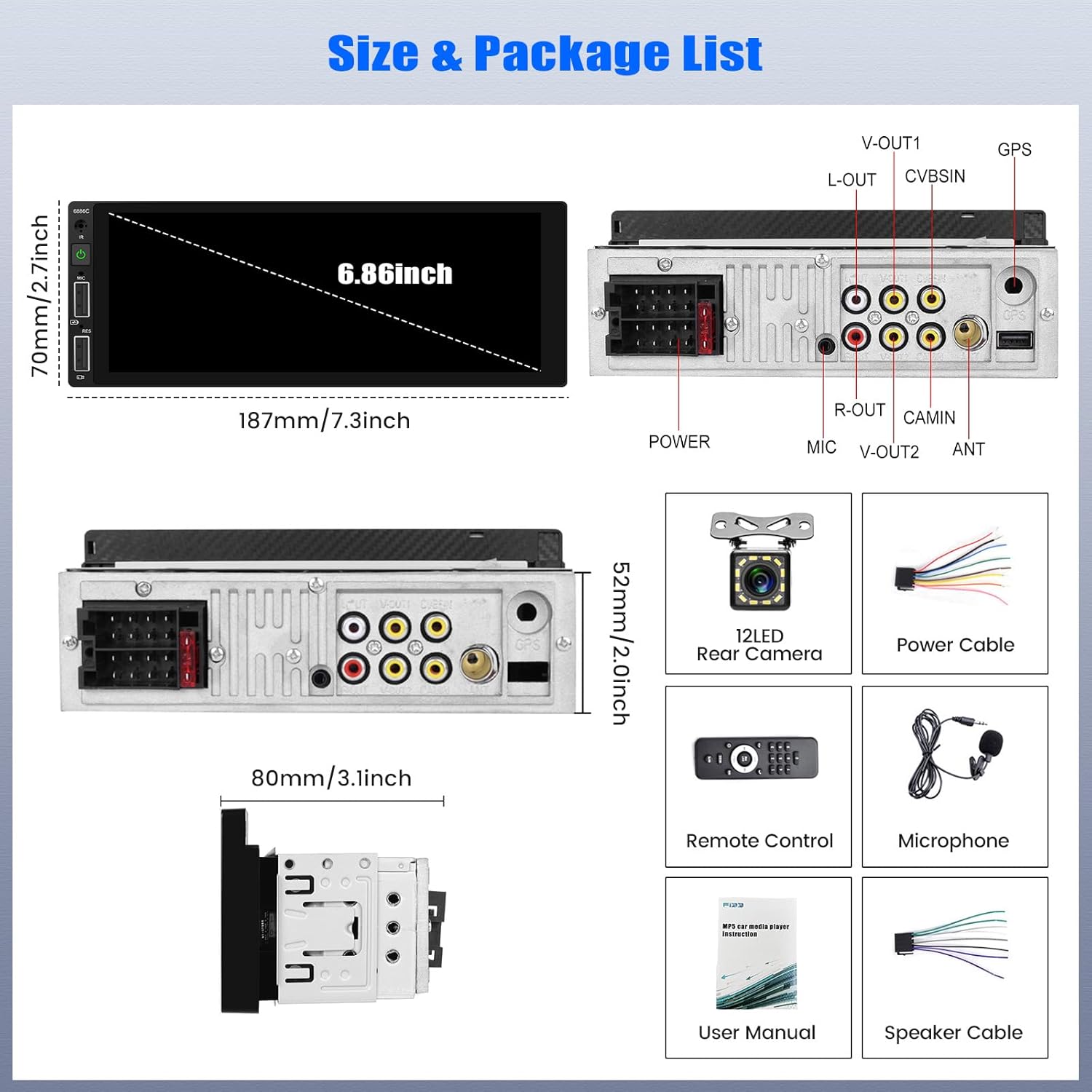
Image: This image displays the car radio unit's dimensions (187mm x 70mm x 52mm) and lists the included accessories: power cable, speaker cable, remote control, microphone, user manual, and an optional 12LED rear camera.
Wiring Diagram
Connect the power, speaker, and other auxiliary cables according to the diagram provided. Incorrect wiring can damage the unit or vehicle electrical system.
Image: The top right section of this image shows the rear view of the car radio with various input/output ports labeled, including V-OUT1, L-OUT, CVBSIN, GPS, R-OUT, CAMIN, MIC, V-OUT2, ANT, POWER, and speaker connections. This serves as a visual guide for wiring.
- Power (DC 12V): Connect the yellow wire to constant 12V power, red wire to accessory 12V power, and black wire to ground.
- Speakers: Connect speaker wires to the corresponding outputs (45W x 4 channels).
- Rear Camera (CAMIN/CVBSIN): Connect the reverse camera video input here.
- Microphone (MIC): Connect the external microphone for hands-free calls.
- USB: Connect USB devices for media playback or charging.
Operating Instructions
Basic Controls and Touchscreen
The unit features a 6.86-inch high-definition touch screen with a dynamic menu interface. Navigate through functions by tapping icons or swiping. The player automatically remembers the last playback state (music or radio) when powered off and resumes upon restart.

Image: This image illustrates the responsive HD touchscreen interface of the car radio, showing various app icons and menu options. It also highlights the customizable colorful backlight settings for the physical buttons.
Apple CarPlay and Android Auto
The unit supports both wireless and wired Apple CarPlay and Android Auto. This allows seamless integration with your smartphone for navigation, calls, messages, music, and voice control.
- Connection: Connect your Apple or Android phone via USB cable or wirelessly (refer to device settings for pairing).
- Features: Access phone book, mail, notifications, map navigation, music, and video. Utilize voice control for hands-free operation.

Image: This image shows the car radio displaying both Apple CarPlay and Android Auto interfaces, highlighting their respective app layouts and voice assistant integration (Siri and Google Assistant). It also indicates USB support for connection.
Mirror Link Function
Mirror Link allows you to display your smartphone's screen directly on the car radio's display. This feature supports both Android and iPhone devices.
- Connection: Connect your phone using its original USB cable.
- Usage: View content from your phone, such as videos from YouTube or other apps, on the larger car stereo screen.
FM Radio
The unit features a high-quality FM stereo radio. You can listen to music, news, and traffic information.
- Tuning: Supports full automatic, semi-automatic, and accurate manual tuning search.
- Presets: Save your favorite stations for quick access.

Image: This image shows the car radio's FM radio interface with frequency display and preset options. It also illustrates the Bluetooth connection screen and the graphical equalizer (EQ) settings for audio customization.
Bluetooth Connectivity
Connect your smartphone via Bluetooth for hands-free calling and audio streaming.
- Pairing: Enable Bluetooth on your phone and search for "Car BT". Select and pair.
- Hands-free Calls: Make and receive calls directly through the car stereo.
- Music Streaming: Play audio from your phone wirelessly.
- Phone Book: Automatic phone book download is supported.
Audio Equalizer (EQ) Settings
Customize your audio experience with the built-in high-fidelity EQ. Adjust frequency bands to achieve your preferred sound profile.
Image: This image includes a detailed view of the graphical equalizer (EQ) settings on the car radio, showing adjustable frequency bands and preset options like Jazz, Classic, Pop, and Rock.
Rear View Camera Input
The unit supports high-definition 720P rear camera input. When a compatible reversing camera is connected and the vehicle is in reverse, the screen will automatically display the rear view.

Image: This image shows the car radio screen displaying a clear rear view camera feed with parking guidelines, indicating the reversing input functionality. It also illustrates the steering wheel control interface.
Steering Wheel Control
Control various functions of the car radio directly from your vehicle's steering wheel controls for convenience and safety.
- Functions: Switch songs, adjust volume, answer calls, and more.
- Setup: Refer to your vehicle's manual and the car radio's settings menu for programming steering wheel controls.
Image: This image includes a screenshot of the car radio's menu for setting up steering wheel controls, showing options to assign functions like volume, next/previous track, and call answer/reject to steering wheel buttons.
USB Charging
The unit is equipped with dual USB ports that support 5V_1.5A current for charging mobile phones while in use.

Image: This image shows the car radio installed in a dashboard, with a smartphone connected via a USB cable to one of the unit's USB ports, indicating active charging.
Colorful Backlight Settings
The key backlight color can be adjusted automatically or manually to match your vehicle's interior or personal preference.
Image: This image displays a color spectrum and several small images of the car radio's physical buttons illuminated in different colors, demonstrating the customizable backlight feature.
Maintenance
- Cleaning: Use a soft, dry cloth to clean the screen and unit. Avoid abrasive cleaners or solvents.
- Temperature: Operate the unit within the specified temperature range (-10~60°C) to prevent damage.
- Power: Ensure stable 12V DC power supply. Fluctuations can affect performance.
Troubleshooting
| Problem | Possible Cause | Solution |
|---|---|---|
| Unit does not power on. | Incorrect wiring, blown fuse, no power supply. | Check power connections (yellow, red, black wires). Verify vehicle fuse and unit fuse. Ensure 12V DC power is supplied. |
| No sound from speakers. | Incorrect speaker wiring, volume too low, mute function active. | Check speaker connections. Increase volume. Deactivate mute. |
| Screen goes blank or displays "Reverse Camera" unexpectedly. | Faulty reverse trigger wire connection, internal malfunction. | Check the reverse trigger wire connection. Ensure it is only active when the vehicle is in reverse. If the issue persists, contact support. |
| CarPlay/Android Auto not connecting. | Incorrect USB cable, phone settings, software incompatibility. | Use the phone's original USB cable. Check phone settings for CarPlay/Android Auto permissions. Ensure phone OS is up to date. Try restarting both devices. |
| Bluetooth not pairing. | Bluetooth not enabled on phone/unit, incorrect pairing process. | Ensure Bluetooth is enabled on both devices. Search for "Car BT" on your phone. Try restarting Bluetooth on both devices. |
Specifications
| Feature | Detail |
|---|---|
| Model | 6886C |
| Brand | SIXTOP |
| Voltage | DC 12V |
| System | WINCE |
| CPU Chip | F133 |
| Screen Size | 6.86 inches |
| Screen Resolution | 1280*480 |
| Mirror Link | Supported (Android/iPhone) |
| Radio Band | FM (87.5-108MHz) |
| Radio Chip | QN8035 |
| Power Output | 45W x 4 channels (Total 180W) |
| Operating Temperature | -10~60°C |
| Bluetooth Version | 5.0 |
| Reverse Input | CVBS (720P supported) |
| Power Amplifier Chip | TDA7388 |
| Audio Formats | MP3/WMA/WAV/APE/FLAC |
| Video Formats | RM/RMVB/AVI/MP4/MKV/3GP |
| Image Formats | JPG BMP PNG |
| Supported Languages | English, Chinese, Spanish, Portuguese, Russian, Italian, German, French, Turkish, Czech, Arabic, Polish, Hebrew |
Warranty and Support
For warranty information and technical support, please refer to the documentation included with your purchase or contact SIXTOP customer service. Keep your proof of purchase for warranty claims.
Related documents6886C


Ask a question about this manual
Ask about setup, troubleshooting, compatibility, parts, safety, or missing instructions. Manuals+ will review the question and use this page’s manual context to help answer it.