1. Introduction
This manual provides essential instructions for setting up, operating, and maintaining your Qubo Flip Phone for Seniors. Designed for ease of use, this phone features a large screen, big buttons, and an SOS function for enhanced safety. Please read this manual carefully to ensure proper use and to maximize the phone's capabilities.

Figure 1: The Qubo Flip Phone for Seniors, open and ready for use.
2. Package Contents
Please check the box for the following items:
- Qubo Flip Phone
- Rechargeable Battery (1000 mAh)
- Charging Cable
- Charging Dock (if included with your model)
- User Manual
If any items are missing or damaged, please contact your retailer.
3. Setup
3.1. Inserting the SIM Card(s)
The Qubo Flip Phone supports dual SIM cards. Ensure the phone is powered off before inserting or removing SIM cards.
- Gently remove the back cover of the phone.
- Locate the SIM card slot(s).
- Insert the SIM card(s) into the designated slot(s) with the gold contacts facing down, ensuring they are correctly seated.
- Replace the back cover.
3.2. Inserting the Battery
Ensure the phone is powered off before inserting the battery.
- With the back cover removed, align the battery contacts with the contacts in the phone's battery compartment.
- Press the battery gently into place.
- Replace the back cover.
3.3. Charging the Phone
Before first use, fully charge the phone's battery.
- Connect the charging cable to the phone's charging port or place the phone in the charging dock.
- Connect the other end of the charging cable to a power adapter and plug it into a wall outlet.
- The battery indicator on the screen will show charging status.
- Once fully charged, disconnect the charger.
3.4. Powering On/Off
- To power on: Press and hold the Power/End Call button until the screen lights up.
- To power off: Press and hold the Power/End Call button, then select "Power off" from the options.
4. Operating Instructions
4.1. Basic Call Functions
- Making a Call: Dial the number using the keypad and press the Green Call button.
- Answering a Call: When the phone rings, open the flip (if enabled in settings) or press the Green Call button.
- Ending a Call: Press the Red End Call button or close the flip.
- Volume Control: Use the dedicated volume buttons on the side of the phone during a call.
4.2. Sending and Receiving Messages
- Navigate to the Messages menu.
- Select Write Message to compose a new SMS.
- Enter the recipient's number or select from the phonebook.
- Type your message using the keypad.
- Press Send.
- New messages will appear in the Inbox.
4.3. SOS Emergency Function
The SOS button provides quick access to help in emergencies. It can be configured to call and send messages to up to 5 pre-set family numbers.

Figure 2: Location and function of the SOS button.
- Setting up SOS Numbers: Go to Settings > SOS Settings to add up to 5 emergency contacts.
- Activating SOS: In an emergency, press and hold the SOS button on the back of the phone. The phone will automatically call the pre-set numbers in sequence and send an emergency SMS.
4.4. Phonebook
Store frequently used contacts for easy dialing.
- Navigate to the Phonebook menu.
- Select Add New Contact.
- Enter the name and phone number, then Save.
- You can assign direct dial numbers to M1 and M2 buttons for quick access.
4.5. Other Features
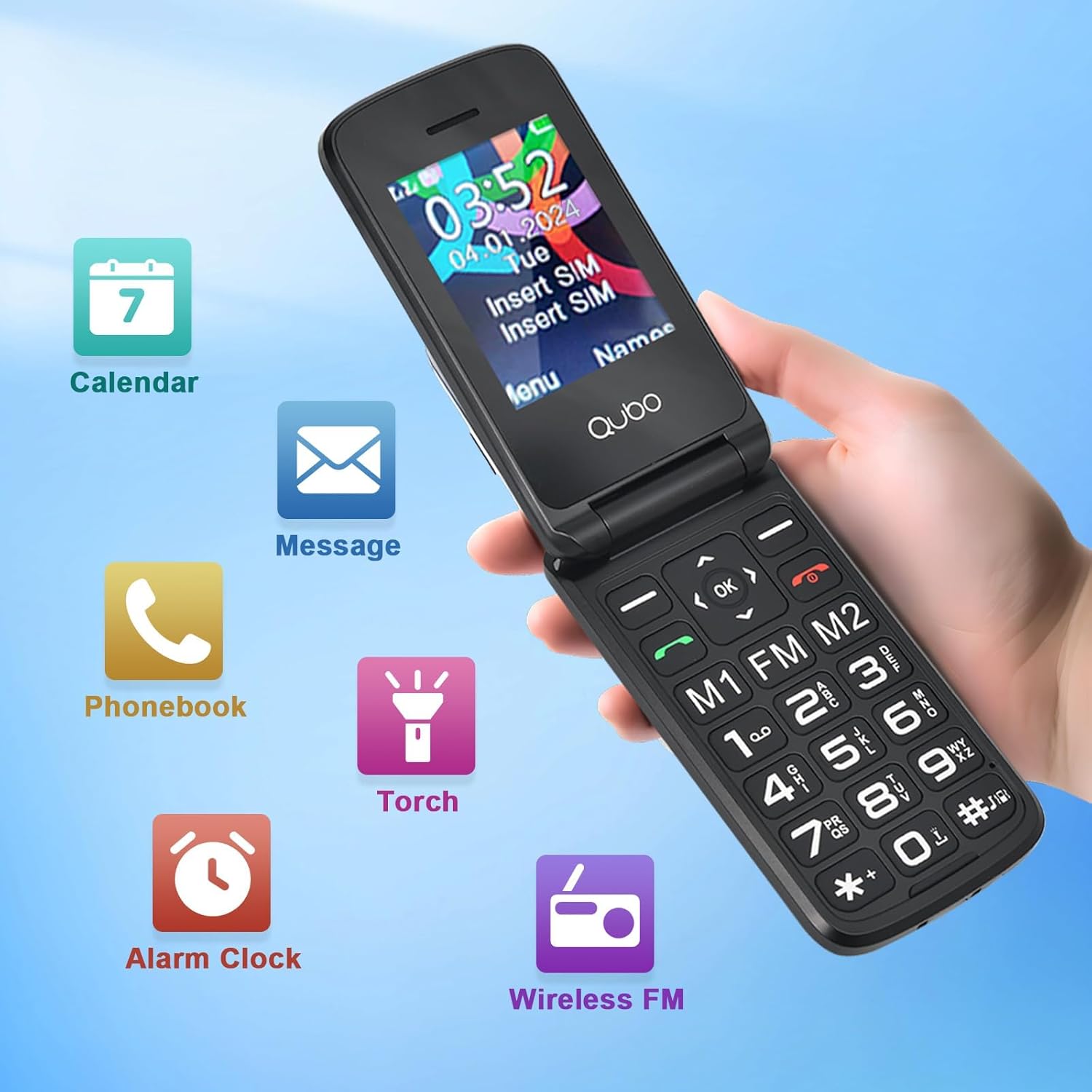
Figure 3: Overview of phone features including Calendar, Messages, Phonebook, Flashlight, Alarm Clock, and FM Radio.
- FM Radio: Access the FM Radio from the main menu. A headset may be required for optimal reception (not included).
- Flashlight: Activate the flashlight from the menu or via a dedicated shortcut button (if available).
- Alarm Clock: Set alarms for reminders or wake-up calls.
- Calendar: View dates and add simple reminders.
- Display Settings: Adjust font size and brightness for better readability.

Figure 4: The Qubo Flip Phone features large buttons, big fonts, and a loud ringtone for enhanced usability.
5. Maintenance
- Cleaning: Use a soft, dry cloth to clean the phone's screen and body. Avoid liquid cleaners.
- Battery Care: Do not expose the battery to extreme temperatures. Charge regularly, but avoid overcharging or letting the battery completely drain for extended periods.
- Storage: Store the phone in a cool, dry place away from direct sunlight and moisture.
- Water Resistance: This phone is not water-resistant. Avoid contact with liquids.
6. Troubleshooting
| Problem | Possible Cause | Solution |
|---|---|---|
| Phone does not power on | Low battery; Battery not inserted correctly | Charge the battery; Re-insert the battery correctly. |
| Cannot make/receive calls | No SIM card; SIM card not activated; Out of network coverage | Insert SIM card; Contact your service provider; Move to an area with better reception. |
| Poor call quality/noise | Weak signal; Interference | Move to an area with better signal; Avoid sources of interference. |
| "Memory Full" message (for photos/messages) | Internal memory is full | Delete old messages or photos. Consider adding an external memory card (MicroSD, not included) if the phone supports it for additional storage. |
| SOS button not working | SOS numbers not set up; Feature disabled | Ensure SOS numbers are configured in settings; Verify the feature is enabled. |
If the problem persists, please contact customer support.
7. Specifications
| Feature | Detail |
|---|---|
| Brand | Qubo |
| Model Number | 48f44b3a-d6eb-48d1-a82b-391cc9bc3008 |
| Color | Black |
| Product Type | Flip Phone |
| Operating System | Proprietary OS |
| Screen Size | 2.4 Inches |
| Connectivity | 2G (GSM) |
| Special Features | Wireless, SOS Button, Large Buttons, FM Radio, Flashlight |
| Battery Composition | Lithium |
| Battery Capacity | 1000 mAh (approximate, inferred from feature bullet) |
| CPU Model | Mediatek Dimensity 900 (Note: This might be a generic entry, as 2G phones typically have simpler CPUs) |
| Resolution | 320 x 240 |
| Wireless Carrier | All carriers (Unlocked) |
8. Warranty Information
Warranty details for your Qubo Flip Phone are typically provided with the product packaging or can be obtained from the point of purchase. Please retain your proof of purchase for warranty claims. For specific warranty terms and conditions, refer to the documentation included in your product box or contact the seller directly.
9. Support
For further assistance, technical support, or inquiries regarding your Qubo Flip Phone, please contact the seller or manufacturer through the contact information provided at the time of purchase. You may also refer to the official Qubo website for additional resources.


