
1. Introduction
This manual provides detailed instructions for the installation, operation, and maintenance of your Rraycom BW4 Series Wireless Outdoor Security Camera System. This system is designed to provide reliable outdoor surveillance with features such as 2K QHD resolution, color night vision, AI motion detection, two-way audio, and solar power for continuous operation. Please read this manual thoroughly before using the product to ensure proper setup and functionality.
2. What's in the Box
Verify that all components are present in your package:
- 4 x Rechargeable Battery Security Cameras
- 4 x Solar Panels
- 4 x Metal Mounts
- 4 x Screws Sets (for mounting)
- 1 x User Manual
- 4 x USB Cables
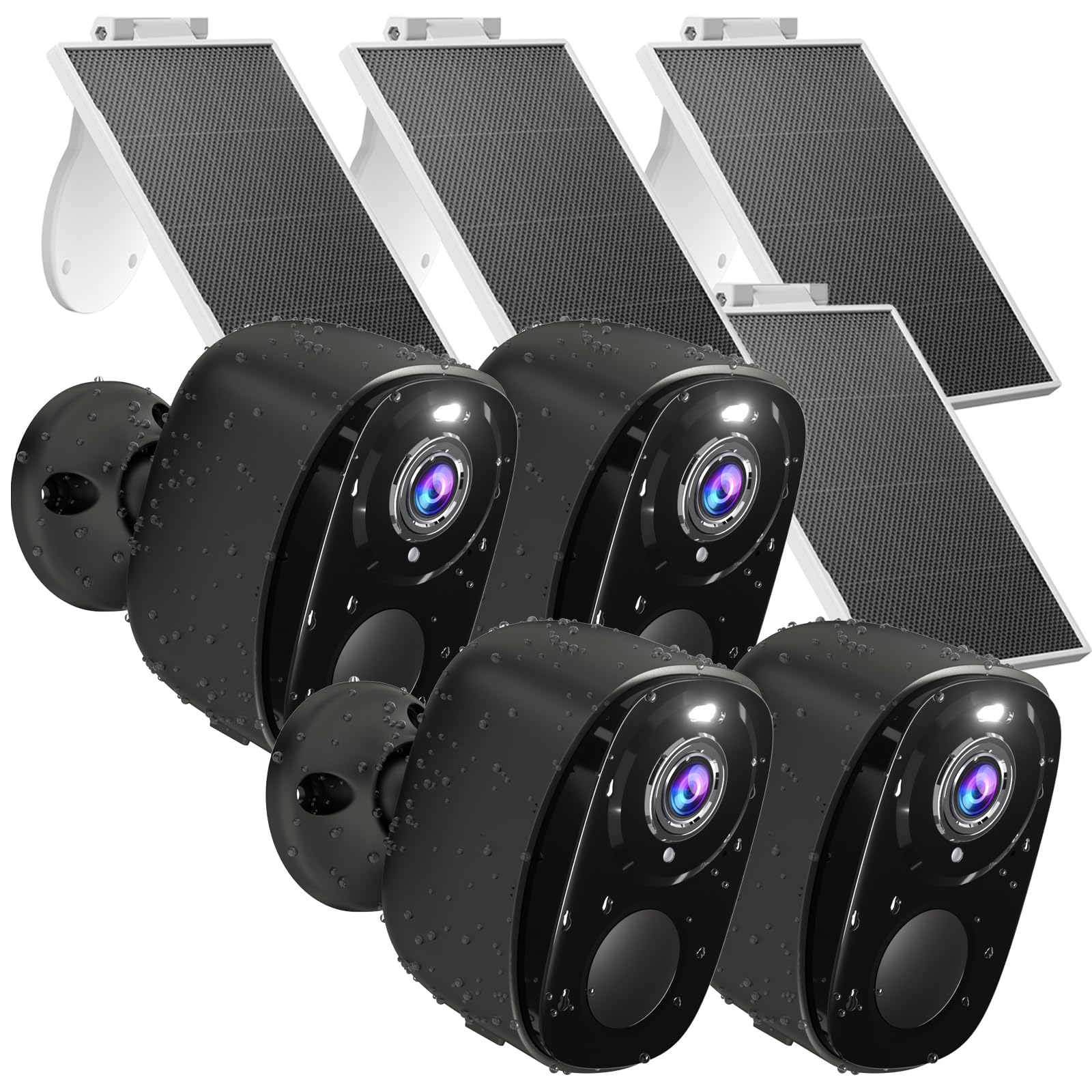
Image: Overview of the Rraycom BW4 Series Wireless Outdoor Security Camera System, showing the cameras and solar panels.
3. Product Features
3.1 100% Wireless Design & Solar Powered
The Rraycom BW4 cameras offer complete wireless operation, providing flexible installation options. Each camera is paired with a solar panel, ensuring continuous power for 365 days under adequate sunlight. This eliminates the need for frequent battery recharging. The system supports 2.4GHz Wi-Fi networks only.

Image: A Rraycom security camera connected to its solar panel, illustrating the 365-day non-stop power feature.
3.2 2K QHD Color Night Vision
Experience clear and detailed surveillance footage with 2K QHD resolution. The cameras feature color night vision, allowing you to identify important details like faces or license plates even in low-light conditions, enhancing nighttime security.

Image: A Rraycom security camera capturing a scene at night, highlighting the clarity of color night vision compared to infrared.
3.3 AI Motion Detection & Alerts
The system incorporates AI motion detection to accurately identify human movement, reducing false alarms. Upon detection, you receive instant alerts on your smartphone. The cameras can also activate strobe lights and a siren to deter intruders. You can customize the siren alarm with your own voice messages.

Image: A Rraycom security camera detecting motion, activating a spotlight and siren to deter an individual.
3.4 Two-Way Audio
Communicate directly with visitors or deter unwanted individuals using the clear two-way audio feature. You can see, hear, and speak through the camera from your smartphone.

Image: A person speaking through their phone to someone at their door via the Rraycom security camera's two-way audio.
3.5 IP65 Waterproof Rating
The cameras are designed with an IP65 waterproof rating, ensuring reliable operation in various weather conditions, including rain, sun, and cold temperatures.

Image: A Rraycom security camera and solar panel mounted outdoors during rainy weather, demonstrating its IP65 waterproof capability.
3.6 Alexa Compatibility
Integrate your Rraycom cameras with Amazon Alexa for convenient voice control. You can ask Alexa to display camera feeds on compatible smart displays.

Image: An Amazon Echo Show displaying a live feed from a Rraycom camera, illustrating Alexa compatibility.
3.7 Local and Cloud Storage
The cameras offer flexible storage options. You can save and share clips with a free 1-day trial of cloud service or store recordings locally using a micro SD card (up to 256GB, not included).
4. Setup
4.1 Charging the Cameras
Before initial use, fully charge each camera using the provided USB cable and a 5V/2A power adapter (not included). A full charge typically takes several hours.
4.2 App Installation and Account Creation
- Download the O-KAM Pro app from your smartphone's app store (Android or iOS).
- Open the app and create a new account, following the on-screen instructions.
4.3 Connecting Cameras to Wi-Fi
- In the O-KAM Pro app, tap the "+" icon to add a new device.
- Select your camera model and follow the in-app prompts.
- Ensure your smartphone is connected to a 2.4GHz Wi-Fi network. The cameras do not support 5GHz Wi-Fi.
- Scan the QR code displayed on your phone with the camera lens. You will hear a confirmation sound when connected.

Image: Screenshots from the O-KAM Pro app showing the steps for connecting a new camera device.
4.4 Mounting the Cameras and Solar Panels
- Choose a mounting location that provides a clear view of the area you wish to monitor and receives ample direct sunlight for the solar panel.
- Use the provided metal mounts and screws to securely attach the camera and solar panel to a wall or other stable surface.
- Adjust the angle of the camera and solar panel for optimal coverage and sunlight exposure.
5. Operating Instructions
5.1 Live View and Playback
Open the O-KAM Pro app to access live feeds from your cameras. You can switch between cameras, view recorded events, and download footage from the cloud or SD card.
5.2 Motion Detection Settings
In the app settings for each camera, you can:
- Adjust motion sensitivity.
- Set up activity zones to focus detection on specific areas.
- Enable/disable strobe light and siren alerts.
- Record custom siren messages.

Image: An illustration showing how to set up an activity zone within the camera's field of view for focused monitoring.
5.3 Two-Way Communication
While in live view, tap the microphone icon to speak through the camera. Tap the speaker icon to hear audio from the camera's location.
5.4 Sharing Camera Access
You can share access to your cameras with family members or trusted individuals through the O-KAM Pro app. Navigate to the camera settings and select the sharing option to invite others.

Image: Multiple people viewing camera feeds on their smartphones, demonstrating the multi-user sharing capability.
5.5 Digital Zoom
The camera supports 5x digital zoom. Pinch to zoom in on the live or recorded footage within the app to view details more closely.

Image: A close-up view of a license plate, illustrating the 5x digital zoom capability of the camera.
6. Maintenance
6.1 Cleaning
Regularly clean the camera lens and solar panel with a soft, damp cloth to ensure optimal performance. Avoid using harsh chemicals or abrasive materials.
6.2 Battery Care
While the solar panel provides continuous power, ensure it receives sufficient direct sunlight. If the camera's battery level drops significantly, manually charge it using the USB cable. Avoid prolonged exposure to extreme temperatures that could affect battery life.
6.3 Firmware Updates
Check the O-KAM Pro app periodically for firmware updates. Keeping your camera's firmware up-to-date ensures optimal performance and security.
7. Troubleshooting
| Problem | Possible Cause | Solution |
|---|---|---|
| Camera not connecting to Wi-Fi | Incorrect Wi-Fi password; 5GHz network used; camera too far from router. | Ensure correct 2.4GHz Wi-Fi password. Move camera closer to router. Restart camera and router. |
| Solar panel not charging battery | Insufficient direct sunlight; panel obstructed; dirty panel. | Relocate panel to receive more direct sunlight. Clear any obstructions. Clean the solar panel surface. |
| Frequent false motion alerts | High sensitivity; environmental factors (e.g., moving branches). | Adjust motion detection sensitivity in the app. Set up activity zones to exclude irrelevant areas. |
| Poor night vision quality | Lens obstruction; external light interference. | Clean the camera lens. Ensure no strong light sources are directly facing the camera at night. |
| Two-way audio issues | Microphone/speaker blocked; low volume settings; network latency. | Check for obstructions. Adjust volume settings in the app. Ensure stable Wi-Fi connection. |
8. Specifications
| Feature | Detail |
|---|---|
| Model Number | BW4 |
| Video Capture Resolution | 2K QHD |
| Effective Still Resolution | 3 MP |
| Power Source | Solar Powered, Battery (5200 mAh) |
| Connectivity Protocol | Wi-Fi (2.4GHz only) |
| Controller Type | Amazon Alexa, O-KAM Pro App |
| Mounting Type | Wall Mount |
| Viewing Angle | 110 Degrees |
| Night Vision Range | 33 Feet |
| Frame Rate | 15 frames per second |
| Water Resistance Level | IP65 Waterproof |
| Digital Zoom | 5x |
| Storage Options | Cloud (1-day trial), Micro SD Card (up to 256GB, not included) |
| Compatible Devices | Android & iOS Smartphones |
| Material | Acrylonitrile Butadiene Styrene (ABS) |
| Item Weight | 3.74 pounds (total for 4 cameras with solar panels) |
9. Warranty and Support
9.1 Warranty Information
Rraycom provides a 1-year warranty for this product, covering manufacturing defects. Please retain your proof of purchase for warranty claims.
9.2 Customer Support
If you encounter any issues or have questions regarding your Rraycom security camera system, please contact our customer support team:
- Email: aftersale@rraycom.com
Our support team is available to assist you with technical support, troubleshooting, and warranty services.

Image: Graphic indicating customer service availability and contact email.


