
VIKNAN B0DCV9S117
VIKNAN Wireless CarPlay Android Auto Linux Interface Box for Lexus IS 2005-2008 Instruction Manual
Model: B0DCV9S117
1. Introduction
This manual provides comprehensive instructions for the installation, operation, and maintenance of your VIKNAN Wireless CarPlay Android Auto Linux Interface Box. This device is designed to integrate modern smartphone connectivity features into your vehicle's original multimedia system.

Image 1: VIKNAN Wireless CarPlay Android Auto Linux Interface Box.
2. Compatibility
This interface box is specifically compatible with Lexus IS models manufactured between 2005 and 2008. It requires the vehicle to have a factory AUX port. Operation is not supported if the vehicle lacks an OEM AUX port. Please verify your vehicle's specifications before installation.

Image 2: Visual guide indicating compatibility with Lexus IS 2005-2008 models equipped with an OEM AUX port.
3. Key Features
- Wireless Apple CarPlay & Android Auto: Seamless integration of smartphone features for navigation, music, and communication.
- GPS Navigation: Utilize your smartphone's navigation apps directly on the car's display.
- Bluetooth Music & Calls: Connect your mobile phone for audio streaming and hands-free calling.
- Steering Wheel Control: Retain original steering wheel controls for safe operation.
- Original Car System Retention: The device operates alongside the original car radio system, allowing switching between the two.
- Rear View Camera Support: Quick display of reverse image, supporting original car reversing camera and aftermarket cameras (Factory 360 / CVBS / AHD camera).
- Audio Customization: Features 16-segment EQ tuning for enhanced sound quality.

Image 3: Feature overview including Wireless CarPlay, Android Auto, Mirror Link, Airplay, EQ tuning, and Dual system switching.

Image 4: Additional features: SUNPLUS SPHE8368-2U chip, quick reverse image display, original vehicle system retention, 16 segment EQ tuning, and original car Bluetooth audio source.
4. Installation Guide
The VIKNAN interface box is designed for plug-and-play installation. All necessary cable accessories are included. For detailed visual instructions, please refer to the provided installation manual and videos.
4.1. Package Contents
- CarPlay Box Unit
- LVDS Input & Output Cable
- Multimedia Cable
- Power Cable
- Bluetooth/Wi-Fi Antenna

Image 5: Components included for installation, featuring the CarPlay Box Unit and various connecting cables.
4.2. DIP Switch Settings
Configure the DIP switches on the interface box according to your vehicle model. For Lexus IS 2005-2008, set DIP switches 1 and 7 to ON, and all other switches to OFF.

Image 6: DIP switch configuration for the interface box. Switches 1 and 7 should be ON, others OFF.
4.3. AutoLink Application
For Android AutoLink functionality, you may need to download the AutoLink Pro application. It can be found at: http://developer.autolink.top/Autolink_Pro.apk
5. Operating Instructions
5.1. System Switching
The interface box allows seamless switching between the original car system and the integrated Linux system (CarPlay/Android Auto). Use the car's original buttons or controls to navigate between these modes.
Video 1: Demonstrates the operation of the Linux interface, including switching to CarPlay, using navigation, and adjusting volume. Note: The video displays a Lexus GX, but the functionality is similar for the Lexus IS interface box.
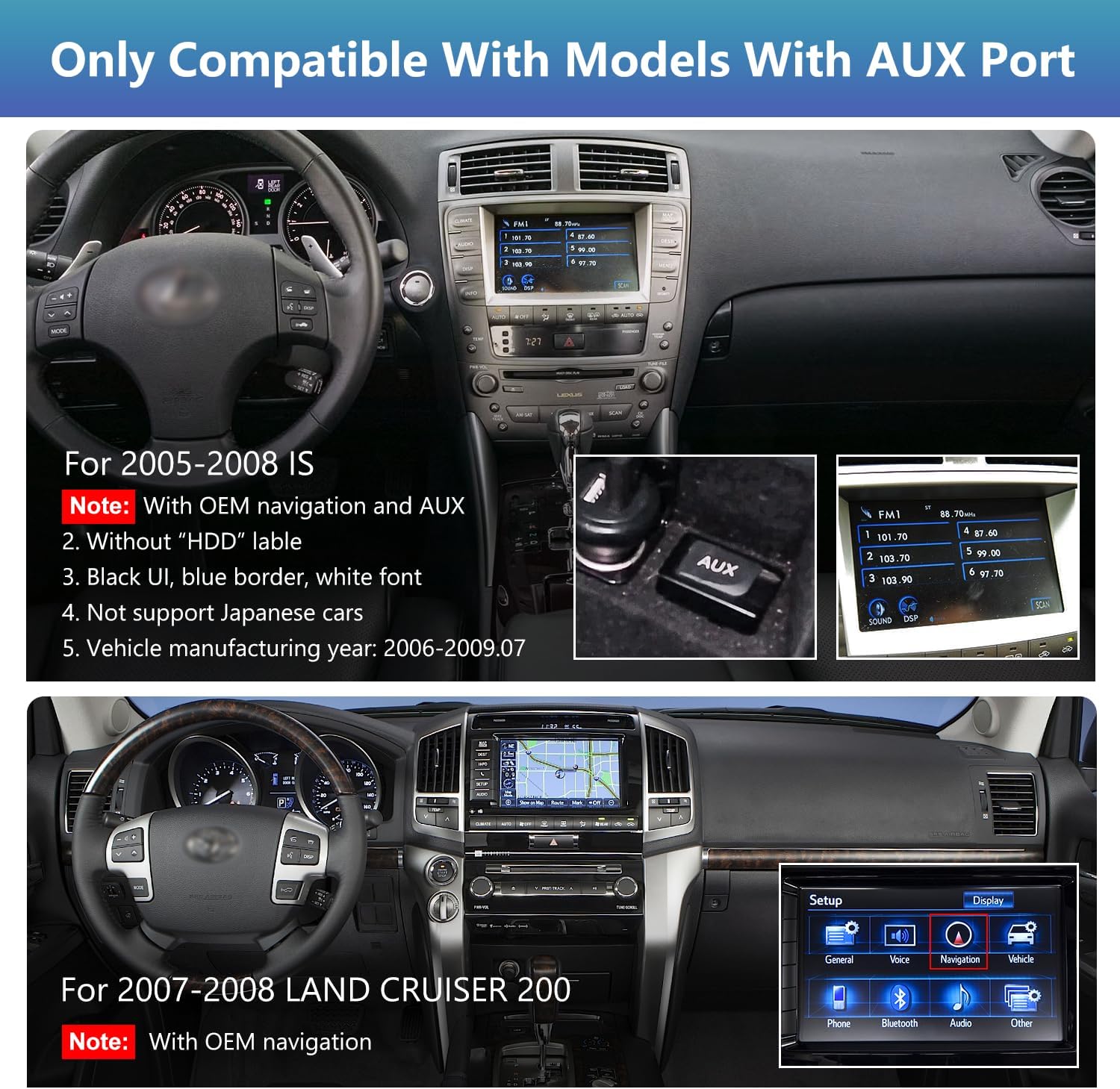
Image 7: Example of the CarPlay interface displayed on a Lexus dashboard.
5.2. CarPlay and Android Auto
Connect your smartphone wirelessly or via a wired connection to access CarPlay or Android Auto. These platforms enable access to navigation, music, messages, and calls through the car's display.

Image 8: Illustration of wireless and wired CarPlay and Android Auto connections.
5.2.1. Voice Control
Utilize Siri or Google Voice Assistant for hands-free operation. Activate by pressing and holding the voice control button on the steering wheel.

Image 9: Voice control options (Siri/Google Voice) and interaction methods (touch, knobs, steering wheel controls).
5.2.2. Navigation
Access maps and directions through your connected smartphone. The system supports various navigation applications.
5.3. Audio Settings
The system offers advanced audio customization options, including a 16-segment equalizer for fine-tuning sound output.

Image 10: System settings menu, including audio adjustments.
5.4. Steering Wheel Controls
The interface retains the functionality of your vehicle's original steering wheel controls, allowing you to manage media playback, calls, and other functions without taking your hands off the wheel.
6. Troubleshooting
6.1. No Sound Issue
If you experience no sound after connecting, ensure the "Use Car's BT Channel" option is enabled in the system settings. Then, connect your phone's Bluetooth directly to the original car's Bluetooth system, not the Linux system's Bluetooth. Finally, select "Bluetooth" as the audio source in your car's original multimedia system.
Video 2: Demonstrates how to resolve the "no sound" issue by correctly configuring Bluetooth settings and selecting the appropriate audio source in the car's original system.
6.2. General Support
For any questions or issues during installation or operation, please contact customer service at viknav007@outlook.com. Installation manuals and videos are available upon request.
7. Specifications
| Item Weight | 2.86 pounds (1.3 Kilograms) |
| Product Dimensions | 5 x 4 x 6 inches (5"L x 4"W x 6"H) |
| Operating System | Linux |
| Mounting Type | Dashboard Mount, Panel Mount |
| Connectivity Technology | Bluetooth |
| Special Features | Android Auto, Bluetooth, Carplay, GPS Navigation |
| Included Components | Owner's Manual |
8. Warranty and Support
- Warranty: 1 year
- Technical Support: Lifetime technical support
- Customer Service Email: viknav007@outlook.com
- Response Time: 24 hours quick response

Image 11: Customer service details for support and inquiries.
Ask a question about this manual
Ask about setup, troubleshooting, compatibility, parts, safety, or missing instructions. Manuals+ will review the question and use this page’s manual context to help answer it.