
ZEBRONICS ZEB-IGM 109
ZEBRONICS N49A 49-inch Curved Ultrawide Gaming Monitor
User Manual - Model: ZEB-IGM 109
Introduction
Welcome to the user manual for your new ZEBRONICS N49A 49-inch Curved Ultrawide Gaming Monitor. This manual provides essential information for setting up, operating, maintaining, and troubleshooting your monitor to ensure optimal performance and longevity. Please read this manual thoroughly before using the product.
For further assistance, please refer to the support section or visit the official ZEBRONICS website.
1. Setup
1.1 Unpacking and Included Components
Carefully remove all components from the packaging. Ensure all items listed below are present:
- Monitor - 1 unit
- Base - 1 unit
- Stem - 1 unit
- DP Cable - 1 unit
- User Manual - 1 unit
Retain the packaging for future transportation or service needs.
1.2 Assembly
Follow these steps to assemble the monitor stand:
- Attach the Stem to the Base, ensuring it clicks securely into place.
- Carefully attach the assembled stand (Stem and Base) to the back of the Monitor. Align the mounting points and secure with the provided screws if necessary.
- Place the assembled monitor on a stable, flat surface.

Image: The ZEBRONICS N49A monitor fully assembled on its stand, showcasing its ultrawide curved display.
1.3 Connections
Connect your devices to the monitor using the appropriate ports. The ZEB-N49A offers versatile connectivity options:
- USB-C DP (with 65W PD): For video input and power delivery to compatible devices.
- DP (DisplayPort): For high-resolution video input.
- HDMI: For video and audio input from various devices.
- 2 x USB-A: For connecting peripherals like keyboards, mice, or USB drives.
- 1 x USB-B: Upstream port for enabling the USB-A ports and KVM functionality.
- RJ45: For wired network connectivity.
- Headphone Jack: For connecting external audio devices.

Image: A detailed view of the monitor's rear panel, highlighting the various input and output ports including RJ45, HDMI, DP, USB-C, USB-B, 2x USB-A, and a Headphone Jack.
1.4 Ergonomic Adjustments
The ZEB-N49A monitor stand allows for comprehensive ergonomic adjustments to optimize your viewing experience:
- Height Adjustment: Raise or lower the monitor to eye level.
- Swivel Adjustment: Rotate the monitor horizontally to share your screen or adjust viewing angle.
- Tilt Adjustment: Adjust the vertical angle of the screen for comfortable viewing.
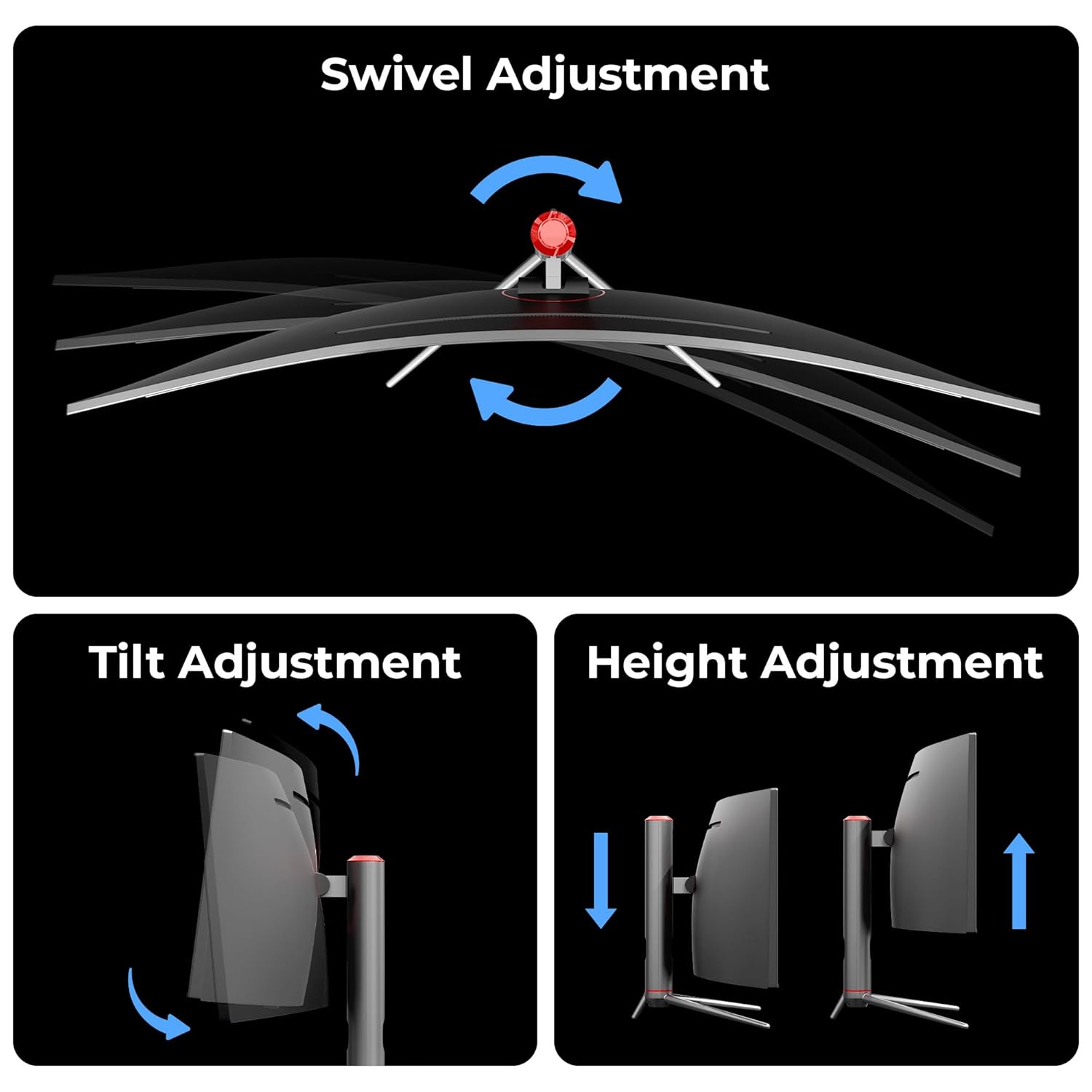
Image: Illustrations demonstrating the swivel, tilt, and height adjustment capabilities of the monitor stand.
The monitor is also wall-mountable for alternative setup configurations.
2. Operating
2.1 Power On/Off
To power on the monitor, press the power button located on the bottom bezel. Press it again to power off. The monitor will enter standby mode when no signal is detected.
2.2 On-Screen Display (OSD) Menu
The OSD menu allows you to adjust various display settings. Use the joystick or buttons (refer to your monitor's physical layout) to navigate the menu. Common settings include:
- Picture Settings: Brightness, Contrast, Sharpness, Color Temperature.
- Input Source: Select between DP, HDMI, or USB-C inputs.
- Audio Settings: Volume control for built-in speakers or headphone jack.
- Display Modes: Game modes, preset color profiles.
2.3 Key Features
The ZEBRONICS N49A monitor is equipped with advanced features for an immersive gaming and productivity experience:
High Performance Display
- DQHD Resolution (5120x1440): Delivers sharp, clear visuals with an expansive workspace.
- 120Hz Refresh Rate & 1ms MPRT: Ensures smooth gameplay with reduced motion blur and high frame rates.
- HDR400 Ready & 400 Nits Brightness: Provides enhanced contrast and a broader color range for vivid images.
- 99% sRGB & 95% DCI-P3 Color Coverage: Offers exceptional color accuracy and vibrant reproduction.
- Anti-glare Screen: Reduces reflections and minimizes eye strain.

Image: Visual representation of the monitor's key performance metrics including 120Hz refresh rate, 1ms MPRT, HDR400 readiness, 16.7 million display colors, and 400 nits maximum brightness.

Image: Demonstrates Adaptive Sync technology for tear-free gaming and the wide color gamut coverage of 99% sRGB and 95% DCI-P3.
Immersive Design
- 49" 1800R Curved Bezel-Less Design: Provides an expansive and immersive viewing area with a 32:9 aspect ratio.

Image: Illustrates the 49-inch 1800R curved display, its bezel-less design, 32:9 aspect ratio, and anti-glare screen, comparing it to standard 16:9 resolutions.
Productivity and Gaming Enhancements
- Picture in Picture (PiP) & Picture by Picture (PbP): Display multiple input sources simultaneously on the screen.
- KVM Switch: Control multiple computers using a single monitor, keyboard, and mouse setup.
- ZGameAid: A suite of gaming-focused tools including crosshair overlays, FPS counters, and timer functions.
- Built-in Speakers: Convenient audio solution without external speakers.

Image: The monitor displaying two different input sources side-by-side (Picture by Picture) and one input source as an overlay (Picture in Picture).

Image: Illustrates the KVM switch feature, allowing two separate computer systems to share the monitor, keyboard, and mouse.

Image: The monitor displaying a game with a crosshair overlay, demonstrating the ZGameAid features designed for gamers.

Image: Shows the monitor with visual cues for built-in speakers and indicates its wall-mountable capability.
3. Maintenance
Proper maintenance ensures the longevity and optimal performance of your monitor.
3.1 Cleaning the Screen
- Always power off the monitor and unplug it before cleaning.
- Use a soft, lint-free cloth (e.g., microfiber cloth) to gently wipe the screen.
- For stubborn marks, lightly dampen the cloth with water or a non-abrasive, ammonia-free, alcohol-free screen cleaner. Do not spray liquid directly onto the screen.
- Avoid using harsh chemicals, abrasive pads, or paper towels, as these can damage the screen surface.
3.2 Cleaning the Body
- Use a soft, dry cloth to wipe the monitor's casing and stand.
- If necessary, a slightly damp cloth can be used, followed by a dry cloth.
- Ensure no liquid enters the ventilation openings.
3.3 Storage
If storing the monitor for an extended period, ensure it is:
- Stored in a cool, dry place away from direct sunlight and extreme temperatures.
- Protected from dust and moisture, ideally in its original packaging.
4. Troubleshooting
This section addresses common issues you might encounter with your monitor. If the problem persists after trying these solutions, please contact customer support.
| Problem | Possible Cause | Solution |
|---|---|---|
| No image on screen |
|
|
| Image is flickering or distorted |
|
|
| No sound from speakers/headphone jack |
|
|
| KVM switch not working |
|
|
5. Specifications
Detailed technical specifications for the ZEBRONICS N49A 49-inch Curved Ultrawide Gaming Monitor.
| Feature | Detail |
|---|---|
| Brand | ZEBRONICS |
| Model Number | ZEB-IGM 109 |
| Screen Size | 49 Inches (124.5 cm) |
| Curvature | 1800R |
| Resolution | DQHD 5120 x 1440 Pixels |
| Aspect Ratio | 32:9 |
| Refresh Rate | 120Hz |
| Response Time | 1ms MPRT |
| Brightness | 400 Nits (max) |
| HDR Support | HDR400 Ready |
| Color Support | 16.7 Million Colors |
| Color Gamut | 99% sRGB | 95% DCI-P3 |
| Adaptive Sync | Yes |
| Screen Surface | Anti-glare |
| Built-in Speakers | Yes |
| Connectivity | USB-C DP (65W PD), 1x DP, 1x HDMI, 2x USB-A, 1x USB-B, 1x RJ45, Headphone Jack |
| Ergonomics | Height, Swivel, Tilt Adjustment |
| Special Features | PiP, PbP, KVM Switch, ZGameAid |
| Product Dimensions (LxWxH) | 1.3 x 119.8 x 56.5 cm |
| Item Weight | 11.5 kg |
| Country of Origin | China |
6. Warranty and Support
6.1 Warranty Information
Please refer to the warranty card included with your product or visit the official ZEBRONICS website for detailed warranty terms and conditions. The warranty typically covers manufacturing defects for a specified period from the date of purchase.
Keep your purchase receipt as proof of purchase for warranty claims.
6.2 Customer Support
For technical assistance, service requests, or any inquiries regarding your ZEBRONICS N49A monitor, please contact ZEBRONICS customer support through the following channels:
- Official Website: www.zebronics.com (Check for support section or contact page)
- Email Support: Refer to the official website for specific support email addresses.
- Phone Support: Refer to the official website for customer service phone numbers.
When contacting support, please have your monitor's model number (ZEB-IGM 109) and purchase details ready.
7. Official Product Videos
No official product videos with "Seller" creator type were found in the provided data that meet the embedding criteria (m3u8 format). Please refer to the manufacturer's official website or channels for any available video content.
Ask a question about this manual
Ask about setup, troubleshooting, compatibility, parts, safety, or missing instructions. Manuals+ will review the question and use this page’s manual context to help answer it.