
1. Introduction
This user manual provides detailed instructions for setting up, operating, and maintaining your ZEBRONICS N32A 32-inch 1500R Curved Gaming Monitor. Please read this manual thoroughly before using the product to ensure optimal performance and safety.
2. What's in the Box
Carefully unpack all components and ensure the following items are included:
- Monitor - 1 unit
- Base - 1 unit
- Stem - 1 unit
- DP Cable - 1 unit
- Power cord - 1 unit
3. Setup
3.1 Assembly
Attach the monitor stand to the display panel. Ensure the stem is securely fastened to the monitor and then attach the base to the stem. Refer to the included quick start guide for visual assembly instructions.
3.2 Connections
Connect the necessary cables to your monitor and computer. The monitor supports both DisplayPort (DP) and HDMI inputs.

Image: Rear view of the monitor displaying its input ports. It features two HDMI ports, two DisplayPort inputs, and a 3.5mm headphone jack for audio output.
- Connect the power cord to the monitor's power input and then to a power outlet.
- Connect one end of the provided DP cable or an HDMI cable to the corresponding port on your computer's graphics card and the other end to an available DP or HDMI port on the monitor.
- If using external speakers or headphones, connect them to the 3.5mm headphone jack on the monitor.
4. Operating Instructions
4.1 Powering On/Off
Press the power button located on the monitor to turn it on or off. The power indicator light will illuminate when the monitor is active.
4.2 Basic Display Settings
Use the OSD (On-Screen Display) menu buttons, typically located on the back or bottom of the monitor, to navigate and adjust settings such as brightness, contrast, color temperature, and input source.
4.3 Key Features
High Refresh Rate and Response Time
The ZEB-N32A features a 180Hz refresh rate and 1ms MPRT (Moving Picture Response Time), ensuring smooth motion and reduced ghosting for fast-paced gaming.

Image: A visual representation of the monitor's 180Hz refresh rate and 1ms MPRT, demonstrating how fast motion appears clear and fluid compared to a standard display.
Curved QHD Display
Experience immersive visuals on the 32-inch (80 cm) 1500R curved QHD (2560x1440) display. The anti-glare screen reduces reflections for comfortable viewing.

Image: The 32-inch 1500R curved display of the ZEB-N32A, highlighting its QHD resolution and anti-glare coating for enhanced viewing comfort.
Picture-by-Picture (PbP) and Picture-in-Picture (PiP)
The monitor supports PbP and PiP modes, allowing you to display content from multiple input sources simultaneously on the same screen.
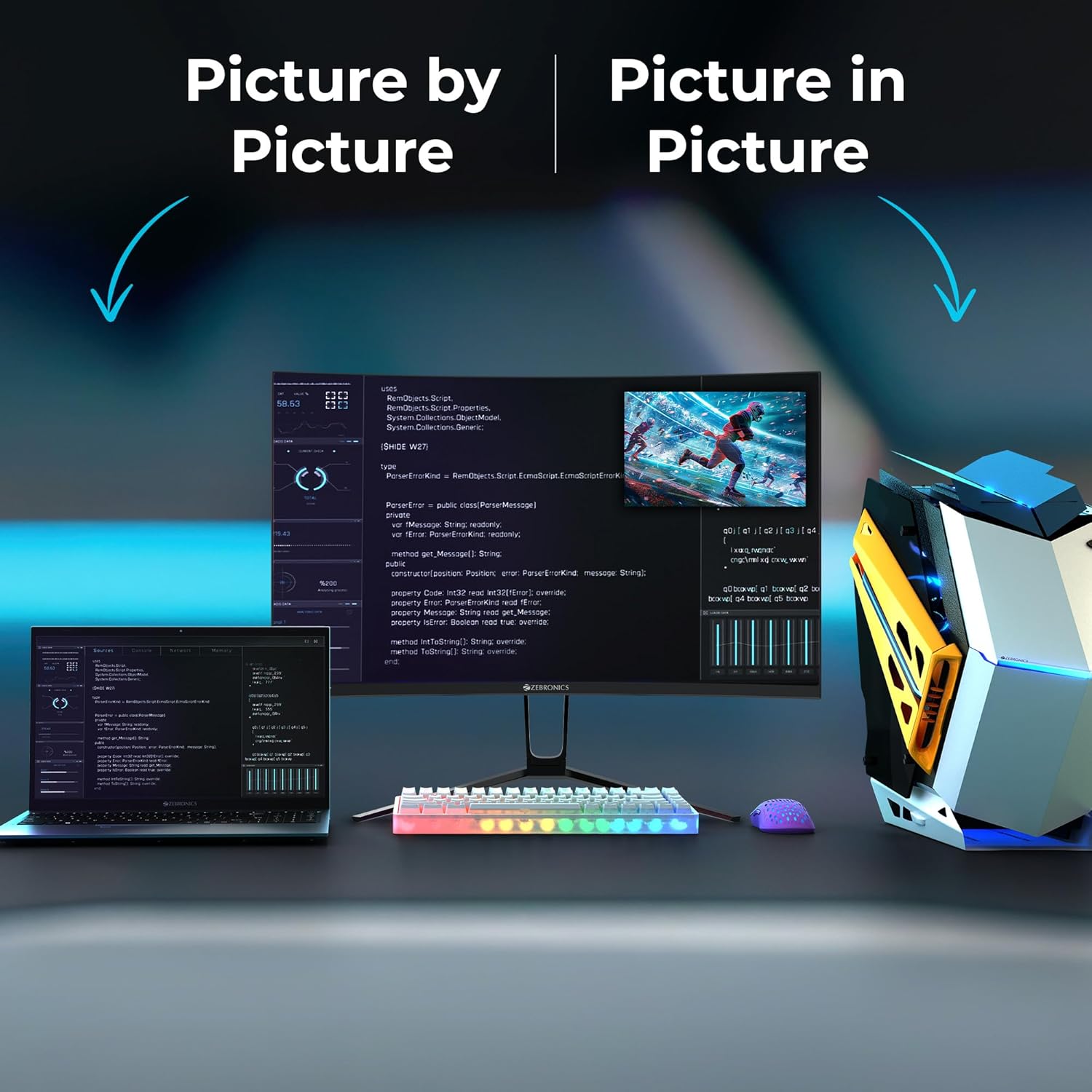
Image: An illustration of the Picture-by-Picture and Picture-in-Picture functionalities, showing how multiple devices can share the monitor's screen simultaneously.
HDR10 and Color Gamut
With HDR10 support, 99% sRGB, and 92% DCI-P3 coverage, the monitor delivers vibrant colors and enhanced contrast for a more lifelike visual experience.
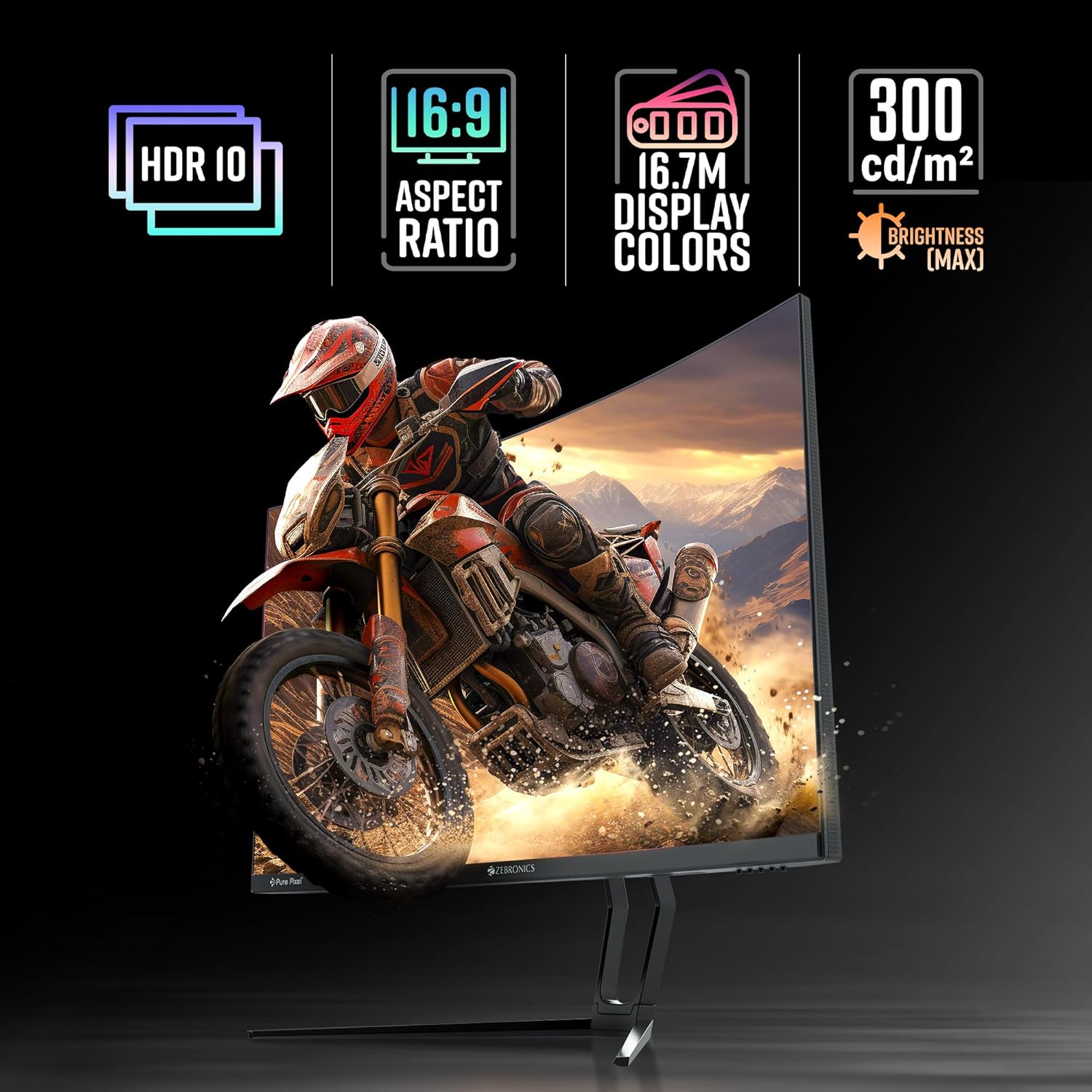
Image: The monitor showcasing its HDR10 capability, 16:9 aspect ratio, support for 16.7 million display colors, and a maximum brightness of 300 cd/m².
Adaptive Sync Technology
Adaptive Sync technology synchronizes the monitor's refresh rate with your GPU's frame rate, effectively eliminating screen tearing and stuttering for smoother gameplay.

Image: A visual comparison illustrating the benefit of Adaptive Sync, showing a tear-free image on one side and a torn image on the other, alongside the monitor's color gamut coverage.
Built-in Speakers and Ambient Lighting
The ZEB-N32A includes built-in speakers for convenient audio output and features ambient lighting on the rear for an enhanced aesthetic.

Image: The monitor's built-in speakers are depicted with sound waves, and the rear view illustrates the ambient lighting feature.
ZGameAid Technology
ZGameAid technology provides various gaming enhancements to optimize your gaming experience.

Image: A screen capture demonstrating ZGameAid technology, showing a gaming scenario with an on-screen crosshair overlay for improved aiming.
5. Maintenance
To ensure the longevity and optimal performance of your monitor, follow these maintenance guidelines:
- Cleaning the Screen: Gently wipe the screen with a soft, lint-free cloth. For stubborn marks, dampen the cloth slightly with water or a non-abrasive, monitor-safe cleaning solution. Do not spray liquid directly onto the screen.
- Cleaning the Casing: Use a soft, dry cloth to clean the monitor's casing. Avoid using strong detergents or abrasive cleaners.
- Ventilation: Ensure the ventilation openings on the monitor are not blocked to prevent overheating.
- Storage: When not in use for extended periods, store the monitor in a cool, dry place, away from direct sunlight and extreme temperatures.
6. Troubleshooting
If you encounter any issues with your monitor, refer to the table below for common problems and their solutions.
| Problem | Possible Cause | Solution |
|---|---|---|
| No display/Power LED off | No power, loose cable | Check power cable connection to monitor and outlet. Ensure power outlet is active. |
| No display/Power LED on | Incorrect input, loose video cable | Press the input select button to cycle through inputs (HDMI1, HDMI2, DP1, DP2). Check video cable connection to monitor and computer. |
| Image flickering or tearing | Adaptive Sync not enabled, incompatible refresh rate | Ensure Adaptive Sync is enabled in the monitor's OSD menu and your graphics card settings. Verify your graphics card drivers are up to date. |
| No audio from built-in speakers | Volume too low, incorrect audio output device | Increase monitor volume via OSD. Check computer's sound settings to ensure the monitor is selected as the audio output device. |
| Image too dark/bright/poor color | Display settings not optimized | Adjust brightness, contrast, and color settings in the monitor's OSD menu. Reset to factory defaults if necessary. |
7. Specifications
Detailed technical specifications for the ZEBRONICS N32A monitor:
| Feature | Specification |
|---|---|
| Brand | ZEBRONICS |
| Model Number | ZEB-IGM 104 |
| Screen Size | 32 Inches (80 cm) |
| Panel Type | Curved QHD VA |
| Curvature | 1500R |
| Resolution | 2560 x 1440 Pixels (QHD) |
| Refresh Rate | 180 Hz |
| Response Time | 1ms MPRT |
| Brightness (Max) | 300 Nits (cd/m²) |
| Aspect Ratio | 16:9 |
| Display Colors | 16.7 Million |
| Color Gamut | 99% sRGB | 92% DCI-P3 |
| HDR Support | HDR10 |
| Sync Technology | Adaptive Sync |
| Anti-glare Screen | Yes |
| Built-in Speakers | Yes |
| Connectivity | 2 x HDMI, 2 x DisplayPort, 1 x 3.5mm Headphone Jack |
| Product Dimensions (LxWxH) | 1.4 x 71.2 x 50.8 cm |
| Item Weight | 7 kg 90 g |
| Included Components | Monitor, Base, Stem, DP Cable, Power cord |
| Country of Origin | China |
8. Warranty and Support
For warranty information and technical support, please refer to the warranty card included with your product or visit the official ZEBRONICS website. Keep your purchase receipt as proof of purchase for any warranty claims.
For further assistance, you may contact ZEBRONICS customer service through their official channels.
