1. Introduction
Thank you for choosing the Apera MT53 Type-C USB Adapter Hub. This 12-in-1 multi-functional hub is designed to expand the connectivity of your USB-C enabled devices, providing a wide range of ports for various peripherals, displays, and network connections. This manual provides detailed instructions for setup, operation, and troubleshooting to ensure optimal performance and user experience.
2. Product Overview
The Apera MT53 Hub integrates multiple essential ports into a single, compact device, enhancing your productivity and connectivity. It features a durable aluminum alloy casing for efficient heat dissipation and a plug-and-play design requiring no additional drivers.
Key Features:
- Video Output: HDMI (up to 4K@30Hz, 1080p@60Hz) and VGA (up to 1080p@60Hz).
- USB Data Transfer: Four USB 3.0 ports (up to 5 Gbit/s) and one Type-C data transfer port (3.1 speed).
- Network Connectivity: RJ45 Ethernet port (up to 100Mbps).
- Card Reader: SD and Micro SD card slots (2.0 speed).
- Audio: 3.5mm AUX port for headphones.
- Power Delivery: 100W Type-C Power Delivery (PD) for fast charging.
- Construction: Full aluminum alloy casing for durability and heat management.
Port Identification:
Refer to the image below for a visual guide to the Apera MT53 Hub's ports.

This image displays the Apera MT53 USB-C Hub, highlighting each of its 12 ports with their respective functions, including PD 100W, USB 3.0, VGA 1080P, 4K/30Hz HDMI, RJ45, 3.5mm audio, USB-C, and TF/SD card slots.
3. Package Contents
The Apera MT53 Type-C USB Adapter Hub package includes:
- 1 x Apera MT53 12-in-1 Type-C USB Adapter Hub
- 1 x Type-C to Type-C Power Delivery Cable
4. Setup Instructions
The Apera MT53 Hub is designed for plug-and-play functionality, requiring no driver installation on compatible operating systems.
Compatibility:
Supports Windows, macOS, and Linux operating systems.
Connecting the Hub:
- Connect the integrated USB-C cable from the Apera MT53 Hub to a free USB-C port on your laptop or compatible device.
- The hub will be automatically recognized by your operating system.
Connecting Peripherals:
Once the hub is connected, you can attach your devices to the corresponding ports:
- External Displays: Connect HDMI or VGA cables from your monitors to the hub's HDMI or VGA ports.
- USB Devices: Plug USB flash drives, keyboards, mice, or other USB peripherals into the USB 3.0 ports.
- Network Cable: Connect an Ethernet cable to the RJ45 port for a wired internet connection.
- Memory Cards: Insert SD or Micro SD cards into the designated slots.
- Audio Devices: Plug headphones or speakers into the 3.5mm AUX port.
- Power Adapter: For charging your laptop or device, connect a USB-C power adapter to the hub's 100W PD Type-C port using the provided Type-C to Type-C cable.
Example setup with multiple monitors:

A laptop is shown connected to two external monitors through the Apera MT53 USB-C Hub, demonstrating its multi-display capability for an extended desktop setup.
Example setup with card reader in use:

The Apera MT53 USB-C Hub is positioned next to a laptop on a wooden desk, with an SD card and a MicroSD card placed in front of it, illustrating its card reader functionality.
5. Operating Instructions
Display Output (HDMI & VGA):
Connect your external monitors or projectors to the HDMI or VGA ports. Your operating system should automatically detect the displays. You can configure display settings (mirror, extend) through your device's display settings.
Using the hub for presentations:

A laptop is connected to a projector via the Apera MT53 USB-C Hub, displaying a 'BUSINESS PLAN' presentation on a large screen, showcasing its utility for meetings and presentations.
USB 3.0 Data Transfer:
The four USB 3.0 ports support data transfer speeds up to 5 Gbit/s, ideal for connecting external hard drives, USB flash drives, and other high-speed peripherals.
RJ45 Ethernet:
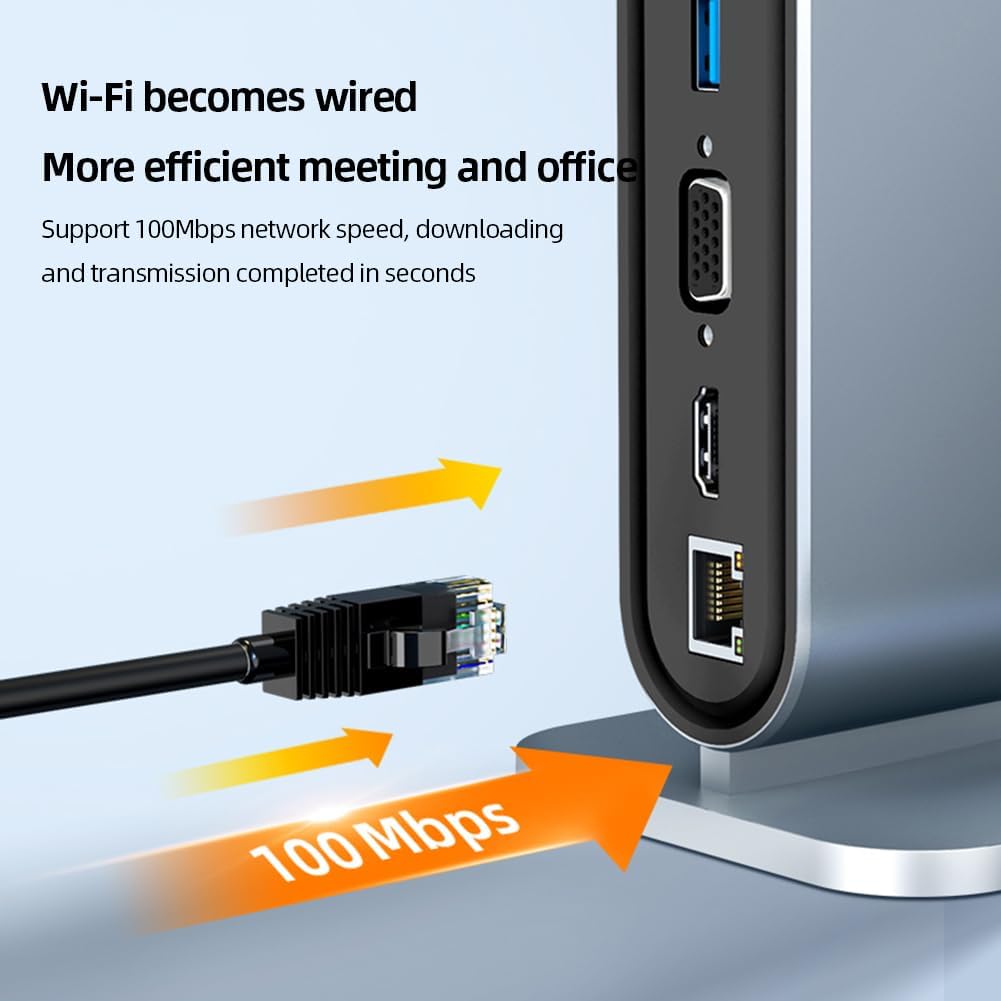
For a stable and faster internet connection, plug an Ethernet cable into the RJ45 port. The hub supports speeds up to 100Mbps.
Wired Ethernet connection:

A close-up of the Apera MT53 USB-C Hub's RJ45 Ethernet port, emphasizing its 100Mbps network speed capability for stable wired internet connection.
SD & Micro SD Card Reader:
Insert your SD or Micro SD cards into the respective slots to access data. The card reader operates at 2.0 speed.
Using the card reader:
This image shows the Apera MT53 USB-C Hub with both an SD card and a MicroSD card inserted, demonstrating the use of its integrated card reader.
3.5mm AUX Audio:
Connect your headphones or speakers to the 3.5mm audio jack for sound output.
100W Type-C Power Delivery (PD):
Use this port to charge your laptop or other USB-C devices at up to 100W, ensuring your device stays powered while using the hub's other functions.
Type-C Data Transfer:
This dedicated Type-C port allows for additional data transfer at 3.1 speeds, useful for connecting modern USB-C peripherals.
6. Maintenance
To ensure the longevity and optimal performance of your Apera MT53 Hub, follow these maintenance guidelines:
- Cleaning: Use a soft, dry cloth to clean the hub. Avoid liquid cleaners or abrasive materials.
- Storage: Store the hub in a cool, dry place away from direct sunlight and extreme temperatures.
- Handling: Handle the hub with care. Avoid dropping it or subjecting it to strong impacts.
- Heat Dissipation: The aluminum alloy casing is designed for efficient heat dissipation. Ensure the hub is placed in a well-ventilated area to prevent overheating during extended use.
Heat dissipation design:

The Apera MT53 USB-C Hub is depicted with arrows indicating heat dissipation from its aluminum alloy casing, highlighting its design for efficient thermal management.
7. Troubleshooting
If you encounter issues with your Apera MT53 Hub, please refer to the following common solutions:
- No Display Output (HDMI/VGA):
- Ensure your USB-C port on the host device supports video output (DisplayPort Alternate Mode).
- Check all cable connections. Disconnect and reconnect the HDMI/VGA cable and the hub's USB-C cable.
- Verify your monitor input source is correctly selected.
- Try connecting to a different display or using a different cable to rule out external issues.
- USB Devices Not Recognized:
- Disconnect and reconnect the USB device to the hub.
- Try connecting the USB device to a different USB port on the hub.
- Ensure the hub is securely connected to your host device.
- If switching between different operating systems (e.g., macOS to Windows) or after a system restart, it may be necessary to re-plug connected USB devices or the HDMI input for them to function correctly.
- No Internet Connection (RJ45):
- Check if the Ethernet cable is securely connected to both the hub and your router/modem.
- Verify network settings on your computer.
- Restart your router/modem and your computer.
- Slow Data Transfer:
- Ensure you are using USB 3.0 compatible devices and cables for optimal speeds.
- Avoid connecting too many power-hungry devices simultaneously, which might affect performance.
- Charging Issues (PD Port):
- Ensure your USB-C power adapter is capable of delivering sufficient wattage (e.g., 100W) for your device.
- Verify the Type-C to Type-C cable is functioning correctly and is rated for power delivery.
If the problem persists, please contact Apera customer support for further assistance.
8. Specifications
| Feature | Specification |
|---|---|
| Brand | Apera |
| Model | MT53 |
| Operating System Compatibility | Windows, macOS, Linux |
| Hardware Interface | Ethernet, HDMI, MicroSD, Thunderbolt (compatible), USB 3.0, USB-C, VGA |
| Compatible Devices | Laptops |
| Special Features | Indicator Light, Fast Data Transfer, Fast Charging, Heat Resistant, Plug and Play |
| Wattage | 100 watts (PD) |
| Data Transfer Rate | 5 Gbit/s (USB 3.0) |
| Total Port Count | 12 |
| USB Port Count | 6 (4x USB 3.0, 1x USB-C Data, 1x USB-C PD) |
| Material Type | Aluminum, Metal |
| Product Dimensions | 9.2 x 7.5 x 15 cm |
| Product Weight | 290 grams |
| HDMI Output | Up to 4K (3840x2160) @ 30Hz, 1080p @ 60Hz |
| VGA Output | Up to 1080p @ 60Hz |
| RJ45 Ethernet | 100Mbps |
| Card Reader | SD & Micro SD (2.0 speed) |
9. Warranty and Support
For warranty information and customer support, please refer to the documentation provided with your purchase or visit the official Apera website. If you experience any issues not covered in this manual, please contact Apera customer service for assistance.


