
Introduction
Thank you for choosing the Attoe Wireless Gaming Mouse. This manual provides detailed instructions for setting up, operating, maintaining, and troubleshooting your new mouse. Please read this manual thoroughly before use to ensure optimal performance and longevity of your device.
This gaming mouse features a transparent body with RGB lighting, tri-mode connectivity (2.4GHz wireless, Bluetooth, and wired USB-C), a magnetic charging base, and a digital display for battery level. Its ergonomic design ensures comfort during extended use.
Package Contents
- Wireless Gaming Mouse
- Charging base
- User manual (this document)
- TYPE-C cable
- USB receiver
Product Overview
Familiarize yourself with the components of your Attoe Wireless Gaming Mouse.

Image: The Attoe Wireless Gaming Mouse in black, showcasing its transparent design with RGB lighting, alongside its magnetic charging base and a small USB receiver.

Image: A detailed diagram illustrating the various buttons and features of the Attoe Wireless Gaming Mouse, including the left/right buttons, scroll wheel, DPI button, forward/back buttons, USB receiver slot, light switch, mode switch, charging port, and digital display.
Key Components:
- Left Button: Standard left-click function.
- Right Button: Standard right-click function.
- Scroll Button (Scroll Wheel): For vertical scrolling and middle-click.
- DPI Button: Adjusts mouse sensitivity (DPI levels).
- Forward Button: Navigates forward in web browsers or applications.
- Back Button: Navigates backward in web browsers or applications.
- USB Receiver: For 2.4GHz wireless connection.
- Light Switch (Shell bottom): Controls RGB lighting effects.
- Receive Bin: Storage compartment for the USB receiver.
- Modes Switch: Toggles between 2.4GHz, Bluetooth, and Wired modes.
- Charging Port (Type-C): For wired connection and charging.
- Digital Display: Shows current battery level.
Setup
Charging the Mouse:
Before first use, it is recommended to fully charge the mouse. The mouse comes with a 500mAh rechargeable battery.
- Connect the provided TYPE-C cable to the charging port (11) on the front of the mouse.
- Connect the other end of the TYPE-C cable to a USB power source (e.g., computer USB port, USB wall adapter).
- Alternatively, place the mouse onto the magnetic charging base. Ensure the charging contacts align. The charging base will illuminate to indicate charging.
- The digital display on the mouse will show the current battery level, allowing you to monitor charging progress. A 10-minute charge can provide up to 5 hours of use.

Image: The Attoe Wireless Gaming Mouse being charged via its Type-C cable, illustrating the connection point and the charging base.
Connecting the Mouse:
The Attoe Wireless Gaming Mouse supports three connection modes: 2.4GHz Wireless, Bluetooth, and Wired USB-C.
2.4GHz Wireless Mode:
- Locate the USB receiver (7) stored in the receive bin (9) at the bottom of the mouse.
- Plug the USB receiver into an available USB port on your computer.
- Slide the Modes Switch (10) at the bottom of the mouse to the 2.4GHz wireless mode icon.
- The mouse should automatically connect to your computer. No drivers are typically required.
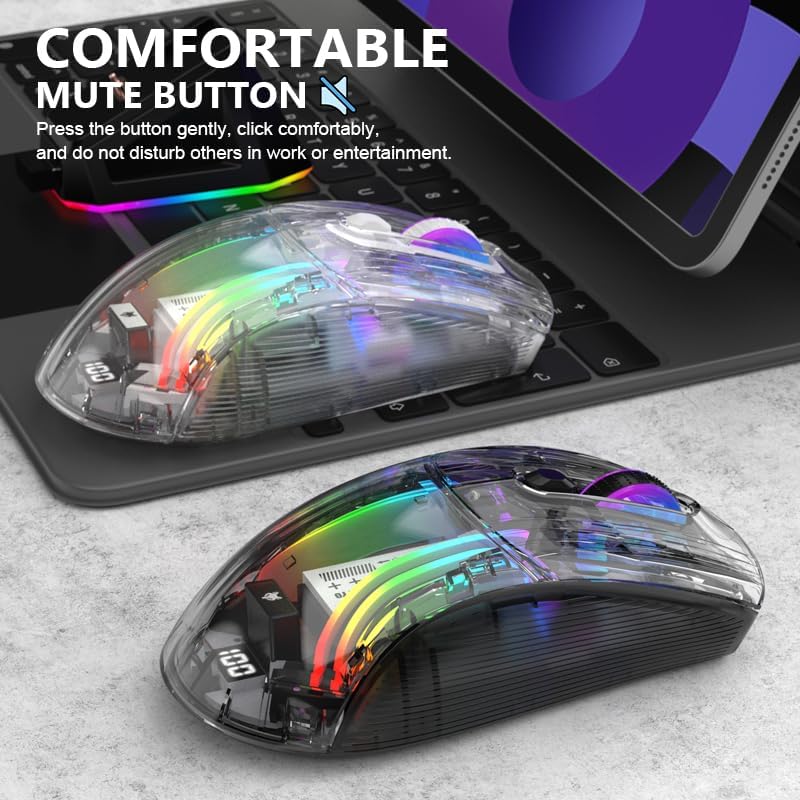
Image: The Attoe Wireless Gaming Mouse with its USB receiver plugged into a laptop, demonstrating the 2.4GHz wireless connection setup.
Bluetooth Mode:
- Slide the Modes Switch (10) at the bottom of the mouse to the Bluetooth mode icon.
- The mouse will enter pairing mode, and its RGB lights may flash to indicate this.
- On your computer or device, open Bluetooth settings.
- Search for new devices and select "Attoe Gaming Mouse" (or similar name) from the list.
- Follow any on-screen prompts to complete the pairing process.
Wired USB-C Mode:
- Connect the provided TYPE-C cable to the charging port (11) on the front of the mouse.
- Connect the other end of the TYPE-C cable to a USB port on your computer.
- Slide the Modes Switch (10) at the bottom of the mouse to the Wired mode icon.
- The mouse will function as a wired mouse and charge simultaneously.
Operating Instructions
DPI Adjustment:
The mouse features 5 adjustable DPI levels (1200-1600-2000-2400-4000) to suit various tasks from precise aiming to rapid movements.
- Press the DPI Button (4) located on the top of the mouse, behind the scroll wheel, to cycle through the DPI settings.
- Each press will switch to the next DPI level. The change in sensitivity will be noticeable immediately.
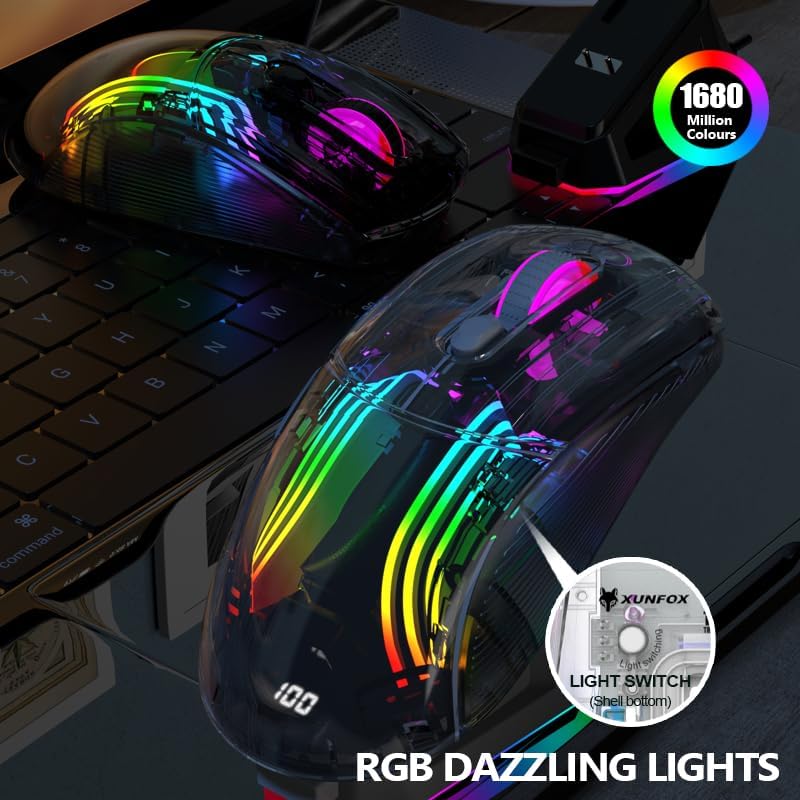
Image: Two Attoe Wireless Gaming Mice on a desk, illustrating the concept of 5-speed DPI adjustment for different user needs.
RGB Lighting Control:
The mouse features vibrant RGB backlighting with various effects.
- Locate the Light Switch (8) on the bottom of the mouse.
- Press this button to cycle through different RGB lighting modes and effects.
- Press and hold the button to turn the lighting off.
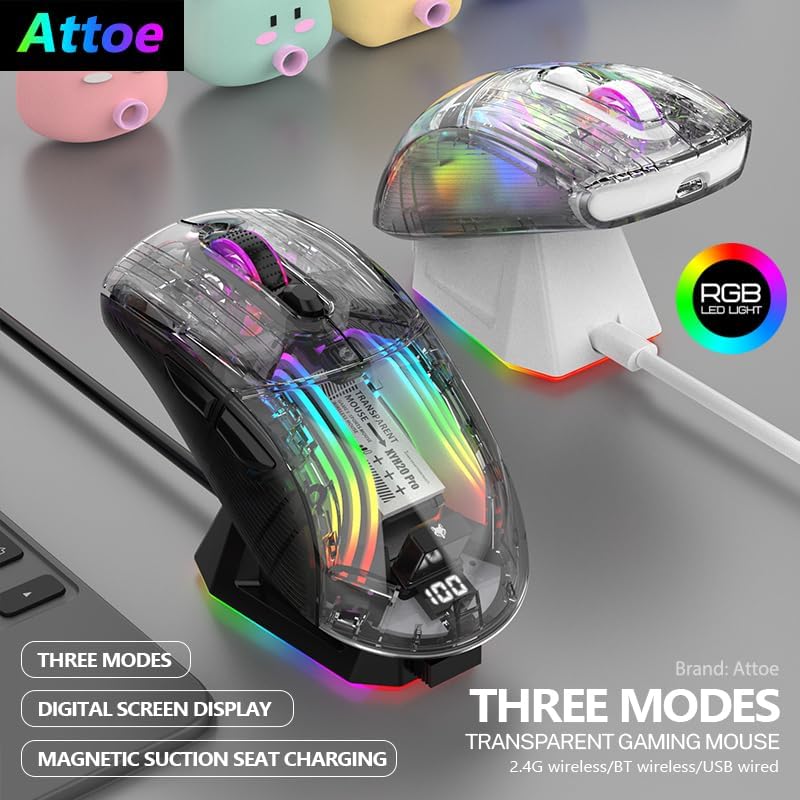
Image: The Attoe Wireless Gaming Mouse displaying its RGB lighting and digital battery display, highlighting its transparent design.

Image: The Attoe Wireless Gaming Mouse showcasing its dazzling RGB lights, with an inset diagram pointing to the light switch on the bottom of the mouse.
Silent Buttons:
The mouse is designed with silent click buttons to minimize noise during use, ideal for quiet environments.
Image: The Attoe Wireless Gaming Mouse on a keyboard, emphasizing its comfortable and mute button design for quiet operation.

Image: A user sleeping peacefully while the Attoe Wireless Gaming Mouse is in use, illustrating its quiet click feature.
Ergonomic Design:
The mouse is ergonomically designed to provide a comfortable grip and reduce fatigue during long gaming sessions or work hours.
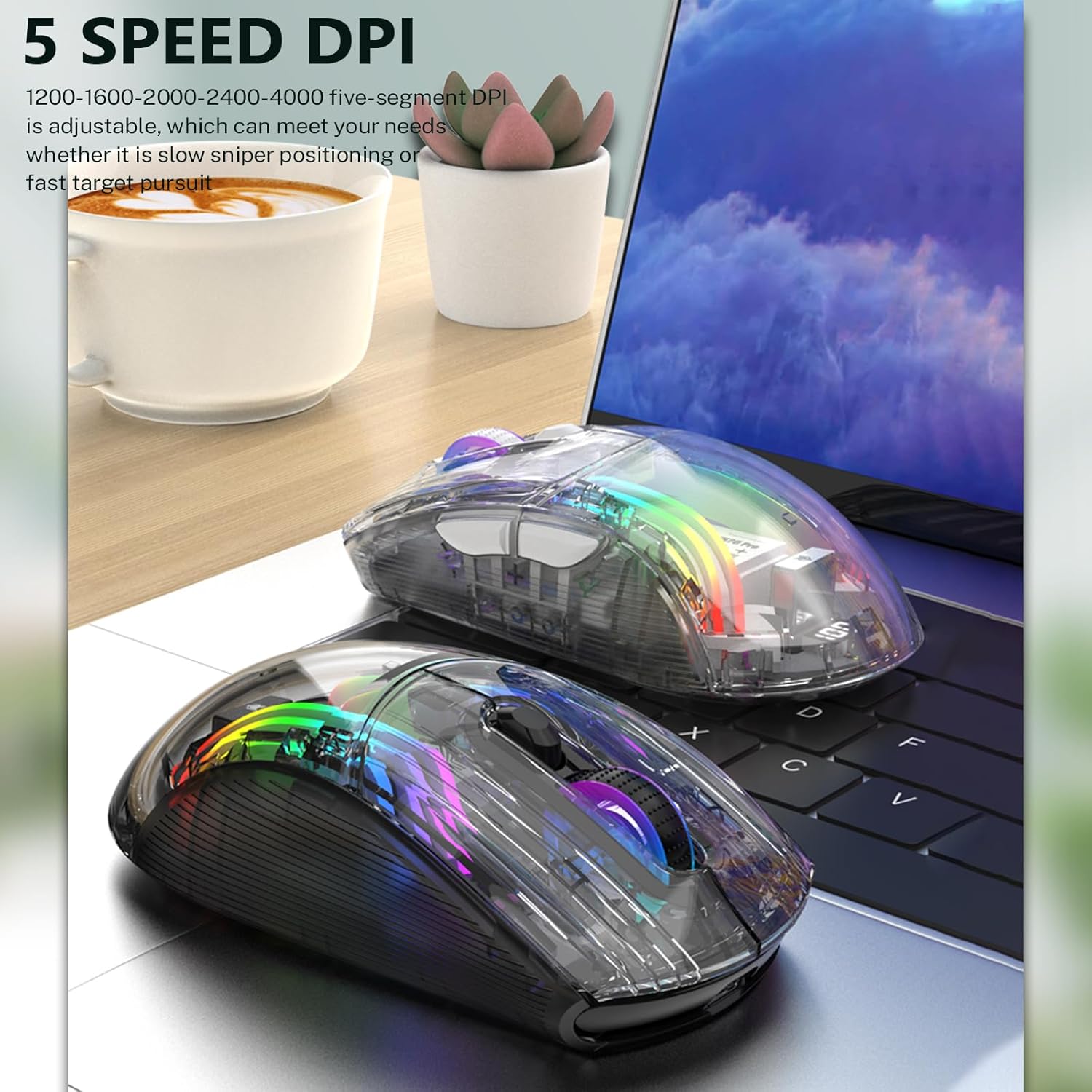
Image: A hand gripping the Attoe Wireless Gaming Mouse, demonstrating its ergonomic shape designed for comfort.
Maintenance
Cleaning:
- To clean the mouse, use a soft, dry cloth.
- For stubborn dirt, slightly dampen the cloth with water or a mild, non-abrasive cleaner.
- Avoid using harsh chemicals, solvents, or abrasive materials, as these can damage the mouse's surface and internal components.
- Ensure no liquid enters the mouse's interior, especially around the charging port and buttons.
Storage:
- When not in use for extended periods, store the mouse in a cool, dry place away from direct sunlight and extreme temperatures.
- If storing for a long time, ensure the battery is partially charged (around 50%) to preserve battery health.
Troubleshooting
| Problem | Possible Cause | Solution |
|---|---|---|
| Mouse not responding (Wireless) | Low battery; USB receiver not connected; Incorrect mode selected; Interference. | Charge the mouse. Ensure USB receiver is securely plugged in. Check if the mode switch is set to 2.4GHz or Bluetooth. Move closer to the receiver or reduce interference sources. |
| Mouse not responding (Bluetooth) | Not paired; Bluetooth off on device; Low battery. | Ensure mouse is in Bluetooth pairing mode and re-pair. Turn on Bluetooth on your device. Charge the mouse. |
| Mouse not responding (Wired) | Cable not connected properly; Incorrect mode selected. | Ensure Type-C cable is securely connected to both mouse and computer. Check if the mode switch is set to Wired mode. Try a different USB port or cable. |
| RGB lights not working | Lights turned off; Low battery; Malfunction. | Press the Light Switch (8) to cycle through modes or turn on. Charge the mouse. If problem persists, contact support. |
| DPI not changing | DPI button malfunction. | Ensure you are pressing the correct button (4). If still unresponsive, contact support. |
| Charging issues | Cable/base not connected; Faulty cable/base/port. | Ensure cable is fully inserted or mouse is correctly placed on the charging base. Try a different USB port, cable, or power source. |
Specifications
| Feature | Detail |
|---|---|
| Model | B0DCNQMYTR |
| Connectivity | Tri-Mode: 2.4GHz Wireless, Bluetooth 5.0, USB-C Wired |
| DPI Levels | 1200 / 1600 / 2000 / 2400 / 4000 (Adjustable) |
| Buttons | 7 Buttons (Left, Right, Scroll, DPI, Forward, Back, Light Switch) |
| Battery Capacity | 500mAh Rechargeable |
| Charging | USB-C Cable, Magnetic Charging Base |
| Operating Distance | Up to 33 feet (15 meters) for wireless modes |
| Lighting | RGB Backlight with various effects |
| Special Features | Transparent Body, Digital Battery Display, Silent Clicks, Ergonomic Design |
| Product Dimensions | 5 x 2.5 x 0.04 inches |
| Item Weight | 9.2 ounces |
| Manufacturer | Attoe |
Warranty and Support
Attoe products are designed and manufactured to the highest quality standards. For information regarding warranty coverage and customer support, please refer to the warranty card included in your product packaging or visit the official Attoe website.
For technical assistance or inquiries, please contact Attoe customer service through the contact information provided on the product packaging or the official brand store:
Official Product Videos
Watch these official videos for a visual guide to your Attoe Wireless Gaming Mouse.
Video: An introduction to the Attoe Wireless Gaming Mouse, showcasing its RGB lighting effects and transparent design. This video provides a visual overview of the mouse's aesthetic features and charging capabilities.