
1. Introduction
The LEOBOG HI75C Pro is a 75% TKL mechanical wireless keyboard designed for versatility and performance. It features an aluminum alloy case, tri-mode connectivity (Bluetooth 5.0, 2.4GHz wireless, and USB-C wired), RGB backlighting, a multi-functional knob, and hot-swappable switches. This manual provides detailed instructions for setting up, operating, and maintaining your keyboard.

Figure 1: LEOBOG HI75C Pro Mechanical Wireless Keyboard Overview
2. Package Contents
Verify that all items are present in your package:
- LEOBOG HI75C Pro Mechanical Wireless Keyboard
- Keycap Puller
- USB Cable (Type-C)
- Replace Switch (Spare Switches)
3. Product Features
The LEOBOG HI75C Pro keyboard incorporates several advanced features for an enhanced user experience:
- Aluminium Alloy Cover: Provides superior heat dissipation, robustness, and durability. Features an exquisite powder coating process for a luxurious feel and fingerprint resistance.
- Gasket Design: Significantly reduces cavity noise and improves typing sound for a satisfying low-noise experience.
- 3-Mode Connection: Supports Bluetooth 5.0, 2.4GHz wireless, and USB wired connections, allowing connection to up to five devices simultaneously.
- 75% Layout: An 81-key layout that balances concise design with full functionality, saving desk space.
- RGB Backlit: Features 16.8 million RGB lighting colors with 17 lighting effects and 10 music rhythm modes.
- Dual-Mode Knob: A multi-functional knob for precise control over volume (office mode) and lighting brightness (game mode).
- High Speed Response: Equipped with an advanced gaming keyboard chip for a response speed of up to 2.8ms.
- Hot-Swappable Switches: Allows for easy replacement of switches without soldering.
- 4000mAh Battery: Provides extended usage time, approximately one month without backlighting.

Figure 2: Key features of the LEOBOG HI75C Pro keyboard.

Figure 3: Diagram illustrating the multi-layered gasket structure for sound dampening.

Figure 4: Ergonomic keycap height design for comfortable typing.
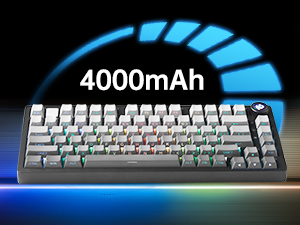
Figure 5: The keyboard is equipped with a 4000mAh battery.
4. Setup and Connectivity
The LEOBOG HI75C Pro offers three connection modes: wired, 2.4GHz wireless, and Bluetooth. Use the switch on the side of the keyboard to select your desired mode.
4.1 Wired Connection
- Ensure the mode switch on the side of the keyboard is set to the wired (USB-C) position.
- Connect the provided USB-C cable to the keyboard and to an available USB port on your computer.
- The keyboard will be automatically recognized and ready for use.
4.2 2.4GHz Wireless Connection
- Ensure the mode switch on the side of the keyboard is set to the 2.4GHz wireless position.
- Plug the 2.4GHz USB receiver into an available USB port on your computer.
- The keyboard should connect automatically. If not, press FN + ~ to initiate pairing.
4.3 Bluetooth 5.0 Connection
- Ensure the mode switch on the side of the keyboard is set to the Bluetooth position.
- On your device (PC, Mac, Android, iOS), enable Bluetooth and search for new devices.
- Press and hold FN + 1, FN + 2, or FN + 3 for 3-5 seconds to enter pairing mode for BT1, BT2, or BT3 respectively. The indicator light will flash.
- Select "LEOBOG HI75C Pro" from the list of available Bluetooth devices on your device.
- Once connected, the indicator light will stop flashing. You can switch between paired Bluetooth devices using FN + 1/2/3.

Figure 6: The keyboard supports Type-C wired, 2.4GHz wireless, and Bluetooth connections.
Video 1: Official LEOBOG overview of the HI75C Pro Mechanical Gaming Keyboard, showcasing its design and features.
5. Operation
5.1 RGB Backlighting
The keyboard features extensive RGB backlighting with 17 preset lighting effects. Additionally, it offers 10 music rhythm RGB lighting modes that synchronize with audio output. You can adjust lighting effects and brightness using the multi-functional knob or dedicated key combinations. To turn off the lights, use the knob in game mode.
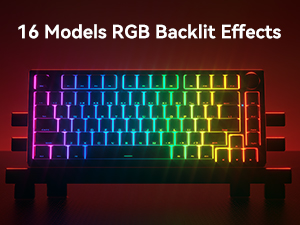
Figure 7: The keyboard offers 16 models of RGB backlit effects.
5.2 Dual-Mode Knob Control
The multi-functional knob allows for quick adjustments based on the selected mode:
- Switching Modes: Press and hold the knob to toggle between Office Mode and Game Mode.
- Office Mode: When the indicator light is continuously on, the keyboard is in office mode. Rotate the knob to adjust the system volume.
- Game Mode: When the indicator light is breathing, the keyboard is in game mode. Rotate the knob to adjust the lighting brightness.

Figure 8: The multi-functional knob for volume and lighting control.
5.3 Hot-Swappable Switches
The LEOBOG HI75C Pro supports hot-swappable 3-pin/5-pin mechanical switches, allowing you to easily change switches without soldering. This feature enables customization of typing feel and sound.

Figure 9: The keyboard features hot-swappable switches for customization.
6. Maintenance
6.1 Cleaning
To maintain optimal performance and appearance, regularly clean your keyboard:
- Disconnect the keyboard from all power sources before cleaning.
- Use a soft, lint-free cloth slightly dampened with water or a mild cleaning solution to wipe the keycaps and case.
- For deeper cleaning, use the provided keycap puller to remove keycaps and clean underneath with compressed air or a small brush.
- Ensure the keyboard is completely dry before reconnecting.
6.2 Keycap and Switch Replacement
The hot-swappable design allows for easy replacement of keycaps and switches:
- Use the provided keycap puller to gently remove keycaps.
- Use a switch puller (not included, but often comes with replacement switches) to carefully remove switches. Grip the switch firmly and pull straight up.
- Align the pins of the new switch with the holes on the PCB and press down gently until it clicks into place. Ensure pins are not bent.
- Place the desired keycap onto the new switch stem.
7. Troubleshooting
7.1 Connectivity Issues
- No Connection: Ensure the mode switch on the side of the keyboard is set correctly for wired, 2.4GHz, or Bluetooth.
- 2.4GHz Disconnection: Re-plug the USB receiver. Try pairing again by pressing FN + ~.
- Bluetooth Disconnection: Ensure Bluetooth is enabled on your device. Re-enter pairing mode on the keyboard (FN + 1/2/3) and re-select the keyboard on your device.
- Interference: Move the keyboard closer to the receiver/device or away from other wireless devices that might cause interference.
7.2 Software and Firmware
For advanced customization, macro programming, and firmware updates, please visit the official LEOBOG website or authorized distributors' websites. Ensure you download the correct software/firmware version specifically for the LEOBOG HI75C Pro model to avoid compatibility issues.
7.3 RGB Lighting Not Working
- Check if the keyboard is in Game Mode, where the knob controls brightness. Rotate the knob to increase brightness.
- Ensure the battery is sufficiently charged if using wireless mode.
- If using software, verify that lighting effects are enabled and configured correctly.
8. Specifications
| Feature | Detail |
|---|---|
| Model Number | HI75C PRO |
| Product Dimensions | 12.97 x 5.35 x 1.74 inches |
| Item Weight | 3.41 pounds |
| Connectivity Technology | Bluetooth, USB-C, 2.4GHz Wireless |
| Keyboard Description | Mechanical |
| Compatible Devices | Gaming Console, Laptop, PC, Smartphone, Tablet |
| Special Features | Customizable Display Keys, Ergonomic, Hot-Swappable, Hotkeys and Media Keys, Programmable Keys |
| Keyboard Backlighting | RGB |
| Battery | 1 A battery required (included), 4000mAh |
9. Warranty and Support
LEOBOG provides a 2-year warranty for the HI75C Pro Mechanical Wireless Keyboard, covering manufacturing defects from the date of purchase. For warranty claims, technical assistance, or product inquiries, please contact LEOBOG customer support through their official website or the retailer where the product was purchased.

Figure 10: LEOBOG customer service is available for support.


