
1. Introduction
This manual provides comprehensive instructions for the Cable Matters 48Gbps Unidirectional USB C to HDMI 2.1 Adapter. This adapter is designed to connect USB-C or Thunderbolt-enabled devices to HDMI displays, supporting high-resolution video and advanced features. Please read this manual thoroughly before use to ensure proper setup and operation.
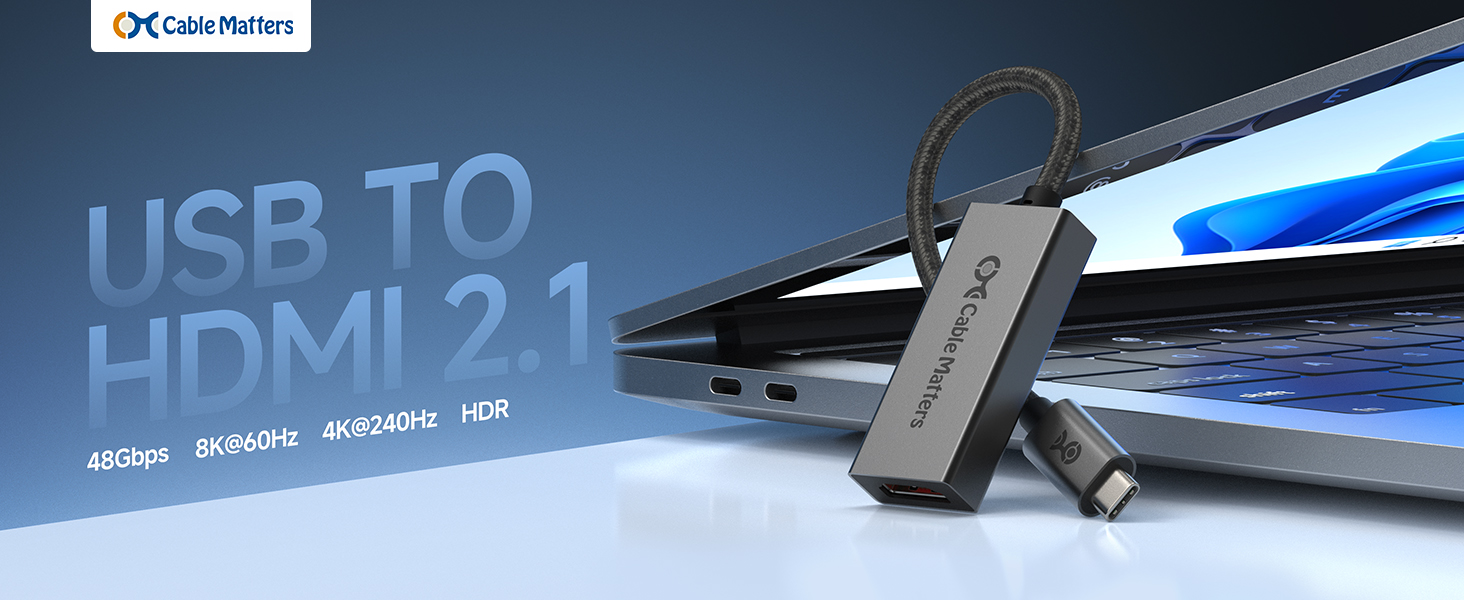
Image: Cable Matters USB C to HDMI 2.1 Adapter highlighting its key features.
2. Product Overview
The Cable Matters USB C to HDMI 2.1 Adapter facilitates high-quality video output from compatible USB-C or Thunderbolt source devices to HDMI displays. It is engineered for optimal performance, especially with macOS systems.
Key Features:
- High Resolution Support: Supports up to 8K@60Hz and 4K@240Hz.
- HDR Compatibility: Provides vivid colors and contrast with High Dynamic Range (HDR).
- 48Gbps Bandwidth: Ensures high-speed data transfer for uncompressed video.
- macOS Optimized: Custom firmware for enhanced performance with Mac devices.
- Thunderbolt Compatible: Works with Thunderbolt 3, 4, and 5 ports.
- Premium Construction: Features a braided cable, metal connectors, and aluminum enclosure for durability and improved performance.

Image: The Cable Matters USB C to HDMI 2.1 Adapter.

Image: Detailed view of the adapter's premium construction.
3. Setup Instructions
Follow these steps to connect your USB C to HDMI 2.1 Adapter:
- Identify Ports: Ensure your source device (laptop, smartphone, tablet) has a USB-C port that supports DisplayPort Alternate Mode (DP Alt Mode) or is a Thunderbolt 3, 4, or 5 port. Your display (monitor, TV, projector) must have an HDMI input.
- Connect Adapter to Source: Plug the USB-C connector of the adapter into the compatible USB-C or Thunderbolt port on your source device.
- Connect HDMI Cable: Connect one end of an HDMI 2.1 cable (recommended for optimal performance) into the HDMI port on the adapter.
- Connect HDMI Cable to Display: Connect the other end of the HDMI cable into an available HDMI input on your display.
- Power On Devices: Ensure both your source device and display are powered on.
- Select Input: On your display, select the correct HDMI input source using the display's remote control or on-screen menu.
The display should automatically detect the signal and show your device's output. If not, proceed to the Operating Instructions section.
4. Operating Instructions
Once connected, the adapter typically operates in a plug-and-play manner. However, you may need to adjust display settings on your source device.
macOS Display Settings:
- Go to System Settings (or System Preferences) > Displays.
- Your external display should appear. You can arrange displays, set resolution, refresh rate, and choose between Mirror Displays or Extend Display.
- For optimal performance, select the highest available resolution and refresh rate supported by both your Mac and the external display.

Image: MacBook connected to an external display via the adapter, showing high refresh rate capabilities.
Windows Display Settings:
- Right-click on the desktop and select Display settings.
- Under "Multiple displays," you can detect, identify, and arrange your displays.
- Adjust resolution and refresh rate under "Advanced display settings."
HDR Activation:
If your display supports HDR, ensure it is enabled in your device's display settings for the connected monitor. Some displays may require HDR to be enabled in their own OSD (On-Screen Display) menu.

Image: User working with high-resolution content on an external display, demonstrating HDR capabilities.
5. Compatibility
This adapter is designed for broad compatibility with devices supporting DisplayPort Alternate Mode (DP Alt Mode) over USB-C or Thunderbolt ports.
Source Device Compatibility:
- Mac: MacBook, MacBook Pro, MacBook Air with M1, M1 Pro/Max, M2, M2 Pro/Max, M3, M3 Pro/Max, M4, M4 Pro/Max chips.
- Thunderbolt: Compatible with Thunderbolt 3, Thunderbolt 4, and Thunderbolt 5 ports.
- USB-C with DP Alt Mode: Laptops (e.g., Lenovo, DELL XPS, Intel Evo laptops), smartphones (e.g., iPhone 15/16 Series), and tablets (e.g., iPad Pro/Air/Mini).
- Graphics Cards: Newer Nvidia RTX 3000 series and AMD Radeon RX6000 series graphics cards.
- USB4: Devices with USB4 (USB 4) ports.
Note: This adapter is unidirectional (USB-C to HDMI only). It does not support USB-C ports that are for data transfer or charging only, or Lightning ports.

Image: Wide compatibility of the adapter with various USB-C source and HDMI target devices.

Image: Visual guide for compatible and incompatible USB-C port types.
6. Troubleshooting
If you encounter issues, refer to the following troubleshooting tips:
- No Signal/Blank Screen:
- Ensure both the source device and display are powered on.
- Verify the HDMI input on your display is correctly selected.
- Check all cable connections. Disconnect and reconnect the adapter and HDMI cable.
- Test with a different HDMI cable, preferably an HDMI 2.1 certified cable.
- Confirm your source device's USB-C port supports DisplayPort Alternate Mode or is a Thunderbolt port.
- Try restarting your source device.
- Incorrect Resolution or Refresh Rate:
- Adjust display settings on your source device (refer to Section 4: Operating Instructions).
- Ensure your display and HDMI cable support the desired resolution and refresh rate (e.g., 8K@60Hz or 4K@240Hz requires HDMI 2.1).
- Update graphics drivers on your source device if applicable.
- Flickering or Intermittent Signal:
- Ensure all connections are secure.
- Reduce the resolution or refresh rate in your display settings to see if stability improves.
- Check for potential interference from other electronic devices.
- Test with a different HDMI cable.
- No Audio:
- Check audio output settings on your source device to ensure the HDMI display is selected as the audio output.
- Verify the display's volume is not muted or set too low.
7. Specifications
| Model Number | 201488 |
| Connector Type | USB Type C (Male) to HDMI (Female) |
| Max Resolution Support | 8K@60Hz, 4K@240Hz (RGB 4:4:4) |
| Bandwidth | 48Gbps |
| HDR Support | Yes (Dynamic HDR, 12-bit Color) |
| Audio Support | Surround Sound Audio |
| Special Features | macOS Optimized Firmware, Auto Low Latency Mode (ALLM) |
| Cable Length | Approximately 4.17 inches (adapter body excluded) |
| Dimensions (Adapter Body) | 4.17 x 2.8 x 0.55 inches (Package Dimensions) |
| Item Weight | 1.06 ounces |
| Color | Gray |

Image: Illustration of 48Gbps bandwidth capability.
8. Maintenance
The Cable Matters USB C to HDMI 2.1 Adapter requires minimal maintenance.
- Cleaning: Use a soft, dry cloth to wipe the adapter. Avoid using liquid cleaners or solvents.
- Storage: Store the adapter in a cool, dry place away from direct sunlight and extreme temperatures when not in use.
- Handling: Avoid bending the cable sharply or applying excessive force to the connectors.
9. Warranty and Support
Cable Matters products are designed for reliability and performance. For warranty information and technical support, please visit the official Cable Matters website or contact their customer service directly.
Manufacturer: Cable Matters
Website: www.cablematters.com